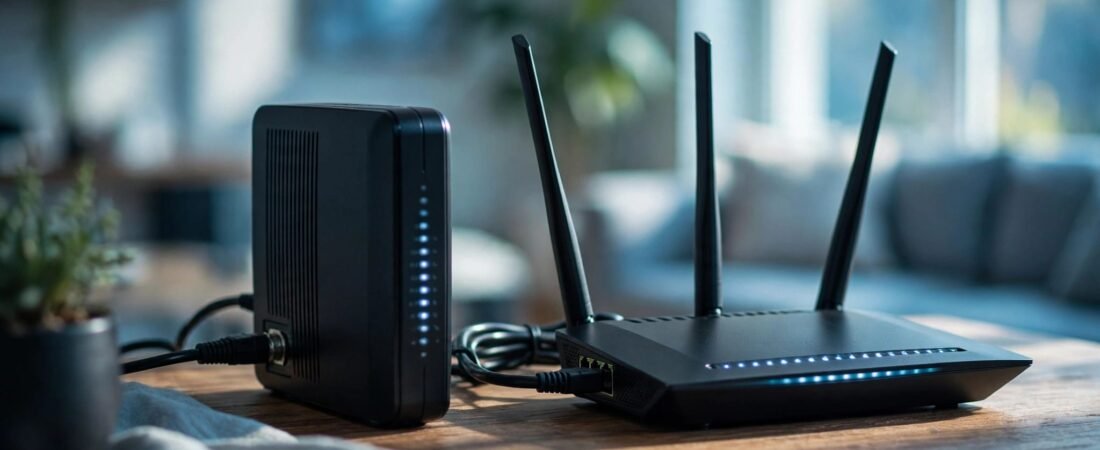
Connect a standalone NETGEAR router to an activated, compatible modem for Cox internet. A NETGEAR combo needs its built-in equipment activated before service works.
Check which type of equipment you own before connecting cables. This helps you avoid replacing gear you don’t need.
This post may contain affiliate links. If you make a purchase through these links, I may earn a small commission at no extra cost to you.
Key Takeaways
- Approval applies to the cable modem, including the modem inside a combo unit.
- Manufacturer and provider eligibility information lists the CAX30 for plans up to 1 Gbps.
- NETGEAR Wi-Fi setup and service activation are separate steps.
- Choose a router or combo based on the equipment you already own. Buying saves money only if it removes an equipment charge.
Choose the Right NETGEAR Equipment
Standalone Router or Modem-Router Combo?
A standalone NETGEAR router creates your Wi-Fi network but doesn’t connect directly to Cox’s coaxial cable. It needs a separate cable modem.
A combo combines those functions. The modem inside it must meet Cox’s cable modem eligibility rules; a standalone router doesn’t need to meet those rules.
Separate devices let you upgrade Wi-Fi coverage without replacing working cable equipment. Cox fiber service uses different equipment, so cable equipment can’t replace a fiber ONT.
NETGEAR Models and Their Limits
These models suit different equipment needs. Cox, Xfinity, and Spectrum each set their own eligibility rules, so approval with one provider doesn’t confirm approval with another.
| NETGEAR Model | DOCSIS 3.1 Equipment Type | Relevant Specification |
|---|---|---|
| CAX30 | Combo | Cox support up to 1 Gigabit |
| CAX30S | Combo | Cox-compatible; 90-day Armor trial |
| CM3000 | Standalone modem | Mid/high-split capability; separate Wi-Fi equipment needed |
| CAX80 | Combo | Two Gigabit Ethernet ports; aggregation up to 2 Gbps |
The CM3000 needs a separate Wi-Fi device. Aggregation specifications don’t establish a Cox service speed. Cox’s certified cable modem list defines eligibility, while our Cox routers by speed tier guide explains equipment and port choices.
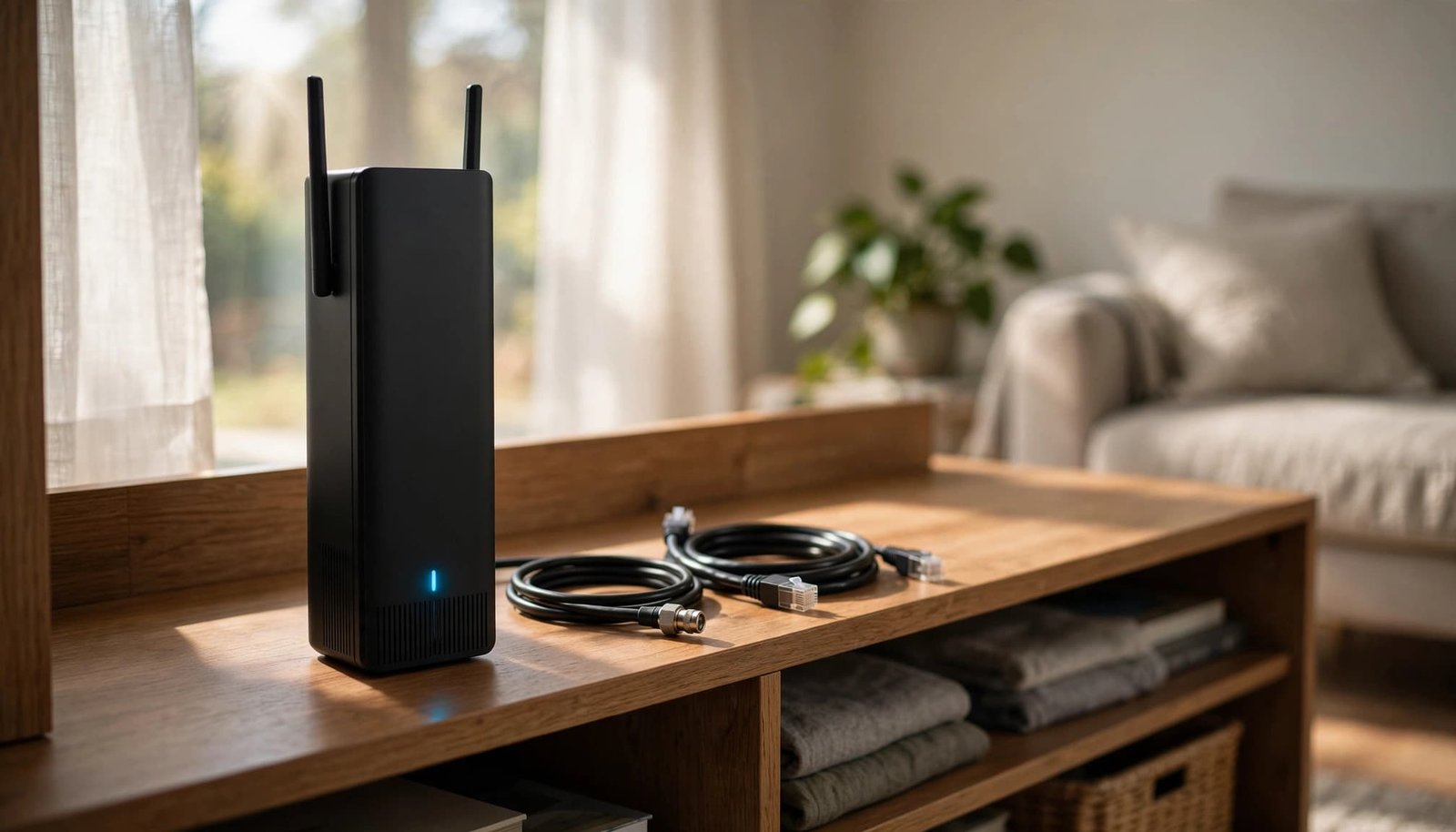
Understand the CAX30’s Features Before Buying
Wi-Fi Coverage and Provider Compatibility
The Nighthawk CAX30 uses DOCSIS 3.1 and dual-band AX2700 WiFi 6. NETGEAR advertises WiFi 6 coverage up to 2,000 square feet and support for 25 or more connected devices. Walls, placement, and interference affect actual coverage.
Listed service limits are Cox up to 1,000 Mbps, Xfinity up to 800 Mbps, and Spectrum up to 1,000 Mbps. Check current Cox, Xfinity, and Spectrum compatibility for each ISP; the CAX80 has a separate compatibility list.
The CAX30 isn’t compatible with Verizon, AT&T, CenturyLink, DirecTV, DISH, or bundled voice plans. Those exclusions apply to this cable modem-router combo, not every standalone NETGEAR router.
Ethernet Ports, Security, and Warranty
The CAX30 has four Gigabit Ethernet ports, each with 1000 Mbps LAN bandwidth. Link Aggregation supports up to 2 Gbps to a compatible device over two connections, but it doesn’t make one port a 2 Gbps port.
A 2 Gig plan requires compatible multi-gig Ethernet equipment throughout the connection.
The CAX30 includes WPA3 encryption, firewall protection, denial-of-service attack prevention, and a 1 Year Limited warranty. Its NETGEAR Armor trial lasts 30 days, compared with 90 days for the CAX30S. Optional paid security services aren’t required for basic operation.
What DOCSIS 3.1 Means for Cox Internet
DOCSIS stands for Data Over Cable Service Interface Specification. CableLabs introduced the first version in 1997, as its DOCSIS history explains.
DOCSIS 3.0 introduced channel bonding, which combines cable channels for greater capacity. DOCSIS 3.1 supports a theoretical downstream maximum of 10 Gbps, but that isn’t the speed every modem or Cox plan delivers.
For a new NETGEAR cable modem purchase, DOCSIS 3.1 is a practical starting point. It works with DOCSIS 3.0 infrastructure and plans below gigabit speeds, and DOCSIS 4.0 network support isn’t required. You don’t need a gigabit subscription to use it.
DOCSIS 4.0 requires support from both the provider’s network and your modem. CableLabs describes those capabilities in its DOCSIS 4.0 overview. Buying equipment alone can’t add a service your connection doesn’t support.
Compare Rental Costs With Ownership
A router doesn’t require a monthly subscription for ordinary Wi-Fi use, but you still pay your ISP for internet service. NETGEAR Armor and other optional services may carry separate subscription charges.
Cox’s published general terms list $4.99 per month in modem rental fees and a $25 modem activation charge, subject to change. Those figures don’t apply to every gateway package or promotion.
Calculate Savings From the Charge You Can Remove
Your savings depend on the monthly charge and how long you keep the equipment.
For a Gigabit-capable setup, total equipment cost divided by monthly rental fees equals break-even months. Include taxes, shipping, activation-related charges, and replacement costs.
Included Equipment Changes the Decision
A gateway included at no extra charge leaves no rental fees to remove. Adding your own equipment behind a rented gateway won’t automatically eliminate its charge.
Our rental-versus-buying comparison explains these trade-offs. Return rented equipment only after your new setup works, and keep the return receipt until the charge disappears.
Connect Your NETGEAR Router to Cox Internet
Have your account details, Ethernet cable, and power adapters ready. For a new unit, note its serial number and CM MAC address from the label. The CAX30 and CM3000 support DOCSIS 3.1; check that the model fits your plan.
- Disconnect the old gateway when you’re ready to switch. Keep it available until the replacement works.
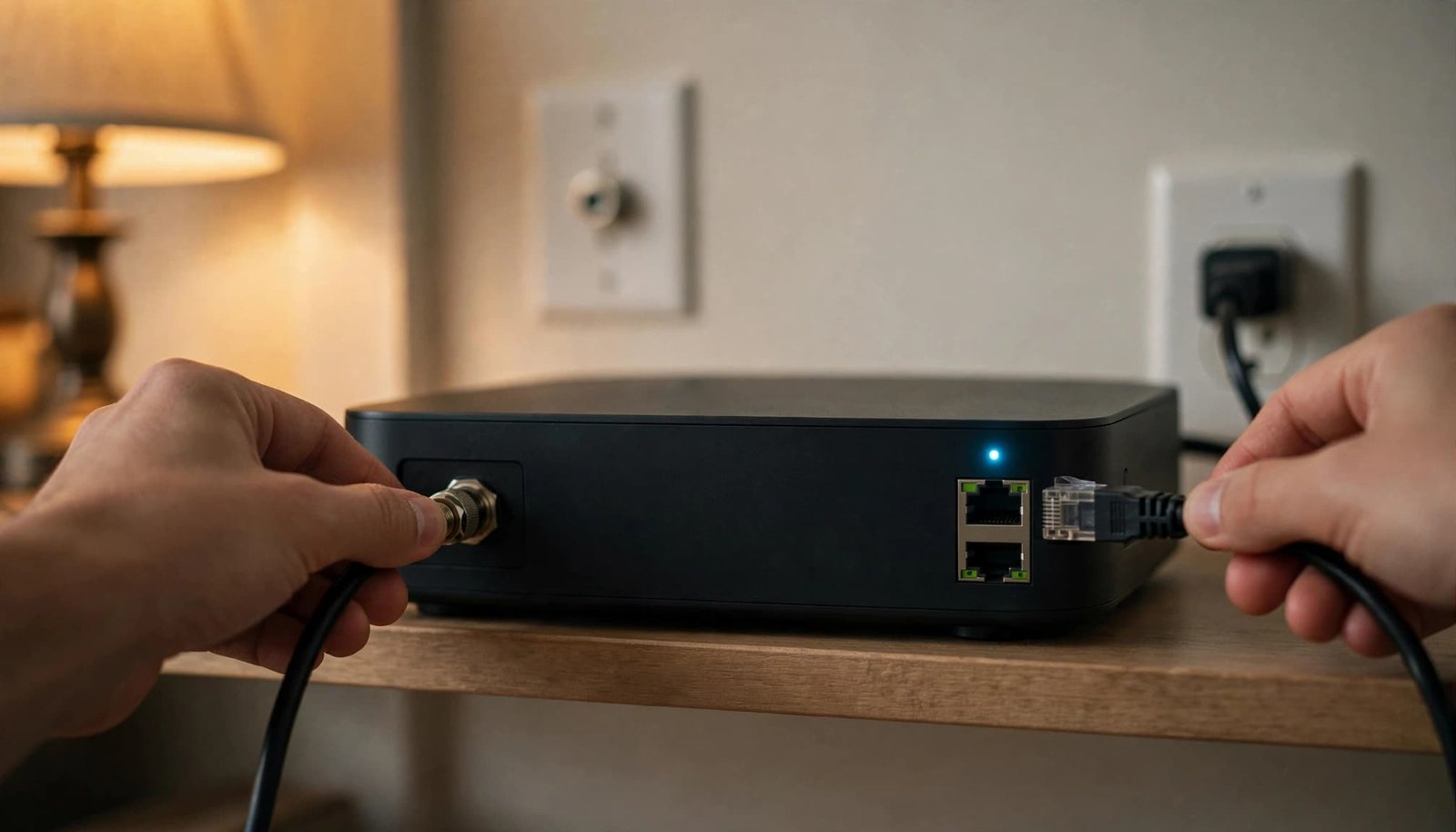
- For a new cable modem or combo, connect the coaxial cable and tighten it by hand. Then connect the power adapter.
- Wait for the connection lights to settle. A flashing light can mean the unit is still connecting.
- For separate Wi-Fi equipment, connect the cable unit’s Ethernet port to its WAN or Internet port. A combo doesn’t need this link.
- Power on the Wi-Fi equipment and connect a phone or computer to its default Wi-Fi network or a LAN port. Use the Nighthawk app with supported equipment; Orbi models use the Orbi app.
An already activated modem normally doesn’t need activation again. After changing the connected equipment, restart the modem, let it reconnect, then power on the Wi-Fi unit.
Activate Cox and Configure NETGEAR Wi-Fi
Register Your Replacement Equipment
Activate Cox service when you replace a modem or modem-router combo. This step is separate from router configuration, and prompts vary by model and equipment setup.
Connect to the new equipment and follow the new modem activation instructions. Sign in through the official account process and provide the requested device information.
If automatic activation fails, contact support to register the device. Our NETGEAR modem activation guide explains how registration differs from Wi-Fi setup.
Seeing your new Wi-Fi name doesn’t mean activation is complete. The router can broadcast Wi-Fi without an internet connection.
Set Up Your Network and Security
Supported devices use the free Nighthawk app for iOS or Android, or a web browser. Orbi systems have a separate setup process.
Follow the prompts in the Nighthawk app or browser, create a network name, and choose a strong Wi-Fi password. Change the administrator password too, since it protects your settings.
Install available firmware updates. Use WPA3 if your devices support it, or choose the compatible setting for older equipment.
Finally, test a wired connection and Wi-Fi near the router. Both should work before you return the old gateway.
Troubleshoot a NETGEAR Router That Won’t Connect
When Neither Ethernet Nor Wi-Fi Works
Check the status lights first. No online connection points to the coaxial signal, activation, an outage, or faulty equipment.
Reseat loose connections and restart the equipment. Disconnect the modem’s power for 10 seconds, reconnect it, and wait a few minutes. Start the separate Nighthawk router after the modem reconnects.
If activation fails, give the provider the exact model and CM MAC information, then ask for manual registration. Avoid repeated factory resets, which erase settings without fixing an account registration problem.
Our NETGEAR status light guide helps distinguish connection problems from normal startup behavior.
When Ethernet Works but Wi-Fi Doesn’t
A working wired connection narrows the problem to Wi-Fi settings, placement, interference, or the wireless device.
Reconnect with the correct password and test beside the device. If Wi-Fi works nearby but fails across the house, move it to an open, central location.
If you keep a provider gateway, bridge mode lets your own device handle routing. Access point mode is another option when the gateway remains in charge of routing. Neither setup automatically removes equipment fees.
When Mesh Wi-Fi Makes More Sense
A single router can suit a smaller home. Multiple floors, thick walls, and persistent dead zones can make mesh worth considering. A modem upgrade or faster Cox service alone won’t fix weak Wi-Fi coverage.
I own and use the NETGEAR Orbi 870. I became interested in networking after learning that paying for faster internet doesn’t always solve Wi-Fi problems. That prompted me to research coverage and equipment choices and create Better WiFi Shop.
My ownership and motivation aren’t performance tests of the CAX30 or other models here. The specifications above come from manufacturers and are separate from my personal experience.
Frequently Asked Questions
Does every NETGEAR router need Cox approval?
Cox eligibility applies to the cable modem, including the modem inside a combo unit. A standalone NETGEAR router needs a separate compatible cable modem.
Do I need to activate a replacement NETGEAR modem with Cox?
Yes. Activate a replacement modem or modem-router combo through Cox, then configure the NETGEAR Wi-Fi network separately. An already activated modem normally doesn’t need activation again.
Is the NETGEAR CAX30 compatible with Cox?
The CAX30 is listed for Cox plans up to 1,000 Mbps. Check Cox’s current certified modem list before buying, since provider eligibility can change.
What should I check if my NETGEAR router has Wi-Fi but no internet?
Check the modem’s connection lights and confirm the modem is activated and connected to the coaxial cable. Wi-Fi can broadcast even when Cox service isn’t connected.
Get the Connection Working Before Upgrading Further
Confirm the modem is eligible for Cox and activated, then check that the NETGEAR router is connected correctly.
Test Ethernet before judging Wi-Fi coverage. Match Gigabit capability to your subscribed service, and upgrade only if you have a demonstrated need.