A slow home network can make a fast Cox plan feel like a bad purchase. The right router depends on your plan’s speed, home layout, connected devices, and budget.
The best router for Cox isn’t always the most expensive model. A 300 Mbps plan needs different hardware than a faster tier, while a large home may need more than one access point.
Use this guide to choose a setup that fits your plan and home without paying for features you will not use.
This post may contain affiliate links. If you make a purchase through these links, I may earn a small commission at no extra cost to you.
Key Takeaways
- The best router for Cox depends on your internet speed, home size, connected devices, and budget—not simply the newest wireless standard.
- A DOCSIS 3.1 modem is the right starting point for Cox Gigablast and many 1 Gig or 2 Gig plans, but always check Cox’s certified modem list before buying.
- Plans below 1 Gig can use Gigabit Ethernet, while 1 Gig and 2 Gig service should have at least one 2.5 Gig Ethernet port on both the modem and router.
- A WiFi 6 router such as the TP-Link Archer AX55 fits many smaller homes, while the NETGEAR Nighthawk RS300 or a mesh system adds capacity and coverage for busier or larger homes.
- Cox approval applies to the modem, not the router. Separate equipment is easier to upgrade, while a modem router combo keeps setup simple and reduces cable clutter.
Best Router for Cox: Start With the Right Hardware Setup
Cox, the internet service provider, requires a compatible broadband cable modem, often using DOCSIS 3.1 over a coaxial cable. A modem connects Cox’s network to a router, which manages Wi-Fi, wired devices, and your home network. A gateway or modem router combo combines both functions, as does a rented Panoramic WiFi Gateway.
You can use your own router rather than relying on a modem router combo with Cox. Any modern wireless router with Ethernet ports and a WAN port works with an activated Cox modem or gateway. A NETGEAR Nighthawk is one example of an owned standalone router.
The modem is the part that needs Cox approval, including the modem inside a modem router combo. Before ordering one, check the current Cox certified cable modem list. Certification can vary by service tier and market, especially for faster services such as Cox Gigablast.
Fiber customers have a different setup. If your Cox address has fiber service, Cox usually provides or installs an optical network terminal, also called an ONT. You need a router connected to the ONT, not a cable modem or a modem router combo.
Separate Modem and Router vs. a Modem Router Combo
A separate standalone modem and router is usually more upgradeable than a modem router combo. You can replace the Wi-Fi router later without buying another modem, unlike with some modem router combo setups. Separate equipment also makes it easier to add a mesh system when one router cannot cover the whole house.
A modem router combo keeps setup simple and reduces cable clutter. The Arris SURFboard G34 and G36 are common DOCSIS 3.1 modem router combo options, if they are currently on Cox’s approved list. The Arris SURFboard G36 has a 2.5 Gig Ethernet port, which makes more sense for faster plans.
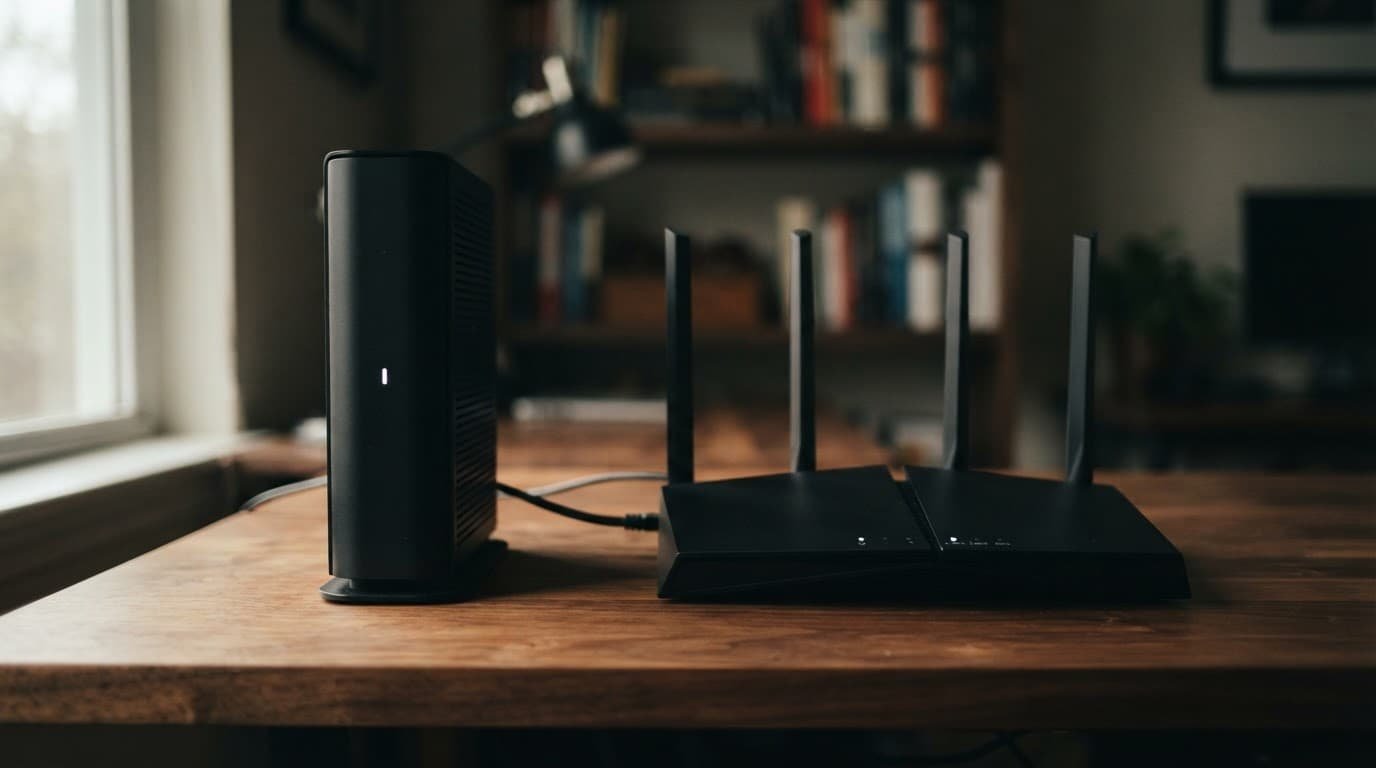
Choose a modem router combo if you have a small home, want fewer devices, and do not expect to build a mesh network. Choose separate equipment if you have dead zones, gamers, many smart devices, or plans to upgrade your speed.
A router does not need Cox approval. The cable modem does. That one detail prevents many avoidable returns.
Match Your Cox Router to Your Internet Speed Tier
Cox plan names and availability vary by address. Many areas offer 300 Mbps, 500 Mbps, 1 Gig, and 2 Gig tiers. Buy for your current download speeds, with modest room for the next upgrade.
| Cox speed tier | Router recommendation | Modem or setup to use | Best for |
|---|---|---|---|
| Up to 300 Mbps | TP-Link Archer AX55 (WiFi 6) | DOCSIS 3.1 modem with Gigabit Ethernet, or a modem router combo for simpler setup | Small and mid-sized homes |
| 500 Mbps | NETGEAR Nighthawk RS300 (WiFi 7) | DOCSIS 3.1 modem with Gigabit or 2.5 Gig Ethernet | Busy homes with streaming, gaming, and simultaneous connections |
| 1 Gig | TP-Link Deco XE75 Pro mesh | Motorola MB8611 or an approved 2.5 Gig modem | Cox Gigablast and larger homes |
| 2 Gig | eero Max 7 or NETGEAR Orbi 970 mesh | Approved modem with 2.5 Gig Ethernet | Multi-gig plans and larger homes |
The main takeaway is simple. Gigabit Ethernet ports are fine for plans below 1 Gig. For 1 Gig and 2 Gig service, look for at least one 2.5 Gig Ethernet port on both the modem and router. A modem router combo can simplify installation, but check that its modem and router sides support your tier.
Up to 300 Mbps: WiFi 6 Is Enough
For a Cox 100 Mbps or 300 Mbps plan, the TP-Link Archer AX55 is a practical single-router fit. Its WiFi 6 design and Gigabit ports suit streaming, video calls, smart TVs, phones, and smart home devices.
Don’t buy the newest wireless standard only because it is newer. A modem router combo can simplify this lower-tier setup, but separate units make future router upgrades easier.
Pair this router with a DOCSIS 3.1 modem such as the ARRIS SB8200, if it remains approved for your Cox tier. The SB8200 has two Gigabit Ethernet ports, but it is not the right choice for a 2 Gig plan.
500 Mbps: Add Room for More Devices
A 500 Mbps Cox plan can handle a home with several 4K streams, online gaming, security cameras, and work devices. The router matters more here when several users create simultaneous connections.
The NETGEAR Nighthawk RS300 is a good fit if you want a newer WiFi 7 router with 2.5 Gig ports. It can support a 500 Mbps plan and leaves room for a gigabit upgrade, though compatible devices are needed for its best wireless performance. A single RS300 suits many mid-sized homes, while larger layouts may need mesh.
Use an approved modem with Gigabit or 2.5 Gig Ethernet. A modem router combo can simplify installation on this tier, but check its WAN port before pairing it with the RS300.
If budget is tighter, a quality WiFi 6 router with Gigabit ports is still enough for 500 Mbps. Compared with the NETGEAR Nighthawk RS300, it offers less upgrade headroom but costs less. A modem router combo may cost less than separate units. Put the savings toward better placement or a mesh node, though replacing one component later is harder.
Cox Gigablast and 1 Gig Plans: Use DOCSIS 3.1
A DOCSIS 3.1 modem is the right starting point for Cox Gigablast, now often sold as a 1 Gig plan. Names and availability can vary by market. A modem router combo may simplify setup but lack a 2.5 Gig WAN port.
Cox also lists Cox Gigablast among the services covered by its cable modem and gateway guidance for 1 Gig and 2 Gig hardware.
The Motorola MB8611 and Arris SURFboard S33 are popular standalone modem choices because each has a 2.5 Gig Ethernet port. Check the certified list before you buy, then connect the modem to a router with a matching 2.5 Gig WAN port. A modem router combo may save space, but confirm its WAN port supports the service before buying.
For a one-router Cox Gigablast setup, the NETGEAR Nighthawk RS300 is a solid option. For a wider home, the TP-Link Deco XE75 Pro mesh system is often a better buy than the NETGEAR Nighthawk RS300. It builds on WiFi 6 with the 6 GHz band and supports a wired multi-gig connection through its 2.5 Gig port.
2 Gig Plans: Multi-Gig Ports Matter More Than WiFi 7
A 2 Gig Cox plan needs a DOCSIS 3.1 modem and a multi-gigabit router connection. Use a router with a 2.5 Gig or faster WAN port and suitable Ethernet cables. One Gigabit port will limit the connection before Wi-Fi even enters the picture.
A modem router combo can work for this multi-gigabit setup if its modem is approved. Its WAN and LAN ports must exceed 1 Gig, while separate units provide easier upgrades.
The eero Max 7 and NETGEAR Orbi 970 are high-end mesh options built for multi-gig internet. They make sense for larger homes with many newer devices, but they are expensive. WiFi 7 helps only when the plan and client devices can use it. It does not guarantee full advertised speed over Wi-Fi. A NETGEAR Nighthawk model may be a lower-cost single-router alternative, but confirm its WAN speed and client capacity first.
If your Cox connection is fiber, confirm which router port connects to the ONT before buying. Cable and fiber equipment may use the same router, but the setup is not the same.
Choose by tier and layout: the Archer AX55 fits lower speeds, the NETGEAR Nighthawk adds upgrade headroom, and premium mesh fits larger 2 Gig homes.
Wi-Fi Coverage, Gaming, and Home Layout
Advertised Wi-Fi coverage ignores brick walls, dense insulation, garages, cabinets, floors, and other building materials. WiFi 6 can be adequate for many homes, but a modem router combo still has placement limits.
Put the main wireless router in a central, open area. Keep it off the floor and away from metal shelving, cordless phone bases, and large TVs. A basement modem location is common, but it can weaken signal strength and rarely suits your only Wi-Fi source.
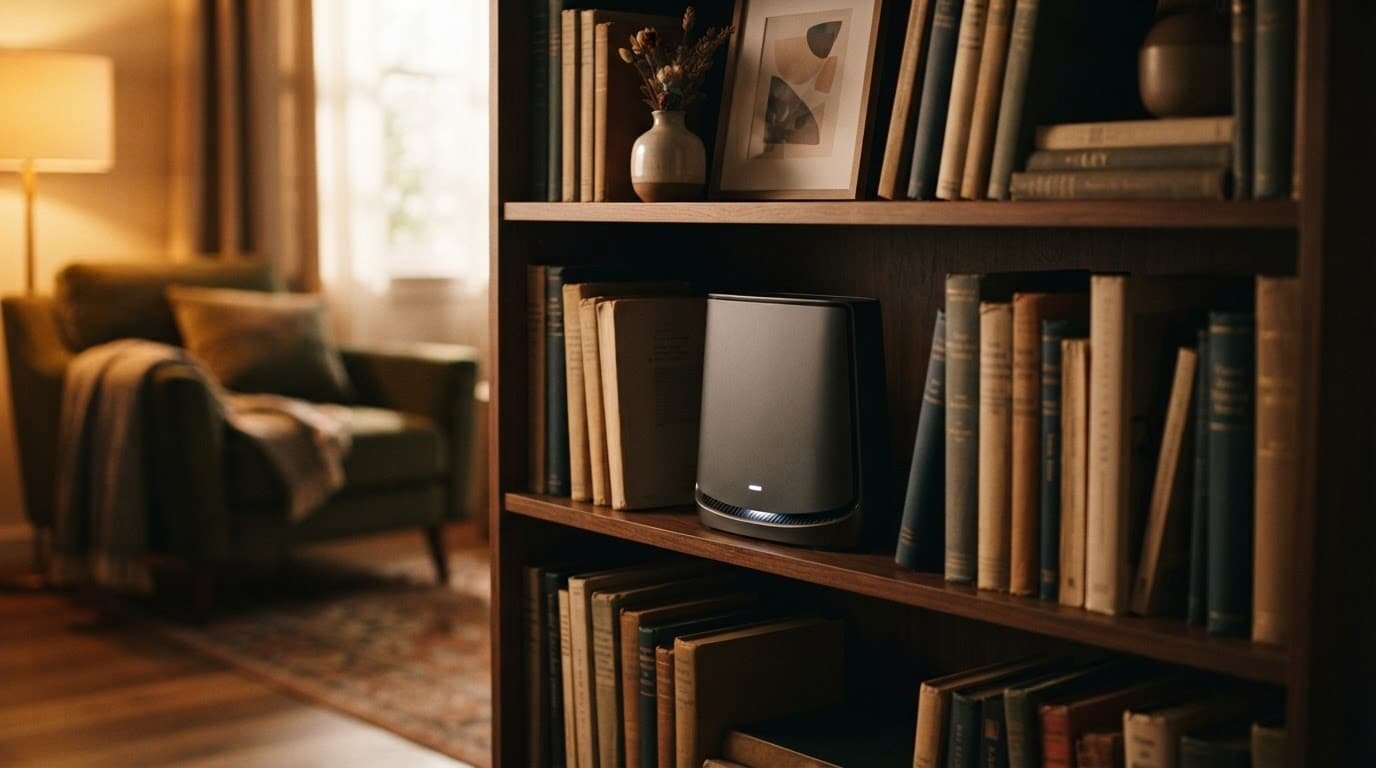
A mesh system is worth considering when you have more than one dead zone. A modem router combo has fixed coverage, while an expandable mesh setup can reach farther. Two or three matching units in a mesh system spread Wi-Fi coverage across the home better than one router pushing through several walls. For more help comparing setups, see our mesh Wi-Fi guide.

Photo by Jakub Zerdzicki
Gamers should use Ethernet where possible. A capable single-router option, such as a NETGEAR Nighthawk, can perform well, but Wi-Fi 7 does not eliminate latency or interference. Connect a console or gaming PC directly to the router, or place a mesh system node near the gaming room and connect the device by Ethernet.
Placement can improve coverage, but it cannot change Cox data caps. Review your data caps before downloading large games, streaming heavily, or backing up video files to the cloud.
Activate Your New Cox Modem and Router
Set aside 20 to 30 minutes to activate a DOCSIS 3.1 modem for a higher-speed Cox tier, such as Cox Gigablast. Keep your old gateway connected until the new equipment works.
- Find the modem’s CM MAC address on its label, usually near the serial number, and write it down.
- Disconnect the rental gateway and attach the coaxial cable to the new modem. If it’s a modem router combo, connect the cable directly to that unit instead.
- Connect a computer directly to the modem with Ethernet, then power it on. Leave a separate router disconnected for now.
- Open Cox’s activation portal and enter the requested modem details.
- Wait for the modem’s online light to become solid. Then connect a separate router’s WAN port, or skip this connection for a combo unit.
- Set up the router, or configure the modem router combo, with a new Wi-Fi name and strong password.
If Cox can’t find or rejects the modem, verify the CM MAC address and confirm the model is approved for your service address. Check the modem’s power status and the coaxial cable connection. If Cox still rejects the device, contact Cox technical support and ask them to confirm the exact model is supported at your address.
How Long It Takes to Recover Router Rental Costs
Cox equipment rental fees vary by location and package, but a $6 to $13 monthly charge equals $72 to $156 annually. As an example, a $250 modem router combo setup may pay for itself in roughly 19 to 42 months, excluding replacement, support, and electricity costs.
A modem router combo can cost less upfront than a separate setup with a standalone modem and router, and our router rental savings guide can help compare ongoing costs. Buying a $200 NETGEAR Nighthawk may equal 15 to 33 months of $6 to $13 rental charges. Unlike a modem router combo, separate equipment can last longer because you can upgrade only the router, add a mesh system, and continue firmware updates on the modem.
Do not replace working equipment only to chase a newer WiFi 6 label. Upgrade when your current modem router combo drops connections, leaves dead zones, lacks enough wired ports, or cannot support your Cox speed tier.
Frequently Asked Questions
Does Cox require an approved router?
No. Cox requires approval for the cable modem, including the modem inside a modem router combo, but a standalone router does not need Cox certification. Check the current Cox certified modem list before purchasing equipment.
What router is best for a 300 Mbps Cox plan?
The TP-Link Archer AX55 is a practical choice for many small and mid-sized homes with a 100 Mbps or 300 Mbps plan. A quality WiFi 6 router with Gigabit Ethernet is enough for streaming, video calls, gaming, and smart home devices.
Do I need a 2.5 Gig Ethernet port for Cox Gigablast?
A 2.5 Gig Ethernet port is recommended for Cox Gigablast or 1 Gig service when you want room for the full connection and future upgrades. The modem and router should both have suitable multi-gig ports, especially for a 2 Gig plan.
Should I choose a mesh system or one router?
A single router can work well in a small or mid-sized home with an open layout. Choose mesh when you have dead zones, multiple floors, thick walls, or a larger home that one access point cannot cover.
Can I use my own modem router combo with Cox?
Yes, as long as the modem portion is approved for your Cox service tier and address. Confirm that the combo has the right DOCSIS version and Ethernet ports before buying, since some models may not support faster 1 Gig or 2 Gig plans.
Choose the Router That Fits Your Cox Plan
The best router for Cox is the one that matches your actual connection and home, not the longest feature list. For many 300 Mbps and 500 Mbps homes, a WiFi 6 router or modem router combo is enough. WiFi 7 remains an optional upgrade.
For Cox Gigablast and 2 Gig service, choose an approved DOCSIS 3.1 modem with multi-gigabit Ethernet ports. A modem router combo can simplify setup when Cox, your internet service provider, supports it. Choose a NETGEAR Nighthawk for a suitable layout, or a mesh system for broader Wi-Fi coverage across the home network.