
If your Orbi satellite is not connecting, move it near the router and try a manual sync before resetting anything. A failed connection usually calls for a pairing or placement check, not another satellite or a faster internet plan.
The satellite needs a reliable link back to the Orbi router in the mesh network before it can improve coverage. Start with the Sync buttons and light pattern, then work through the connection checks below.
This post may contain affiliate links. If you make a purchase through these links, I may earn a small commission at no extra cost to you.
Key Takeaways
- Pair the satellite near the router, then move it to its intended location.
- Blue usually means a good connection, amber means a fair connection, and magenta means the link failed.
- Test Ethernet and address firmware before using a factory reset as a last step.
Start With a Manual Sync
Make Sure the Satellite Is Compatible
Orbi satellites aren’t universal Wi-Fi extenders. Different Orbi families and generations aren’t automatically compatible, even when their cases look similar.
An add-on satellite bought separately hasn’t been pre-paired with your router. It doesn’t have the kit’s pre-programmed pairing credentials, so it needs a manual sync.
If an add-on satellite won’t join, check that your Orbi router supports its model before repeating the pairing steps.
Let both units finish starting before pairing. Don’t interrupt a known firmware update because a white light remains visible.
Press the Sync Buttons Within Two Minutes
Follow this satellite-first sync process:
- Place the satellite near the powered-on Orbi router.
- Briefly press and release the satellite’s Sync button.
- Press and release the router’s Sync button within two minutes.
- Power on both units and leave them on while the connection completes.
Two minutes is the pairing window, not how long you should hold either button. Button locations vary by model.
Some models use the reverse button order. NETGEAR’s router and satellite sync instructions describe that router-first sequence. In either case, use brief presses and allow the process to finish before retrying.
Read the Satellite Light Before Changing Settings
These are common meanings for an Orbi satellite’s LED ring, but patterns vary by model.
| Satellite light | Common meaning | What to do |
|---|---|---|
| Pulsing white | Starting or attempting to connect | Wait for startup or sync to finish. |
| Solid blue | The blue light indicates a successful sync with a good backhaul connection | Test service in the intended location. |
| Solid amber | The amber light indicates a successful sync with a fair connection | Move the satellite closer. |
| Solid magenta | The magenta light indicates no usable backhaul connection or a failed sync | Move closer and retry pairing. |
| Ring off after blue or amber | Normal connected state on many models | Confirm the satellite appears online. |
NETGEAR’s Orbi LED reference says blue or amber normally stays visible for about three minutes before the ring turns off. That doesn’t mean the satellite disconnected.
Magenta patterns vary. A persistent or pulsing magenta warning after pairing can indicate failure on some models. Also distinguish the satellite’s light from the router’s internet-status warning.
Fix Placement Before Adding More Satellites

Pair Nearby, Then Move Outward
For troubleshooting, try pairing about 6 to 10 feet from the router in the same room. This temporary position differs from your final satellite placement.
A Reddit commenter recommends at least 30 feet between nodes. That isn’t a universal minimum, and it shouldn’t prevent you from pairing nearby. Setup distance and everyday placement serve different purposes.
After pairing, move the satellite toward the weak area and check its signal strength. Avoid placing it inside the dead zone. Concrete, brick, metal cabinets, appliances, and wireless interference can weaken the path.
Reduce Overlap and Change One Thing at a Time
Too many closely spaced satellites can create unnecessary overlap. Your phone may also remain connected to a farther node after you move.
Temporarily switch off a middle satellite and test the affected room again. Move the remaining satellite into the open, preferably along a clearer path.
Some models offer transmit-power controls. Reducing power can help excessive overlap, but it can also create coverage gaps. Fix placement first.
Our guide to choosing and placing Orbi satellites explains when another node is useful and when it adds unnecessary cost.
Power Cycle in the Right Order
If the Orbi satellite won’t sync after a nearby pairing attempt, restart the equipment before changing advanced settings.
Turn off the satellite, router, and separate modem or ISP gateway with the power button if the unit has one. Otherwise, turn it off as appropriate. Leave them off for about five minutes. Don’t interrupt equipment that’s installing firmware.
Restore power to the modem first, then the Orbi router, then the satellite. Allow the connection to establish before starting the router. Let the router finish starting before powering the satellite.
If only one satellite is affected and everything else works, restart that satellite first. A full network restart will interrupt everyone.
Repeat the manual sync once the equipment is ready.
Test the Satellite With Ethernet
Use a Short, Direct Connection
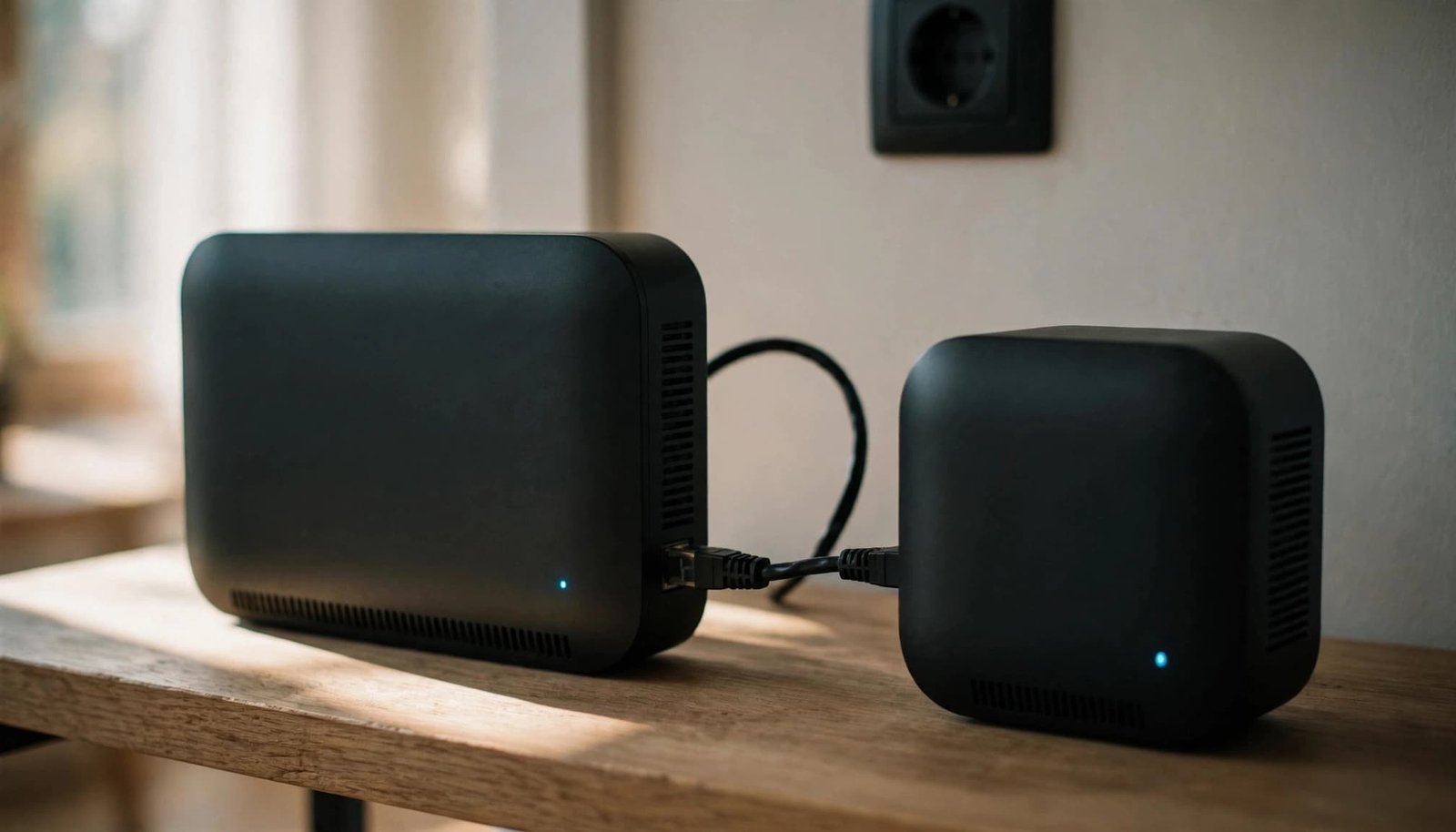
For an Orbi model that supports Ethernet backhaul, connect a known-good ethernet cable from a LAN port on the router to an Ethernet port on the satellite.
Leave the modem connected to the router’s Internet or WAN port. Keep the satellite downstream of the router.
For this test, bypass wall wiring and switches. A short direct cable removes those possible failure points. Allow several minutes for recognition, and repeat manual syncing if needed.
Use the Result to Narrow the Problem
If the satellite works wired but fails wirelessly in the same location, focus next on wireless range and interference.
Where supported, you can leave Ethernet connected as a permanent backhaul and keep the satellite hardwired. Phones and TVs still connect to the satellite over Wi-Fi; the cable carries traffic between mesh units.
If it remains offline with a direct cable, pairing, compatibility, firmware, or hardware remains suspect.
Our Orbi Ethernet backhaul setup guide covers permanent wiring. Ethernet can improve consistency, but it won’t increase your ISP plan’s speed.
Update Satellite Firmware Before the Router
A satellite that’s out-of-sync after an update deserves a firmware check. Updating only the router can leave a satellite behind or expose a compatibility issue.
For manual updates, update the satellites first, then the router. NETGEAR community troubleshooting recommends this order to help satellites reconnect afterward.
Use firmware intended for each exact model. A router firmware file isn’t interchangeable with a satellite file. Don’t assume different hardware must display identical version numbers.
NETGEAR’s manual satellite firmware instructions describe the web-interface process, including Advanced, Administration, Firmware Update, and Manual Update on supported models.
Keep power connected throughout installation and restarting. If Ethernet restores access to the satellite, use that connection to complete the update before testing wireless placement again.
Factory Reset Only a Satellite That Still Fails
Use a satellite factory reset only after it remains magenta despite nearby pairing, restarting, and the connection checks above. Resetting the whole network first creates extra work.
Leave the satellite powered on. Insert a paperclip into its Reset pinhole and hold the reset button. On models with a Power LED, release it when that LED blinks amber.
NETGEAR’s Orbi factory-reset procedure describes the reset indicator. Newer models can use different LED arrangements.
Let the satellite finish restarting, then re-sync near the router. Don’t press Reset on the main router unless you intend to rebuild its configuration.
If a compatible satellite still fails beside the router and over a direct Ethernet connection, contact NETGEAR support before buying another unit.
My Experience With the Orbi 870
I’m Steve Neff, founder of Better WiFi Shop, and I personally own and use the NETGEAR Orbi 870.
My interest in home networking started after learning that paying for faster internet doesn’t always fix weak Wi-Fi. That led me to research routers, mesh coverage, and home networking equipment, then create Better WiFi Shop.
For troubleshooting, I separate the incoming internet connection from the link between mesh units. If a wired device works through the main router, a distant satellite warning points toward the local connection.
If replacement becomes necessary, you can compare options at Better WiFi Shop. Start with compatibility and home layout rather than buying more hardware immediately.
Frequently Asked Questions
How Long Should an Orbi Satellite Take to Connect?
Allow several minutes after starting manual sync. The two-minute limit applies to pressing the second Sync button. Once connected, a blue or amber ring commonly stays on for about three minutes, then turns off. Use the Orbi app’s satellite status to confirm the result.
What If the Satellite Keeps Pulsing White?
White can indicate startup, applying settings, connecting, or firmware activity. Don’t repeatedly unplug it during those processes. If no update is underway and it never progresses, restart only the affected satellite, bring it near the router, and retry the connection. White alone doesn’t justify a factory reset.
Can I Force a Phone Onto a Specific Satellite?
Standard Orbi setups generally leave that choice to the client device. Turning the phone’s Wi-Fi off and back on nearby can encourage a new connection, but doesn’t guarantee one. A device choosing a distant node is also different from the satellite itself choosing its mesh backhaul path.
Will Syncing a New Satellite Disconnect Existing Ones?
A normal manual sync shouldn’t erase existing pairings or your Wi-Fi settings. Brief reconnections can still occur while the mesh adjusts. Press Sync, not Reset, and avoid restarting the router during an important call or other activity that needs an uninterrupted connection.
Fix the Link Before Replacing the Hardware
When your Orbi satellite won’t sync, start nearby and read the light before changing the network. Placement and backhaul matter more than adding another node.
Use Ethernet to narrow the problem, update firmware, and reserve a satellite reset for persistent failure. A working mesh connection is the goal, without unnecessary equipment or a full network rebuild.