
One weak bedroom does not automatically mean you need a three-pack Mesh WiFi system. Most homes get better results with one well-placed satellite than with extra hardware placed in the wrong spots.
The right number of Orbi satellites depends on your layout, wall materials, floors, square feet, and your Orbi router’s location. Coverage area is only a starting point, and it doesn’t measure your Internet connection quality.
Check signal strength in your home’s trouble areas to decide whether you need no satellite, one satellite, or a larger setup.
This post may contain affiliate links. If you make a purchase through these links, I may earn a small commission at no extra cost to you.
Key Takeaways
- Most homes need zero, one, or two Orbi satellites, depending on the layout, walls, floors, and weak coverage areas.
- Check signal strength in bedrooms, offices, garages, patios, and other trouble areas before buying additional hardware.
- Place each satellite between the Orbi router and the weak area, where it can maintain a strong connection through Wi-Fi or Ethernet backhaul.
- Match every add-on satellite to the same Orbi series as your router, and judge the setup by real-world performance rather than advertised square footage.
Start With Your Layout, Not the Box Coverage
A listed coverage area is a useful starting point, not a promise. An open ranch home covering 2,500 square feet can need less mesh coverage than a smaller home with a basement, brick walls, and high device density.
What Gets in Wi-Fi’s Way
Concrete, brick, metal ductwork, mirrors, and large appliances all contribute to signal attenuation. Floors also matter, and newer wireless technology can’t overcome severe physical obstructions.
An Orbi router in a basement often struggles to cover bedrooms on the second floor.
Put the Orbi router in an open, central spot when possible. Avoid cabinets, floor-level shelves, and the far end of the house. Better placement often fixes problems that look like an internet speed issue.
Count Dead Zones, Not Every Room
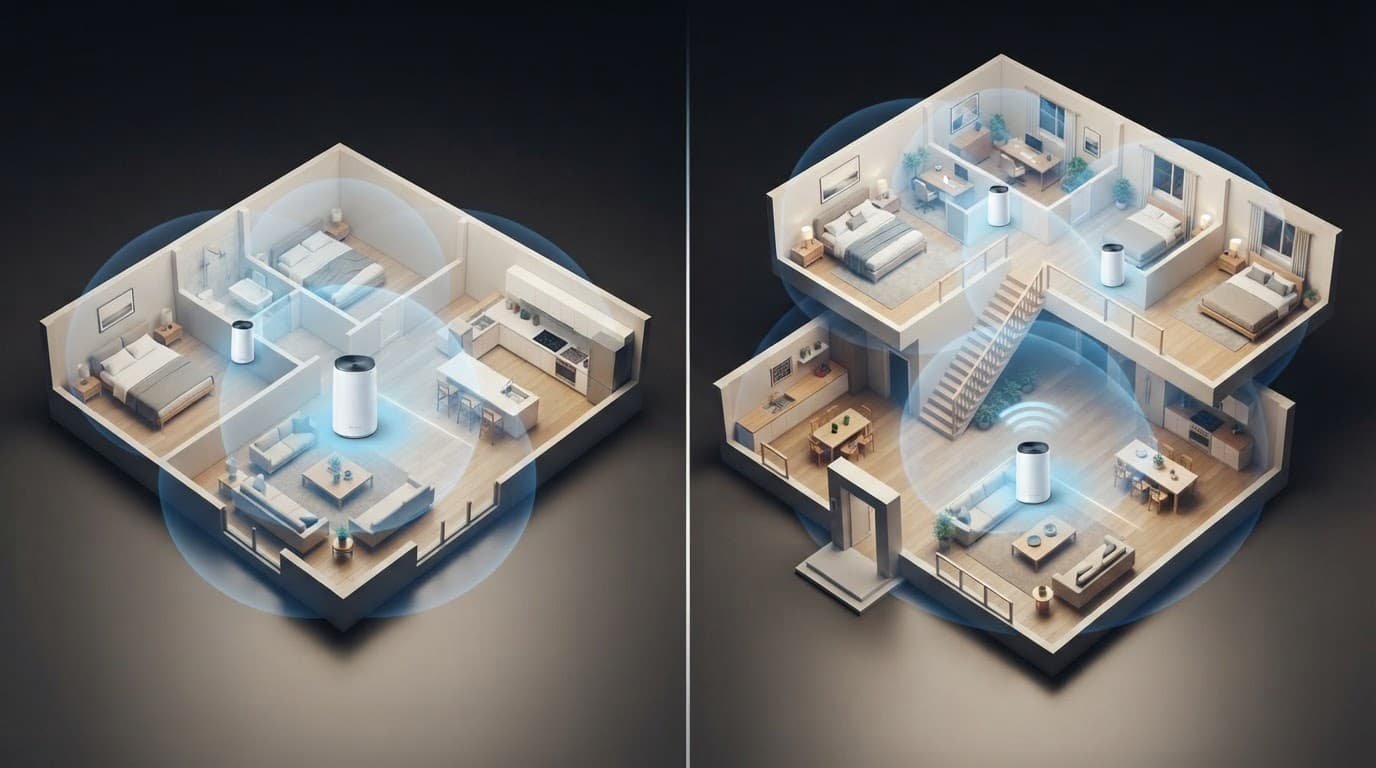
Count dead zones first, since where you place Orbi satellites matters more than how many you buy. Walk through your home with a phone or laptop, and check signal strength in the rooms you use most before choosing Orbi satellites.
Test bedrooms, work areas, the garage, patios, and any TV location where streaming buffers.
Orbi satellites should sit between the router and the weak area, not inside the weakest room.
If your whole home has poor coverage, a mesh network may be the right answer. If one area is weak, start with one satellite before buying more equipment. A properly placed satellite usually works better than basic range extenders.
How Many Orbi Satellites Do You Need?
For most households, the answer is zero, one, or two Orbi satellites. Large homes with several floors or separate living areas may need more, but extra nodes aren’t always better.
Practical Starting Points
- Use the Orbi router by itself if your apartment, condo, or small open home already has reliable Wi-Fi in every room.
- Add one Add-on satellite to the existing Mesh WiFi system when one floor, bedroom wing, garage, or office has weak coverage.
- Use two Orbi satellites for a large multi-story home, a long layout, or a home with major signal barriers between living areas. Together, they form a Mesh network that can reach more rooms.
- Consider three or more satellites only for very large homes, detached spaces, or layouts with several hard-to-reach zones.
A strong 1 Gig Internet connection can’t fix local Wi-Fi coverage through thick walls. The Orbi router may need the right node, which can improve network performance more than an unnecessary speed upgrade.
For other large-home options, compare the setups in our best router for large house guide.
Match the Satellite to Your Orbi Router
Don’t buy an add-on satellite just because it says Orbi, since Orbi satellites don’t all work with every series. NETGEAR recommends matching that satellite to the same Orbi series as your Orbi router for the best compatibility and performance. Check the series number on the bottom label, in a generic mobile app, or in your purchase history to identify the compatible router.
Coverage Depends on the Orbi Series
Current WiFi 7 Orbi systems have different advertised expansion levels for a matching WiFi 7 satellite. These estimates apply to Orbi satellites from the same family and aren’t guaranteed in every home.
| Orbi Series | Wireless bands | Ethernet ports | Advertised added coverage |
|---|---|---|---|
| Orbi 970 | Quad-band WiFi 7 | Varies by model | Up to 3,300 sq. ft. |
| Orbi 870 | Tri-band design, WiFi 7 | Varies by model | Up to 3,000 sq. ft. |
| Orbi 770 | Tri-band design, WiFi 7 | Varies by model | Up to 2,750 sq. ft. |
| Orbi 370 | Dual-band WiFi 7 | Varies by model | Up to 2,000 sq. ft. |
These figures are advertised estimates, not guaranteed results. Walls, placement, and building materials can reduce usable reach.
These differences explain why similar-looking satellites can have different prices. The Quad-band WiFi design offers greater capacity than a Tri-band design, but wireless bands aren’t the only factor.
Higher-end systems may offer more capacity and Ethernet ports, with some supporting speeds beyond Gigabit Ethernet. These features can improve network performance, but they don’t mean every home needs the premium model.
Match any WiFi 7 satellite to its Orbi family, not just its appearance. Use NETGEAR’s Orbi satellite guide to confirm the series number and select a WiFi 7 satellite for the compatible router before ordering.
Orbi satellites aren’t standalone Wi-Fi extenders. Each one needs a compatible Orbi router to create and manage your home’s wireless network.
Place Each Satellite Where It Can Work
Each of your Orbi satellites needs a strong link to the Orbi router before it can improve coverage in the next room. Placing it too far away can slow the whole network.
WiFi backhaul vs. Ethernet backhaul
WiFi backhaul means the Orbi router and satellite communicate over Wi-Fi. This approach is simple and works well when the satellite still receives a solid signal.
Ethernet backhaul uses a wired Ethernet cable between the router and satellite. It is preferable when cabling is available, giving the satellite a steadier connection without necessarily increasing internet speed. Ethernet backhaul is especially useful in homes with thick walls or multiple floors.
NETGEAR recommends placing the satellite within range of the Orbi router. Use the Orbi app to check signal strength, and review their Orbi placement guidance before drilling holes or running cables.
Use the LED status lights Before Adding Another Node
Use the LED status lights to troubleshoot placement. Blue usually means the satellite has a strong connection. Amber means the connection is weak, while magenta means it is not connected to the router. White commonly appears during startup or setup.
Move an amber or magenta satellite closer before buying another one. You can also check NETGEAR’s Orbi LED light guide for your model’s exact light behavior.
Some Orbi models offer broadcast power controls. Lowering power can reduce too much signal overlap in a small home, but it can also create new weak spots. Fix placement first, and remember that Orbi satellites need a reliable connection before they can extend coverage.
Add a Satellite and Check Real-World Results
Adding Orbi satellites is usually simple. Plug the new unit in near the router, open the Orbi app, choose “Add Satellite,” and follow the Setup instructions. Once it syncs, move it to the planned location, then use the Orbi app to check its status.
Do Not Judge the Setup by One Device List
Your phone, TV, or laptop may not appear under the satellite you expect. Devices can stay connected to the router, and some make poor roaming choices, so the list isn’t a reliable roaming test.
Test Wi-Fi speed in the rooms that had problems. If a synced satellite performs poorly, check its WiFi backhaul or test an Ethernet backhaul.
If setup fails, move the satellite back near the router and use an Ethernet backhaul if available. Follow the Setup instructions to sync it again. Open the Orbi app, check its status, and apply a Firmware update if needed. Then try the final location again.
Frequently Asked Questions
How many Orbi satellites does a typical home need?
Most homes need no satellite, one satellite, or two satellites. The right number depends on your home’s layout, building materials, floors, and the location of weak coverage areas.
Can I use an Orbi satellite with any Orbi router?
No, Orbi satellites are not universally compatible with every Orbi router. Match the satellite to the same Orbi series and confirm compatibility with NETGEAR’s product information before ordering.
Where should I place an Orbi satellite?
Place the satellite between the Orbi router and the weak coverage area, not inside the weakest room. It needs a strong connection to the router before it can improve coverage farther away.
Should I add another satellite if the current one shows an amber or magenta light?
Not immediately. Move the satellite closer to the router and check its connection first, since amber or magenta usually indicates a weak or missing link rather than a need for more hardware.
Choose Coverage You Can Actually Use
The best Orbi setup is not the one with the most satellites. It gives your home reliable Wi-Fi without unnecessary cost or overlapping signals.
Start with your layout and match the correct series. Place each unit where it can maintain a strong connection to your Orbi router. Orbi satellites work best when they solve a real coverage problem, not when they compensate for poor placement.