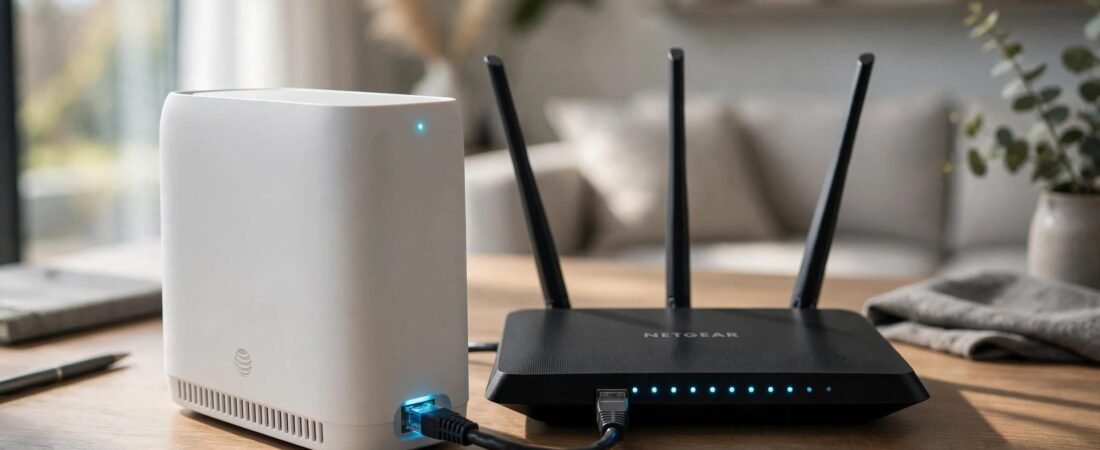
AT&T Fiber IP Passthrough Setup for NETGEAR Routers
AT&T Fiber IP Passthrough lets your NETGEAR router receive the public IP address while the AT&T gateway stays connected. It can then manage your home network and provide Wi-Fi.
Keep the gateway connected, leave NETGEAR set to handle routing, and use the fixed DHCP passthrough setting. Start by choosing which device should handle routing, then follow the gateway settings below.
This post may contain affiliate links. If you make a purchase through these links, I may earn a small commission at no extra cost to you.
Key Takeaways
- IP Passthrough keeps the AT&T gateway active while assigning the Public IP address to one selected Router.
- Choose DHCPS-fixed and select the NETGEAR’s WAN MAC address, not its Wi-Fi or LAN MAC.
- Restart the gateway first, then NETGEAR, and confirm its Internet-port address matches the gateway’s public IPv4 address.
Choose IP Passthrough or Access Point Mode
Use Passthrough for NETGEAR Network Control
Choose passthrough when you want your NETGEAR router to manage DHCP, firewall rules, port forwarding, and other routing features.
Without a proper handoff, both devices can perform network address translation, creating double NAT. That can affect online gaming and remote access. It can also block access to a Raspberry Pi server when forwarding exists only on the main router.
Our guide to NETGEAR double NAT fixes explains how to identify a Double NAT setup before changing unrelated settings.
Use AP Mode for a Simpler Wi-Fi Upgrade
Access Point Mode lets AT&T manage routing while NETGEAR provides wireless and Ethernet connections. It’s the simpler choice when better coverage is your main goal.
Choose one approach. Don’t combine NETGEAR AP Mode with a passthrough setup intended to make NETGEAR your main router.
Neither the BGW210-700 nor BGW320-500 offers conventional true Bridge mode. The closest supported option keeps the gateway active for the AT&T connection.
Prepare the Gateway and NETGEAR Router
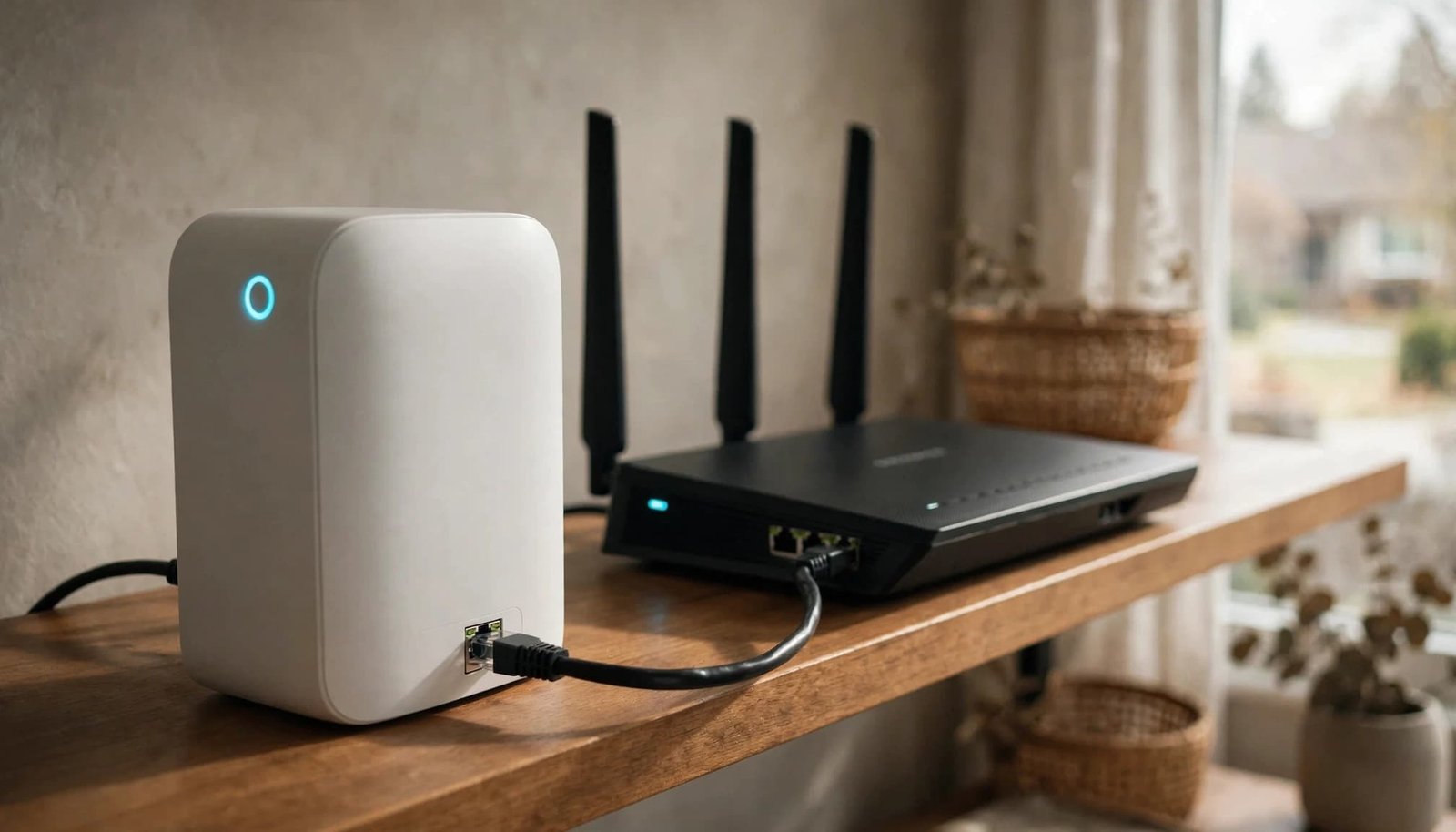
Connect the Correct Ethernet Ports
Connect an AT&T gateway LAN port, such as one on a BGW210-700, to NETGEAR’s Internet or WAN port. Don’t connect the gateway to a regular LAN port on the NETGEAR router.
Use ports that support your internet tier. Cat6 cabling is a practical choice for multi-gig connections.
During setup, disconnect other ordinary client devices from the gateway when practical. Keep provider-managed equipment connected if your services depend on it. Afterward, connect household devices through NETGEAR.
Our NETGEAR fiber connection guide covers the physical connection and explains why some fiber services still require a gateway.
Separate the Local Networks
The gateway normally uses 192.168.1.254. Give NETGEAR a different LAN subnet, such as 192.168.2.1 with a 255.255.255.0 subnet mask.
On many NETGEAR models, this setting is under Advanced, Setup, LAN Setup. Reconnect using the new address after saving.
Keep NETGEAR in router mode, with its Firewall enabled. Under Internet Setup, select Get Dynamically from ISP for the Internet IP address. Don’t enter the public address manually or choose PPPoE for this gateway handoff.
Configure AT&T Fiber IP Passthrough
These IP Passthrough steps apply to the BGW210-700 and BGW320-500. Menu wording can vary slightly with firmware.
- Open the AT&T gateway settings at
http://192.168.1.254. Enter the Device Access Code printed on the gateway when prompted. This code is different from your Wi-Fi password. - Under Home Network, Wi-Fi, disable the gateway’s wireless radios. Save the change. Use Ethernet or connect through the NETGEAR router afterward so you don’t depend on the Wi-Fi you’re disabling.
- Open Home Network, Subnets & DHCP, or the equivalent IPv4 settings. Turn off Public Subnet and Cascaded Router. Leave the gateway’s normal DHCP server enabled because DHCPS-fixed depends on DHCP.
- Under Firewall, disable Packet Filter. Remove unneeded NAT/Gaming application-hosting entries, then turn off the individual advanced options and save. Keep NETGEAR’s firewall enabled throughout this process.
- Open Firewall, IP Passthrough. Set Allocation Mode to Passthrough and Passthrough Mode to DHCPS-fixed. Under Passthrough Fixed MAC Address, choose the NETGEAR router’s WAN connection. After saving, verify Passthrough Mode remains selected and the Passthrough Fixed MAC Address matches that WAN connection.
Don’t select the MAC address based only on the router’s general device information. Its Wi-Fi, LAN, and WAN interfaces can have different addresses.
If the correct device isn’t clear, open the gateway’s Device List tab and use Clear and Rescan for Devices. Atomic Object’s BGW210 passthrough walkthrough describes this WAN-MAC mismatch for NETGEAR routers.
Passthrough DHCP Lease can be set to 99 days, the maximum documented in Colin Lord’s BGW guide. A longer lease doesn’t make the public address permanently static.
Restart and Verify the Public WAN Address
6. Restart the Gateway Before NETGEAR
Save every changed settings page. Restart the AT&T gateway and wait for broadband service to return.
Then restart NETGEAR. This order lets the gateway establish service before NETGEAR requests its WAN address.
If the NETGEAR router still holds an old private address, use its Internet connection-status controls to release and renew the DHCP lease, where available. After a passthrough change, restarting the gateway and NETGEAR should be your first attempt.
7. Compare the Correct IPv4 Addresses

Connect to the NETGEAR router and open its browser interface at routerlogin.net, or use its local LAN address.
On many models, open Advanced, Administration, Router Status. Find the Internet-port IPv4 address, not NETGEAR’s local login address.
Compare it with the AT&T gateway’s broadband IPv4 address. Successful passthrough gives NETGEAR the same public IPv4 address.
Open the gateway’s Firewall Status page and check its Firewall entries. Packet Filter should be Off, IP Passthrough should be On, and NAT Default Server should be Off.
A local NETGEAR address such as 192.168.2.1 is normal. A WAN address such as 192.168.1.20 means the public-address handoff hasn’t completed.
Fix Common Passthrough Problems
NETGEAR Still Receives 192.168.1.x
Start with Passthrough Fixed MAC Address. On a BGW210-700, confirm the device list identifies the Ethernet interface connected to your NETGEAR router, then rescan if needed.
Check that the NETGEAR router uses automatic DHCP for its Internet address. A manually entered private WAN address won’t change when you enable passthrough.
Save again and repeat the gateway-first restart sequence. Also remove any intermediate router between the gateway and NETGEAR.
Changing NETGEAR’s LAN address prevents a subnet conflict. It doesn’t assign the public WAN address or complete passthrough by itself.
NETGEAR Shows 0.0.0.0 or No Internet
An Internet-port address of 0.0.0.0 means NETGEAR hasn’t received a WAN address. This differs from receiving a private address.
Reseat the Ethernet cable, confirm both port lights are active, and try another known-good cable. Make sure the gateway has internet service before troubleshooting NETGEAR.
Our NETGEAR WAN connection troubleshooting guide helps you check whether the router lacks an address, has a private address, or has a physical connection problem. Avoid a factory reset until you’ve reviewed these basics.
Firewall Advanced Still Shows On
A Firewall Advanced summary showing On doesn’t, by itself, prove that passthrough failed. Colin Lord’s guide reports this status remaining after the individual options were disabled.
Reopen Firewall Advanced and review the saved switches. Then use NETGEAR’s WAN address and actual connectivity to judge the handoff.
Don’t disable NETGEAR’s firewall to make a gateway summary label change. NETGEAR now handles protection for your household devices.
Motorola Default Server and Pace DMZplus
Older gateways use different settings. AT&T’s IP Passthrough and DMZplus instructions explain these options.
On Motorola gateways, Allocation Mode: Default Server forwards externally initiated TCP and UDP traffic to one LAN device. The NETGEAR router keeps a private LAN address, not the public WAN address.
On 2Wire/Pace gateways, open Settings, Firewall, Applications, Pinholes, and DMZ. Select the NETGEAR router, choose Allow all Applications (DMZplus mode), and save. Configure the router for DHCP.
Unlike Default Server, DMZplus doesn’t assign the selected device the public WAN address. The BGW210-700 and BGW320-500 use DHCPS-fixed, a different supported approach.
Why Gateway Bypass Isn’t the Normal Setup
Some advanced users bypass AT&T equipment with compatible SFP+ modules on GPON or XGS-PON connections. This involves optical compatibility, authentication, and configuration beyond ordinary router setup.
You don’t need to bypass the gateway to use NETGEAR routing features. Keeping the AT&T hardware in place is the practical choice for most homes.
If you pursue an unsupported bypass, keep the AT&T gateway. Removing it from your network doesn’t remove any equipment-return obligation when you cancel service.
Frequently Asked Questions
Is DHCPS-fixed the Same as a Static Public IP?
No. “Fixed” identifies the device selected by its MAC address. The public address itself can still change.
DHCP lets NETGEAR receive a new address automatically. If you manually enter the old public address and AT&T changes it, connectivity can fail until you update those settings. That’s why DHCPS-fixed with automatic NETGEAR addressing is preferred.
Does Passthrough Automatically Enable Server Hosting?
No. A public WAN address removes the ordinary upstream double-NAT obstacle, but you still need the correct forwarding rule and server firewall settings.
Use our NETGEAR port forwarding guide for that next step. Don’t expose a Raspberry Pi, camera, or NAS directly through the gateway’s Default Server setting.
Will Passthrough Improve Wi-Fi Coverage?
Passthrough changes routing, not wireless range or your AT&T plan speed. Router placement, walls, Ethernet backhaul, and mesh equipment affect coverage.
You don’t need to buy another router to complete this setup. If coverage remains the problem afterward, our Better WiFi Shop helps homeowners understand router and mesh options suited to their homes.
Keep One Router in Charge
A working AT&T Fiber IP Passthrough setup keeps the gateway connected while NETGEAR manages your home network. Check the operating mode, correct WAN MAC, automatic DHCP, and gateway-first restart.
Confirm the handoff before changing gaming or server settings. Once it works, manage your household network through NETGEAR.