Your Netgear WiFi network can look fine while connected devices show “No Internet.” If your Netgear router IP address is missing on the Internet side, the router may be working locally but failing to get an address from your modem or provider.
The first step is to check which address is missing. That tells you whether to focus on the router login page or the connection coming into your home.
This post may contain affiliate links. If you make a purchase through these links, I may earn a small commission at no extra cost to you.
Key Takeaways
- Check the router’s Internet or WAN IP address. A value of
0.0.0.0means it hasn’t received an address from the upstream connection. - Confirm the modem, gateway, or fiber ONT connects to the Netgear Internet/WAN port. Then restart the upstream device before the router.
- Review the connection type your provider requires before changing settings. Save a factory reset for last because it erases your setup.
Which Netgear Router IP Address Is Missing?
A router uses different addresses for your home network and its internet connection. Mixing them up can send you toward the wrong fix.
Local Address Versus WAN Address
The address you use to open router settings is local, and it’s a private IP address. On many Netgear routers, the default IP address might be 192.168.1.1 or 192.168.0.1. You can often reach the same login page through routerlogin.net while connected to the router.
The WAN address appears under Internet or Internet Port status. It may be a public IP address or a private address, depending on your modem, ISP gateway, or provider’s network. NETGEAR’s LAN address settings describe the local side; changing that address won’t make an unavailable internet connection start working.
Check Router Status Before Changing Anything
Connect to the Netgear network and sign in. On many models, open Administration > Router Status and look for the Internet-port IP address. Menu names vary by model and firmware. On supported models, the Nighthawk app may show basic connection status, but the web interface is better for checking the exact WAN address.
NETGEAR says an Internet-port address of 0.0.0.0 means the router hasn’t obtained an IP address. A blank WAN field points you toward the same upstream connection checks. Record what the page shows before restarting anything.
If the WAN field shows an address, your router has received one. You may still have an internet problem, but repeating steps meant for a missing address may not help.
Check the Cable and Internet Handoff
A wireless router can broadcast Wi-Fi even when its WAN connection is unavailable. Start with what you can see.
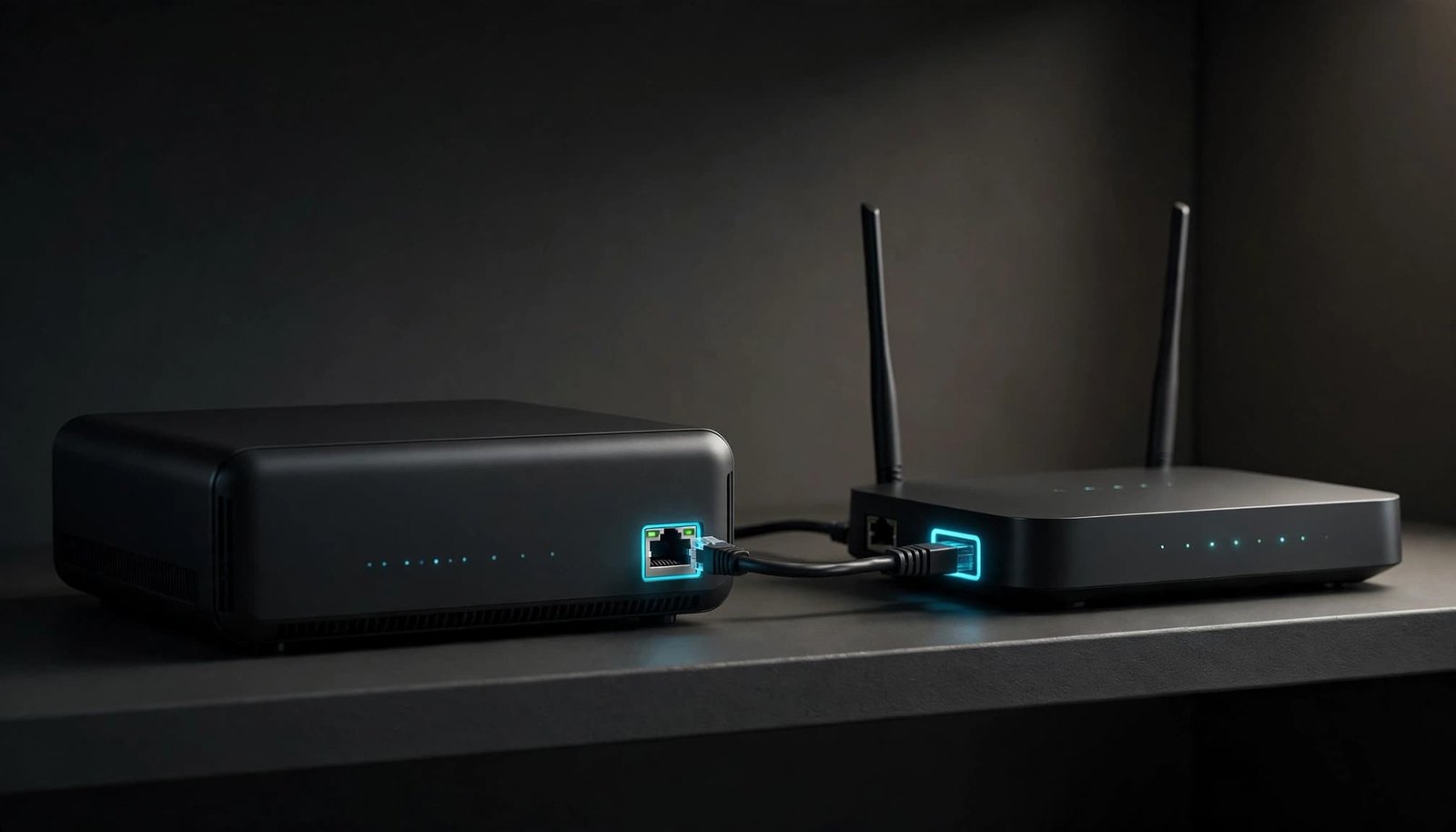
Follow the Ethernet Cable
Find the cable coming from your modem, ISP gateway, or fiber ONT. It should enter the Netgear port marked Internet or WAN, not one of its numbered LAN ports. Reseat both ends. If you have a known-good Ethernet cable, try it.
Check the upstream device too. A cable modem needs an active provider connection before it can hand off internet service. Its normal online light should be stable, though light names differ by model. Our guide to connecting a router to your modem walks through the basic cable path.
Check Whether the Modem Is Ready
If you recently installed your own cable modem, confirm your ISP activated that exact modem. A router restart cannot complete modem registration.
For fiber, confirm you’re using the active Ethernet handoff from the ONT or the ISP gateway required for your service. Don’t move cables between ONT ports at random. Your provider can tell you which port should supply internet access.
Restart the Modem Before the Router
A modem may still be associated with the device previously connected to it. Restarting both pieces of equipment in the right order gives the Netgear router another chance to request an address.
- Unplug the Netgear router and the modem or ISP gateway. If your provider manages the ONT, follow its instructions before restarting it.
- Plug in the modem or gateway first. Wait until its normal connection lights return.
- Plug in the Netgear router and let it finish starting. Then check its Internet-port IP again.
If you’re replacing ISP equipment, the provider may also need to register your modem or clear a previous device association. See the steps to activate your own router with your ISP before assuming the Netgear unit is faulty.
Review the Netgear WAN Settings
If the cable is correct and the upstream device is online, check how the router requests its address. Use the browser interface for this step; it usually shows more detail than a mobile app.

Match the Connection Type to Your Service
Look under Internet Setup or a similar menu. Many home connections use an automatically assigned address, often called Dynamic IP or “Get Dynamically from ISP.” Some services require PPPoE credentials. Others require a static address or a provider-specified VLAN ID.
Don’t guess at these settings. If your provider gave you PPPoE credentials, enter them exactly. If it assigned a static address, use its IP, gateway, subnet, and DNS details. NETGEAR’s static IP setup instructions show where that option appears in the web interface.
Leave MAC Settings Alone Unless Needed
Some providers or upstream devices associate service with a particular device’s MAC address. This may come up after you replace a router or change what plugs into a modem.
Restart the modem first. If the WAN address remains missing, ask your ISP whether it registers the connected router or requires a MAC change. Cloning an old device’s MAC address without that confirmation can make troubleshooting harder.
Check What Sits Between Netgear and the ISP
Your setup matters here. A standalone cable modem and a provider gateway don’t hand off internet service in the same way.
ISP Gateway or Fiber ONT?
A fiber ONT often supplies an Ethernet connection, but some providers require their gateway to remain installed. If you removed that gateway and the Netgear WAN address disappeared, ask the ISP whether direct router connections are supported for your account.
With a gateway still installed, connect one of its active LAN ports to the Netgear WAN port. If you’re using AT&T Fiber, the gateway’s IP Passthrough setting may be relevant when you want Netgear to act as the main router. Our Netgear setup guidance for AT&T Fiber covers that arrangement.
A Private WAN Address Is Different From No Address
An address such as 192.168.1.20 or 10.0.0.5 means an upstream device assigned Netgear a private IP address, often because an ISP gateway is routing first. The gateway may hold the public IP address while Netgear gets that private IP address. This differs from 0.0.0.0, which means no WAN address was assigned.
You can keep the gateway in charge and use Netgear as an access point, or use a supported bridge or passthrough setting if you want Netgear to handle routing. An Orbi mesh system can also sit behind a gateway in a supported access-point arrangement. NETGEAR has separate Orbi access-point instructions for that choice.
If the Router Login Page Won’t Open
You need local access to check the WAN status, but internet service isn’t required to open the router’s local settings page.
Find the Local Gateway Address
Join the Netgear WiFi network or connect a computer to one of its LAN ports. To access router settings, try routerlogin.net or routerlogin.com. If neither loads, try 192.168.1.1 or 192.168.0.1.
Still stuck? On Windows, run ipconfig and find Default Gateway for your active connection. On a mobile device, open the connected network’s details and look for Router or Gateway. Enter that address in the web browser address bar. Turn off mobile data or a VPN temporarily if your phone keeps leaving the local network.
Use the Right Admin Credentials
Use the admin username and password you set during setup, not necessarily the Wi-Fi password. On many Netgear models, the unchanged default username is admin and the password is password. Check your model’s label or documentation rather than assuming those credentials apply to every router.
If login still fails, try another browser or clear browser cache. NETGEAR’s router access troubleshooting steps can help with troubleshooting router login when the page itself won’t load. Password recovery may be available if you configured the password recovery feature earlier; otherwise, consider a reset only after the WAN checks.
Update Firmware, Then Consider a Reset
Firmware updates and resets have a place in troubleshooting, but neither can fix an inactive modem or missing ISP service.
Update When You Have a Stable Connection
Once the router has internet access, check for firmware updates. On supported models, the Nighthawk app offers an update option under Router Settings > CHECK FOR UPDATES. You can also check your model’s web interface for its update option.
Consider a router firmware update only when the connection is stable. If the router has no internet, an app update may be unavailable. Confirm the cable, upstream service, and WAN settings before treating 0.0.0.0 as a firmware problem.
Reset Only After Recording Your Settings
A factory reset erases your Wi-Fi name, password, and custom internet settings, so use it late in troubleshooting. Record any ISP-provided PPPoE, VLAN, or static IP details first. NETGEAR commonly instructs users to hold the Reset button for seven seconds, but check your model’s instructions.
After the reset, set up the connection again and check the WAN address. If it still reads 0.0.0.0, contact your provider before buying another router.
What to Tell Your Internet Provider
Call your ISP if the modem won’t come online, a newly installed modem hasn’t been activated, or Netgear still has no WAN address after the cable and restart checks. Have your service address, modem model, and the router’s displayed WAN status ready.
Ask what connection type your account uses and whether the provider requires its gateway, a registered MAC address, or another handoff setting. That question is more useful than saying only that your Wi-Fi doesn’t work.
Frequently Asked Questions
Can the Nighthawk app or Orbi app Show the Problem?
The apps can show basic setup and connection status on supported products, but details vary by model. For the exact WAN IPv4 address and advanced internet settings, use the router’s web interface when available. If an Orbi mesh system is in Access Point Mode, check the upstream device doing the routing.
How Do I Find My Public IP Address?
While connected through your home internet, use an online public IP checker and read its IPv4 result. Compare it with Netgear’s WAN IPv4 address. A match suggests Netgear has the public IP address. A difference can mean an ISP gateway or another upstream routing layer; it doesn’t prove the ISP uses CGNAT.
Will Changing the Router’s Local IP Fix 0.0.0.0?
Usually not. The local, or private, IP address opens your settings page and connects devices inside your home. 0.0.0.0 on the Internet port means the router hasn’t obtained a WAN address. Focus on the modem or ONT connection, provider status, and required WAN settings.
Conclusion
A working Wi-Fi name doesn’t prove your Netgear router has an internet connection. Check the WAN address first, then work outward through the cable, modem or ONT, and provider settings.
If those checks leave the Internet port at 0.0.0.0, give your ISP the status reading and ask them to verify the handoff. That can save you an unnecessary reset or router replacement.