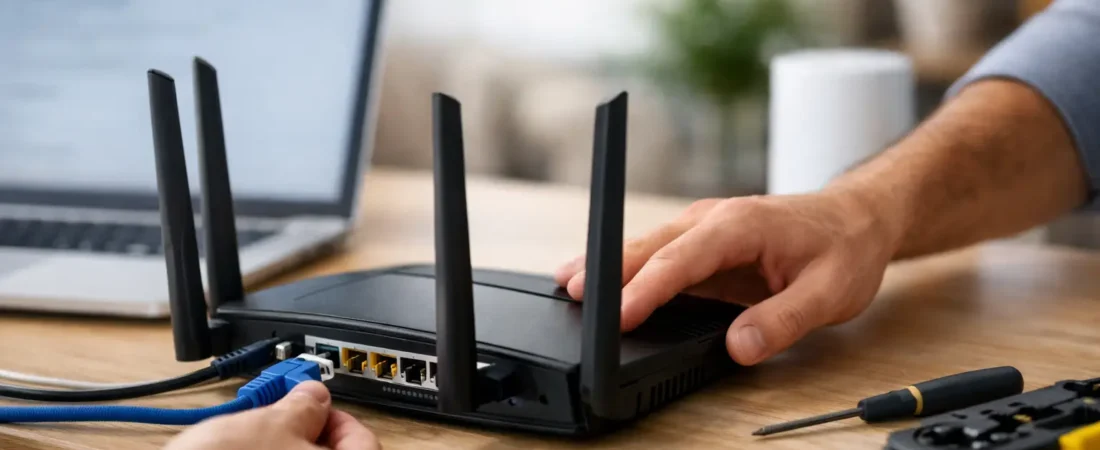
A new router should make your home internet better, not give you an hour of blinking lights and second-guessing. If you are trying to figure out how to set up router hardware for the first time, the good news is that most home setups are straightforward once you know what plugs in where and which settings actually matter.
The part that trips people up is not usually the cabling. It is knowing whether you need a modem, whether your ISP allows your router, and which settings are worth changing before everyone in the house jumps back on Wi-Fi. A clean setup now can save you from weak coverage, random dropouts, and the monthly regret of paying for fast internet that never feels fast.
Before you set up your router
Start with the one question that decides everything: what type of internet service do you have? If you use cable internet from providers like Xfinity, Spectrum, or Breezeline, you may need both a modem and a router unless you have a combo unit. If you have fiber from Verizon Fios or AT&T Fiber, the setup can look different because your provider may use an ONT or gateway instead of a separate cable modem.
This is also the point where compatibility matters. A router can be excellent and still be the wrong fit for your ISP or internet plan. If you bought your own equipment to replace rental gear, confirm that your ISP supports it. For cable internet, check modem compatibility first. For fiber, make sure you understand whether your provider requires its own gateway, allows passthrough mode, or lets you use your own router directly.
Before you begin, have a few basics ready: your router, power adapter, Ethernet cable, modem or gateway if required, your ISP account information if activation is needed, and your phone or laptop for setup. Put the router somewhere central and open if possible. A router hidden in a basement corner or stuffed behind a TV stand will work, but not well.
How to set up router hardware step by step
The physical setup is simple once you know the order.
If you have a separate modem and router, connect the modem to your internet source first. For cable internet, that means the coax cable goes into the modem. Then connect an Ethernet cable from the modem’s Ethernet port to the router’s WAN or Internet port. After that, plug in the router’s power.
If your ISP gave you a gateway and you are using that device as your router, you usually just need to connect the incoming service line and power it on. If you are adding your own router behind the gateway, connect an Ethernet cable from the gateway to your router’s WAN port.
Once everything is connected, wait a few minutes. Modems and routers take time to boot. The internet light may blink for a while before it settles. If your modem was already active and you swapped routers, a restart of both devices often helps. In many homes, the right sequence is modem first, wait until it is online, then router second.
Next, connect your phone or laptop to the router. Most new routers have a default Wi-Fi name and password printed on a label. Some also support app-based setup, which is usually the easiest route for beginners. Others let you finish setup in a web browser by entering the router’s local address.
The settings that matter most
This is where a lot of people either overdo it or skip too much. You do not need to tweak every advanced option. You do need to lock down the basics.
First, change the default admin password for the router itself. This is not the same as your Wi-Fi password. The admin password controls access to settings, and leaving the default in place is an avoidable security risk.
Second, set your Wi-Fi network name and password. Choose a name that is easy for your household to recognize. For the password, pick something strong but realistic enough that you can enter it on TVs, streaming sticks, printers, and smart home devices without losing your patience.
Third, use the strongest security option your router and devices support. In most cases, that means WPA3 if available, or WPA2/WPA3 mixed mode if you have some older devices. If you choose a setting that is too strict for older smart home gear, you may need to back off slightly. This is one of those cases where perfect security and practical compatibility do not always line up.
If your router offers separate 2.4 GHz and 5 GHz bands, you can either keep them under one network name or split them. One name is easier for most households. Separate names can help if you want more control, especially for older devices that only work well on 2.4 GHz. It depends on how hands-on you want to be.
ISP activation and common provider issues
Sometimes the router is not the problem. The internet service itself needs to recognize the new equipment.
With cable ISPs, modem activation is often the key step. If you replaced a modem or bought your own modem-router setup, your ISP may need the device’s MAC address or serial number. Until that happens, the router can look fully powered on while your home still has no internet.
Fiber setups can be less predictable because providers handle equipment differently. Verizon Fios users may be able to connect a router through Ethernet from the ONT, while AT&T Fiber customers often need to use the provider gateway in some form. If your internet works only through the ISP box and not through your new router alone, that is usually not a router defect. It is a provider setup rule.
If you are replacing ISP rental equipment, keep expectations realistic. In many homes, using your own router improves Wi-Fi coverage, speed handling, and settings control. But some services, especially certain TV packages, phone systems, or mesh extenders tied to the provider, may work better with their equipment left in place. Saving on rental fees is appealing, but compatibility should come first.
How to place your router for better results
A perfect setup can still feel disappointing if the router is in the wrong spot. Placement matters more than most people think.
Try to put the router near the center of the home, elevated if possible, and out in the open. Avoid placing it inside cabinets, behind large metal objects, or directly next to thick concrete walls. Kitchens, garages, and utility closets are common weak spots because appliances and building materials can interfere with the signal.
If your home is larger, multi-story, or has dead zones at the edges, a single router may not be enough. That does not mean the setup failed. It may simply mean your home needs a mesh system or an additional access point. This is a common issue in households with remote work, multiple TVs, gaming consoles, and lots of smart devices competing for coverage.
What to do if the router setup is not working
If the internet is still down after setup, do not start factory resetting everything right away. Work through the basic checks first.
Make sure the Ethernet cable from the modem or gateway is plugged into the router’s WAN port, not a LAN port. Restart the modem, wait until it is fully online, then restart the router. Confirm that your ISP service is active and that the modem is approved for your provider if you own it.
If Wi-Fi appears but there is no internet, the issue is often between the ISP and the modem or gateway. If wired internet works but Wi-Fi feels slow, placement or band settings are more likely to blame. If only one room has poor service, you probably have a coverage problem, not a setup problem.
You should also update the router firmware during setup if the option is available. Firmware updates can fix bugs, improve stability, and patch security issues. It is a small step that pays off later.
When a basic router is enough and when it is not
A lot of setup advice ignores the bigger question: is this router actually right for your household? If you live in a smaller home, have a modest internet plan, and mostly stream, browse, and work online, a standard dual-band router may be all you need.
If you pay for gigabit speeds, have a busy household, or want to replace weak ISP equipment, spending more on a better router or mesh system often makes sense. Setup is only part of the experience. The hardware you choose will shape your Wi-Fi performance every day after that.
That is why sites like RouterForMyISP focus so heavily on ISP fit, not just raw router specs. The best router on paper is not automatically the best one for your provider, your floor plan, or the number of devices in your home.
If you keep the process simple, check compatibility first, and change the few settings that actually matter, setting up a router is usually a one-time job. Do it carefully now, and your internet will feel less like a household argument and more like something that just works.