Port forwarding that used to work can suddenly fail after adding a new router. Online games may show a strict NAT type. A work VPN may connect one day and refuse the next.
This two-router conflict happens when your provider’s gateway and your Netgear router both try to manage the same internet connection. The fix is usually simple once you choose which device should handle routing.
You don’t need to replace good equipment or perform a factory reset. You need one clear network path, with one device handling NAT, DHCP, firewall rules, and connection settings.
This post may contain affiliate links. If you make a purchase through these links, I may earn a small commission at no extra cost.
Key Takeaways
- Double NAT happens when both your ISP gateway and Netgear router perform routing, NAT, DHCP, and firewall functions.
- Confirm double NAT by checking whether the Netgear WAN address uses a private range such as
192.168.x.x,10.x.x.x, or172.16.x.xthrough172.31.x.x. - Use bridge mode or a gateway handoff when you want the Netgear router to manage your entire home network.
- Use Netgear AP mode when the ISP gateway must remain in charge of routing and provider features.
- IP passthrough or DMZ can help when bridge mode is unavailable, but DMZ should point only to the Netgear router and still requires outside testing.
Netgear double NAT: Why an ISP gateway Causes It
A provider gateway is usually two devices in one box. It connects to your cable, fiber, or DSL service, then creates its own Wi-Fi network and private home network.
When you connect an Orbi or Nighthawk router behind that gateway, the Netgear router creates two private networks. Both devices perform Network Address Translation, also called NAT.
What NAT does on a normal home network
NAT lets phones, TVs, computers, and game consoles share one public internet address. Your router gives each device a local address, such as 192.168.1.x, then keeps outside traffic separated from your home devices.
One NAT layer is normal. It is how most home networks work.
The problem starts when the provider gateway assigns a private address to the Netgear router’s Internet port. Your Netgear router then assigns another set of private addresses to your devices.
Why two routers can cause network problems
Basic web browsing, video streaming, and email often work despite two routing layers. Trouble usually appears when outside traffic needs to reach a device in your home.
You might see:
- Inbound rules that never open
- Strict or moderate NAT warnings on consoles
- Trouble hosting multiplayer games
- VPN connections that fail or disconnect
- Remote camera, NAS, or smart-home access problems
- Two separate Wi-Fi networks with devices that cannot find each other
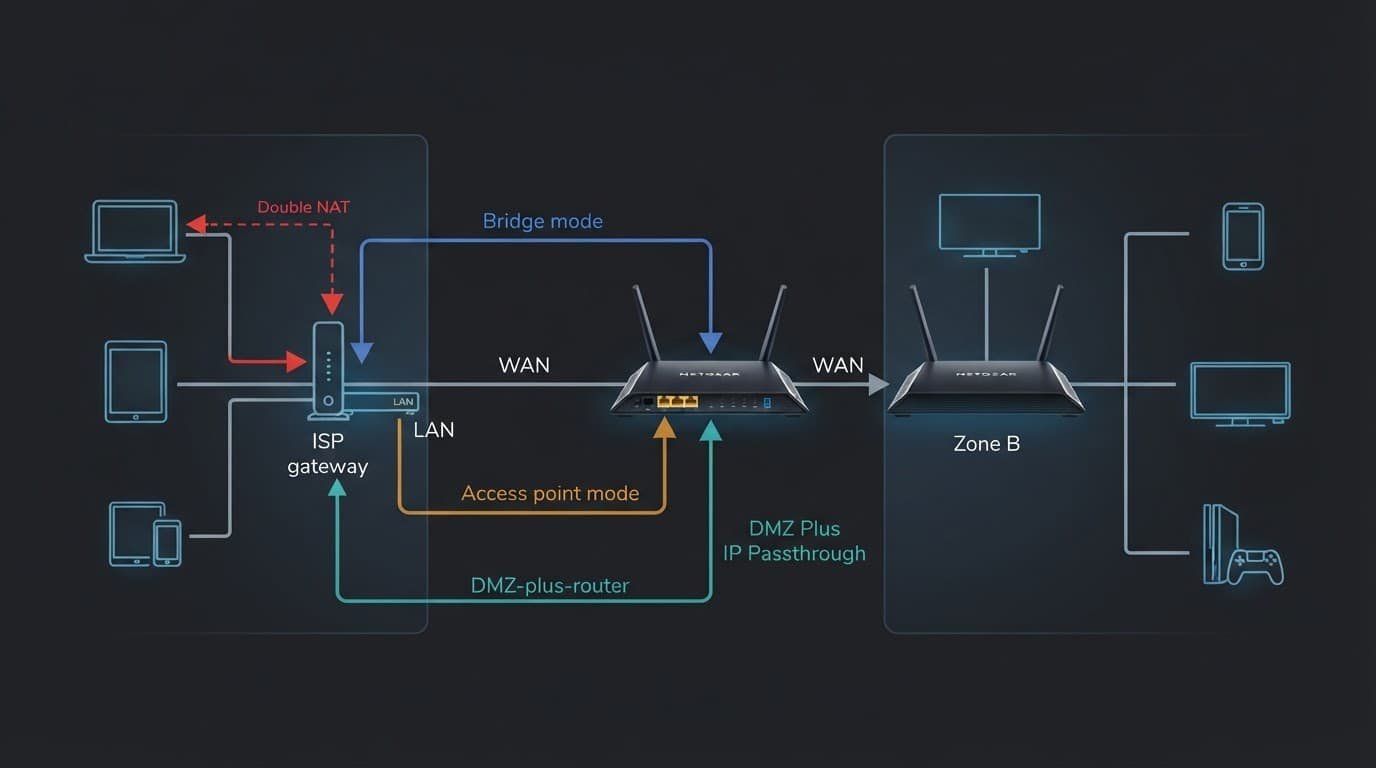
NETGEAR’s gateway troubleshooting guidance points to three practical paths: configure the gateway to pass traffic through, use Netgear AP mode, or use a gateway handoff feature such as passthrough or DMZ.
Check for Double NAT Before Changing Settings
Do not change settings based only on a gaming warning. First confirm how your equipment is connected.
A modem-only device connected to a Netgear router does not create double NAT. A modem-router combo or provider gateway usually can.
Check the Netgear router’s WAN IP address
Log in to your Netgear router and look for its WAN IP address. If the address starts with one of these ranges, your router is behind another of your private networks:
192.168.x.x10.x.x.x172.16.x.xthrough172.31.x.x
For example, a Netgear router WAN IP of 192.168.1.20 usually means the gateway is still routing traffic. A public IP address is different and does not use those private ranges.
A forwarding rule created only on the Netgear router cannot work if the gateway still blocks the connection first.
There is one other possibility. An address in the 100.64.x.x range can mean carrier-grade NAT from the provider. In that situation, changing the gateway’s routing may not open inbound access. Ask the provider if your plan includes a public IPv4 address.
Confirm the physical connection and save your settings
In router mode, the Ethernet cable should normally run from a LAN port on the gateway to the yellow or labeled Internet port on the Netgear router.
Write down your Wi-Fi name, password, gateway login, and Netgear login before making changes. Take screenshots of forwarding rules and DHCP reservations, and record each static IP reservation too.
If both devices use the same address, such as 192.168.1.1, change one local network range before you begin. That makes it easier to reach the gateway later if you need to reverse a setting.
Bridge mode Lets Netgear Run Your Network
Bridge mode turns the provider gateway into a basic connection device. The Netgear router stays in router mode and becomes the only device handling your home network.
This is often the best setup for gaming, advanced inbound rules, VPN use, and households that want Netgear controls to remain active.
Here is the practical difference between the three common setups.
| Setup | Provider gateway handles | Netgear router handles | Main tradeoff |
|---|---|---|---|
| Gateway handoff | Internet connection only | Wi-Fi, DHCP, NAT, firewall, inbound rules | The gateway’s router features turn off |
| AP mode | Internet connection, routing, DHCP, ports | Wi-Fi coverage and Ethernet access | Netgear router features are limited |
| IP passthrough or DMZ | Upstream connection and some gateway management | Most router functions | It may not remove every gateway limitation |
This handoff is usually the cleanest choice when available. Xfinity notes that only one device can connect to its gateway during the handoff, so connect the Netgear router directly and avoid adding a switch between them.
Before using the handoff
Check whether your provider requires its gateway for home phone service, TV equipment, or fiber authentication. You may need to keep the gateway installed even when it no longer provides Wi-Fi.
Also confirm that your Netgear router is in normal router mode. Don’t set both devices to the same mode. That can leave you with no device assigning local IP addresses.
If service stops, restore the original gateway setting. A quick photo of the original wiring helps when you’re working in a crowded media cabinet.
Restart the equipment in the right order
After applying the handoff, restart the provider gateway first. Wait until it’s fully online. Then restart the Netgear router.
This gives the router a new internet address. If the Netgear WAN page still shows a private IP after several minutes, power both devices off, then repeat the gateway-first restart.
Use Access Point Mode When Bridge Mode Is Not Available
Some provider gateways do not offer a usable bridge setting. Others need to stay in router mode because of provider features or account requirements.
In that case, access point mode is the simple fix. The provider gateway remains in charge of your network, while the Netgear router provides better Wi-Fi coverage, mesh support, and extra Ethernet ports.
What changes in Netgear AP mode
Your Orbi or Nighthawk still provides wireless coverage. An Orbi mesh system can still use its satellites to reach more rooms.
The gateway now handles DHCP, NAT, firewall settings, device reservations, UPnP, and port forwarding. If you need to open a port for a console, camera, or remote desktop, create that rule on the gateway instead of the Netgear router.
Netgear’s router mode and AP mode comparison is useful here. AP mode does not mean worse Wi-Fi. It means Netgear’s advanced controls are limited because the device is no longer your main router.
Wireless bridge mode is a separate network topology. It is not the AP-mode setting described here.

Set an Orbi or Nighthawk to AP mode
For many Orbi systems, open the router’s web settings and go to Advanced > Advanced Setup > Router / AP Mode. Select AP Mode, then choose Apply.
NETGEAR’s Orbi AP mode instructions confirm the menu path. Some Nighthawk models use a slightly different menu, so follow the on-screen Ethernet port instructions for your model.
The Netgear router may restart and receive a new local address from the gateway. Reconnect your phone or computer after it finishes. If you do not need the gateway’s Wi-Fi, turn it off after confirming the Netgear network works in every room.
ISP Gateway Fixes for Xfinity, AT&T, and Verizon
The right setting depends on the provider and gateway model. The goal stays the same: one device should act as the router.
Xfinity gateway bridge mode
An Xfinity Gateway can usually hand its public address directly to a Nighthawk or Orbi router. Xfinity provides gateway handoff steps for its wireless gateways.
This arrangement is also useful when you want to keep the rented gateway but improve Wi-Fi with your own router. If you want to remove the monthly rental charge, review our guide to replacing an Xfinity Gateway before buying a cable modem.
AT&T Fiber IP Passthrough
AT&T Fiber gateways usually stay installed because they handle the fiber connection. Instead of a full gateway handoff, many AT&T gateways use IP Passthrough.
On common BGW gateway models, find the setting under Firewall at 192.168.1.254. Choose the Netgear router from the device list and use the fixed DHCP passthrough option when available. This AT&T gateway handoff setup guide shows the usual menu choices.
Restart the gateway before the Netgear router. Then confirm that the Netgear router receives the public IP address.
Verizon gateway and Fios setups
Verizon configurations vary because some homes use an ONT, a Verizon router, TV equipment, or a newer internet gateway. If the Verizon device must remain the router, let it manage routing and use the Netgear for Wi-Fi.
If your Verizon gateway supports a direct handoff, follow Verizon’s IP Passthrough instructions. Don’t change settings that affect TV service or provider-managed equipment unless you know those services will continue working.
When IP Passthrough or DMZ Still Does Not Work
This handoff can let the Netgear router receive the public address. A gateway DMZ sends unsolicited inbound traffic to the Netgear router. Both can help when regular bridge mode is unavailable.
They are not identical fixes.
Use DMZ only for the Netgear router
If you use DMZ, enter the Netgear router’s WAN address in the gateway’s DMZ setting. Never put a computer, camera, game console, or NAS directly in the DMZ.
DMZ can make the forwarded service reachable through two routing layers, but it may still leave those layers in place. It is a workable fallback, not the first choice.
A forwarded port may still appear closed because the target device changed IP addresses, the service is not running, the wrong protocol was selected, or the Netgear router never received a public address. Create a static IP reservation for the target device before testing the rule.
Test from outside your home Wi-Fi
Do not test a port forward while connected to the same Wi-Fi network. Many routers do not support that kind of local loopback test.
Turn off Wi-Fi on your phone and test through cellular data. You can also ask someone outside your home to test the service. This confirms whether outside traffic can actually reach your network.
Test the Network After the Fix
Reconnect your important devices and check the basics first. Test wired speed, Wi-Fi coverage in the rooms you use most, and overall network performance. Check any console, VPN, camera, or remote-access service that had trouble.
Keep router duties in one place
When the gateway is bridged, make router changes on the Netgear device. When the gateway handles routing, make them there instead.
A bridged setup leaves the Netgear device as the only device performing Network Address Translation, while a gateway-led setup leaves that responsibility with the gateway. Router duties include port forwarding, DHCP reservations, parental controls, and firewall settings. Splitting those jobs between two devices is how the same problem returns later.
Update firmware on both devices once the network is stable. Then label the gateway and Netgear router so the next troubleshooting session starts with the right box.
Frequently Asked Questions
How do I know if my Netgear router has double NAT?
Check the Netgear router’s WAN IP address. If it falls within a private range such as 192.168.x.x, 10.x.x.x, or 172.16.x.x through 172.31.x.x, an ISP gateway is probably routing traffic before it reaches Netgear.
What is the best fix for Netgear double NAT?
Bridge mode or a gateway handoff is usually the cleanest option because the Netgear router becomes the only device handling NAT, DHCP, and firewall rules. If the gateway must remain in router mode, use Netgear AP mode instead.
Should I use DMZ for my Netgear router?
DMZ can be a fallback when bridge mode or IP passthrough is unavailable. Enter only the Netgear router’s WAN address, never the address of a computer, camera, console, or NAS, and remember that DMZ may not remove every routing layer.
Where should I create port-forwarding rules?
Create port-forwarding rules on the device that handles routing. Use the Netgear router after bridge mode or a successful gateway handoff, and use the ISP gateway when Netgear is operating in AP mode.
Why should I test port forwarding outside my home Wi-Fi?
Many routers do not support testing a forwarded port from inside the same network. Turn off Wi-Fi on your phone and test through cellular data, or ask someone outside your home to check the service.
Choose the Setup That Fits Your Home
The best Netgear double NAT fix is the one that leaves one router in charge. Choose bridge mode when you want your Orbi or Nighthawk to control the network. Use AP mode when the provider gateway must stay in charge.
The passthrough option and DMZ can help when that setting is blocked, but they need careful testing. Once your WAN address, wiring, and router mode match, gaming and inbound access are easier to manage.
This post may contain affiliate links. If you make a purchase through these links, I may earn a small commission at no extra cost to you.