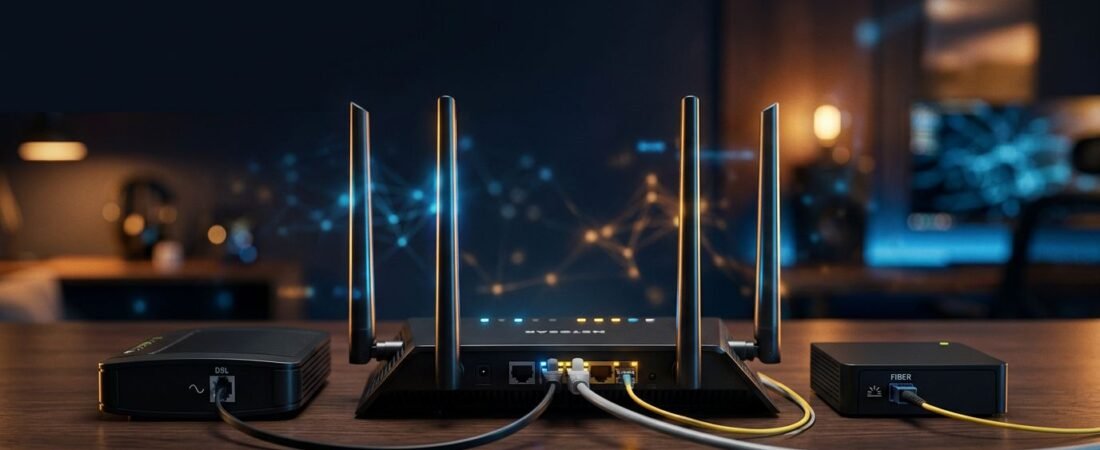
Most router problems start with one simple mistake: using hardware designed for the wrong connection. Kinetic, also known as Windstream, is your internet service provider, but DSL and Windstream fiber need different equipment.
A reliable internet connection starts by identifying what enters your home. Fiber internet reaches your home through an ONT. A cable-oriented modem router combo expects a coaxial cable, so it isn’t interchangeable with DSL or fiber equipment.
Once the connection type is clear, the rest is mostly ports, cables, and a few settings.
This post may contain affiliate links. If you make a purchase through these links, I may earn a small commission at no extra cost to you.
Windstream Netgear Setup: Check DSL or Fiber First
Before unplugging anything, look at the equipment already providing service. The cable path shows what your Netgear router needs.
| Your service | Equipment that stays in place | Netgear connection |
|---|---|---|
| Kinetic DSL | A DSL modem or DSL gateway | Ethernet from modem’s LAN port to router’s WAN port |
| Kinetic Fiber | An optical network terminal (ONT) | Ethernet from ONT to router |
That difference matters more than the router model name on the box.
DSL needs a modem before the router
A standalone Netgear Nighthawk router can’t connect directly to a DSL phone line. DSL service needs a compatible DSL modem or gateway to handle the line coming from the wall.
Your Netgear router sits behind that modem. It handles Wi-Fi, Ethernet devices, parental controls, and most of your home connections.
Some modem router combo models include the DSL modem you need, but confirm DSL support before buying one. Many popular Netgear modem router combo models are built for cable service and use a coaxial cable. A coaxial cable isn’t a substitute for the DSL phone line.
If Kinetic asks you to identify the equipment, the router’s MAC address may help. You’ll usually find it on a label or in the product information.
Fiber uses the ONT, not a modem
Kinetic fiber normally enters the home through an ONT. This box changes the fiber signal into an Ethernet connection your router can use.
That means a third-party Netgear router can often connect directly to fiber service. You don’t need a cable modem or DSL modem between the ONT and router.
Leave the fiber cable connected to the ONT. Your Netgear router connects to the ONT with a regular Ethernet connection.
Connect a Netgear Router to Kinetic DSL
Start with a working DSL modem or Kinetic gateway. The modem must establish an internet connection before the router setup begins. If it can’t get online alone, adding a new router won’t fix the connection.
Kinetic’s wireless router connection guide shows the basic DSL filter and cabling layout for phone-line service.
Keep the DSL line connected to the modem
Follow this order for a standard DSL modem plus Netgear router:
- Connect the wall phone jack to the DSL modem’s DSL port. Use a DSL filter if your home phone shares that wall jack.
- Connect the modem’s power cord, then leave it on until its DSL or Internet status light shows a normal connection.
- Run an ethernet cable from a LAN port on the modem to the yellow Internet or WAN port on the Netgear router.
- Power on the Netgear router and wait a few minutes for it to start.
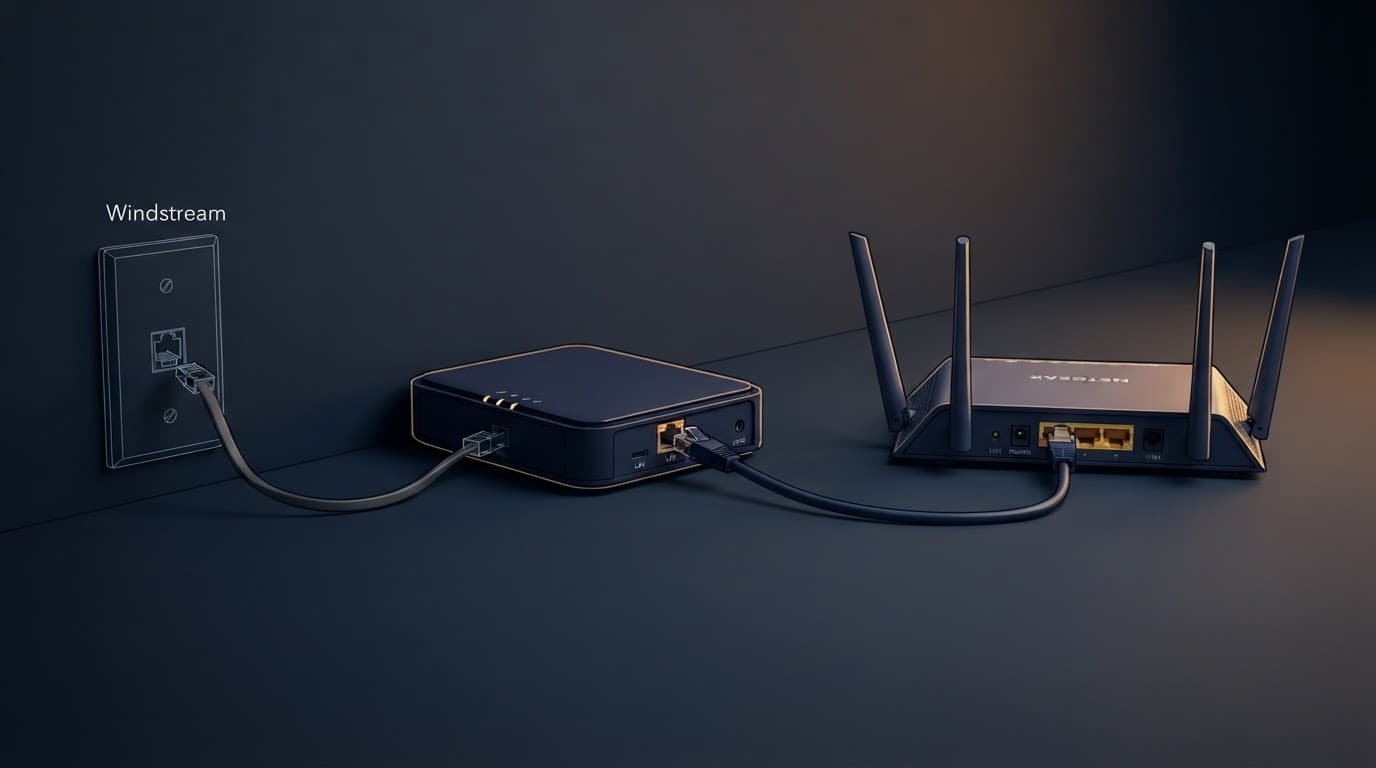
Don’t plug the modem-to-router cable into one of the Netgear’s numbered ports. The dedicated port connects the router to the internet source.
Avoid two routers doing the same job
A Kinetic DSL gateway may already be a modem router combo, handling both modem and routing functions. Adding a Netgear router behind it can create double NAT, which may cause trouble with gaming, remote access, and some smart devices.
Use the DSL line for phone-line service. A coaxial cable is designed for cable service, not DSL.
Don’t change the router’s MAC address while troubleshooting double NAT unless Kinetic specifically requests it.
You have two practical options:
- Put the Netgear router in Access Point Mode if you mainly want better Wi-Fi coverage.
- Ask Kinetic about bridge mode or IP passthrough if you want the Netgear router to handle routing, firewall settings, port forwarding, and DHCP.
Access Point Mode is usually the easier choice for beginners. Bridge mode gives you more control, but it may require service credentials and help from Kinetic support.
Connect a Netgear Router to Windstream Fiber
Most Windstream fiber installations use an ONT, which handles the modem function for the service. This makes the setup simpler than DSL.
Run Ethernet from the ONT to the WAN port
Find the Ethernet port on the ONT, or the Ethernet wall jack connected to an outdoor ONT. Use one ethernet cable to connect it to the Netgear router’s WAN port.
Power on the ONT first if its power adapter was unplugged. Once its status lights are stable, connect the router’s power cord and turn it on.
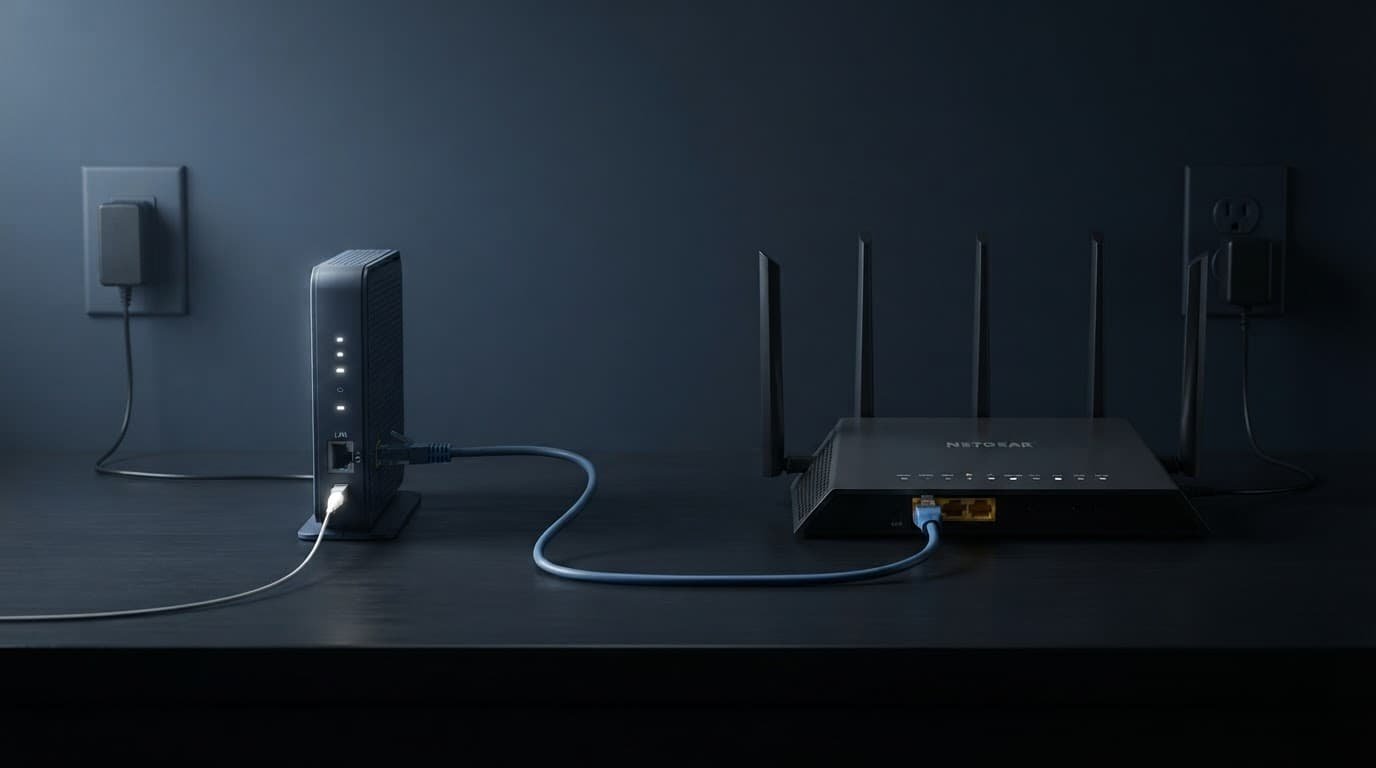
A standalone Netgear Nighthawk with an Ethernet port is a good fit here. A modem router combo designed for a coaxial cable is usually unnecessary for fiber internet.
Confirm whether your connection uses DHCP or PPPoE
Set the Netgear internet connection type to Dynamic IP or DHCP for most fiber internet installs. Some older installations require PPPoE, which your internet service provider may use with a username and password.
Don’t guess at PPPoE credentials. Contact Kinetic technical support to confirm the WAN type, required credentials, and whether the provider registers the hardware by MAC address. Don’t clone the MAC address unless Kinetic gives specific instructions.
A Netgear community discussion about Windstream PPPoE shows why the answer can vary by installation.
If the ONT is connected properly but the router says “No Internet,” check the internet connection type first.
Set Up Your Wi-Fi Name, Password, and Security
Once the wireless router is online, finish the local router setup. This is where your home Wi-Fi network becomes yours instead of a default network with a sticker password.
Log in to the Netgear settings page
Connect a phone, tablet, or computer to the Netgear router by ethernet cable or its default Wi-Fi network. Then open a browser and go to NETGEAR’s router login page.
You can also try 192.168.1.1 or 192.168.0.1 if the login page doesn’t load. Stay connected to the router’s Wi-Fi while doing this. Turn off mobile data and any VPN first.
During setup, choose a network name you’ll recognize. Use a strong Wi-Fi password instead of the sticker’s default password, then save the router admin password somewhere safe.
Secure the network and skip unnecessary MAC changes
Open the security settings and use WPA3 if your router and devices support it. WPA2/WPA3 mixed mode is practical for older smart TVs, printers, or smart home devices. If an older smart device won’t connect, check its device settings before weakening router security.
Check the network settings for available router firmware updates after setup. Updates can fix stability issues and improve security.
The router’s MAC address is usually printed on its bottom label. You can also find the MAC address in the Netgear settings page. Kinetic doesn’t normally require MAC address registration for a standard router connection, so don’t clone or register it unless support tells you to.
Put the Router Where Wi-Fi Can Reach It
A wireless router can have the right settings and still perform poorly when it is hidden in the wrong spot. Place it in an open, central part of the home whenever possible.
Avoid cabinets, closets, metal shelving, thick brick walls, and the back of a TV stand. Keep it away from microwaves and cordless phone bases, which can cause signal interference. A shelf or table near the middle of the home is often better than a utility room at one end.
Choose mesh Wi-Fi when one router cannot cover the house
A single Netgear router is often enough for a small or mid-sized home with an open layout. For multiple floors, thick walls, long hallways, or a detached office, choose mesh nodes or a wired access point to extend one shared Wi-Fi network.
If network performance is good beside the router but poor in bedrooms or upstairs, you likely have a coverage problem. A mesh system or wired access point is usually a better fix than buying another single router.
Before spending more, compare features and home-size fit in our Netgear Nighthawk review. It’s one example, not a universal recommendation. A modem router combo with a coaxial cable won’t solve a DSL or fiber coverage problem and may be the wrong purchase. Wi-Fi 6 is enough for many homes, but faster hardware only helps when your plan, devices, and coverage needs support it.
Fix Common DSL and Fiber Router Problems
Check the physical path first to separate an internet connection problem from a router or Wi-Fi problem.
Test the wired connection first
If DSL is down, connect a computer directly to the DSL modem with an Ethernet cable in a LAN port, and temporarily remove the router. If the computer still can’t get online, the problem may involve the DSL modem, phone line, or Kinetic service.
A persistent line failure may require investigation by your internet service provider. Only check the hardware’s MAC address if Kinetic requests an authorization review. If someone suggests changing or cloning the MAC address, confirm with Kinetic first, since neither is a routine fix.
For fiber, confirm that the Ethernet connection runs from the ONT to the Netgear WAN port. Check that the router’s Internet light comes on after the connection starts.
If you replaced an old router or modem router combo, restart the Netgear router after checking the cable. If needed, restart the Kinetic gateway or ONT using its normal power instructions. Unplug the power adapter, wait for its connection lights to stabilize, then start the router again.
If the problem continues, contact technical support before trying a factory reset. Document your current settings first, and reset only when support recommends it.
Separate Wi-Fi problems from internet problems
If an Ethernet-connected computer works but Wi-Fi is weak, the internet service is probably fine. Move the router to a better location, update its firmware, and test the rooms where you stream, work, or game.
If you rent Kinetic Wi-Fi equipment, compare the monthly charge with the cost of buying your own hardware through our router rental savings guide. Keep any returned-equipment receipt after making a change.
Frequently Asked Questions
Can I connect a Netgear router directly to Windstream DSL?
No, DSL service needs a compatible DSL modem or gateway between the wall phone jack and the Netgear router. Connect the modem’s LAN port to the router’s WAN port with an Ethernet cable.
Do I need a modem for Windstream fiber?
No, the ONT usually handles the modem function for fiber service. Connect an Ethernet cable from the ONT or connected Ethernet wall jack to the Netgear router’s WAN port.
Should I use DHCP or PPPoE for Windstream fiber?
Use Dynamic IP or DHCP for most fiber installations. If the connection requires PPPoE, contact Kinetic to confirm the username, password, and WAN settings instead of guessing.
How do I avoid double NAT with a Kinetic gateway?
Put the Netgear router in Access Point Mode if you only want to improve Wi-Fi coverage. If you want the Netgear router to manage routing and firewall settings, ask Kinetic about bridge mode or IP passthrough.
What should I check if my Netgear router says “No Internet”?
Confirm that the cable runs from the DSL modem’s LAN port or fiber ONT to the Netgear WAN port, then check the WAN connection type. If the modem or ONT cannot connect online by itself, contact Kinetic before resetting the router.
A Simple Setup Starts With the Right Connection
DSL needs a modem in front of your Netgear router. A modem router combo can work if its modem supports DSL. Fiber needs the ONT and a direct Ethernet connection to the router.
Get that part right first, then set the WAN type, secure Wi-Fi, and place the router for reliable coverage. A good Windstream Netgear setup is not about buying the most expensive equipment. It is about matching the router and modem to your service, speed, and coverage needs.