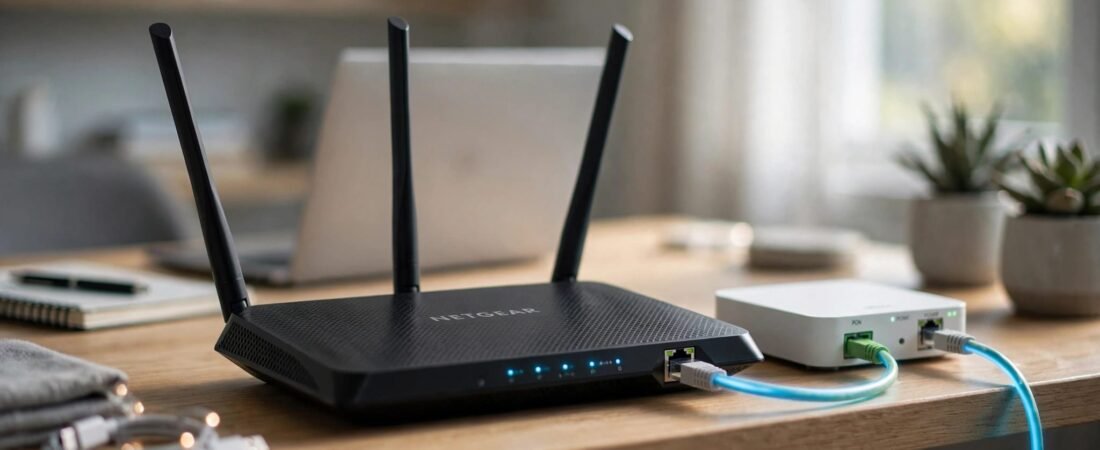
Your NETGEAR router can broadcast strong Wi-Fi and still have no internet connection. NETGEAR VLAN tagging may be part of the fix, but only when your fiber provider requires it.
Start with the WAN connection, not Wi-Fi settings. The right setup depends on your provider’s requirements and your exact router model.
Check those details before enabling VLAN groups, changing switch ports, or buying replacement equipment.
This post may contain affiliate links. If you make a purchase through these links, I may earn a small commission at no extra cost to you.
Key Takeaways
- Connect the ONT’s Ethernet handoff to the NETGEAR Internet or WAN port, and confirm whether the provider requires tagging.
- WAN tagging, LAN VLANs, and VLAN routing are separate functions; support for one doesn’t guarantee support for the others.
- Use the browser interface for advanced settings, keep a working management connection, and test Ethernet before troubleshooting Wi-Fi.
Check Your Fiber Provider’s Requirements
Confirm the ONT Connection
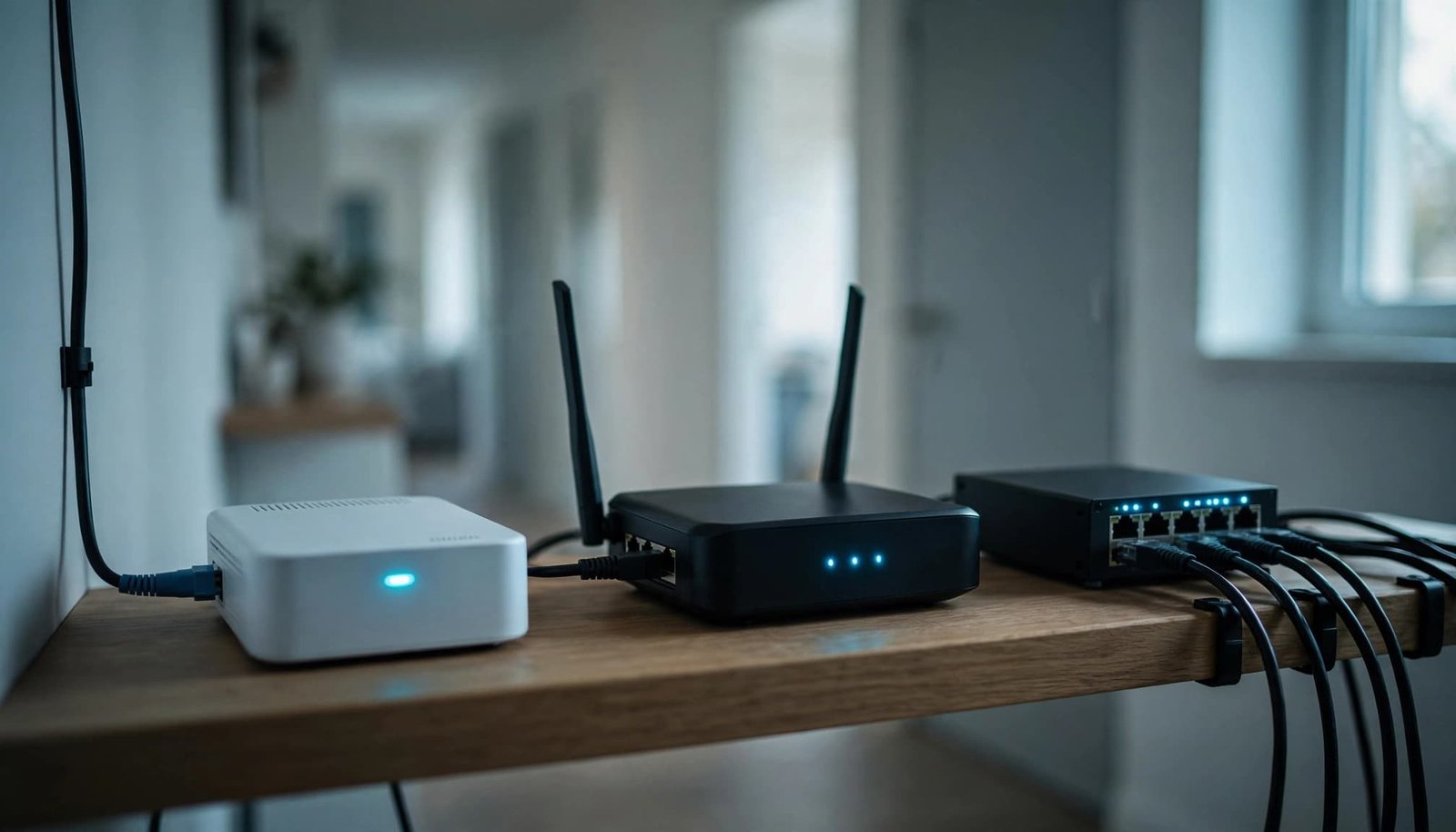
The optical network terminal, or ONT, converts your provider’s fiber signal into Ethernet. Its active Ethernet, Data, or GE port connects to your router’s WAN input.
Leave the fiber cable and optical connector alone. You don’t need a cable modem for this Ethernet handoff.
Before removing an ISP gateway, confirm whether it must remain connected for authentication, phone, or TV service. If it stays, ask whether its bridge settings must be preserved. Our NETGEAR router and ONT setup guide covers the physical connection and equipment roles.
Take photos of the existing gateway’s WAN settings before disconnecting it. Keep the old equipment available until the replacement works.
Get the WAN Settings for Your Address
Ask your ISP whether your service uses DHCP, PPPoE, or a static IP. If tagging is required, request the exact VLAN ID and any required priority value.
DHCP assigns an address automatically. PPPoE requires provider-issued credentials. Neither choice tells you whether VLAN tagging is also required.
A VLAN ID identifies a network within Ethernet traffic. It isn’t your Wi-Fi password, router login, or PPPoE username.
Don’t copy settings from another customer’s installation. CenturyLink and Quantum Fiber arrangements can differ by equipment and service location. Also confirm whether the provider’s equipment already handles tagging.
Configure NETGEAR VLAN Tagging on a Supported Router
Check What the VLAN Menu Supports
NETGEAR’s Nighthawk VLAN bridge instructions show ADVANCED > Advanced Setup > VLAN/Bridge Settings. The documented options include enabling VLAN/Bridge Group and selecting By VLAN tag group.
These bridge settings assign VLAN groups to selected LAN or Wi-Fi interfaces. They don’t confirm that every model supports tagging its routed internet connection. VLAN routing on a LAN is separate from WAN tagging.
Check the manual and firmware details for your exact model. Nighthawk routers and NETGEAR Plus switch or Smart Switch models can have different VLAN features, so don’t assume instructions for an XR500 or Orbi apply to your router.
A VLAN/Bridge menu alone doesn’t confirm support for tagging the router’s routed WAN connection.
An IPTV bridge can bypass normal routing for selected devices. Don’t assign everyday computers to a bridge group without understanding its purpose.
Apply the Confirmed WAN Configuration
Use a computer connected to a router LAN port by Ethernet. The browser-based web GUI exposes more advanced settings than the Nighthawk app.
Follow this order:
- Save screenshots of the current settings and a configuration backup if available.
- Open Internet Setup and select the ISP-confirmed connection type.
- Enter PPPoE credentials or static IP details only when required.
- Follow your model’s WAN-tagging instructions and enter the provider’s tag value and priority.
- Apply the changes, wait for reconnection, and check the WAN address before testing Ethernet.
NETGEAR’s documented VLAN-group fields accept values from 1 through 4094 and priority values from 0 through 7. These ranges aren’t recommended ISP settings.
If authentication is required, our NETGEAR PPPoE setup guide explains the separate login configuration.
Use a Managed Switch When WAN Tagging Is Unsupported
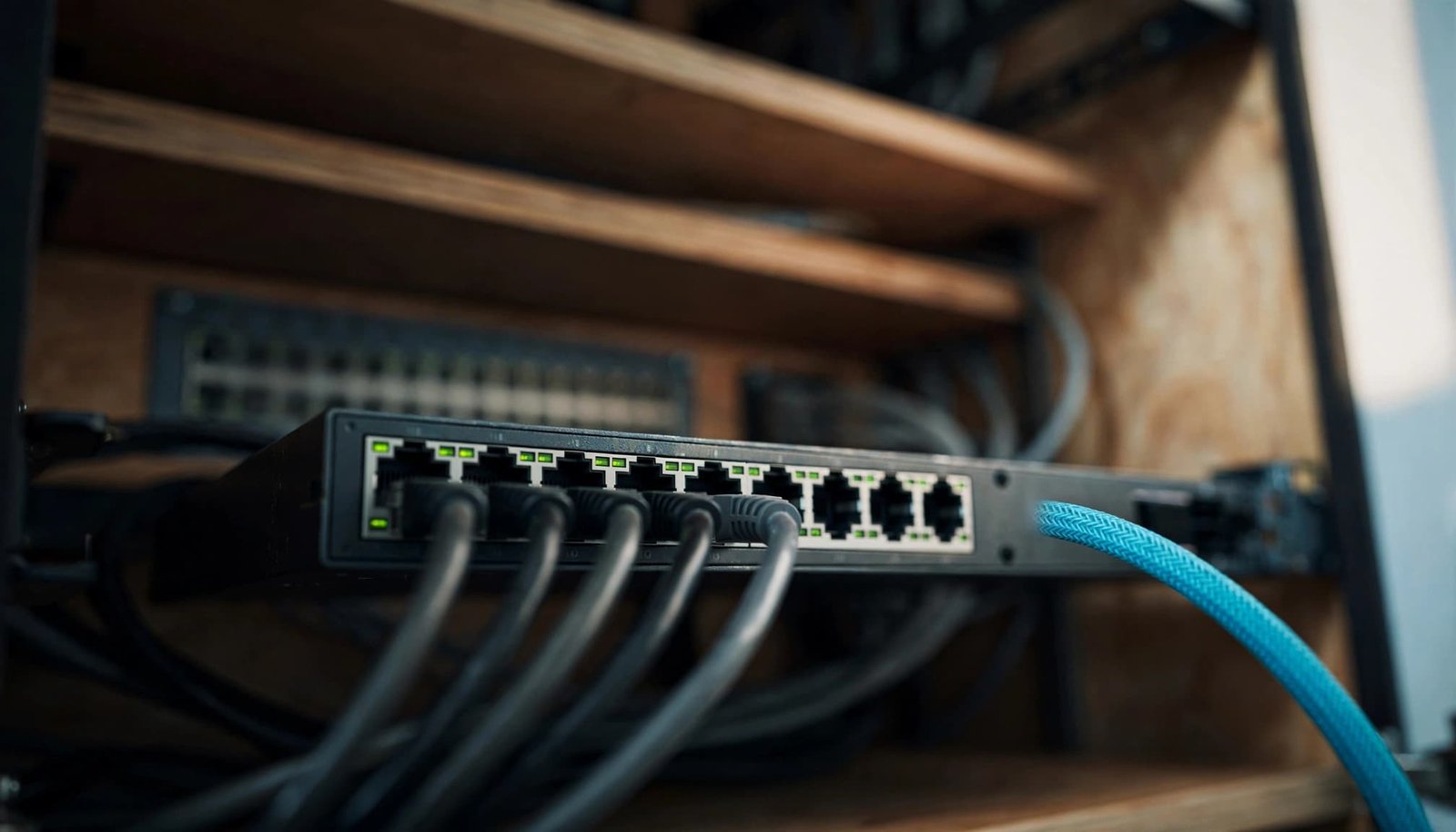
A managed switch can sometimes handle the provider’s tag when the router can’t. This requires an ISP-approved Ethernet handoff and a switch with suitable 802.1Q controls. Not every NETGEAR Smart Switch or Plus switch offers the settings this setup needs.
The ONT-facing switch port carries the provider’s tag value as tagged frames. The router-facing port carries that provider traffic untagged. Set its untagged PVID to the provider’s tag value so incoming untagged traffic is assigned to the intended VLAN.
The router still handles DHCP, PPPoE, or other required WAN configuration. The switch transports the provider’s tag, but doesn’t provide VLAN routing. A switch can’t supply missing credentials or replace a required ISP gateway.
Keep these WAN ports isolated from your home LAN. Don’t leave them sharing an untagged VLAN with computers, printers, or access points.
Before applying changes, review VLAN membership on every port. Use only one device to add the provider’s tag at that handoff. A switch and router applying tags independently can create an incorrect connection.
For a straightforward home setup, a router with documented WAN-tagging support is usually easier to maintain than this managed switch workaround.
Configure LAN VLANs Without Losing Switch Access
Understand Tagged Ports, Untagged Ports, and PVID
LAN VLANs separate local devices into different networks. This is independent of the VLAN your ISP may require on the WAN.
A tagged port includes the VLAN identifier in outgoing Ethernet frames. Port trunking lets a trunk carry several tagged frames to a compatible router, switch, or access point.
An untagged access port sends untagged packets to an ordinary endpoint. Its PVID assigns incoming untagged traffic to a VLAN.
NETGEAR’s VLAN setup fundamentals explain these roles. A port can be untagged in only one VLAN. The switch learns device locations from each source MAC address and uses its MAC address table to forward traffic.
PVID and outgoing membership are separate settings. Changing one doesn’t automatically configure the other.
Use the Right Interface and Preserve Management
NETGEAR’s traditional switch VLAN configuration covers creating 802.1Q VLANs, setting membership, and assigning PVIDs. Smart Switch menus can vary by model.
Use the procedure matching your model’s interface. Smart Switch and Easy Smart interfaces differ, and a Plus switch may use a different configuration workflow.
Don’t assume a command line interface is available just because the device is a managed switch. Many Plus switch models use a web interface, and feature availability depends on the product.
Keep one tested management VLAN or untagged management port available while changing VLANs. Some Plus switch models have limitations involving tagged traffic. Check the manual before moving management access onto a tagged trunk.
Save the configuration and test access before disconnecting your setup computer. If management disappears, reconnect through the known working port before considering a reset.
Decide Whether Your VLANs Need Routing
A managed switch can separate VLANs without allowing traffic between them. Bridging forwards IP traffic within a VLAN, while VLAN routing moves traffic between different networks.
NETGEAR’s explanation of inter-VLAN routing describes VLAN routing on a supported Smart Switch by creating a Layer 3 interface, called a switch virtual interface (SVI).
Each routed VLAN needs its own subnet and gateway. Clients also need correct addressing, a working upstream route, and a return path to reach the internet.
A Plus switch can create VLANs, but it doesn’t automatically provide routing or firewall features. Check whether your Plus switch supports VLAN routing before expecting separate networks to share internet access. Capabilities vary, so don’t assume one Plus switch offers the same options as a supported Smart Switch.
For most homes, a VLAN-aware router or firewall is the simpler place to control communication between networks. Keep guest or smart-home isolation rules intact rather than allowing unrestricted inter-VLAN access.
Troubleshoot No Internet Before Changing Wi-Fi
A WAN address of 0.0.0.0 means the router hasn’t obtained an upstream address. Phones can still see its Wi-Fi network.
Use the symptom to choose the next check.
| Symptom | Check First |
|---|---|
| WAN address is 0.0.0.0 | ONT cable, WAN type, required tag, and ISP registration |
| PPPoE authentication fails | Provider username and password |
| Internet fails after enabling a group | Whether it changes routed WAN traffic or creates a bridge |
| Switch management disappears | Management path, VLAN membership, and PVID |
| Devices on different LAN VLANs can’t communicate | Whether VLAN routing is configured |
| Ethernet works but Wi-Fi struggles | Placement, interference, and coverage |
| Speed falls after VLAN changes | Wired link speed, firmware, and model-specific QoS behavior |
Work through one change at a time. A factory reset removes settings but doesn’t identify which requirement was wrong.
Reseat the ONT-to-WAN cable and try a known-good replacement. If the ISP recommends restarting the ONT, let its normal service lights return before starting the router. Don’t factory-reset the ONT.
When a provider gateway remains, check its bridge settings before deciding which device handles routing. Use supported bridge mode or IP passthrough, or place NETGEAR in access point mode. Avoid leaving two routers performing NAT without a reason.
If a Plus switch is part of the setup, check its model documentation and firmware.
For provider-specific handoff differences, check our Quantum Fiber router compatibility guide.
My Experience With the Orbi 870
I’m Steve Neff, founder of Better WiFi Shop, and I personally own and use the NETGEAR Orbi 870.
My interest in home networking started when I learned that paying for faster internet doesn’t always solve Wi-Fi problems. That led me to research routers, mesh systems, coverage, and home networking equipment.
I created Better WiFi Shop to help everyday consumers understand their options. My ownership of the Orbi 870 isn’t proof of compatibility with every tagged fiber connection.
For this setup, verify the manufacturer documentation and ISP requirements first. Consider mesh coverage only after a wired test confirms the internet connection works.
Frequently Asked Questions
Can a Computer Use Several Tagged VLANs?
Yes, with compatible hardware and software configuration. The switch port must carry the required tagged VLANs, and the computer must process those tags.
On Windows, this depends on the network adapter, driver, and virtual networking configuration. Hyper-V can support VLAN-aware virtual networking, but enabling Hyper-V alone doesn’t configure the switch or adapter.
Keep ordinary computers on untagged access ports unless you have a reason to use a trunk.
Does MAC-based VLAN Replace WAN Tagging?
No. NETGEAR’s MAC-based VLAN explanation describes assigning incoming untagged traffic to a VLAN based on its source MAC address.
The switch checks the source MAC address against a configured rule to determine the VLAN. This MAC-based VLAN feature is a managed-switch classification tool, not a substitute for the provider’s required WAN tag or PPPoE authentication.
Where supported, its web configuration is under Switching > VLAN > Advanced > MAC based VLAN. Availability depends on the switch model.
A Reliable Setup Starts With the WAN Requirements
NETGEAR VLAN tagging works when the equipment supports the required function and the settings match your fiber service. Keep WAN tagging and LAN segmentation separate.
Confirm the handoff, apply only the required settings, and test a wired connection. If separate LAN VLANs need to communicate, confirm the router supports VLAN routing. Once internet service works, address Wi-Fi coverage without changing a working WAN configuration.