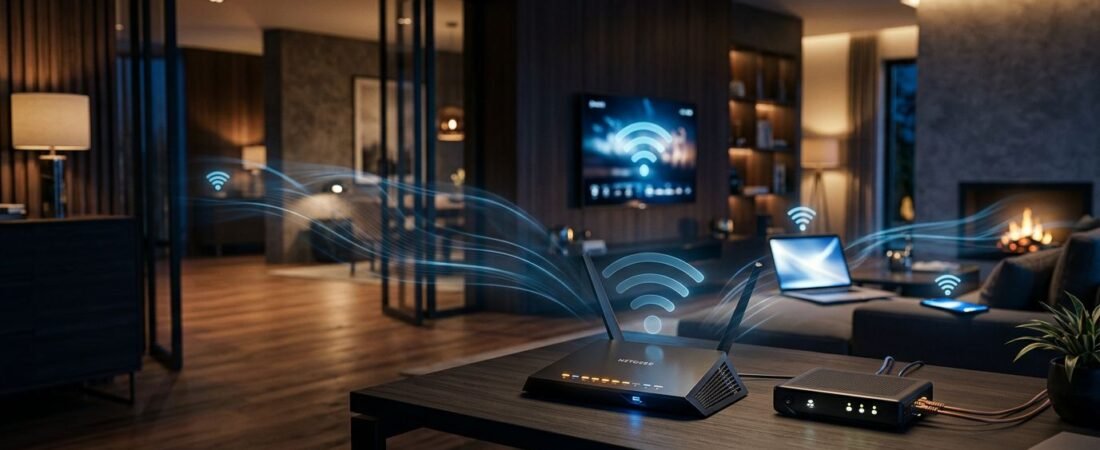
A fast Xfinity plan can still feel slow when the router is the weak point. Your modem brings internet into the house, but the wireless router determines how well that connection reaches your devices.
If you’re comparing a Netgear setup for Xfinity with a rented gateway, start with one question: are you replacing only the WiFi router, or replacing the rental hardware too? That answer affects your cost, setup steps, and the modem you need.
This post may contain affiliate links. If you make a purchase through these links, I may earn a small commission at no extra cost to you.
Key Takeaways
- Decide whether you are replacing only the Xfinity Wi-Fi router or the entire gateway before buying Netgear equipment.
- Match the Netgear router to your Xfinity speed tier, home size, wired devices, and coverage needs. Wi-Fi 6 is enough for many homes, while WiFi 7 and 2.5GbE ports make more sense for multi-gig service.
- Check Xfinity’s approved equipment list before purchasing a Netgear modem. The Nighthawk CM3000 supports higher-speed internet tiers but does not support Xfinity Voice.
- Use bridge mode if you want to keep the Xfinity Gateway as the modem and add a Netgear router for better Wi-Fi and network control.
- Test wired speeds before blaming the router. Poor wired performance may point to coax, modem, or Xfinity network issues rather than weak Wi-Fi.
Start With the Xfinity Gateway Decision
An Xfinity Gateway combines a cable modem and Wi-Fi router in one box. Models such as the XB7 and XB8 are simple to set up, and Xfinity can replace the equipment if it fails. This gateway setup is practical when you want your internet service provider to handle equipment support and don’t need advanced settings.
A Netgear setup gives you more control. You can choose the router that fits your home, use your own Wi-Fi name and settings, and upgrade the router later without replacing the modem.
There are two common paths:
- Keep the Xfinity Gateway, turn on bridge mode, and connect a Netgear Wi-Fi router.
- Return the gateway and use approved equipment with a separate Nighthawk or Orbi router.
Buying a router by itself does not end the Xfinity equipment charge. The gateway still handles the cable modem job unless you replace it with your own approved equipment.
To compare rental fees with buying, multiply the monthly equipment charge on your bill by 12. Then divide the modem cost by that yearly amount. Also consider power consumption when estimating the total cost. This gives you a reasonable payback estimate. Buying often makes sense for customers who expect to stay with cable internet for several years.
There is a tradeoff. You are responsible for your own modem, its firmware updates, hardware warranty coverage, and replacement costs. Before buying anything, check Xfinity’s approved equipment list for your address and speed tier. A modem can be technically compatible but still miss out on faster upload options in some areas.
Choosing a Netgear router Xfinity Setup by Speed Plan
The right WiFi router depends on your plan, home size, and active devices. Paying for a Wi-Fi 7 router will not make a 300 Mbps plan faster. It may help with newer devices and busy homes, but your internet plan still sets the ceiling.
Use this quick guide to narrow the choices.
| Xfinity plan speed | Netgear router type | Best fit |
|---|---|---|
| Up to 300 Mbps | Wi-Fi 6 Nighthawk with gigabit WAN | Apartments, smaller homes, light streaming |
| 400 to 800 Mbps | Wi-Fi 6 or Wi-Fi 6E Nighthawk | Families with several TVs, work devices, and consoles |
| 1 Gbps to 1.2 Gbps | WiFi 7 Nighthawk Router with a 2.5GbE WAN port | Heavy streaming, gaming, and fast wired devices |
| 2 Gbps service | WiFi 7 Nighthawk Router with 2.5GbE WAN and LAN ports | Multi-gig plans and high-speed wired networks |
| Any plan in a large home | Orbi WiFi Mesh System | Multi-floor homes, long layouts, and dead zones |
For most homes on a 300 Mbps or 500 Mbps plan, a current Wi-Fi 6 Nighthawk router is enough. Look for reliable coverage, gigabit network ports, and room for the devices you already own.
Customers on gigabit service should pay closer attention to port speeds. A router with only a 1 Gbps WAN port can limit a plan that delivers more than 1 Gbps to the modem. A 2.5GbE WAN port gives your network room for faster service and better wired performance.
A Netgear setup for Xfinity is also a better fit when the gateway sits in a poor location. If the coax cable enters through a basement, utility room, or far bedroom, Wi-Fi may struggle before it reaches the rooms you use most.
For larger homes, an Orbi WiFi Mesh System is often a better answer than one expensive router. Place the main router near the modem, then add satellites where coverage drops. A wired backhaul between units is the most reliable option when your home has Ethernet runs.
The fastest plan in the neighborhood cannot fix weak Wi-Fi through brick walls, metal ductwork, or a router hidden in a cabinet.
Choose the Right Netgear Modem Before Upgrading Wi-Fi
The modem is the part that connects to Xfinity’s cable network. The router creates your home network. They are separate jobs, and both parts need to fit your plan.
The Nighthawk CM3000 is a DOCSIS 3.1 cable modem built for higher Xfinity speed tiers. Netgear lists it with a 2.5GbE Ethernet port, support for Xfinity download speeds up to 2 Gbps, and a 200 Mbps upload ceiling where that tier is available. It suits customers who need multi-gigabit speed from a data-only modem.
The Nighthawk CM3000 does not support Xfinity Voice. If your Xfinity bundle includes a home phone line, you need a voice-capable cable modem. The CM2050V is made for Xfinity Internet and Voice service, with built-in telephony support.
That distinction matters. A data-only Netgear modem can activate for internet but cannot provide dial tone for a landline. The CM2050V resolves the voice issue, but customers should still confirm its current eligibility before purchasing. Voice support and enhanced upload support are not the same thing.
DOCSIS 3.1 mid high-split technology can improve upstream bandwidth and upload speeds where Xfinity has enabled the upgrade. Those upgrades depend on your local Xfinity network, your service tier, and the modem model Xfinity has approved for that tier. A modem’s advertised maximum speed is not a promise that every address receives it.
For a gigabit or multi-gig Netgear/Xfinity setup, avoid a mismatch. A Nighthawk CM3000 paired with a router that only has 1 Gbps ports leaves speed on the table. In the other direction, a Wi-Fi 7 router cannot make an older modem qualify for a faster upload tier.
Activate the New Modem and Configure the Network
A new modem usually supports self-service activation through the Xfinity app. Have the modem’s CM MAC address ready before disconnecting the old gateway. It is printed on the label, and it is different from the router MAC address.
Follow these steps when replacing a rented gateway with a Netgear modem:
- Disconnect the old gateway and connect the coax cable directly to the new Netgear modem.
- Plug in the modem and wait for it to finish its startup sequence.
- Open the Xfinity app and follow the device activation prompts.
- Connect the modem’s Ethernet port to the router’s Internet or WAN port after activation finishes.
NETGEAR also provides Xfinity installation instructions that cover app activation and the next steps in the Nighthawk or Orbi app.
Activation can fail when the old gateway is still registered to the account. If that happens, contact Xfinity and ask them to remove the old gateway MAC address and add the new modem’s CM MAC address. Then restart the modem and try again.
Using an Xfinity Gateway in Bridge Mode
Bridge mode is useful when you want better Wi-Fi without buying a separate cable modem. The gateway stays connected to the cable line, but the router handles your home Wi-Fi, device controls, and network settings.
Connect a computer to the gateway, sign in to its settings, enable it, and allow it to restart. Then connect an Ethernet cable from a LAN port on the gateway to the Internet or WAN port on the router. Restart the gateway first, then restart the router.
The gateway’s Wi-Fi features are disabled in this configuration, so manage your network through the Netgear app or router settings. Review Xfinity’s gateway model information if you are unsure which gateway model you have.
If you keep the gateway in normal router mode, check your Xfinity account for the Xfinity WiFi hotspot setting. Availability can vary by account and gateway. Turning off a hotspot is a personal preference, but it is not a dependable fix for slow Wi-Fi or packet loss.
Test the Connection Before Blaming the Router
Packet loss, buffering, and slow speeds are not always router problems. Cable signal issues, loose coax connections, local outages, overloaded Wi-Fi channels, and old client devices can cause the same symptoms.
Start with a wired speed test from a computer connected to the router. The result gives a clearer view of network performance. If wired speeds are close to your plan but Wi-Fi is slow, focus on router placement, mesh coverage, and the devices using the network. If wired speeds are poor too, inspect coax connections and contact Xfinity before replacing hardware.
Power consumption is also easy to misunderstand. A rented gateway uses one power outlet, while a separate modem and router use two. A standalone setup may give you more control, but it is not automatically the lower-power option.
Frequently Asked Questions
Can I use a Netgear router with an Xfinity Gateway?
Yes. Put the Xfinity Gateway in bridge mode, then connect its LAN port to the Netgear router’s Internet or WAN port. The Netgear router will manage your Wi-Fi and home network settings.
Do I need a Netgear modem and router for Xfinity?
No. You can keep the Xfinity Gateway and add a Netgear router, or replace the gateway with an approved Netgear modem and a separate router. Buying only a router does not remove the Xfinity equipment charge.
Is the Netgear Nighthawk CM3000 compatible with Xfinity Voice?
No. The CM3000 is a data-only cable modem and does not provide phone service. Customers with Xfinity Voice need a voice-capable modem, such as the CM2050V, and should confirm current approval for their address and plan.
What Netgear router should I use for a gigabit or multi-gig Xfinity plan?
Choose a router with a 2.5GbE WAN port if your service can exceed 1 Gbps. For larger homes, an Orbi WiFi Mesh System may provide better coverage than one high-end router.
How do I activate a new Netgear modem with Xfinity?
Connect the modem to the coax cable, wait for it to start, and use the Xfinity app to activate it with the modem’s CM MAC address. If activation fails, ask Xfinity to remove the old gateway and register the new modem.
Choose Hardware That Matches Your Real Needs
The best Netgear setup isn’t always the most expensive one. A Wi-Fi 6 Nighthawk is often enough for a modest Xfinity plan. Compatible gigabit and multi-gig customers may consider the Nighthawk CM3000 if Xfinity approves it for their tier and DOCSIS 3.1 support is needed.
Consider Xfinity Voice, home size, wired devices, power consumption, and rental costs. The right Netgear router Xfinity setup gives you dependable coverage without paying for speed or features your home won’t use.