
A slow speed test doesn’t always mean your internet provider is the problem. Your router, Ethernet ports, Wi-Fi signal, device limits, and even one damaged cable can affect what you see.
And if web pages load slowly while your speed test results look fine, your DNS settings may be the reason; see how to change DNS on a NETGEAR router safely.
Start with a wired baseline at the modem or ONT, then test through the Netgear router. Finally, measure wireless internet speed in the rooms where you normally use devices. Internet speed is your ISP’s service rate, while Wi-Fi results also reflect signal quality, device capability, and interference.
This post may contain affiliate links. If you make a purchase through these links, I may earn a small commission at no extra cost to you.
Key Takeaways
- Start with a direct wired speed test from the modem or ONT, then test through the Netgear router over Ethernet and finally over Wi-Fi.
- A low modem result may indicate an ISP or modem issue, while a low wired router result points to cables, ports, firmware, QoS, or router settings.
- Nighthawk app results mainly measure the internet feed reaching the router, while Ookla tests on wireless devices also reflect distance, interference, device limits, and Wi-Fi bands.
- Good wired speeds with weak Wi-Fi usually call for better router placement, Ethernet for fixed devices, or mesh coverage rather than a faster internet plan.
- Compare results at similar times, use the same test server and device when possible, and check the full speed path for multi-gig connections.
How to Run a Netgear Router Speed Test the Right Way
You need three measurements to find the real issue: the ISP connection, throughput through the router over Ethernet, and Wi-Fi performance at the endpoint. An Internet speed test from a phone in a distant room can’t answer the same question as a wired test beside the modem.
The goal is to separate the internet connection entering your home from your in-home network. That makes it easier to avoid replacing a router when the real issue is Wi-Fi coverage, or blaming Wi-Fi when your provider connection is slow.
Test Directly From the Modem or ONT
A direct Ethernet test is the cleanest way to check the service entering your home. Connect a computer to the modem or fiber ONT with a known-good Ethernet cable. Run an Internet speed test in a web browser.
If you use a standalone cable modem, you may need to power-cycle it after moving the cable. Some cable modems bind service to one connected device. Wait until the modem is fully online before testing.
NETGEAR recommends a direct modem test when you need to see how much bandwidth your provider is delivering. Its official checking your internet speed documentation explains the same basic approach.
If the direct result is low, retest at another time. Report persistent results to your service provider with timestamps, plan speed, and test-server details.
Do this test only long enough to measure the connection. A computer connected directly to a modem is outside your router’s normal firewall protection.
Test Through the Router With Ethernet
Next, connect the same computer to a LAN port on your router with Ethernet. Keep the modem-to-router cable unchanged, then run the same test again using the same test server when possible.
If the site offers a Change Server control, keep the selected server consistent between tests. Different server selections can create different results without indicating a router problem.
This result includes the modem, router, and cable between them. It leaves Wi-Fi out of the picture.
If the direct modem test and wired router test are close, your router is likely handling your plan speed correctly. If the router result is much lower, check its WAN port, firmware, QoS, cables, and link negotiation before buying new hardware.
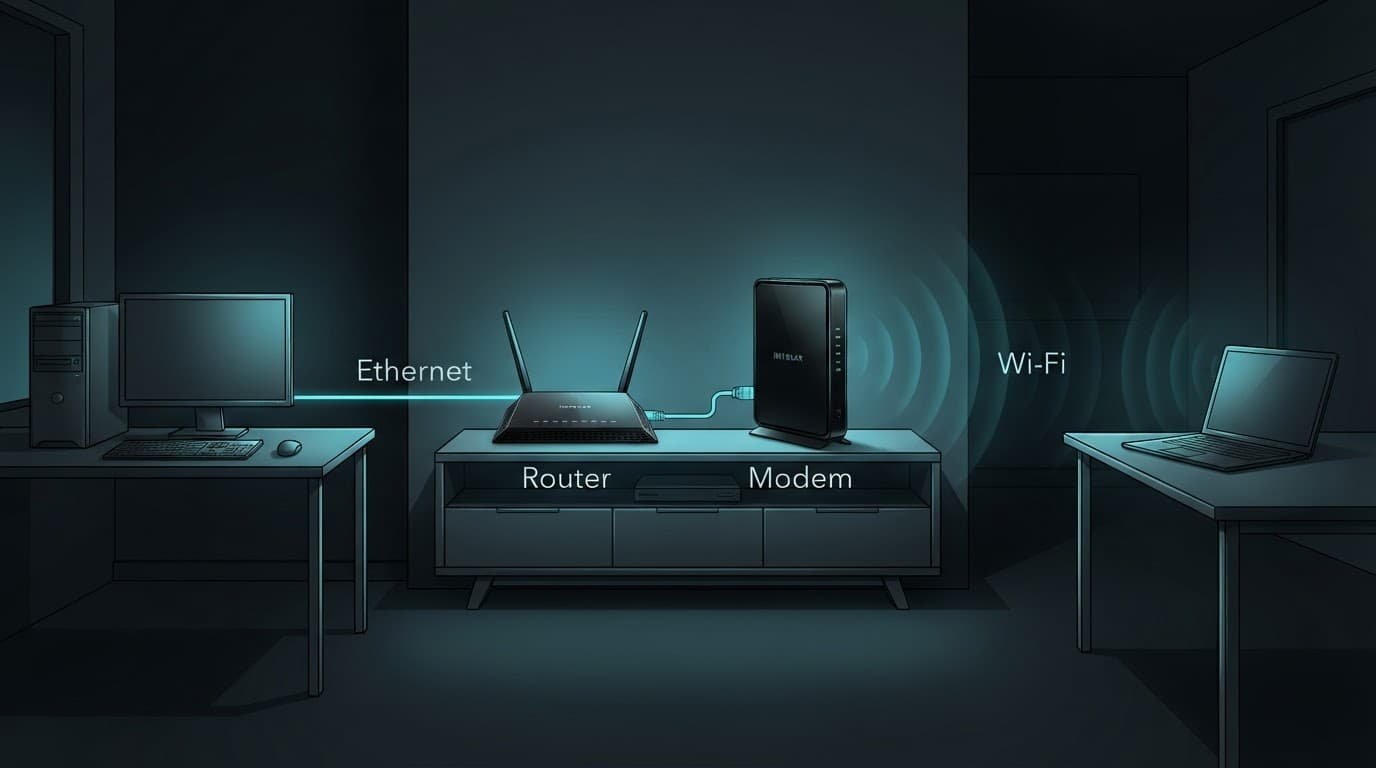
A good wired result and a weak Wi-Fi result usually point to coverage, placement, or wireless interference. They do not usually point to an ISP speed problem.
Run a Speed Test in the Nighthawk App
The Nighthawk app is a convenient speed test app for checking the internet connection reaching your router. It helps show whether a slowdown started today or has continued for several days. It isn’t a substitute for a room-by-room Wi-Fi test on your phone.
Connect your phone to your home Wi-Fi before opening the app. Turn off mobile data if the app has trouble finding the router.
Nighthawk App Steps and Test History
On supported Netgear nighthawk routers, use these steps. Menu names can vary by firmware and model:
- Open the Nighthawk app.
- Tap the Internet Speed tile.
- Select Test my speed.
- Wait for the app to show ping, download speeds, and upload speeds.
- Tap History to compare the latest result with earlier tests.
The app measures router-side WAN throughput, so its result doesn’t guarantee the same wireless speed on your phone. Netgear Armor status and security features are separate from this bandwidth measurement.
NETGEAR’s current Nighthawk app speed test instructions use the same menu path.
Comparing speed test results in the app’s speed test history is more useful than relying on one sample. A lower result every evening may reflect congestion from connected devices or your ISP. Repeatedly low results at different times may indicate a service issue.
For a more complete look at setup options and model differences, see our Netgear Nighthawk review.
Why the Nighthawk App and Ookla Results Differ
It is common for the Nighthawk app to show a faster number than an Ookla result on a phone, laptop, or tablet. That doesn’t automatically mean either result is wrong.
The two tests may measure different parts of your network while using different servers, timing, or protocol conditions.
The Router Test Checks the Internet Feed
The app-based test generally checks the path between your Netgear router and an internet test server. It primarily measures the incoming feed, not the complete wireless link between the router and your phone.
That is why it can show close to your plan speed while a laptop across the house shows much less. The router may receive the full service, while the device receives less over the wireless link.
A Device Test Includes Wi-Fi Conditions
An Ookla speed test on a wireless device includes every part of the trip:
- The internet connection entering your home
- The router’s wireless radio and settings
- Router placement and distance
- Walls, floors, appliances, and nearby wireless network traffic
- Selected 2.4 GHz or 5 GHz band
- Your device’s Wi-Fi generation and antenna design
- Current household traffic
Wireless internet speed is the throughput available at the endpoint. It depends on router placement, distance, walls, channel congestion, band selection, client Wi-Fi generation, antenna design, and current household traffic.
A newer mobile device may show better results than an older laptop in the same room. A laptop on 5 GHz may also perform differently than a smart TV on 2.4 GHz. That is why wireless internet speed can vary from room to room.
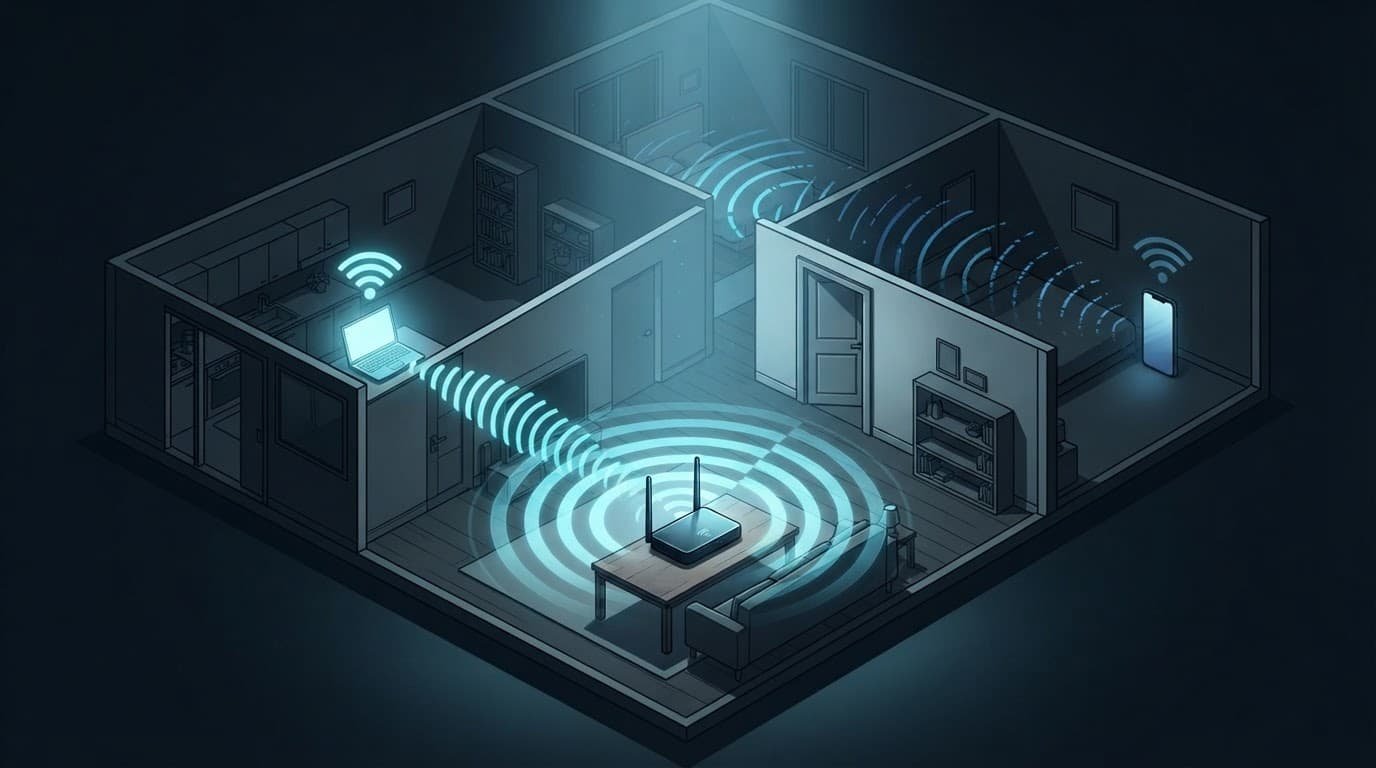
A simple room-by-room test can reveal where wireless internet speed drops. Use this process for a repeatable comparison:
- Repeat the Ookla speed test on the same device in each room.
- Use the same band where possible.
- Test at similar times of day.
- Pause background downloads, VPNs, and streaming first.
For additional practical ideas, this guide on improving internet speed at home covers common issues that affect day-to-day use. Speedtest by Ookla guidance and NETGEAR’s current Wi-Fi troubleshooting documentation can help with more detailed checks.
Read Your Download and Upload Results
Start by comparing the measured speed with the advertised plan. A 300 Mbps plan should not produce 900 Mbps download speeds, while a 1 Gig plan may not reach 1,000 Mbps on every device. Upload speeds can also differ, and neither direction is guaranteed on every test.
Protocol overhead, server distance, device limits, and port negotiation all affect the number.
Use this quick comparison to interpret common speed test results. A speed test measures internet throughput, while local router or LAN throughput can be limited independently by ports, cables, switching, or Wi-Fi conditions.
| Test Result | What It Usually Means | What to Check Next |
|---|---|---|
| Direct modem test is low | The issue may be with the ISP, modem signal, or plan | Test again later, then contact the provider with results |
| Wired router test is low but modem test is normal | The router, cable, or port may be limiting speed | Check WAN port, firmware, QoS, and cables |
| Wired result is good but Wi-Fi is low | Wi-Fi coverage or interference is the likely issue | Test room by room and improve placement |
| One device is slow | The device may have older Wi-Fi hardware or software issues | Test another device in the same location |
A healthy Gigabit Ethernet connection often tops out near 940 Mbps in real use. That is normal because Ethernet overhead keeps it below the full 1 Gbps link rate, rather than indicating an ISP shortfall.
Check the Full Speed Path
For plans above 1 Gig, every part of the connection must support multi-gig speeds. The path includes the modem or ONT, router WAN port, LAN port, switch, dock, and computer.
A 2.5GbE WAN port won’t make a desktop faster if another link is only Gigabit. One slower link caps a multi-gig plan, even when other ports support 2.5GbE or faster.
For a normal home run, Cat5e is often enough for Gigabit Ethernet and may support 2.5GbE at suitable distances. Don’t assume every Cat5e installation supports multi-gig speeds at every distance. Test with a short, known-good Cat5e or Cat6 Ethernet cable, and check the negotiated link rate before replacing in-wall wiring.
Fix Low Wired Speed Before Blaming Wi-Fi
Low wired results are easier to troubleshoot because there are fewer variables. Work through the basics before changing advanced settings.
Inspect Cables, Ports, and Link Speeds
Start with the cable from your modem or ISP gateway to the router’s Internet or WAN port. Make sure it is not connected to a regular LAN port.
Then test the computer with a short, known-good Ethernet cable. Check for loose connectors, damaged cable ends, tight bends, unreliable wall jacks, or faulty docks.
Check the computer’s negotiated link speed as well. A damaged cable, wall jack, dock, or connector can cause a lower link rate. That can limit a 1.2 Gig or 2 Gig plan.
NETGEAR’s guidance on router speed limits also recommends using Ethernet to isolate the provider connection from the router.
Review Settings That Can Limit Traffic
Review router settings and router features that can limit performance, including QoS, bandwidth controls, traffic prioritization, and traffic limits. Sign in through the management dashboard, note Netgear Armor’s status, and don’t disable it without evidence.
Menus vary by model, but on many supported models, speed-test options appear under BASIC Home > QoS. You can select Enable Speed Test, then let Speedtest detect the available bandwidth.
Keep Wi-Fi settings separate from a low wired result. Wireless configuration requires its own evaluation.
The supported ADVANCED > Advanced Setup > Traffic Meter menu may include monthly or directional limits. These limits can affect usage reporting or traffic behavior.
Record original values before changing any setting, and adjust one relevant option at a time.
Update router firmware before making major changes. Restart the modem and router, then return to the management dashboard and run the same wired test again. Avoid a factory reset unless basic checks and firmware updates fail.
Improve Wi-Fi Results Where They Matter
Good wired throughput doesn’t guarantee good wireless internet speed throughout the home. A strong router can still struggle when it’s inside a cabinet, beside a large TV, or at one end of the home.
Put the main router in an open, central area when possible. Central placement shortens paths, while an elevated position and open space reduce obstructions from cabinets, large TVs, and nearby furniture.
Keep it away from metal shelving, thick masonry walls, large appliances, and the floor. Distance, building materials, and neighboring networks can reduce wireless throughput.
Use Ethernet for Fixed Devices
A desktop PC, work dock, game console, and NAS benefit from steadier local-network throughput and lower latency over Ethernet. Ethernet won’t raise the service rate delivered by your provider. It can make more of that rate usable at the endpoint.
Wiring fixed equipment also leaves more wireless airtime for phones, tablets, laptops, and other connected devices. That helps when several people are streaming, gaming, and working from home at once.
If you have a mesh system, Ethernet backhaul is often better for a distant satellite. It removes the wireless backhaul hop between mesh units. Client devices still connect over Wi-Fi, so check the main router’s wired result before buying mesh hardware. Mesh addresses coverage and local distribution, not a low modem-side result.
My Experience With the Orbi 870
I am Steve Neff, founder of Better WiFi Shop, and I personally own and use the NETGEAR Orbi 870. My interest in home networking started after learning that a faster internet plan doesn’t always solve weak Wi-Fi.
A larger plan cannot push a stronger signal through brick walls, floors, ductwork, or a poor router location. That is why I focus on coverage, placement, wired connections, and realistic hardware choices before recommending a speed upgrade.
If your wired tests are good but several rooms remain weak after placement and client testing, a mesh system may be one option instead of another standalone router. You can compare current Orbi options and other home networking equipment at Better WiFi Shop.
Frequently Asked Questions
How do I run a Netgear router speed test?
First, test a computer directly from the modem or ONT with Ethernet. Then test the same computer through the router over Ethernet, followed by Wi-Fi tests in the rooms where you use your devices.
Why is the Nighthawk app faster than an Ookla test on my phone?
The Nighthawk app generally measures the internet connection reaching the router. An Ookla test on your phone also includes Wi-Fi signal strength, distance, interference, device capability, and the selected wireless band.
What should I do if my wired router speed is lower than my modem speed?
Check the router’s WAN port, Ethernet cables, negotiated link speed, firmware, QoS, and traffic controls. Restart the modem and router, then repeat the test using the same server and a known-good cable.
Why is my Wi-Fi slow when the wired speed is good?
A good wired result with weak Wi-Fi usually indicates coverage, placement, interference, or device limitations. Move the router to an open, central location, test each room, and use Ethernet for fixed devices when possible.
Is a speed test near 940 Mbps normal on Gigabit Ethernet?
Yes. A Gigabit Ethernet connection often reaches about 940 Mbps in real use because protocol overhead prevents it from using the full 1 Gbps link rate.
Final Thoughts
A useful Netgear router speed test starts with a direct test at the modem or ONT. Next, test through the router over Ethernet, then check Wi-Fi in the rooms you use most.
This pattern separates ISP internet speed from local network and wireless performance; a low direct result means contacting your ISP. A low result through the router over Ethernet calls for checking ports, cables, firmware, or router settings. Healthy wired results with weak Wi-Fi point to placement, interference, client limits, or mesh coverage.