A NETGEAR router can support dozens of devices, but there’s no single device limit across all models. Your practical limit depends on the router’s hardware, network settings, and active traffic.
A house full of smart plugs creates a different load than several TVs streaming while computers download updates. Start by separating the number of connected devices from the work they’re doing.
This post may contain affiliate links. If you make a purchase through these links, I may earn a small commission at no extra cost to you.
Key Takeaways
- NETGEAR device capacity varies by model.
- A typical home subnet leaves 253 addresses for devices, but that isn’t a performance guarantee.
- DHCP settings can prevent new connections before the subnet fills.
- Shared Wi-Fi airtime often matters more than the connected-device total.
What Sets a NETGEAR Router’s Device Limit?
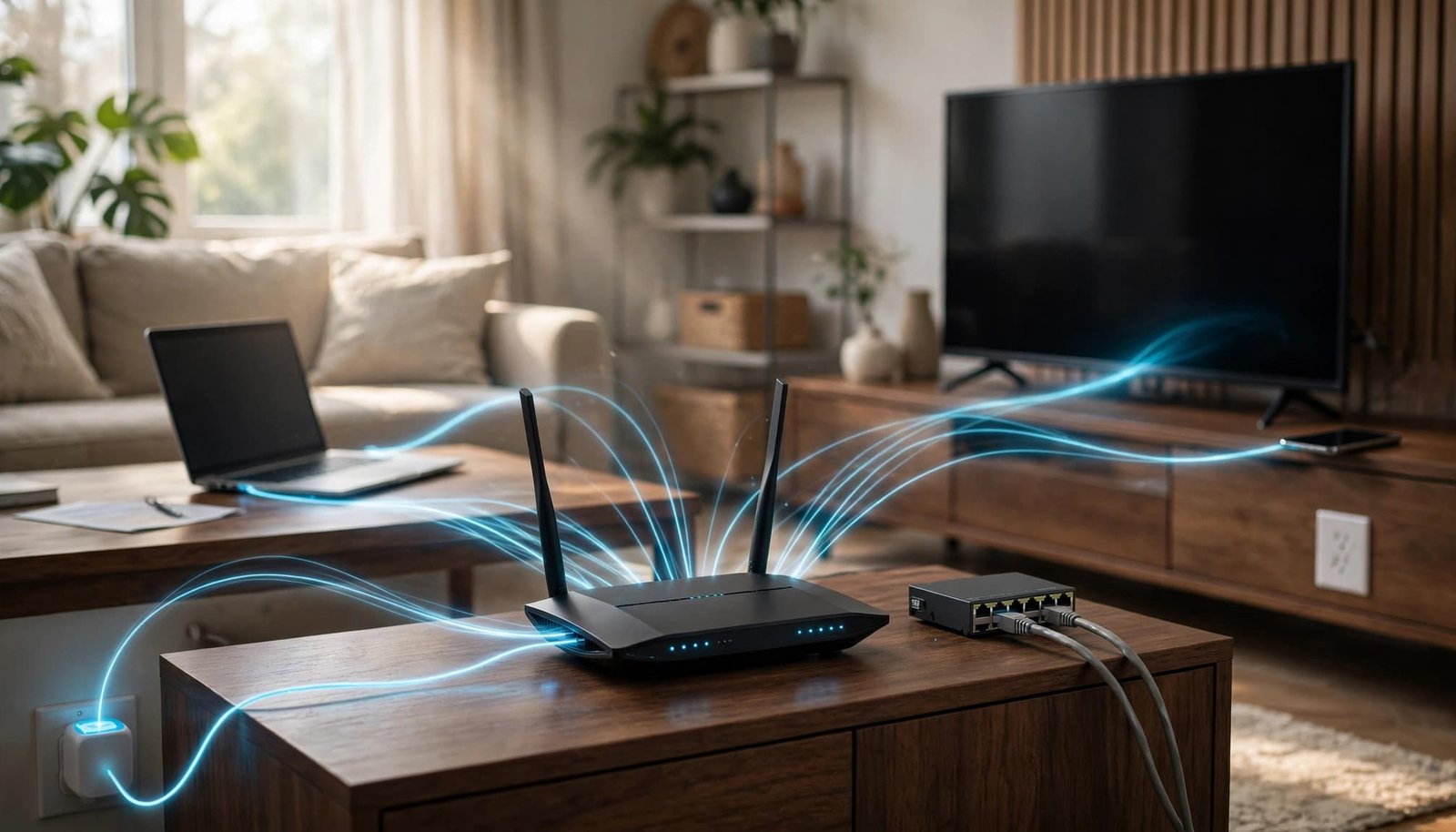
Model ratings differ. The RS200 and RS300 carry 80-device and 100-device ratings, respectively. Our RS200 versus RS300 comparison explains their differences. Those ratings don’t guarantee equal performance with every device active.
IP Addresses and the DHCP Pool
Many home routers use addresses in the 192.168.1.x range with a /24 subnet, historically called Class C.
That subnet has 254 usable host addresses. The .0 address identifies the network, and .255 handles broadcasts. One usable address belongs to the router, leaving 253 for other devices.
The router automatically assigns addresses. A smaller address-assignment pool can run out while unused addresses remain elsewhere in the subnet. New devices then can’t obtain an address automatically.
IPv6 has a much larger address space. Its 128-bit addressing system means this IPv4 count isn’t a universal network limit.
Router Memory and Connection Tables
Routers also need memory and processing capacity. A NAT table tracks internet connections; a MAC table and an ARP table help equipment keep track of local devices.
These resources can become bottlenecks, especially on low-memory consumer routers.
Forum commenters have estimated about 250 devices for entry-level routers, while another user reported more than 275 with one router handling DHCP. Those are anecdotes, not NETGEAR specifications.
Why Active Devices Matter More Than Device Count
Wireless Devices Share Airtime
Many IoT devices, including smart plugs, generally use little bandwidth. Security-camera uploads, video calls, and large downloads create heavier demands.
Wireless devices share an access point’s airtime. As more clients compete to transmit, each has less opportunity to send data. HPE’s explanation of Wi-Fi contention and airtime describes this constraint.
A long device list alone doesn’t prove overload. Slowdowns during busy periods provide a stronger clue. Compare wired and wireless results before paying for faster internet.
Wired Devices and Switches
Ethernet keeps fixed devices off shared wireless airtime. An unmanaged switch adds Ethernet ports without requiring its own management IP address.
Adding a switch doesn’t increase your router’s DHCP pool or processing capacity.
Connected computers, TVs, and consoles still need addresses. Their internet traffic still passes through the router.
Forum advice about keeping no more than five switches between endpoints cites latency and broadcast concerns. It’s a rule of thumb, not a universal Ethernet limit.
How to Check Attached Devices on a NETGEAR Router
NETGEAR’s Attached Devices instructions provide the basic process. Menus vary by model and firmware.
- Connect to your main NETGEAR network, preferably using Ethernet. Avoid guest Wi-Fi.
- Enter
routerlogin.netorrouterlogin.comin your browser’s address bar. - Sign in with your router administrator credentials, which are separate from your Wi-Fi password. NETGEAR’s instructions list the case-sensitive defaults
adminandpasswordfor some models;passwordis a default password only if it hasn’t been changed. - Select Attached Devices from the BASIC Home page, then select Refresh to update the list.
The page separates Wired Devices, connected through Ethernet, from Wireless Devices, connected through Wi-Fi.
Entries show Status, listed as Allowed or Blocked, plus Device Name, IP Address, and MAC Address.
An IP address can change after a device disconnects and rejoins. The hardware MAC address normally stays fixed and is often printed on the product label. Phones using private or randomized Wi-Fi addresses are an exception.
If the login page won’t open, use the computer’s current Default Gateway address. Temporarily disconnect a VPN if necessary.
Fix the Limiting Factor Before Buying Another Router
If existing devices work but new ones can’t join, check the address pool and access-control status. An exhausted address pool can block new connections without slowing existing ones.
For printers or cameras that need consistent addresses, follow NETGEAR’s reservation instructions. Reservations don’t add capacity.
If Ethernet works well but distant rooms struggle, improve placement or consider mesh Wi-Fi. You can compare Orbi options through Better WiFi Shop. Coverage problems need a different solution than address shortages.
Frequently Asked Questions
Does the Nighthawk App Show Connected Devices?
Yes, on supported models. It’s useful for basic device checks. The browser interface provides access to additional settings.
Does the List Include Every Device in My Home?
Not necessarily. Devices connected directly to an ISP gateway may sit outside your NETGEAR router’s network and won’t necessarily appear.
Choose Capacity Based on Your Household’s Traffic
Your NETGEAR router’s useful capacity depends on address availability, hardware, and shared airtime. A large device total doesn’t automatically mean replacement is necessary.
Review Attached Devices and identify when problems happen. Fix the address, coverage, or traffic issue before buying equipment or increasing your internet bill.