A new router won’t fix distant game servers or a weak ISP plan. It can reduce delays caused by household traffic when someone starts a 4K stream or a large download.
For most budget-minded players, the best Netgear gaming router is still a WiFi 6 model with solid wired ports and traffic controls. These controls can ease network congestion and help maintain low latency during busy periods.
WiFi 7 is faster on paper, but it costs more, and most current devices won’t use its full potential yet.
The right choice depends on your plan speed, home layout, and wireless connection. It also depends on whether you need DumaOS controls for a smoother gaming experience.
This post may contain affiliate links. If you make a purchase through these links, I may earn a small commission at no extra cost to you.
Best Netgear gaming router without WiFi 7
The XR1000 is the clear pick for gamers who want low latency tools and steadier household performance. It isn’t Netgear’s newest router, but it can help keep your ping rate steadier during busy gaming hours.
Best Overall: Netgear Nighthawk Pro Gaming XR1000
The Nighthawk Pro Gaming XR1000 is a dual-band WiFi 6 wireless router with a 1.5 GHz triple-core processor. It has one Gigabit WAN port and four Gigabit LAN connections, leaving three or four useful wired Ethernet ports for devices after the internet connection is accounted for. You can connect a PC, gaming consoles such as a PlayStation, Xbox, or Switch dock, and a streaming box without adding a switch right away.
Its biggest advantage is DumaOS. The software provides gaming-focused traffic controls, including geo-filtering, connection monitoring, and tools to manage devices competing for bandwidth.
You can check current XR1000 availability before buying, but don’t pay a premium just because it carries a gaming label. Its Gigabit-only ports are a good match for internet service up to 1 Gbps. They’re also enough for most wired PCs and streaming devices.
Choose the RAXE500 for 6 GHz WiFi, Not Gaming Controls
The Nighthawk RAXE500 is a better fit for homes with newer 6 GHz-compatible laptops and phones, plus a 1 Gbps or faster plan. Its tri-band WiFi includes a 6 GHz band and a 2.5GbE port, offering more wireless speed to compatible client devices when 5 GHz is crowded. Those benefits require compatible client devices and a matching modem, switch, and computer for full multi-gigabit use.
It isn’t built around the XR1000’s gaming controls. You get stronger 6 GHz hardware, but not the same traffic-management tools found on the XR1000.
That makes the choice simple. Buy the RAXE500 if faster local WiFi and 2.5GbE support are your priority. Buy the XR1000 if you want a router built around managing ping and household traffic.
XR1000 vs. RAXE500 at a Glance
These two Nighthawk models solve different problems.
| Feature | Nighthawk Pro Gaming XR1000 | Nighthawk RAXE500 |
|---|---|---|
| Wi-Fi standard | WiFi 6, dual-band | 6 GHz-capable, tri-band WiFi |
| Gaming controls | Gaming-focused traffic tools | Standard Nighthawk controls |
| Wired ports | One Gigabit WAN, four Gigabit Ethernet ports | Gigabit ports plus 2.5GbE support |
| Best for | Competitive gaming and busy Gigabit homes | Newer 6E devices and faster wired service |
| Main trade-off | No 6 GHz band or multi-gig ports | Higher cost without specialized gaming controls |
Neither model is a WiFi 7 router, but both can support demanding home networks today.
The RAXE500 has more hardware headroom and device capacity, but the XR1000 usually gives gamers more useful controls per dollar. Real-world Wi-Fi performance also depends on client compatibility, spectrum conditions, and channel bandwidth.
A 2.5GbE port alone doesn’t make every device faster. Your modem or fiber ONT, router, switch, and computer must all support multi-gigabit speeds to exceed Gigabit service.

Photo by Jakub Zerdzicki
How the XR1000 Can Help Improve Ping Rate
A router can’t shorten the physical distance to a server or change your ISP’s base latency. For online gaming, it can keep household traffic from creating avoidable queueing delays.
QoS Prioritization Keeps Gaming Traffic From Waiting
QoS prioritization is a form of bandwidth allocation. It assigns priority when upload or download traffic competes with gameplay.
If someone starts a cloud backup, downloads a game update, or streams several shows, DumaOS can give your console or PC a clearer path.
This doesn’t add internet speed. It manages the speed you already pay for. That matters because online games use little bandwidth, but they need low latency and remain sensitive to delay, jitter, and packet loss during network congestion.
QoS can help stabilize your ping rate, but it can’t guarantee a low response time to a distant server. Netgear says the XR1000 can reduce ping by up to 93% in certain test conditions. Treat that as a conditional product claim, not a promise for every home. Your ISP, server distance, matchmaking, and local network setup still matter.
Use geo-filtering to Avoid Distant Matches
The filter lets you limit connections by region, reducing the chance of joining distant game servers. It is useful for games where matchmaking sometimes sends you to a server with poor latency.
The software’s Ping Heatmap can test game server locations before you play. Netgear explains how to use the Ping Heatmap feature on compatible Pro Gaming routers.
Game publishers still control matchmaking. Regional limits can influence the connection, but they can’t force every match onto one server.
If Ethernet fixes the lag but your wireless connection does not, the problem is usually coverage, interference, or router placement, not your internet speed tier.
Set Up Your Router for Stable Gaming
A strong router setup starts with the connection entering your home. The XR1000 and RAXE500 are standalone wireless router products, not modem/router combos.
Cable customers need a separate modem approved for their ISP. Fiber customers usually connect the router to an optical network terminal or an ISP gateway. If you keep a provider gateway, use bridge mode or IP Passthrough when available. That helps avoid double NAT, which can interfere with matchmaking, port forwarding, and remote access.
If you rent an Xfinity gateway, see how to replace an Xfinity Gateway the right way before ordering new equipment.
Wire the Devices That Stay in One Place
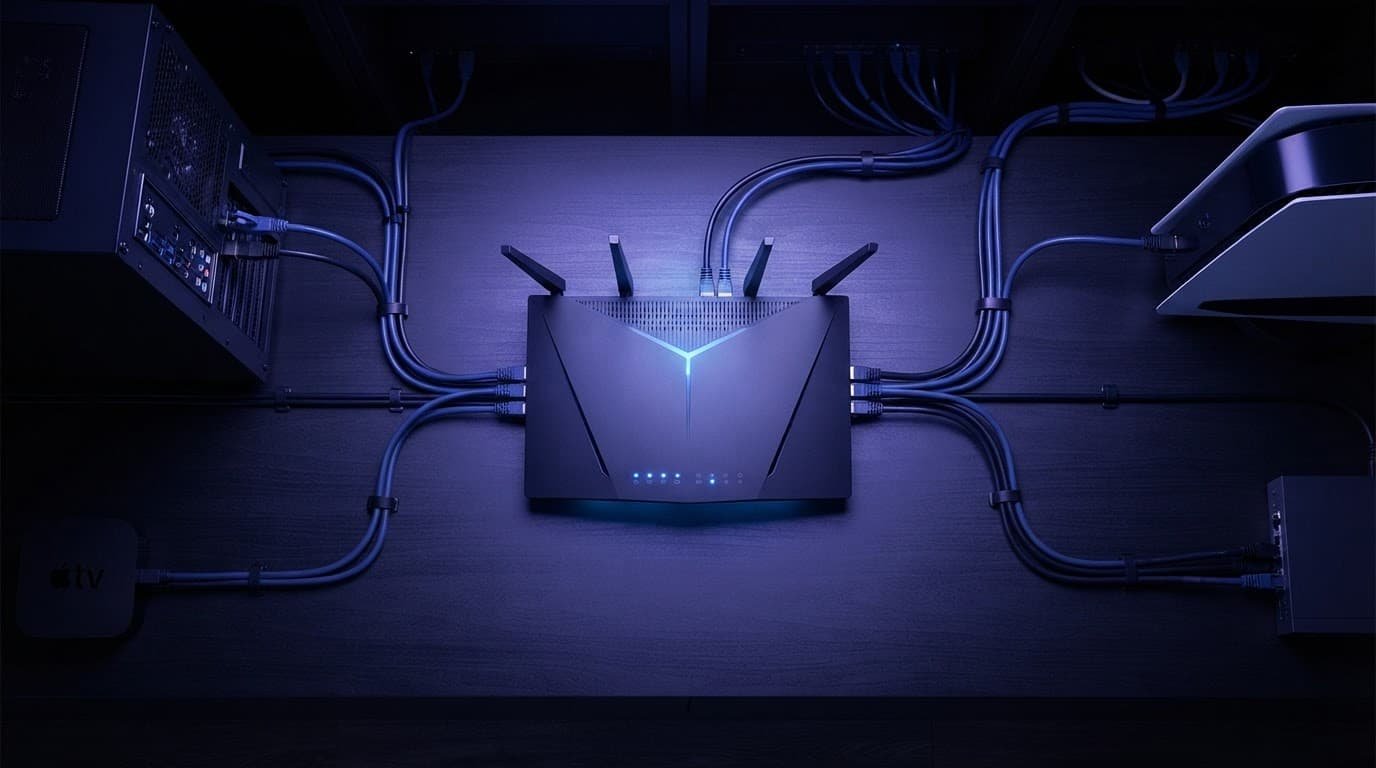
Use the available Ethernet ports for your desktop PC, game console, work dock, or network-attached storage. Wired connections are steadier and remove Wi-Fi interference from the equation.
Place the router in an open, central area, not a cabinet, basement corner, or crowded entertainment center. Thick walls, metal ductwork, and floors can weaken the wireless connection. Placement and interference may matter more than the advertised wireless standard.
Run a wired speed test before changing router settings. If wired performance is poor, the problem may be your modem, fiber gateway, cable line, or ISP connection.
Change Gaming Settings One at a Time
Once your router is online, start with the basics:
- Enter realistic download and upload speeds in the QoS settings.
- Prioritize the PC or console you use for multiplayer games.
- Turn on geo-filtering only for games where server distance is a real problem.
- Test for several days before changing another setting.
Change QoS, DNS, Wi-Fi channels, channel bandwidth, and router placement one variable at a time. You won’t know which adjustment helped or created a new problem.
Check the router’s security features separately. NETGEAR Armor is a separate security service, so verify its availability, subscription requirements, and compatibility for your exact router. It isn’t a gaming performance feature.
Install firmware updates before spending hours troubleshooting. Netgear keeps current firmware, manuals, and setup help on its XR1000 support page. For a broader buying view, our Netgear Nighthawk review compares what different Nighthawk classes are built to handle.
When WiFi 6 Is Still Enough
WiFi 6 is enough for most gaming homes with internet plans under 1 Gbps and several wired devices. It provides enough device capacity for typical streaming, work, smart-home, and gaming traffic, while maintaining solid streaming performance.
Upgrade from an older Wi-Fi 5 router when it drops connections, has weak coverage, has too few wired connections, or struggles with several people online. Don’t upgrade only because the box says WiFi 7.
Wi-Fi 6E with tri-band WiFi is worth considering when you own several 6 GHz devices and face crowded apartment spectrum. In that setting, network congestion and channel bandwidth can matter more to wireless speed than a newer label. WiFi 7 makes more sense for multi-gigabit service, newer client devices, or a home already pushing Wi-Fi 6E’s limits.
If dead zones affect multiple rooms or floors, an Orbi Mesh System is usually better than buying a faster single router.
Frequently Asked Questions
Is the Netgear XR1000 good for gaming?
Yes. The XR1000 is a strong choice for gamers who want DumaOS traffic controls, QoS prioritization, geo-filtering, and reliable Gigabit Ethernet connections.
Can the XR1000 lower my ping?
It can’t reduce the physical distance to a game server or fix high latency from your ISP. It can help stabilize ping by managing household traffic that causes queueing delays during downloads, backups, or streaming.
Should I choose the XR1000 or the RAXE500?
Choose the XR1000 for gaming-focused controls and busy Gigabit homes. Choose the RAXE500 if you have several 6 GHz-compatible devices, need 2.5GbE support, or prioritize faster local WiFi over specialized gaming features.
Do I need a modem with the XR1000?
Yes. The XR1000 is a standalone router, so cable customers need a compatible modem and fiber customers usually connect it to an ONT or ISP gateway. Use bridge mode or IP Passthrough on a provider gateway when available to help avoid double NAT.
Is WiFi 7 necessary for gaming?
No. WiFi 6 is enough for most gaming homes, especially with internet service under 1 Gbps and wired connections for stationary devices. WiFi 7 is more useful for multi-gigabit service and newer client devices that can use its additional capacity.
Final Thoughts
The XR1000 remains a practical choice for gamers seeking useful controls, reliable wired connections, and a consistent gaming experience without paying for WiFi 7 hardware.
Focus on the real bottleneck. A wired device, sensible QoS settings, current firmware, and good router placement often do more for your gaming connection during online gaming than buying the newest wireless standard.