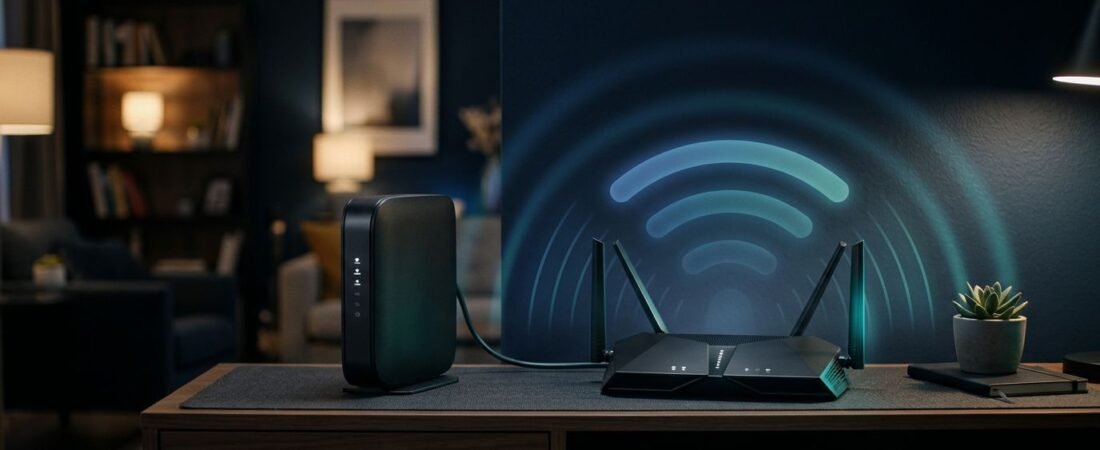
Buying networking equipment gets expensive fast when a modem and router are treated as the same box. With Mediacom’s high-speed cable internet, that confusion can leave you with equipment that never activates.
Looking for the best Netgear router Mediacom customers can use? Start with a DOCSIS 3.1 modem that Mediacom approves. The modem connects to Mediacom’s network, while your Netgear router manages WiFi coverage, device capacity, and home network settings.
The right two-piece setup can replace a monthly modem rental without giving up speed or reliability.
This post may contain affiliate links. If you make a purchase through these links, I may earn a small commission at no extra cost to you.
Key Takeaways
- Use a Mediacom-approved DOCSIS 3.1 modem, such as the Netgear CM2500 for plans up to 1 Gig or the CM3000 for 2 Gig service.
- Pair the modem with a Netgear router based on your home’s size, internet tier, wired devices, and WiFi coverage needs.
- The Nighthawk RS200 fits many 1 Gig homes, while the RS300 is better suited to multi-gig plans, gaming PCs, and wired workstations.
- Place the router in a central, open location, and use an Orbi mesh system when one router cannot cover the entire home.
- If you connect a Netgear router to a Mediacom gateway, use bridge mode or access point mode so only one device handles routing.
Start With a Mediacom-Approved DOCSIS 3.1 Modem
A router does not connect directly to a cable line. You need a compatible cable modem first, and Mediacom’s current approval list matters more than retailer filters or old reviews.
Mediacom’s compatible retail modem list is the authority when comparing Mediacom compatible modems, including third party retail modems. It requires a high-split DOCSIS 3.1-certified modem or newer. High-split support matters because cable providers are upgrading their networks for faster upload and download service.
For most Mediacom plans, these are the Netgear models to focus on:
- Netgear CM2500 is listed for plans up to 1 Gig Internet, with wired internet speeds of 945 Mbps or more.
- Netgear CM3000 is listed for 2 Gig Internet and lower tiers, with wired download speeds above 2,000 Mbps.
The CM2500 is the practical choice for a 500 Mbps or 1 Gig plan. Choose the CM3000 if you have Mediacom’s 2 Gig service or plan to upgrade soon.
Older devices still appear in buying guides. The Netgear CM1000 and CM2000 were often recommended in the past, while the CAX30 was a popular modem-router combo. A Mediacom 1 Gig buyer discussion shows how long those recommendations have stayed in circulation. Buy based on Mediacom’s current list, not an old compatibility chart, and verify brands such as ARRIS Surfboard model by model.
Once you have an approved model, retailer pages such as Best Buy’s Mediacom modem selection can help you compare availability and current pricing.
Best Netgear Router Mediacom Customers Can Pair With a Modem
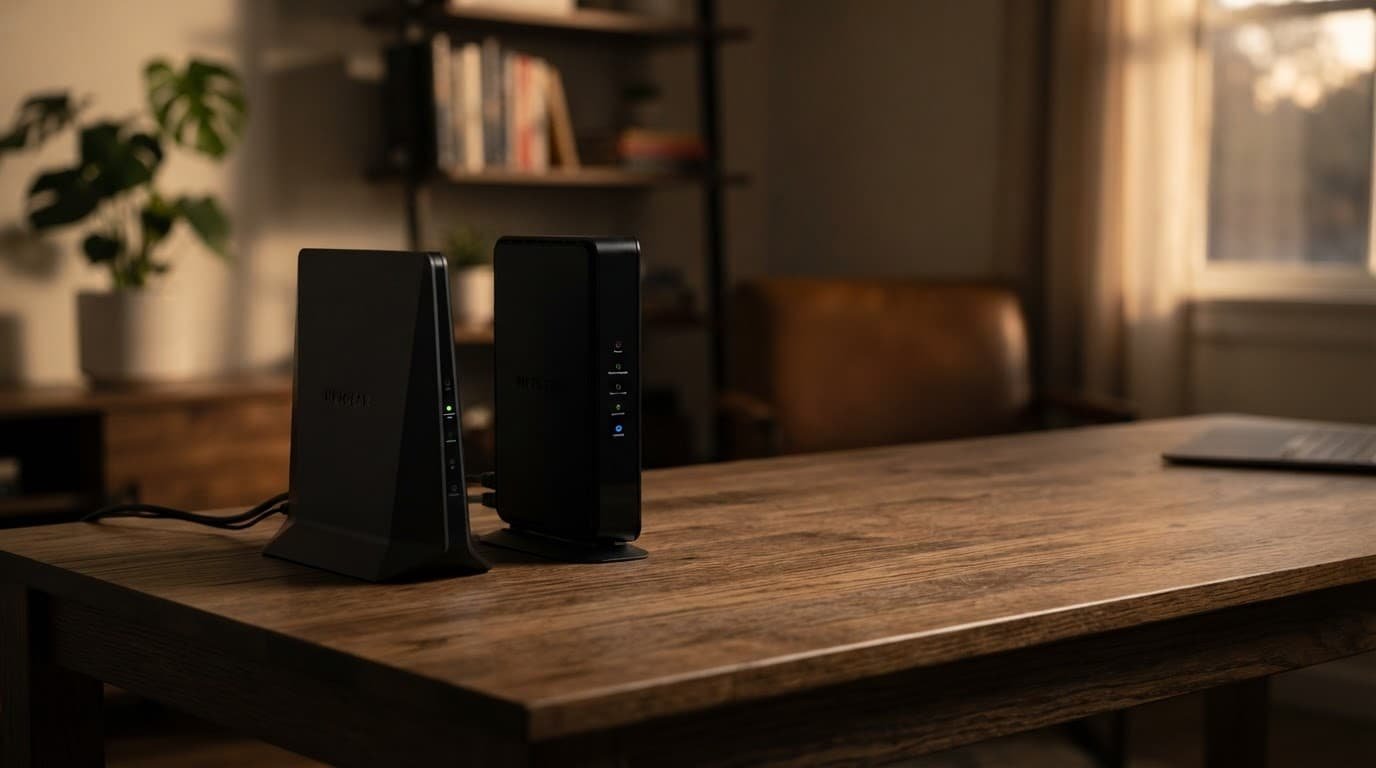
The router itself does not need Mediacom approval. Any standard Ethernet router can work with the modem. The better question is how much WiFi coverage your home needs, what internet speeds your plan delivers, and how many wired devices you use.
These Nighthawk routers fit different types of Mediacom households.
| Setup | Good Fit | Choose It When |
|---|---|---|
| Netgear CM2500 + Netgear Nighthawk RS200 | Apartments and average-size homes with up to 1 Gig service | You want WiFi 7 support and a 2.5 Gig internet port without buying a premium router |
| Netgear CM3000 + Netgear Nighthawk RS300 | 1 Gig and 2 Gig plans with gaming PCs or wired workstations | You need stronger multi-gig wired networking and expect to keep the router for years |
| Netgear CM2500 or CM3000 + Orbi 770 Series mesh | Large, long, or multi-story homes | One router cannot reach every room without weak spots |
The Nighthawk RS200 is a sensible starting point for many homes. It has the features most households need for streaming, video calls, smart TVs, and several phones without the higher price of a top-end model. If you don’t need Wi-Fi 7 or multi-gig features, Wi-Fi 6 can still be enough for everyday use.
The RS300 makes more sense with Mediacom’s fastest tiers, especially for online gaming and wired workstations. A 2 Gig plan needs multi-gig ports across the connection. Otherwise, a standard 1 Gig Ethernet port can limit the speed you see on a wired device.
For wider homes, the best setup for a Mediacom home may be a mesh system instead of one powerful router. An Orbi system uses a main router and satellites placed around the home. It costs more, but it is often the right answer for a basement office, upstairs bedrooms, or a detached work area.
Don’t buy a high-priced router for a 300 Mbps plan if your real problem is router placement. Start with the router in an open, central location. Keep it away from metal cabinets, thick masonry walls, and crowded entertainment centers.
Separate Modem and Router or a Netgear Cable Gateway?
A cable gateway combines a modem and router in one unit. It looks simpler because there is one power cord, one device, and fewer cables.
The tradeoff is flexibility. If the cable gateway becomes outdated, you replace the entire unit. If wireless range is weak, you still own a cable modem that may work fine. Mediacom’s current retail list names the CM2500 and CM3000, not the older Netgear CAX30 gateway. Older recommendations may mention Broadcom chip-based cable gateways, so verify current Mediacom support before buying.
Separate hardware is the safer long-term choice for most Mediacom customers. After the modem is activated, the CM2500 or CM3000 handles the cable connection. Your Netgear Nighthawk provides WiFi as a standalone router. Each part can be upgraded on its own.
This also avoids a common setup problem. If you rent a Mediacom wireless gateway and connect a Netgear router, only one device should manage routing. Check the router mode setting so only one device performs routing. Put the cable gateway into bridge mode, or use access point mode on the Netgear router. Running both as routers can cause double NAT, which may affect online gaming, remote access, and some smart-home devices.
Set Up Your Netgear Router on Mediacom
Setup is straightforward once Mediacom activates the modem. Keep the router in its box until Mediacom confirms the modem is online.
- Check the exact modem model against Mediacom’s approved list before ordering. A model number alone doesn’t guarantee approval.
- Connect the coaxial cable to the modem, then connect the modem to power. Wait for the online light to become solid before moving on.
- Activate the modem with Mediacom. Have your account details and the cable modem MAC address ready. This number is printed on the modem label.
- Connect an Ethernet cable from the modem to the yellow or labeled internet port on the router. Power on the router after the modem is online.
- Use the Netgear Nighthawk or Orbi app, or the router’s browser setup page, to create a network name, or SSID, and password. Install firmware updates before connecting every device.
Test with a wired computer first if possible. A wired speed test shows whether the modem and service are working. Then test WiFi near the router and in the rooms where you use it most.
If wired speed is good but WiFi is weak, the issue is usually router location, wall materials, or home size. It isn’t usually the Mediacom modem.
Fix a Netgear Cable Gateway With a Bridge Mode Issue
Bridge mode turns off a cable gateway’s own WiFi and routing features so another router can take over. That is useful when you are using a separate router.
It becomes a problem when your Netgear cable gateway was supposed to provide WiFi, but it suddenly acts like a modem only. You may see working internet through Ethernet, but the wireless gateway has no WiFi network, or its setup page says bridge mode is enabled.
A cable gateway receives settings from the provider during activation and reconnection. The gateway device may receive a bridge mode setting through a Mediacom configuration profile, so restarting it may not fix the issue.
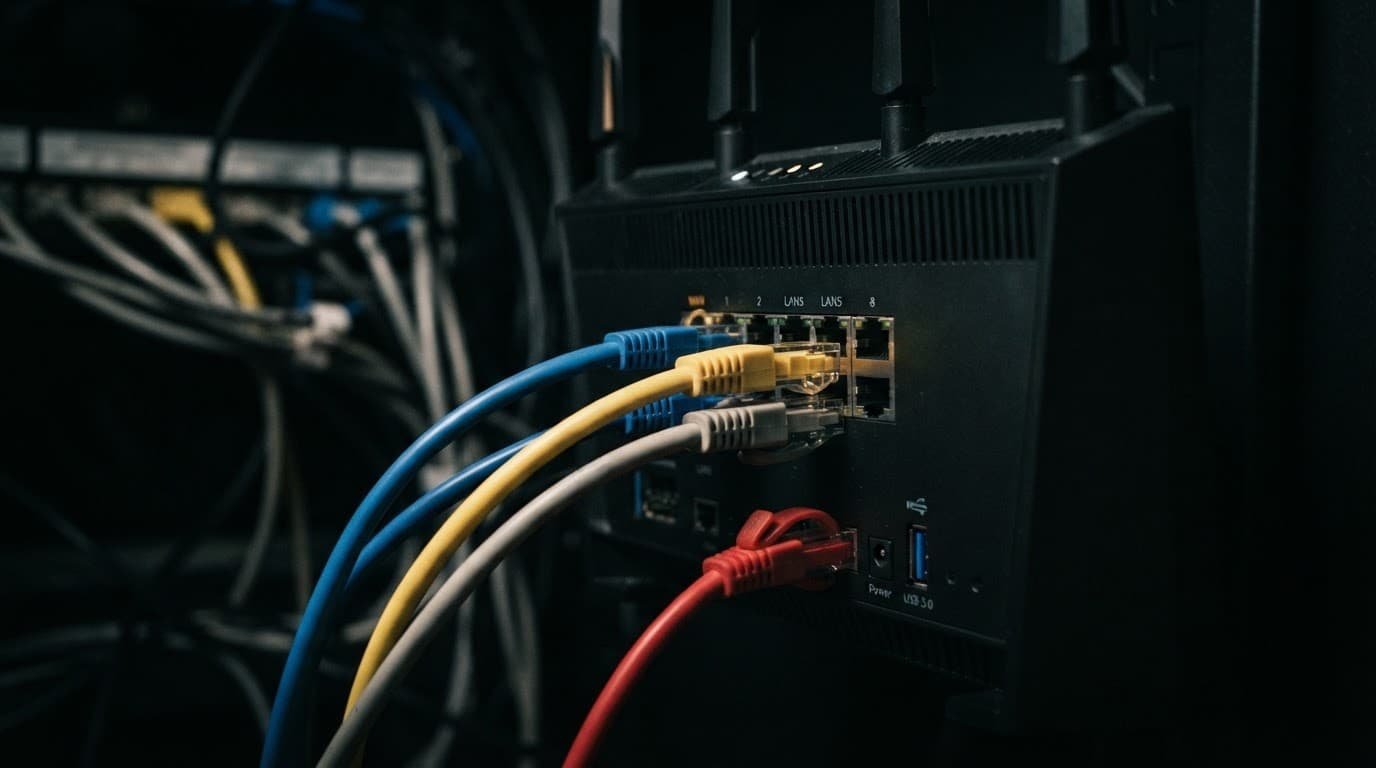
Call or chat with Mediacom support and ask the agent to check the cable gateway’s provisioning. Say that the device is stuck in bridge mode and ask them to remove the bridge mode configuration override. Give them the device’s MAC address, often labeled “HFC MAC” or “Cable MAC” on the gateway.
After support confirms the setting has been removed, perform a factory reset on the gateway:
- Before the factory reset, write down any WiFi name, password, port-forwarding rule, or custom setting you want to restore.
- With the gateway powered on, press and hold the recessed Reset button for about 10 seconds. Release it when the lights change.
- Wait for the device to restart and reconnect. This can take several minutes.
- Complete the Netgear setup again and check that the WiFi network returns.
A factory reset cannot remove a provider-side bridge instruction. Mediacom support needs to clear that setting before you reset the gateway.
This issue applies to modem-router gateways. The standalone CM2500 and CM3000 do not provide WiFi, so they are meant to work with a separate router.
Is Buying Your Own Equipment Worth It?
If your modem rental fee is $13 per month, monthly rental payments add up to $156 each year. After two years, you have paid $312. After three years, the total is $468.
Buying your own equipment can make sense, but count the full setup cost. A rented gateway includes both functions. If you buy separate equipment, compare its combined price against continued modem rental.
For example, a $350 setup reaches break-even at about 27 months with a $13 monthly rental fee. A $450 setup reaches break-even at about 35 months. That timeline shows the cost savings benefits after you recover the purchase price.
Buying is a better fit if you expect to keep Mediacom internet service for several years. It can lower long-term costs and give you more control over your setup. Renting may still make sense if you move often, want one support contact for every issue, or prefer the provider to handle replacements.
Frequently Asked Questions
What is the best Netgear modem for Mediacom internet?
The Netgear CM2500 is a practical choice for Mediacom plans up to 1 Gig. Choose the CM3000 for 2 Gig service or if you expect to upgrade soon.
Does Mediacom need to approve my Netgear router?
Mediacom approval applies to the cable modem, not the standalone router. Any standard Ethernet router can work with an approved modem, provided it supports your speed and coverage needs.
Should I use a separate modem and router with Mediacom?
Separate equipment is usually the better long-term choice because you can upgrade the modem and router independently. It also gives you more flexibility with WiFi coverage, wired networking, and home network settings.
How do I prevent double NAT with a Netgear router and Mediacom gateway?
Put the Mediacom gateway into bridge mode, or set the Netgear router to access point mode. Only one device should perform routing to avoid issues with gaming, remote access, and some smart-home devices.
Choose the Setup That Fits Your Home
The best Netgear router Mediacom customers can buy depends on their internet tier and home size. Start with a DOCSIS 3.1 modem from Mediacom’s current approval list. Then choose a router based on internet speeds, coverage needs, and wired devices.
For most 1 Gig homes, the CM2500 and Netgear Nighthawk RS200 are a balanced pair. For 2 Gig service, the CM3000 and a multi-gig router such as the RS300 help prevent a wired speed bottleneck.
A compatible modem gets you online. The right router helps deliver strong performance throughout your home.