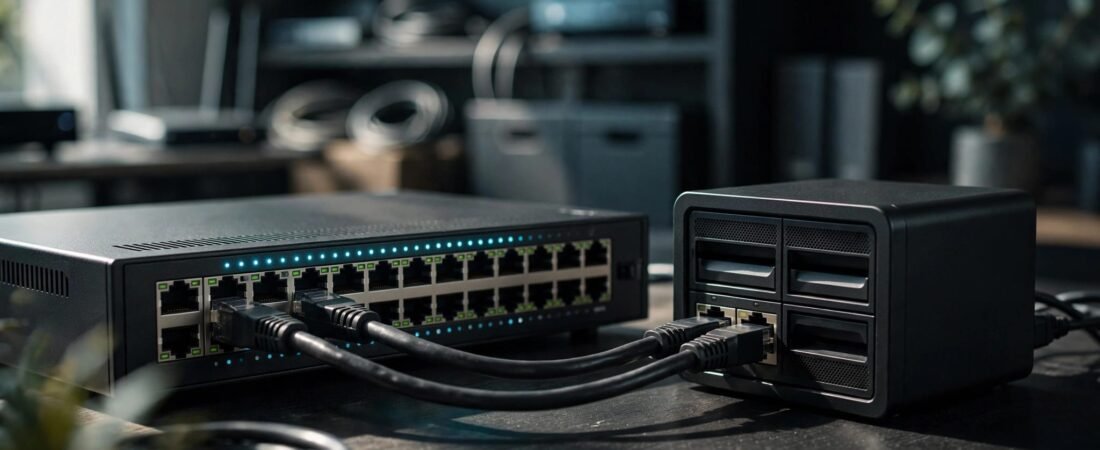
Two Ethernet cables won’t automatically make your NAS faster. NETGEAR’s aggregation feature combines compatible ports into one logical connection, primarily for shared bandwidth and redundancy.
The right setup depends on your switch, NAS bonding mode, and the traffic you want to improve. Check compatibility before connecting a second cable or buying more equipment.
This post may contain affiliate links. If you make a purchase through these links, I may earn a small commission at no extra cost to you.
Key Takeaways
- Choose LACP when both devices support it. Use static aggregation when one endpoint requires it.
- Configure the group on both devices before connecting multiple cables between them.
- Keep member-port settings consistent, and assign VLAN membership to the logical LAG.
- Expect better combined throughput across clients, not an automatic speed increase for one file transfer.
What NETGEAR Link Aggregation Can Improve
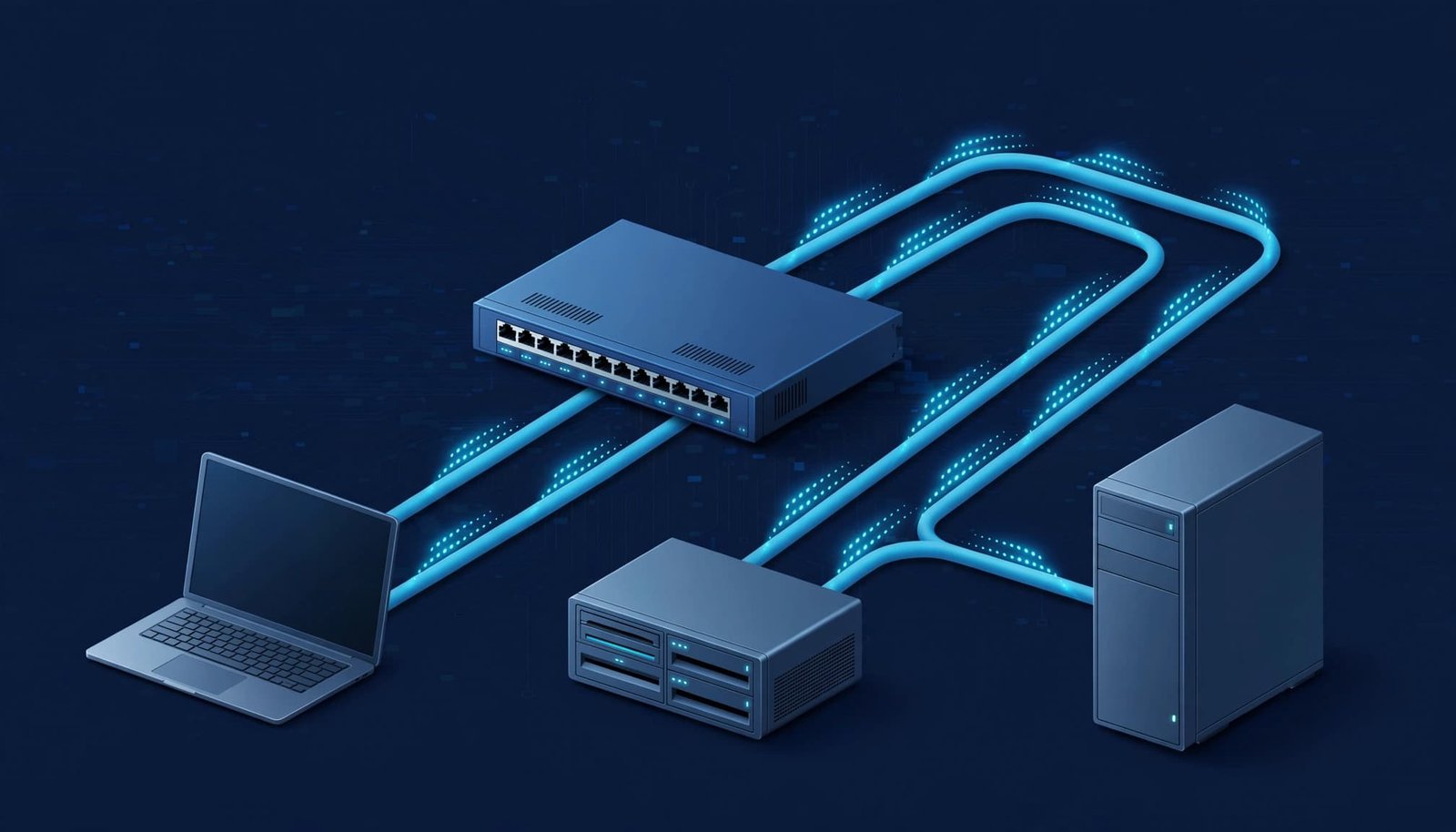
A link aggregation group, or LAG, combines several Ethernet connections into one logical link. With compatible endpoints and well-distributed traffic, it can increase combined bandwidth and keep connectivity available if a member cable fails.
Single Transfers Still Have a Link-Speed Limit
With ordinary operation, one transfer generally uses one member link. Two 1Gbps ports don’t turn a normal single-client transfer into a 2Gbps connection.
Traffic is assigned using a hash, a calculation based on addresses or other connection details. Keeping each flow on one link avoids packets arriving out of order.
SMB Multichannel can use multiple connections, but that’s a separate feature. Enabling LACP alone doesn’t enable it.
Multiple Clients Can Share More Capacity
Two 1Gbps connections to a NAS can provide up to 2Gbps of combined link capacity before overhead. Separate clients can use different members when the hashing distributes their traffic.
Both clients can still land on the same member. The storage system and processor must keep up, too.
For faster transfers to one computer, a native multi-gig connection is usually simpler. Our 2.5GbE versus Gigabit comparison explains the whole-path requirements.
Which NETGEAR Switches Support LAG?
NETGEAR switch families aren’t interchangeable. A multi-gig port describes its speed, not whether it supports aggregation or LACP.
Check whether a model offers static aggregation, LACP, both, or neither before you buy.
| Switch Family or Model | Static Aggregation | LACP | Practical Guidance |
|---|---|---|---|
| Unmanaged switches | No | No | A single connection is the only option with an unmanaged switch. |
| Plus switches generally | Model-dependent | Model-dependent | Some support static aggregation; others support neither. |
| GS116Ev2, JGS516PE, JGS524Ev2, JGS524PE | Yes | No | Use a compatible static LAG on the NAS. |
| GS750E | Yes | Yes | A Plus-family exception with LACP support. |
| Smart and Smart Managed Pro | Commonly supported | Most models | MS510TXM and MS510TXUP support both. |
| Fully Managed | Yes | Yes | Includes managed LAG configuration and monitoring. |
The key distinction is static support versus LACP support. A specification that says “link aggregation” doesn’t confirm which mode is available.
Smart Cloud management doesn’t determine LACP capability. Cloud access describes how you manage the switch; a Fully Managed model still needs explicit LACP support.
The MS510TXM and MS510TXUP support eight LAGs, with up to eight members per group. A typical two-port NAS doesn’t need that many ports.
Choose a managed switch based on the connection you need. Our Better WiFi Shop also helps homeowners compare networking equipment without assuming the most expensive option is necessary.
Choose Static LAG or LACP
We recommend an LACP LAG when both endpoints support it. A static LAG is configured manually and doesn’t negotiate with its partner.
A NAS-to-switch LACP connection needs compatible settings at both ends. Choosing dynamic bonding on the storage device won’t make a static-only switch support LACP.
Match the NAS Bonding Mode
On platforms that offer these modes, Balanced XOR is the suggested matching mode for a static group. IEEE 802.3ad dynamic link aggregation matches LACP.
Round-robin bonding requires compatible switch-side aggregation. It can cause packet-ordering problems, so it isn’t our default recommendation.
Adaptive load balancing, or ALB, and transmit load balancing, or TLB, work without switch LAG support. Their traffic handling differs from LACP. Don’t create a switch LAG just because the device uses one of these modes.
Understand the LACP Standard
LACP was defined in IEEE 802.3ad. Link aggregation later moved to IEEE 802.1AX-2008, as reflected in the IEEE Ethernet standards archive. IEEE 802.3ad is the earlier designation; IEEE 802.1AX-2008 is the current standard designation.
LACP operates at Layer 2. It negotiates group membership through Link Aggregation Control Protocol Data Units, called LACPDUs.
If a member stops sending LACPDUs, LACP removes it from forwarding after the protocol timeout.
IEEE 802.3az is Energy-Efficient Ethernet. It’s unrelated to LACP and doesn’t establish aggregation support.
Prepare Ports and VLANs
Keep a working management connection outside the ports you’re changing. Record the existing configuration and NAS address before creating a bond.
Match the Physical Links
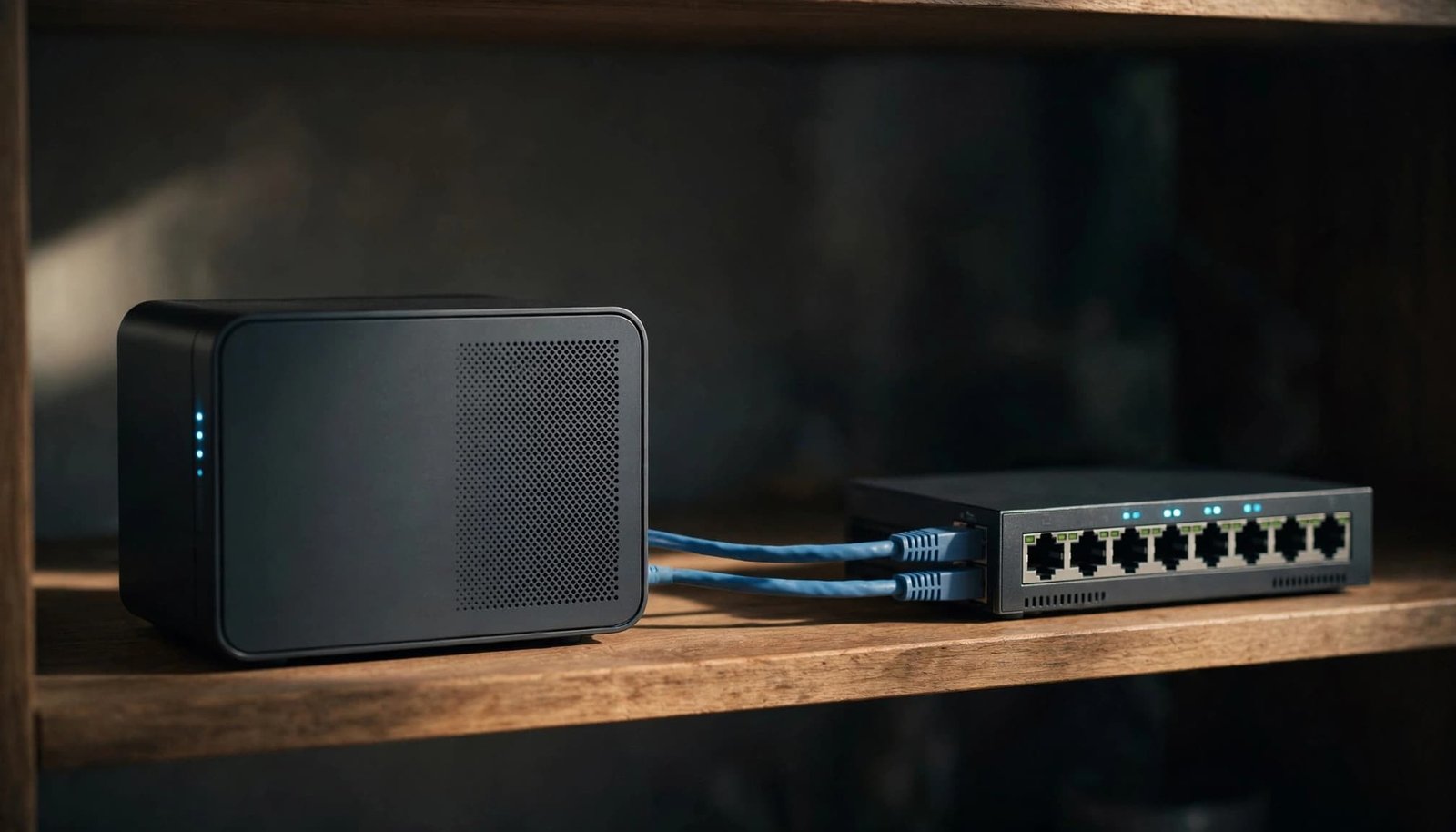
Member ports must match in port speed, duplex mode, MTU size, and VLAN membership. Keep flow-control settings consistent as well.
Don’t combine a 1Gbps member with a 2.5Gbps member in the same ordinary LAG. Auto-negotiation is normally appropriate, but inspect the resulting speeds.
Start with standard 1500-byte LAN MTU settings unless your network already uses a consistent jumbo-frame configuration. Jumbo frames aren’t required for aggregation, and changing the router’s WAN MTU won’t configure the NAS bond.
Keep VLAN Configuration Consistent
NETGEAR’s link aggregation setup guidance directs you to create the LAG before assigning it to a VLAN.
Add the logical LAG, rather than its individual member ports, to the VLAN. Match tagged and untagged settings, along with PVID settings, across the connection.
For a typical NAS connection, an untagged LAN VLAN is enough. Our NETGEAR VLAN tagging guide explains how LAN segmentation differs from ISP-facing tagging.
Set Up the LAG on Both Devices
Menu names vary across Plus, Smart, and Fully Managed interfaces. NAS operating-system steps also vary by model. Keep only one existing connection in place while preparing the group.
- Open the switch interface. Sign in to the managed switch through its management IP address. On many Smart switches, LAG controls appear under Switching, then LAG.
- Create the switch group. Choose an unused LAG ID, select static or LACP, and enable the group. The switch and storage endpoint must use matching aggregation modes. For dynamic aggregation, create an LACP LAG, which follows IEEE 802.1AX-2008. Add the intended member ports through the LAG membership controls.
- Apply the network settings. Assign the LAG to the correct VLAN. Keep speed, duplex, MTU, and other required member settings consistent.
- Create the storage bond. Select matching Ethernet interfaces and a bonding mode. For static aggregation, choose Balanced XOR. Don’t select round-robin unless the switch supports it. In Synology DSM, bonding controls are under Control Panel, Network, Network Interface, then Create Bond.
- Connect the remaining cables. Do this only after both endpoints have matching groups configured. Apply and save the switch configuration, including startup configuration where the interface provides that option.
The storage system’s address can change when its interfaces become a bond. Reconnect through the address shown in its network settings.
For a switch-to-switch LAG, replace the storage step with matching configuration on the second switch. Use member ports belonging to the same logical switch at each end, unless supported stacking or multi-chassis aggregation is configured.
On NETGEAR M4100 and M5300 switches, the CLI uses the port-channel command to create a LAG. For example, port-channel lag_10 creates the named group, but port-channel membership requires separate configuration.
Connecting parallel cables before both ends have a compatible LAG can create a network loop. Configure first, then cable.
Verify Aggregate Bandwidth and Failover
A working connection doesn’t prove every member is forwarding traffic. Check group status, traffic distribution, and cable-failure behavior separately.
Check Status and Member Traffic
Look for port LEDs blinking green during traffic, as NETGEAR’s guidance describes. LED meanings vary by switch, so also check the admin interface.
The LAG and its members should show UP or connected. For LACP, check whether members are synchronized and collecting and distributing traffic, when those fields are available. This status, exchanged through LACPDUs, tells you more than LEDs alone.
Watch per-port byte counters during sustained local transfers. An internet speed test won’t show whether the NAS LAG is distributing traffic correctly.
Test Multiple Clients and One Cable Failure
Run transfers from at least two wired clients at the same time. Compare their combined throughput with your previous single-link baseline.
If the switch offers hashing choices, source-and-destination IP hashing can help with multiple clients. Layer 4 port hashing can distinguish separate connections between the same endpoints.
The switch and NAS choose outgoing links independently. Hashing doesn’t guarantee an equal split.
Disconnect one member cable during a noncritical transfer. Connectivity should continue through the remaining link, though capacity falls and a brief interruption may occur.
Fix a LAG That Won’t Come Up
Start with the physical links and compatible modes. Change one setting at a time to identify the cause.
- Confirm the switch and NAS both use static aggregation or both use LACP. With active/passive LACP controls, at least one side must be active.
- Check the negotiated speed of every member link. Try short, known-good cables before suspecting the switch or endpoint.
- Compare VLAN membership, tagging, PVID, duplex, and MTU. A group can show as UP while an incorrect VLAN blocks traffic.
- Confirm the intended ports are enabled and assigned to the correct group. On Fully Managed models, check the management interface’s status view when available. Update switch firmware, storage-device software, and computer network drivers if compatibility problems persist.
Loose connectors, unreliable wall jacks, and faulty docks can lower a link’s negotiated speed. Our NETGEAR link-speed troubleshooting guide covers those physical-path checks.
For clients and a storage device on the same switch and VLAN, local transfers normally stay on that switch. Router QoS, WAN speed, and Wi-Fi settings aren’t the first places to troubleshoot.
Frequently Asked Questions
Does link aggregation double the speed of one NAS transfer?
No. A single transfer generally uses one member link, so two 1Gbps ports don’t automatically give one client a 2Gbps connection. Separate clients can use different links when traffic hashing distributes them across the group.
Should I use static aggregation or LACP?
Use LACP when both the switch and NAS support it. Use static aggregation when an endpoint requires it, and configure the same mode on both devices.
Do all NETGEAR switches support LACP?
No. Support varies by model, and a specification that says “link aggregation” doesn’t confirm LACP support. Check the switch’s specifications for static aggregation, LACP, or both.
Should I connect the cables before configuring the LAG?
No. Configure matching groups on the switch and NAS first, then connect the additional cables. Connecting parallel cables before both ends have a compatible LAG can create a network loop.
How can I check whether the LAG is working?
Check that the group and its members show UP or connected, then watch per-port traffic counters during local transfers. Test with multiple wired clients and disconnect one member cable during a noncritical transfer to check traffic distribution and failover.
Choose the Connection That Fits Your Workload
NETGEAR link aggregation works well when several clients share a NAS or you need member-link redundancy. For one faster transfer, a native 2.5GbE or 10GbE connection is usually simpler.
Choose compatible modes, configure both endpoints before adding cables, and test actual member traffic. A group showing UP is the starting point; usable shared bandwidth is what matters.