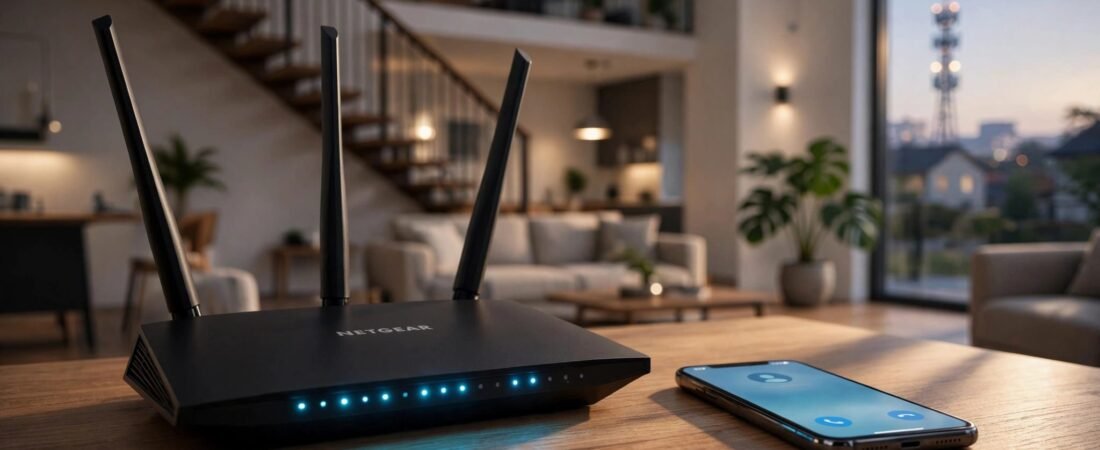
Dropped calls often result from weak coverage, a busy internet connection, interrupted carrier service, or a failed switch between Wi-Fi and cellular. A NETGEAR router can contribute, but the router isn’t always the cause.
Test WiFi calling separately from cellular calls before changing settings or buying equipment. A fast internet plan doesn’t guarantee stable WiFi calls on your Wi-Fi network, especially upstairs or during large uploads.
Start with the phone, then work through coverage, congestion, and router settings.
This post may contain affiliate links. If you make a purchase through these links, I may earn a small commission at no extra cost to you.
Key Takeaways
- Compare cellular-only and Wi-Fi-only calls to identify which connection fails.
- Test near the router and during busy household activity. These reveal different problems.
- Change one setting at a time. Better coverage, traffic controls, and carrier support solve different causes.
1. Start With the Phone and Basic Restarts
Restart and Update
Turn your phone’s wireless connection off and back on, then restart your phone. Install available phone software and carrier updates, then restart your phone before testing again.
Use the phone’s default Phone app for testing. Carrier calling doesn’t require a separate calling app.
For Google Fi, account activation and any number transfer must be complete. Fi supports phones designed for Fi and most compatible-with-Fi phones, but compatibility still matters.
Remove Temporary Connection Problems
Turn off your VPN during testing. Google’s Wi-Fi calling guidance identifies VPN connections as a possible obstacle.
If the whole home’s internet connection is unstable, restart the modem or gateway first. Let it reconnect before restarting the NETGEAR router.
Avoid a factory reset at this stage. It erases useful settings without identifying the cause.
2. Separate Wi-Fi Calling Drops From Cellular Problems
Make a Cellular-Only Call
Turn Wi-Fi off and place a regular call. Stay in one location during the test.
If the call drops, your home Wi-Fi wasn’t carrying it. Check the cellular signal, carrier service, or phone.
A failed handoff between Wi-Fi and cellular can also cause dropping calls. Similar signal strength doesn’t automatically trigger a switch, but testing each connection removes that uncertainty.
Make a Wi-Fi-Only Call
Enable WiFi calling first. Turn airplane mode on, then manually turn Wi-Fi back on and join your home network.
Open several websites. If browsing works, place a regular call to test WiFi calls. Check for your carrier’s call indicator. Airplane mode prevents cellular service from masking a problem that affects these calls.
Use the results to choose the next check.
| Test Result | Next Focus |
|---|---|
| Cellular works, Wi-Fi calls fail | Home network, VPN, or carrier support for WiFi calling |
| Wi-Fi calls work, cellular fails | Indoor cellular coverage or carrier service |
| Both fail | Phone, account, carrier, or separate network faults |
Repeat the Wi-Fi-only test on another Wi-Fi network. If calls work there but not at home, focus on your home network. Restore normal cellular service after testing.
3. Check Coverage Before Changing Router Settings

Compare Nearby and Distant Rooms
Make a Wi-Fi-only call near the router, then repeat it in the room where calls usually fail.
If it works nearby but fails upstairs, coverage or interference may be the cause. Place the device in an open, central location above floor level. Keep it away from metal cabinets, dense walls, and crowded entertainment centers.
Our guide to improving home Wi-Fi coverage covers placement changes to try before upgrading equipment.
Test Bands and Mesh Movement
The 2.4 GHz band generally reaches farther, while 5 GHz often offers more capacity nearby. Neither is best for every calling location.
If your router has separate network names, compare both without changing other settings. Our NETGEAR Smart Connect guide explains band selection.
With Orbi or an extender, compare a stationary call with one made while walking between rooms. Drops during movement may point to roaming issues or a weak satellite connection. Place satellites where they still receive a strong connection.
4. Test Calls While the Network Is Busy

Look Beyond Download Speed
Wi-Fi calling needs modest bandwidth, but it also needs consistent delivery. Packet loss, delay, and uneven packet timing can hurt voice quality, even when a speed test looks good.
Pause cloud backups, game downloads, and large uploads. Repeat the call, then test again during normal activity.
If calls fail only under load, investigate congestion. Too many active devices can compete for wireless airtime or fill the internet connection. Satellite internet can also introduce latency and service interruptions that affect calls.
Use QoS for a Measured Problem
Quality of Service, or QoS, can prioritize traffic when capacity is limited. NETGEAR controls vary: some models offer upstream rules, others Dynamic QoS, and supported gaming models use DumaOS controls.
Enter reliable, measured bandwidth values when requested. Prioritize the calling phone rather than every device. Check existing device limits that might restrict it.
A mesh system can improve weak coverage, but it won’t add upload capacity to an overloaded internet connection.
Our NETGEAR upload troubleshooting guide helps separate upload limits from wireless problems.
5. Compare Wired Service and Router Configuration
Establish a Wired Baseline
Connect a computer to the NETGEAR router by Ethernet. Browse and test the connection while calls are failing.
If wired devices also lose internet access, inspect the modem connection, Ethernet cable, and provider service. Slow or interrupted incoming service needs attention before wireless tuning.
If only your home network fails across multiple phones, give the ISP the wired results and outage times. Our NETGEAR disconnect troubleshooting guide covers this distinction.
Review Firmware and Blocking Rules
Install firmware for your exact NETGEAR model using its official update method. Keep power connected throughout installation. On Orbi, include the satellites.
Review parental controls, access schedules, and filtering rules affecting the phone. Don’t disable NETGEAR Armor or the firewall without evidence.
The carrier calling feature commonly uses encrypted IPsec traffic over UDP ports 500 and 4500. It normally needs outbound access, not port forwarding. Don’t place the phone in a DMZ.
If an ISP gateway and NETGEAR equipment both handle routing, review the arrangement. Double NAT isn’t automatic proof of a calling problem. Access-point mode or gateway bridge mode may simplify it, but changes can affect provider phone or TV services.
6. Rule Out Carrier and Number-Specific Trouble
Google Fi notes that buildings, weather, and other interference can cause occasional call interruptions. Wi-Fi often works better indoors because a cellular signal can struggle to pass through building materials.
To check for a cellular outage, make a cellular-only call from another location more than 5 miles away. This increases the chance of reaching a different tower, but doesn’t guarantee it.
Dial the full 10- or 11-digit number for U.S. calls. Include the country code for international calls.
If only certain callers have trouble, check your phone’s call forwarding settings, blocked numbers, family restrictions, and spam filters. Then check your carrier account to confirm no call forwarding rule is active. Ask whether the other person has the same trouble calling other numbers.
For Verizon users, the Wi-Fi calling FAQ explains device settings and service behavior. Calls that fail inside your house don’t automatically mean you need replacement equipment.
7. Decide Whether New Equipment Would Help
My Experience With the Orbi 870
I’m Steve Neff, founder of Better WiFi Shop, and I personally own and use the NETGEAR Orbi 870.
My interest in home networking started with learning that paying for faster internet doesn’t always solve Wi-Fi problems. That led me to research routers, coverage, and mesh systems, and eventually create Better WiFi Shop.
Owning the Orbi 870 doesn’t prove it will fix dropped calls. Consider a mesh system or router change when testing shows coverage gaps. You can explore networking options at Better WiFi Shop after identifying what your home needs.
When a Cell Signal Booster Makes Sense
A signal booster amplifies an available outdoor cellular signal and rebroadcasts it indoors. It doesn’t need Wi-Fi or broadband.
A signal booster may help when cellular calls work outside but fail indoors, even if the outdoor signal is weak but usable. It can’t create service where none exists, and a signal booster won’t fix congested Wi-Fi, an ISP outage, or an incompatible phone.
Frequently Asked Questions
How Do I Turn Wi-Fi Calling On or Off?
On many Android phones, use the calling tile in Quick Settings or open Settings > Connections > calling settings. Other models place the option under SIM, mobile network, or calling settings.
On older iPhones, use Settings > Phone > Wi-Fi Calling. On newer iOS versions, use Settings > Apps > Phone > Wi-Fi Calling. Complete the emergency-address prompt when required.
What Are the Advantages and Disadvantages?
Wi-Fi calls can connect where mobile coverage is weak or absent. They use your regular number without an extra app and don’t use cellular data. Battery life may improve when the phone stops searching for weak coverage.
Congested networks can cause poor voice quality, calls that disconnect, or failed texts. Device and network compatibility matter, and public hotspots aren’t always available. International charges can still apply. AT&T explains the basics in its Wi-Fi calling overview.
Why Does My iPhone Drop Calls When Browsing Works?
Browsing can recover from short interruptions that disrupt a live call. Test without a VPN, stay close to the access point, and compare another phone on the same connection.
If only one phone fails, focus on its software, carrier provisioning, and saved network settings.
Fix the Failing Connection First
The right fix depends on whether the problem follows your phone, a room, heavy network activity, or the carrier connection. Separate those causes before replacing equipment.
Start with cellular-only and Wi-Fi-only calls. Then compare coverage and wired service. Those results give you a practical path without paying for speed or hardware that won’t solve the problem.