Buying a Netgear Nighthawk with “modem” on the box is an easy mistake with Frontier Fiber. A modem router combo may contain cable hardware that won’t work with Frontier’s service.
A search for Netgear routers Frontier Fiber usually starts with one question: can this device replace Frontier’s equipment for Frontier Fiber internet?
It can, if you bought a standalone wireless router with an Ethernet WAN port. It can’t, if you bought a coax-based combo. Frontier, your internet service provider, supplies the fiber service.
The Optical Network Terminal, or ONT, replaces a cable modem and hands Ethernet off to your router.
Use the port on the back of the router, not the marketing words on the front of the box, to choose the right setup.
This post may contain affiliate links. If you make a purchase through these links, I may earn a small commission at no extra cost to you.
Key Takeaways
- Choose a standalone Netgear router with an Ethernet WAN or Internet port for Frontier Fiber; cable modem-router combos with DOCSIS hardware do not replace the ONT.
- Match the router’s wired WAN speed to your Frontier plan. Gigabit plans need Gigabit Ethernet, while faster plans require Multi-Gig Ethernet and compatible switches and devices.
- You can connect the Netgear directly to the ONT using automatic DHCP, or keep the Frontier gateway and place the Netgear in access point mode.
- Check for Frontier TV, voice, or other services before removing the provider’s equipment, and never reset the ONT unless Frontier instructs you to.
Frontier Fiber Compatibility for Netgear Routers
Frontier Fiber internet brings the fiber line into an Optical Network Terminal (ONT), often mounted on a wall in a garage, closet, or utility area. The fiber optic network terminates at the ONT, which converts its signal into Ethernet for your home router.
Frontier’s equipment guidance confirms that compatible network equipment uses an Ethernet handoff, the central router compatibility rule for Fiber service. Basic hardware requirements include an Ethernet-capable router with a port suited to your plan.
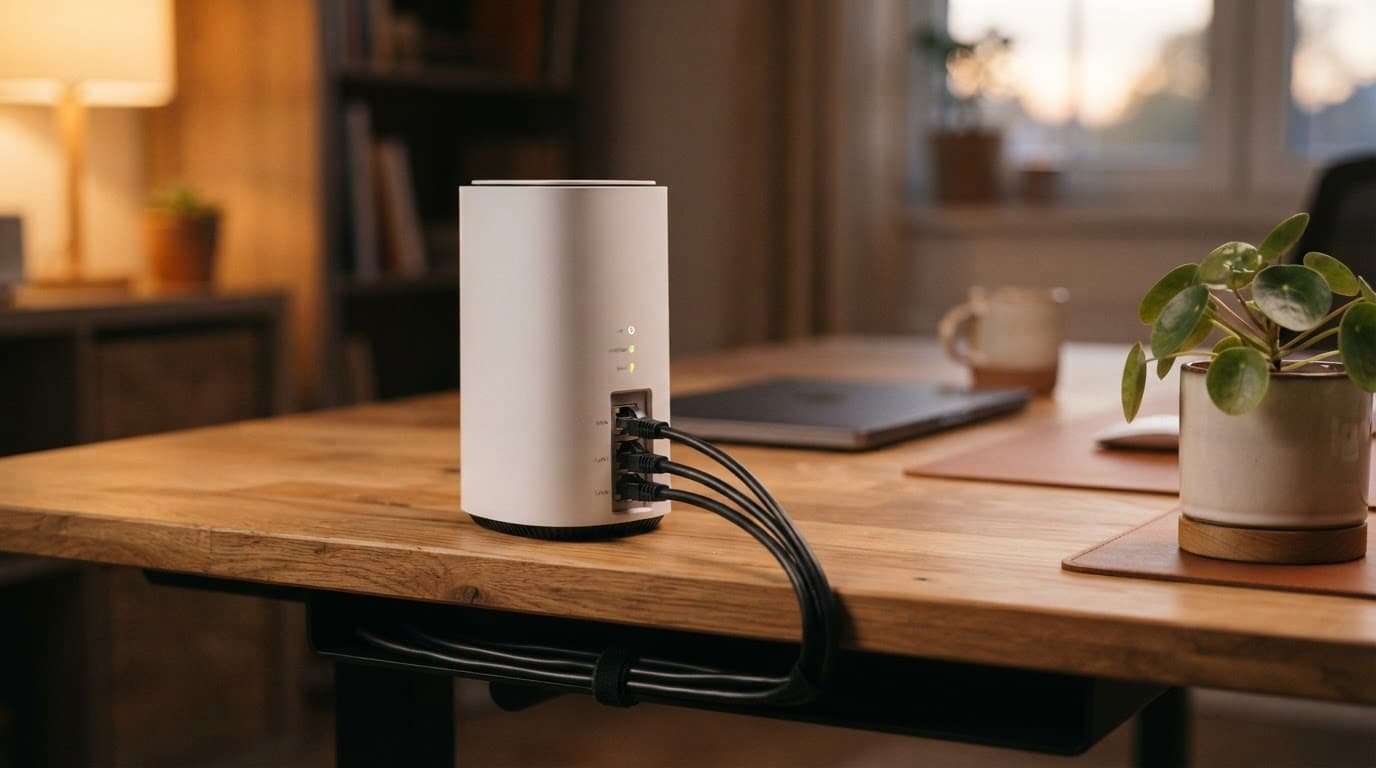
Why a modem router combo Doesn’t Work
A cable modem expects internet service through a coax cable. Frontier Fiber uses the ONT and Ethernet instead.
Models such as the Netgear C7000, C7800, and CAX80 include DOCSIS hardware. They may be strong devices for cable internet, but they cannot act as the modem for Frontier Fiber.
The ONT replaces the modem used for coax service. Your Netgear router connects after the ONT through Ethernet.
This quick comparison helps sort out what works.
| Equipment Type | Works With Frontier Fiber? | Why |
|---|---|---|
| Netgear C7000, C7800, or CAX80 | No | These DOCSIS devices expect coax service and cannot act as the modem for Frontier Fiber. |
| Netgear router with a WAN port | Yes | It can connect to the ONT through Ethernet. |
| Frontier eero router | Yes | Frontier provides eero equipment with many Fiber plans. |
| Netgear in AP mode | Yes | It adds Wi-Fi coverage behind another working router. |
A standalone router has a port labeled “Internet” or “WAN.” That port connects to the ONT. For a 1 Gig plan, it should support Gigabit Ethernet. For plans above 1 Gig, choose a Multi-Gig Ethernet uplink.
The ONT Connection Matters More Than the Brand
The model name alone doesn’t decide compatibility. A basic Netgear router can work well with a Frontier Fiber plan if its Ethernet port matches your plan speed and covers your home effectively.
Some older Frontier installs use coax between the ONT and a Frontier gateway. If your current setup has coax instead of Ethernet, don’t assume a direct Netgear connection will work the same way. This Frontier compatibility discussion is a useful reminder to check the cable coming from the ONT before changing equipment.
Choose a Netgear Router That Fits Your Speed Plan
Don’t choose a wireless router based on its Wi-Fi version alone. A Wi-Fi router’s wired WAN port sets the maximum speed entering the router. Your devices, switches, and wired computers must support that speed too.
For Frontier Fiber internet, a Gig plan generally calls for Gigabit Ethernet to deliver gigabit speed. Faster plans require a faster Ethernet uplink, plus compatible switches, computers, and client devices.
The Netgear Nighthawk RAX80 is a router-only Wi-Fi 6 option for this tier, if its coverage matches your home.
For a larger home with newer phones, laptops, and smart devices, the RAXE500 adds Wi-Fi 6E support. It can suit a busy household, but check its wired ports and client compatibility first. Newer Wi-Fi features do not guarantee faster wired performance.
The RS700S targets higher Frontier speed tiers with 10 Gig Ethernet capability. It fits households with a Multi-Gig plan or a Multi-Gig switch. It also suits wired gaming PCs and frequent large-file transfers.
For a “Netgear routers Frontier Fiber” search, RAX and RS models are usually the right category because they are standalone routers. Compare coverage area, device coverage needs, client count, wired ports, and budget before paying extra for features you will not use.
Frontier also offers an eero 7 router in eligible areas, including the eero Pro 7 and eero Max 7. You don’t have to use Frontier’s eero router if you prefer Netgear hardware, but Frontier may ask you to reconnect its equipment during troubleshooting calls.
Connect a Netgear Router Directly to the ONT
Using the Netgear as your main router can simplify your Frontier Fiber internet setup. You get one network and one set of Wi-Fi settings. One primary router also reduces the chance of double NAT, which occurs when two devices route traffic.
Before you begin, check whether you have Frontier TV, voice service, or other equipment tied to the existing gateway. Ask Frontier before removing equipment that may support another service.
- Find the Ethernet cable leaving the Optical Network Terminal (ONT). It may currently run to an eero router or a Frontier gateway.
- Turn off the existing router and unplug the Netgear router before swapping the cable.
- Connect that cable to the Netgear router’s Internet port, sometimes labeled WAN.
- Power on the Netgear router and wait for it to finish starting up.
- Follow the Nighthawk app or browser setup instructions. Select automatic DHCP for the internet connection unless Frontier supplied different settings.
- Create a new Wi-Fi name and strong password, then install the latest router firmware.
- Test the internet with a computer connected by Ethernet first. This separates service or ONT issues from wireless coverage problems. Test Wi-Fi after the wired connection works.

This direct Netgear installation should not require a modem. If the router receives no internet address, reconnect the Frontier router. Contact Frontier customer support instead of resetting provider-managed equipment.
Use Access Point Mode Behind a Frontier Gateway
You may want to keep the Frontier gateway in place. It may sit in a better location, support another service, or be an eero 7 router in some areas.
In that case, set the Netgear Nighthawk to access point mode as a third-party router behind the gateway. Frontier retains DHCP and routing control, while the Netgear provides local Wi-Fi and wired connectivity nearby.
This setup avoids double NAT, where two devices try to manage routing on the same network. That can cause trouble with online gaming, port forwarding, remote access, and smart-home reliability.
Set up AP mode in this order:
- Connect a Frontier LAN port to the Netgear’s Internet port with an Ethernet cable.
- Open the Netgear router settings and enable AP mode. The exact menu varies by model.
- Give the Netgear a Wi-Fi name and password. You can use the same name as the Frontier network, but different names make testing easier.
- Turn off Wi-Fi on the Frontier gateway if you only want the Netgear network. Leave it on if you need both coverage areas.
AP mode uses a wired backhaul arrangement, not a wireless extender. A Frontier user report about a Nighthawk modem-router purchase shows why checking the device type and connection method before setup matters.
Fix Double NAT, Slow Speeds, and Drops
Start with simple checks when service is slow or unstable. Confirm the ONT cable is plugged into the Netgear’s correct Internet port. Replace a damaged network cable. Then run a wired speed test from a laptop or desktop.
If wired speeds are good but Wi-Fi is slow, move the router into an open, central spot. Keep it away from metal cabinets, thick walls, televisions, and the floor. A mesh system or wired access point may suit a large home better than one expensive router.
Online Gaming and Network Prioritization
Online gaming doesn’t require a special Frontier router. Stable service, low latency, and limited network congestion matter more than buying one.
Use a wired connection for a gaming PC or console when possible. If you use more than one router, keep only one in router mode. Put the Netgear in AP mode, or ask Frontier whether the gateway supports bridge mode or IP passthrough.
Quality of service (QoS) tools and bandwidth management can prioritize gaming traffic when streaming or downloads compete for capacity. They can’t fix weak Wi-Fi coverage or an overloaded service connection.
Factory Reset Only as a Last Step
A factory reset removes your Wi-Fi name, password, port forwarding rules, and other saved settings. Try a normal restart first.
If you need to reset a Netgear router, use its reset button or pinhole according to the model’s instructions. For a Frontier gateway, use the reset control printed on the device and allow it time to restart fully. eero devices use a different reset process, so follow the instructions for that model.
Do not reset the Optical Network Terminal (ONT) unless Frontier tells you to. The ONT is provider-managed equipment, not a normal home router.
Frequently Asked Questions
Can I use a Netgear modem-router combo with Frontier Fiber?
Usually, no. Models such as the Netgear C7000, C7800, and CAX80 use DOCSIS cable modem hardware and expect a coax connection, while Frontier Fiber uses an ONT and Ethernet.
Do I need a modem for Frontier Fiber?
No separate modem is normally required. The Optical Network Terminal converts the fiber connection to Ethernet, and a compatible Netgear router connects to the ONT.
Can I connect a Netgear router directly to the Frontier ONT?
Yes, if the Netgear router has an Ethernet WAN or Internet port and its speed matches your plan. Connect the Ethernet cable from the ONT to the router, then use automatic DHCP unless Frontier provides different settings.
Should I use Netgear router mode or access point mode?
Use router mode when the Netgear connects directly to the ONT and will manage your home network. Use access point mode when a Frontier gateway remains in place, which helps avoid double NAT.
What should I do if the Netgear router has no internet connection?
Confirm that the ONT cable is connected to the Netgear’s Internet port and test with a wired device. If the router still receives no internet address, reconnect the Frontier equipment and contact Frontier support instead of resetting the ONT.
The Right Netgear Setup for Frontier Fiber
For Frontier Fiber internet, the “Netgear routers Frontier Fiber” choice is straightforward: select a standalone wireless router with the right wired Internet interface, not a cable-based combo. Match its interface speed to your plan and choose coverage that suits your home’s size.
You have two practical options: connect it directly to the provider handoff or use AP mode behind the existing gateway. Either approach can keep your network reliable and easier to manage when the equipment fits your plan.