The included cellular gateway can deliver solid speeds, but it may not cover every room. Adding a Netgear router T-Mobile 5G setup can improve Wi-Fi coverage and control without replacing that gateway or increasing your plan’s speed.
The key is choosing the right product for your home. A standard Netgear router or Orbi mesh system can work behind the included equipment, with Ethernet compatibility, wireless standards, home size, mesh coverage, NAT limits, and value all worth considering.
This guide helps you choose the right setup for streaming services, gaming, work calls, apartments, larger homes, and rooms with weak Wi-Fi.
This post may contain affiliate links. If you make a purchase through these links, I may earn a small commission at no extra cost to you.
Key Takeaways
- Keep the T-Mobile gateway connected. A Netgear router works behind it to improve local Wi-Fi coverage and network control.
- Choose a standard Nighthawk router for a small or open home, or an Orbi mesh system for multiple floors, thick walls, and distant rooms.
- The Nighthawk RS300 is a strong single-router option when you want Wi-Fi 7 and multi-gig wired ports, but it cannot increase the cellular speed delivered to the gateway.
- Connect the gateway’s LAN port to the Netgear router’s Internet or WAN port, and use one primary Wi-Fi network for everyday devices.
- Test wired performance before replacing hardware. A new router cannot fix slow cellular service, tower congestion, CGNAT, or T-Mobile’s port-forwarding limitations.
Start With the Right T-Mobile Equipment Setup
The T-Mobile gateway receives the cellular service and supplies your network connection. It isn’t a cable modem, so you don’t need a separate modem.
A standalone Netgear router connects to the gateway through Ethernet, but the gateway’s LAN behavior and port speed can vary by model. The Netgear router then manages your wireless network, wired devices, guest access, and network security controls.
T-Mobile’s device connection guidance confirms that T-Mobile permits compatible third-party router equipment to connect to the gateway. That makes a Netgear router a practical upgrade when the included Wi-Fi doesn’t reach every room.
On some models, the T-Life mobile app shows available gateway settings or network options.
A Router Does Not Replace the T-Mobile Gateway
Keep the gateway in place. It is the device connected to T-Mobile’s cellular network.
Your Netgear router connects after it and distributes that connection around the house. Think of the gateway as the internet source and the router as the local distributor.
This is different from cable internet. With Xfinity or Spectrum, you may be able to replace a rented gateway with your own approved modem and router. T-Mobile Home Internet requires its gateway to stay connected.
Bridge Mode Is Not Available
These gateways generally don’t provide a true bridge mode. That means the gateway can’t act like a simple modem while your Netgear router handles all routing.
You may see a DMZ, IP passthrough-like option, or another workaround on some firmware. None is guaranteed, and none eliminates CGNAT. This setup also isn’t equivalent to receiving a customer-controlled public address through conventional dynamic IP addressing.
You can still use a second router, but the setup may create double NAT. Many homes won’t notice during browsing, streaming, work calls, or smart home use. Double NAT can affect inbound connections, hosting, port forwarding, and some games.
A better router can improve your home Wi-Fi, but it can’t remove T-Mobile’s cellular network limits. It also can’t give you direct control over the gateway’s NAT settings.
Best Netgear Router T-Mobile 5G Home Internet Users Can Buy
For most T-Mobile Home Internet customers, the best add-on is a standard Netgear router with a dedicated WAN or Internet port. A cellular hotspot is a separate service for portable or backup access, not a replacement for the home gateway.
The right model depends on your home size, connected devices, and whether one router can cover the space.
| Home Situation | Better Netgear Option | Why It Fits |
|---|---|---|
| Apartment or small home | NETGEAR Nighthawk Wi-Fi 6 router | Lower cost and enough capacity for ordinary streaming services and work |
| Busy mid-sized home | NETGEAR RS300 | Wi-Fi 7 and multi-gig ports provide room for compatible newer devices |
| Larger home with dead zones | NETGEAR Orbi mesh system | Multiple units can improve coverage across floors and distant rooms |
| Travel or backup cellular use | NETGEAR M6 or M7 hotspot | Uses its own cellular plan |
A single Nighthawk router can work well in an open apartment or modest home. The Nighthawk mobile app can simplify setup and management, but it won’t improve coverage.
Choose an Orbi mesh system when the problem is coverage. Thick walls, several floors, a basement office, and a far bedroom can all create weak spots that one router may not reach.
The Nighthawk RS300 Is a Strong Single-Router Choice
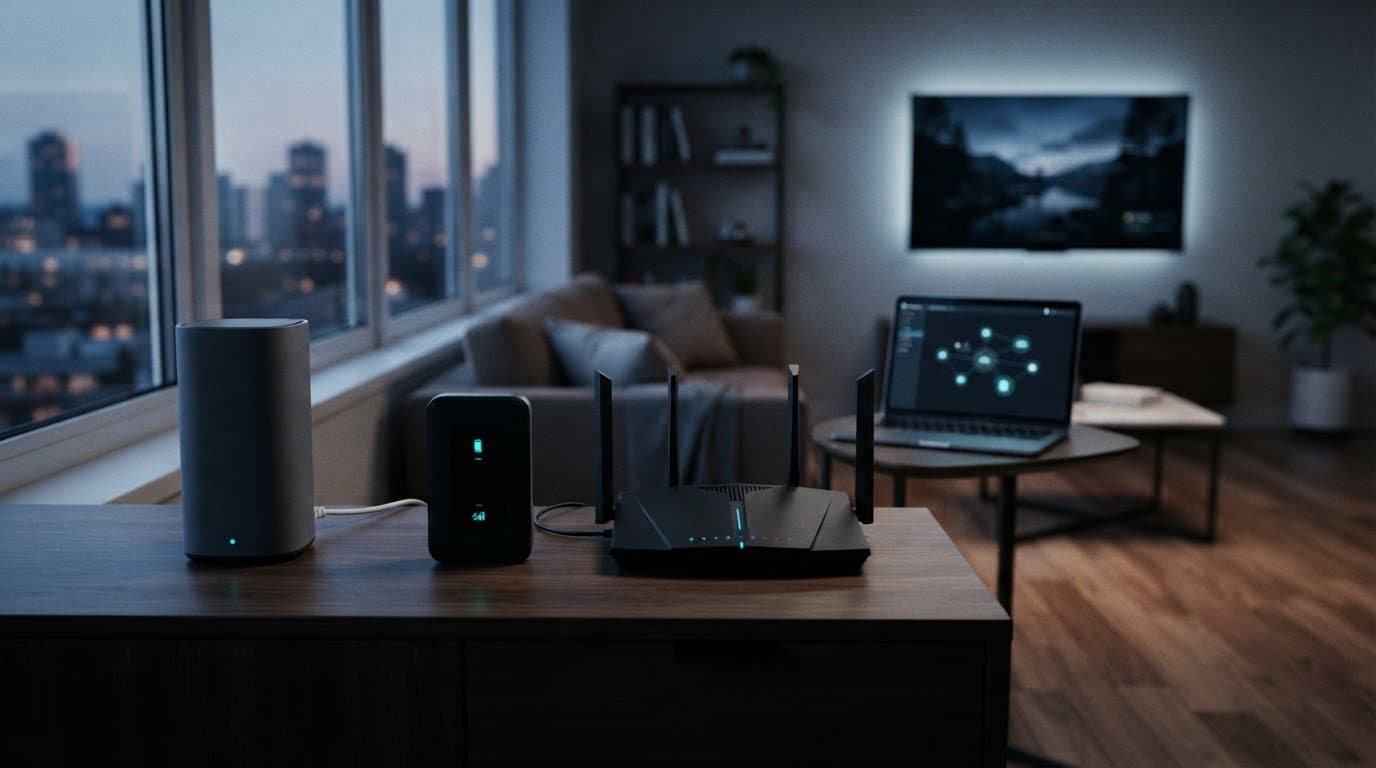
The NETGEAR Nighthawk RS300 is a practical step up for homes that want Wi-Fi 7 and use compatible newer clients. It adds useful capacity without premium mesh pricing.
Its 2.5Gbps Ethernet port handles Internet input, while two 2.5Gbps LAN ports and one 1Gbps LAN port serve wired devices.
That layout leaves room for a faster service tier, a wired desktop, or network-attached storage. A router can’t exceed the service delivered to the gateway. The gateway, client, switch, dock, and cable must all support the same rate.
For many T-Mobile plans, Gigabit Ethernet is still enough. The RS300 makes more sense when you’re replacing an older router and want useful upgrade room, not a guaranteed internet-speed increase.
My Experience With the Orbi 870
I am Steve Neff, founder of Better WiFi Shop, and I personally own and use the NETGEAR Orbi 870. That ownership is anecdotal, not a controlled benchmark.
My interest in home networking started with a simple lesson: paying for a faster internet plan doesn’t always fix Wi-Fi problems. A gateway can show good speed near the living room and still leave a back bedroom, basement, or office with weak coverage.
That led me to spend more time researching routers, mesh Wi-Fi, home coverage, and practical equipment choices. It also led me to create Better WiFi Shop to help everyday homeowners compare their options without getting buried in technical terms.
An Orbi system is worth considering when the gateway location is good for T-Mobile signal but poor for whole-home Wi-Fi. The Orbi 870 combines multi-gig wired ports with multiple units for coverage. It isn’t universally fastest, so check current NETGEAR pricing and firmware updates before buying.
Netgear Nighthawk Mobile Hotspots Are a Different Product
A Nighthawk mobile hotspot creates its own cellular connection through a separately purchased carrier plan. It isn’t usually the best way to improve whole-home Wi-Fi for T-Mobile Home Internet.
A regular router uses the gateway’s existing service, while a hotspot uses its own plan and may have data usage limits. Device compatibility doesn’t guarantee service availability or a strong signal at your location.
That can still be useful for travel, temporary internet, RV use, or a backup connection.
M6, M6 Pro, and M7 Differences
The unlocked Nighthawk M6 supports T-Mobile’s 5G Sub-6 bands and accepts a physical SIM card. Its 1 Gbps Ethernet port supports wired tethering, making it a flexible portable mobile hotspot.
The Nighthawk M6 Pro uses a physical SIM slot. It adds 5G Sub-6 and mmWave support, plus a 2.5 Gbps Ethernet connection and USB-C tethering. It’s the higher-cost choice for users who need more capable travel hardware.
NETGEAR’s newer Nighthawk M7 portable hotspot uses Wi-Fi 7, supports eSIM, and has a physical SIM slot. An eligible SIM card with a service plan, or an eSIM data plan, must be purchased separately. Check the current firmware, supported bands, and plan requirements with your local carrier.
NETGEAR rates the M6 and M6 Pro for up to 13 hours of battery life under its stated test conditions. The M7 is rated for up to 10 hours under its published conditions. Actual battery life varies with signal strength, workload, and connected devices, so these figures aren’t direct real-world comparisons.
For T-Mobile Home Internet, spend that money on a normal router or mesh system first. A mobile hotspot makes sense only if you need its own data plan.
How to Connect a Netgear Router to T-Mobile 5G Home Internet
The basic setup is simple. First, place the T-Mobile gateway where it gets the strongest cellular signal. Then place the Netgear router where it provides the best local Wi-Fi coverage. These locations don’t always need to be identical.
Don’t hide the gateway in a cabinet or behind a television. Its placement affects the cellular connection before Wi-Fi becomes part of the problem.
Connect the Hardware in the Right Order
Follow these steps before changing advanced settings:
- Leave the gateway powered on and connected to the internet.
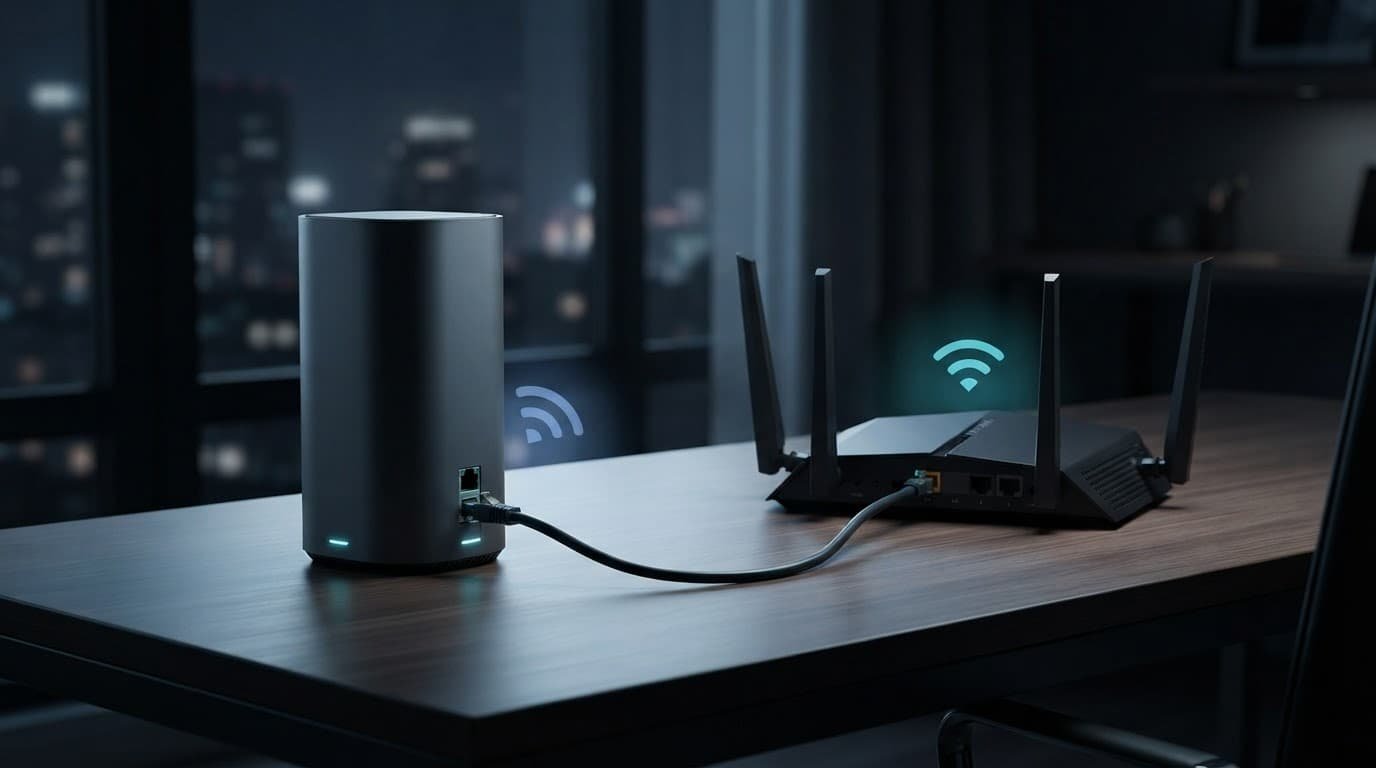
- Connect an Ethernet cable from the gateway’s LAN Ethernet port to the Netgear router’s Internet or WAN port.
- Power on the Netgear router and complete setup through the Nighthawk interface in the app or web browser.
- Give the Netgear Wi-Fi network a new name and unique, strong password.
- Connect phones, TVs, consoles, and computers to the new Netgear network.
The cable creates the wired network connection between the gateway and router. Use the router’s WAN or Internet port, not a regular LAN port. One wrong port can leave the router without an internet connection.
The gateway’s port speed varies by model. Cat5e is normally sufficient for a 1Gbps link. Multi-gig connections require compatible ports, cabling, and negotiated speeds from end to end. A 2.5Gbps router port won’t increase a slower gateway output.
A good-condition Cat5e cable is normally enough for this short connection. Before buying new cables, test with a short known-good Cat5e or Cat6 cable. Damaged connectors and poor wall jacks cause more problems than cable category alone.
Keep the Wi-Fi Networks Organized
The simplest approach is to connect your main devices to the Netgear Wi-Fi network. Use the Nighthawk setup interface for router settings, while the T-Life mobile app handles supported settings for the gateway. Apply available firmware updates after setup.
You can keep the gateway’s Wi-Fi network for testing or disable its use for everyday devices if your settings allow it. Avoid using the same Wi-Fi name on both devices unless you understand the roaming and troubleshooting limitations.
T-Mobile also lets customers create additional Wi-Fi networks through the T-Life app. This can help separate guest devices or smart home equipment from your main network.
Keep everyday devices on one primary Wi-Fi network. Splitting them between two networks without a clear reason can make printer access, smart home setup, and troubleshooting harder.
Wi-Fi 6, Wi-Fi 6E, or Wi-Fi 7 for T-Mobile Internet?
A newer Wi-Fi label doesn’t automatically mean a faster service. Cellular coverage, tower traffic, gateway placement, and your plan determine the speed entering the home. A router’s advertised maximum speed describes local radio capacity, not the speed your provider delivers.
Wi-Fi standards mainly affect how well your home handles connected devices and local traffic. They don’t increase the cellular capacity available at the gateway.
Wi-Fi 6 Is Still Enough for Many Homes
This standard is a good fit for streaming services, browsing, work calls, and connected home devices. It’s often enough for apartments, condos, and small homes with a mid-range service plan.
Wi-Fi 6E adds the 6 GHz band for compatible newer devices. That band can help in busy areas where 5 GHz networks are crowded.
Wi-Fi 7 adds newer features, capacity, and efficiency improvements. Its benefits depend on compatible client devices and local traffic conditions. Most smart TVs, streaming sticks, game consoles, and older laptops will still use older Wi-Fi standards or Gigabit Ethernet.
Coverage Matters More Than the Label
Don’t buy a premium router only because it lists a bigger Wi-Fi number. First, test wired performance with a computer near the gateway.
If wired speed is good but Wi-Fi is weak in one area, the problem is usually coverage or interference. Walls, floors, client distance, channel congestion, and gateway placement can all affect results. Move the router into a more open, central spot or use mesh Wi-Fi.
T-Mobile’s explanation of mesh, repeaters, and extenders is useful here. Mesh is usually the better fit for a larger home because it creates one network across multiple access points.
Gaming, NAT Type, and VPN Limits
A separate Netgear router can improve Wi-Fi reliability for a game console or PC. It cannot fully fix T-Mobile’s NAT limitations.
T-Mobile’s service often uses carrier-grade NAT, or CGNAT, for many customers. A public address can change through dynamic IP addressing while still allowing inbound access when firewall rules permit. CGNAT instead places customers behind a shared upstream address, which can limit inbound connections, port forwarding, and some multiplayer features.
Why Double NAT Can Be Frustrating
The gateway handles NAT locally. A Netgear router behind it may handle NAT again, creating double NAT.
That setup can affect your NAT type, party chat, game hosting, peer-to-peer connections, and remote access. T-Mobile states that customers cannot change the gateway NAT type or enable port forwarding. Its NAT type guide explains why an open NAT connection is preferred for gaming.
No better router, VPN, or local setting can guarantee open NAT or port forwarding. The provider controls the upstream address and NAT layer.
Connect a desktop PC or console by Ethernet when possible. This can reduce local interference and improve latency consistency, but it won’t change T-Mobile’s carrier-side NAT.
A VPN Can Help Some Needs, Not Every Game
A VPN client on a compatible Netgear router routes connected devices through a VPN provider. This can help with privacy, remote work access, or services that need a different public IP.
It isn’t a guaranteed gaming fix. Encryption overhead can add latency, reduce throughput, or make some games and services incompatible.
Check current Netgear firmware and model support before relying on router-level VPN features. Choose a VPN provider and router only if you understand the tradeoffs. For most homes, strong Wi-Fi coverage and a wired gaming connection matter more first.
Fix Slow or Unreliable T-Mobile Wi-Fi Before Replacing Hardware
Start with one simple test: connect a laptop or desktop directly to the gateway by Ethernet. Run speed tests at several times of day and treat the results as snapshots, then compare wired and Wi-Fi performance.
If wired results are slow, the cause may be cellular coverage, tower congestion, your plan, or gateway placement. A new router won’t fix the provider connection, so move the gateway near another window, away from large electronics and metal objects, as T-Mobile recommends.
If wired speed is good but Wi-Fi is weak, focus on router placement, room coverage, interference, or mesh needs.
Check the Full Wired Path
A multi-gig router port helps only when every part of the network connection supports it. Check the gateway port, Netgear WAN and LAN ports, switch, dock, computer, and cable.
One negotiated 1 Gbps link can cap the entire path, even when other components support faster links. Check each negotiated link speed before replacing hardware or buying a new router.
For desktop PCs, work docks, game consoles, and NAS devices, Ethernet remains the most dependable connection. Wi-Fi is more convenient, but a wired connection usually gives steadier throughput and lower latency.
After testing cables and link speeds, contact T-Mobile or NETGEAR technical support if the issue persists.
Frequently Asked Questions
Can I use a Netgear router with T-Mobile 5G Home Internet?
Yes. Connect the Netgear router to the T-Mobile gateway with an Ethernet cable and use the router’s Internet or WAN port. The gateway must remain connected because it receives the cellular service.
Does a Netgear router increase T-Mobile Home Internet speed?
No. A better router can improve Wi-Fi coverage, local reliability, and network management, but it cannot increase the cellular capacity delivered to the gateway. Test wired speed first to determine whether the problem is the provider connection or Wi-Fi coverage.
Which Netgear router is best for T-Mobile 5G home internet?
A Nighthawk Wi-Fi 6 router is usually enough for an apartment or small home. The Nighthawk RS300 suits a busy home that wants Wi-Fi 7 and multi-gig ports, while an Orbi mesh system is better for larger homes and dead zones.
Will using a Netgear router create double NAT?
It may. T-Mobile gateways generally do not offer true bridge mode, so the gateway and Netgear router can both perform NAT. Many homes will work normally, but double NAT can affect port forwarding, game hosting, party chat, and some remote-access connections.
Can I use a Netgear Nighthawk hotspot instead of the T-Mobile gateway?
Usually not for this purpose. A Nighthawk hotspot uses its own SIM card and cellular plan, while a regular Netgear router uses the service already provided by the T-Mobile gateway. A hotspot is better suited to travel, temporary internet, or a separate backup connection.
Choose the Setup That Fits Your Home
The best setup for T-Mobile 5G home internet depends on the problem you’re solving. Choose a standard single router for a small, open home, or Orbi mesh for genuine dead zones and multiple floors.
Choose a cellular hotspot only when you need portable access or a separate backup data plan. An add-on router works with the supplied gateway, but it doesn’t replace that equipment or improve the incoming cellular signal.
Choose based on coverage, reliability, and how you use the connection, including streaming services. The right router can provide better coverage, more control, and a more reliable home network. Its value comes from solving dead zones or device congestion, not from a higher advertised speed.