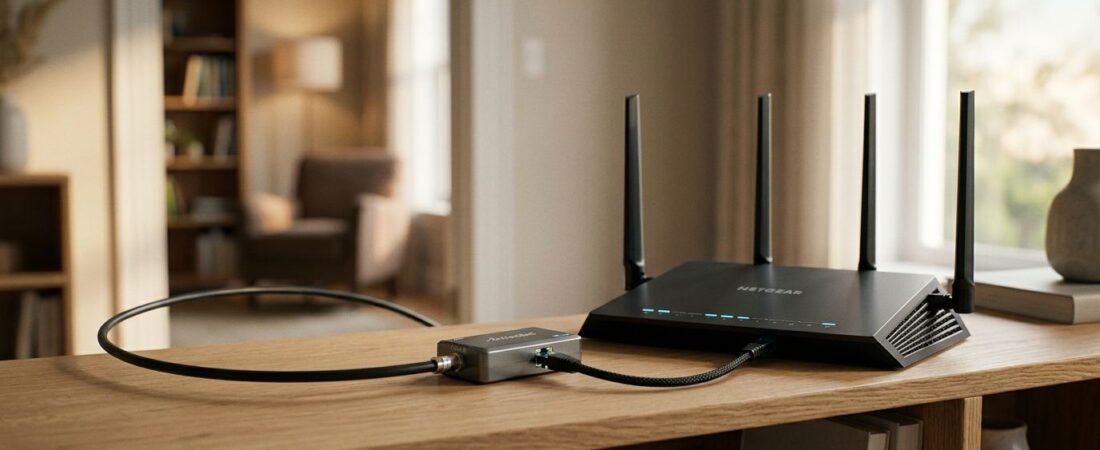
Yes. A NETGEAR router can use MoCA adapters to carry Ethernet over your home’s existing TV coax cable. Built-in MoCA support varies by router model, but a model without it can still use an external adapter connected through a LAN port.
This gives you a wired connection in another room without running new Ethernet cable. Start with the correct connections, then check the coax path if the adapters won’t link.
This post may contain affiliate links. If you make a purchase through these links, I may earn a small commission at no extra cost to you.
Key Takeaways
- MoCA extends your local network over connected coax outlets.
- Router brand matters less than adapter compatibility and coax wiring.
- Filters, splitters, and routing settings are common trouble spots.
How to Connect MoCA to Your NETGEAR Router
MoCA avoids the electrical-noise problems of powerline networking and the wireless interference affecting 2.4 GHz Wi-Fi. It still needs a usable coax connection between rooms.
Connect the Main Adapter
Connect your activated modem’s Ethernet port to the NETGEAR router’s Internet or WAN port. Our NETGEAR router setup guide covers that connection.
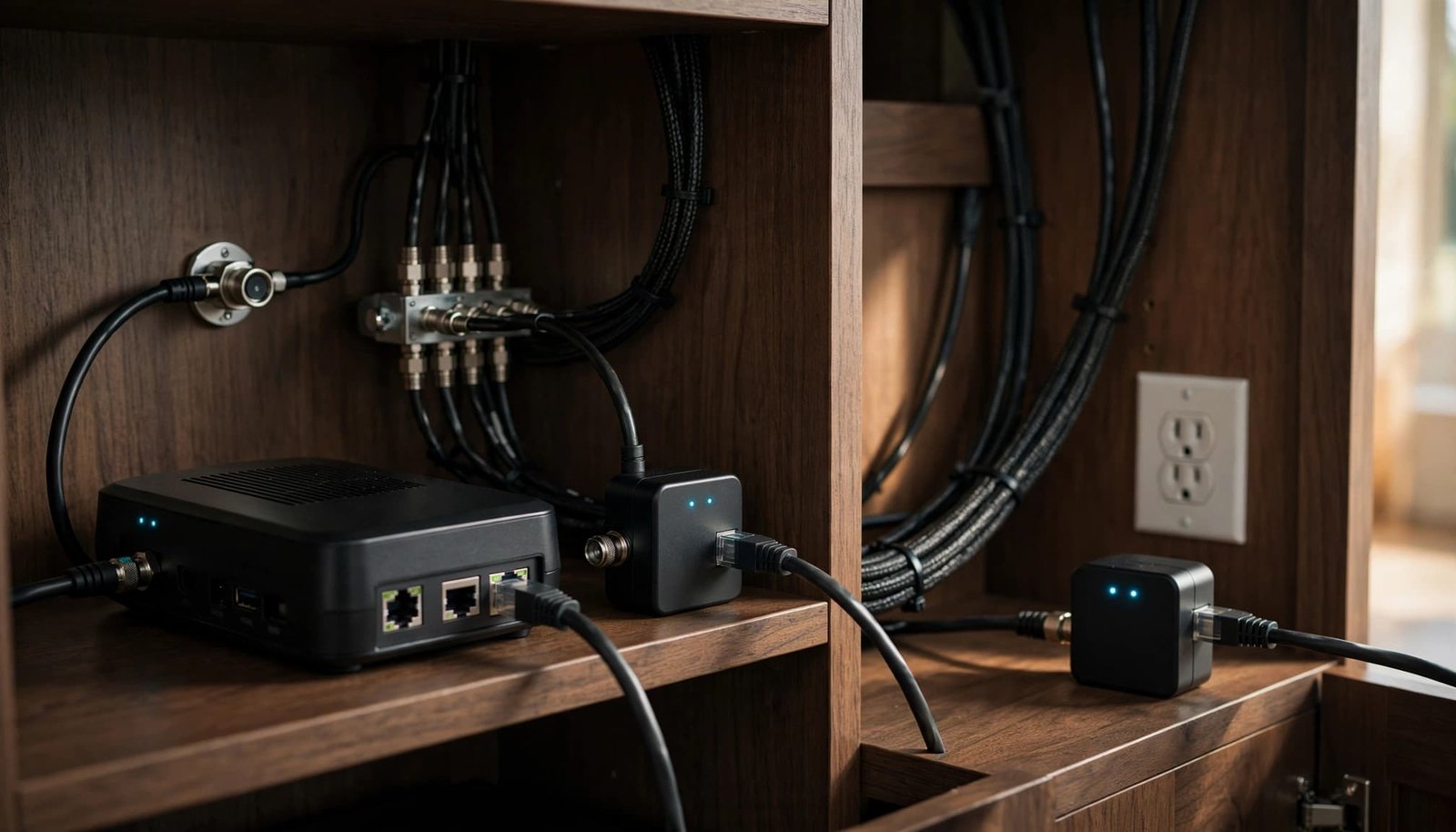
Then connect a router LAN port to the first MoCA adapter using Ethernet. Connect that adapter to a usable home coax network, which may use existing RG6 coax wiring.
In the other room, connect the second adapter to coax and run Ethernet to your computer, television, or console. A splitter can serve the modem and adapter from one outlet.
Add Another Router Only in the Right Mode
A second NETGEAR router behind the remote adapter should normally use access point mode. The main router continues handling DHCP and routing.
If NETGEAR will replace a gateway’s routing functions, put the gateway in bridge mode or use a modem-only unit. Keep NETGEAR in router mode. Don’t bridge the main gateway merely because you’re adding a remote access point.
For broader wireless coverage, you can compare router and mesh options at Better WiFi Shop.
Troubleshooting a NETGEAR Router and MoCA Connection
Work through these checks before changing advanced router settings.
Check the Adapters and Coax Path
- Restart and isolate the adapters. Power off all MoCA devices, then test the pair together using a short coax cable. If they link together but not across rooms, investigate the house wiring.
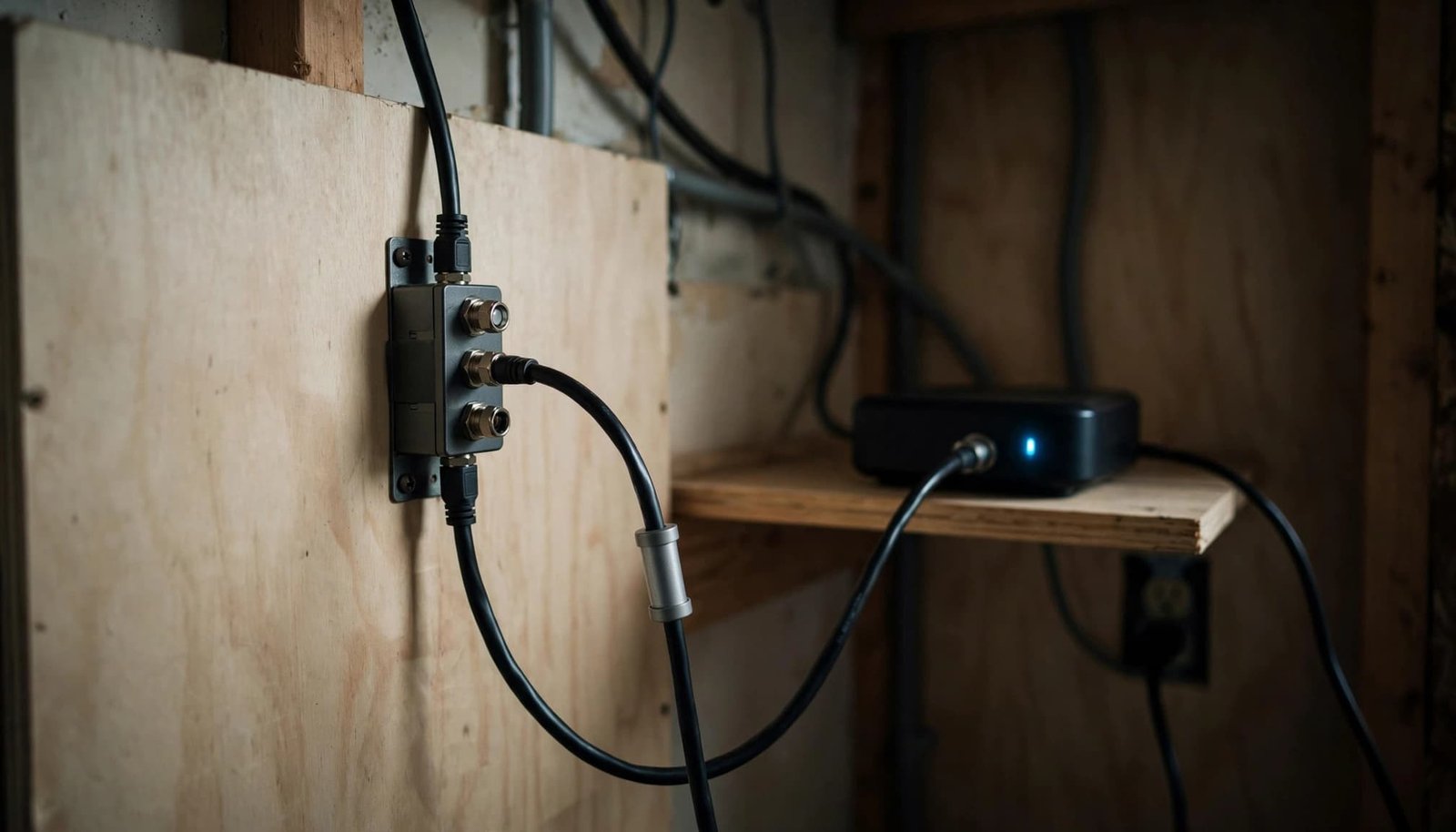
- Inspect splitters and amplifiers. Tighten loose connectors and trace both outlets to a shared coax path. MoCA can cross multiple suitable splitters, but it won’t work backward through ordinary amplifiers. Motorola’s coax network guidance explains these restrictions. MoCA-rated splitters covering the adapters’ operating band are preferable.
- Match security settings. Legacy adapters such as the MCA1001 use a numeric encryption key of 12 to 17 digits. Every adapter joining that private network needs the same key. Newer models may use different security controls.
Check Filters and the Cable Modem
- Separate modem trouble from MoCA trouble. With every MoCA adapter powered off, test internet access. Temporarily remove a suspected incompatible filter on your own modem feed. Passive filters don’t reset. Restore appropriate point-of-entry filtering before re-enabling MoCA; don’t alter shared building wiring.
- Inspect modem diagnostics and filter placement. Look for DOCSIS 3.1 downstream frequencies above 1002 MHz. These can overlap lower MoCA frequencies. A compatible MoCA filter on a susceptible modem’s coax port can keep MoCA traffic from reaching the modem, but it mustn’t block active cable-service frequencies. Never place a blocking filter between adapters that need to communicate.
If trouble began after replacing the router, confirm the adapter uses a LAN port. Restart the modem before the new router.
What Speeds Should You Expect?
Don’t confuse an older adapter’s advertised coax rate with usable Ethernet throughput.
The NETGEAR MCAB1001 kit advertises 270 Mbps, but its Ethernet ports are 10/100 Mbps, not gigabit. In SmallNetBuilder’s MCAB1001 testing, one TCP/IP stream reached about 70 Mbps. Multiple streams produced roughly 110 to 140 Mbps aggregate. Those aggregate results aren’t a single-device download speed.
Run a ping test over the wired connection, then compare its latency with a direct router connection.
MoCA 1.0 supports eight nodes. MoCA 1.1 supports 16, and the kit’s MCA1001 adapters are MoCA 1.1-certified.
For HD streaming, allow at least 20 Mbps of steady bandwidth plus headroom. The review’s 720p clips peaked between 13 and about 23 Mbps.
For a new installation, MoCA 2.5 adapters with gigabit or 2.5GbE ports are a more suitable starting point. The slowest Ethernet port still limits each wired connection.
Frequently Asked Questions
How Do I Set Up MoCA With Xfinity?
With your own NETGEAR router, connect the first adapter to its LAN port and the shared coax network. Use a second adapter in the destination room.
If an Xfinity gateway remains the main router, use NETGEAR in access point mode. If NETGEAR takes over routing, bridge the gateway. Our Xfinity gateway replacement guide explains those options. Preserve connections needed by existing Xfinity TV equipment.
Does the MCAB1001 Work With Satellite TV?
The MCAB1001 kit doesn’t support sharing coax with active satellite TV. Its review describes conflicting frequency use within the 850 to 1550 MHz range.
Disconnected satellite coax can be repurposed, but active satellite equipment shouldn’t remain on that MoCA path.
Get the Coax Connection Working First
You usually don’t need a different NETGEAR router to add wired rooms through MoCA. You need compatible adapters, the correct LAN connection, and a usable coax path.
Test those basics before replacing equipment. Choose newer adapters when the older kit’s 100 Mbps ports would limit your connection.