
A new Netgear router can leave you with working Wi-Fi but no internet. That usually means the modem is online, but your internet service provider has not accepted the new router’s WAN connection.
This setting can help when an ISP network still expects the MAC address associated with your previous router or computer network card. It is not the right fix for every activation problem, but it is worth checking before you spend an hour resetting equipment.
Use this guide to separate a router MAC issue from a cable modem activation issue and get the right device registered.
This post may contain affiliate links. If you make a purchase through these links, I may earn a small commission at no extra cost to you.
Key Takeaways
- MAC cloning applies to the router’s internet-facing WAN connection, not your home Wi-Fi devices.
- If you bought a new cable modem, your provider usually needs its CM MAC address, not the router MAC address.
- NETGEAR’s browser-based router settings include options to use the default MAC, copy the current computer’s MAC, or enter a MAC manually.
- A wired laptop connection is usually the easiest way to access router settings and avoid app or Wi-Fi connection problems.
- If cloning does not restore service, ask your provider to update the registered WAN MAC address or confirm the correct activation requirements.
Netgear MAC Cloning: What It Fixes
A MAC address is a hardware identifier assigned to a network card. Your router has more than one, including addresses for Wi-Fi and the WAN port. The WAN MAC address is the one your provider may see.
Some cable systems and fiber handoffs use MAC authentication. They remember the first connected Ethernet device and its approved hardware identity. When you replace an ISP router, that identity changes. The provider may deny network access until its records are updated.
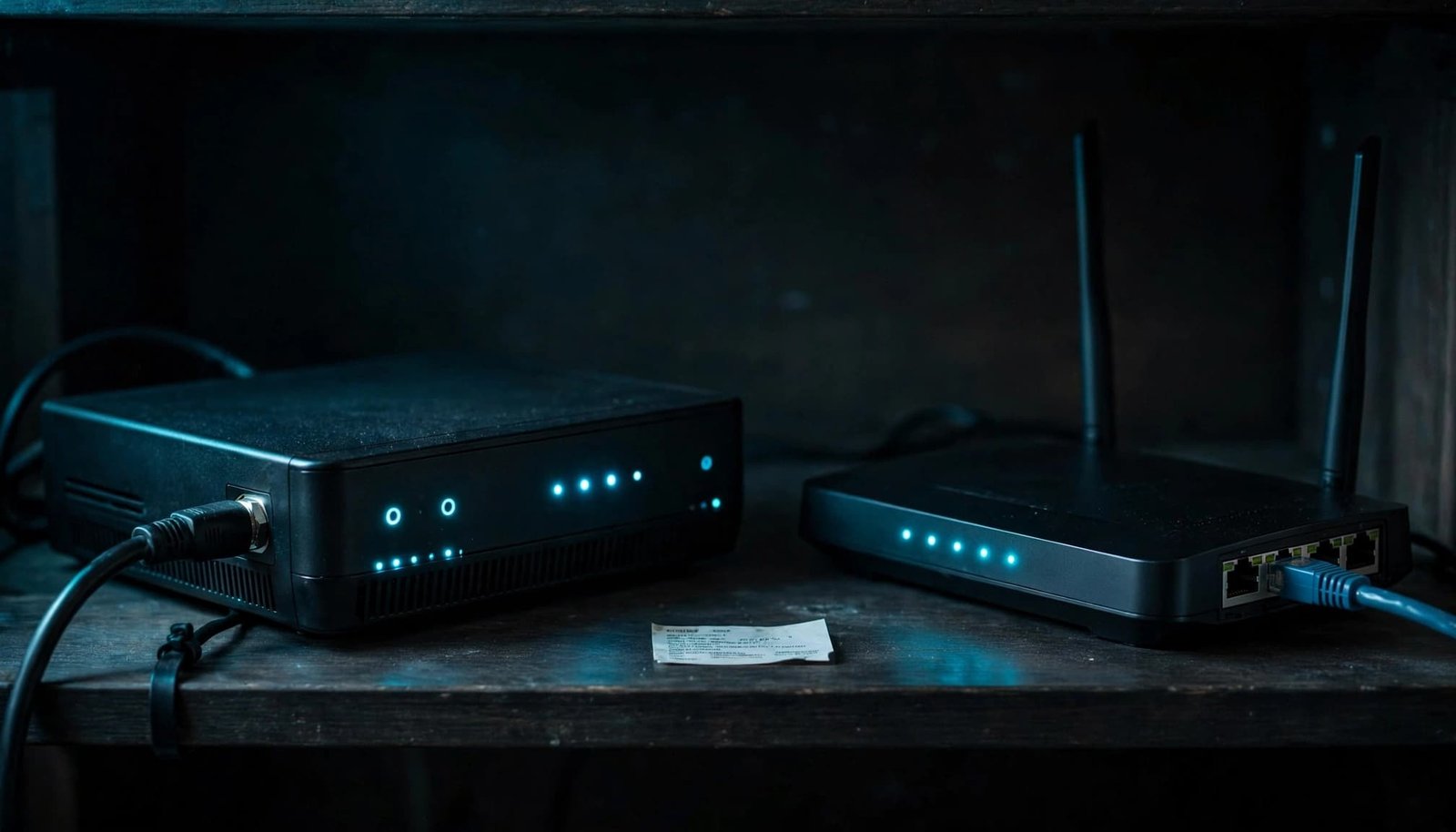
What MAC Address Clone Does
A MAC address clone makes the Netgear router present a different WAN identity to the internet source. In most cases, it copies the address of the computer you’re using or one you enter manually.
It changes the identity presented on the WAN side, but not the physical network card. It also can’t repair signal problems, an unpaid account, unapproved equipment, or a provisioning error.
NETGEAR has a helpful MAC address overview if you want to understand the difference between the network identifiers shown on your equipment.
When Cloning Is Not the Answer
If you’re replacing a rented cable gateway with your own cable modem and router, the cable provider must first activate the modem. In that situation, the provider needs the cable modem’s CM MAC address.
The CM MAC may also appear as RF MAC or HFC MAC. It’s different from the router MAC, Wi-Fi MAC, and LAN MAC. Giving the provider the wrong one can stop activation before your router setup even begins.
Identify the Device Your ISP Needs to See
The most common mistake is treating every MAC address as interchangeable. They are not. Start by identifying which piece of equipment you changed.
Replacing Only the Router
Keep the existing modem or ISP-provided ONT connected. Run one Ethernet cable from that device to the Internet or WAN port on your Netgear router.
If your provider previously accepted the old router or a computer’s network card connected directly to the modem, MAC cloning may restore the connection. This is where a Netgear Nighthawk router’s WAN MAC setting may matter.
Before disconnecting the old router, check its label or administration page for the MAC address your provider approved. It may be identified as the Internet, WAN, or Ethernet MAC, since labels don’t always use the same wording.
Replacing a DOCSIS cable modem or Gateway
A new modem must be registered with the cable company. Write down its model number, serial number, and CM MAC address before disconnecting the old gateway.
Connect the coaxial cable directly to the new modem. Wait for its Online light to show a normal connection, then follow your provider’s setup instructions in its activation app or portal. After activation, connect the modem’s Ethernet port to the router’s WAN port.
For the full equipment-swap process, see how to activate your own router with your ISP. The important point is simple: a router cannot activate a cable modem for you.
Check the Physical Setup Before Changing Settings
MAC cloning should be a targeted step, not the first setting you change. Check the basic connection first.
The coax cable stays connected to the cable modem. The Ethernet cable runs from the modem’s Ethernet or LAN port to the Netgear router’s dedicated Internet or WAN port. Don’t use one of the router’s numbered LAN ports.
For fiber internet, the Ethernet cable normally runs from the provider’s ONT or gateway to the router’s WAN port. An Adtran ONT label may show several identifiers, and label locations can vary. The ISP, not a generic cloning rule, determines which identifier or provisioning detail is required. Check the printed device label, its management interface if you can access it, or your provider’s instructions.
A solid modem Online light does not prove the router has internet service. It only shows the modem has reached the cable network.
If you’re unsure whether your service uses a modem, fiber ONT, or ISP gateway, review how to use your own router with your ISP. The connection type changes what the provider may need to activate.
How to Configure MAC Cloning on a Netgear Router
Use the browser-based router web interface for this job. Netgear MAC cloning is best configured there rather than through the mobile app.
Connect to the Netgear Router First
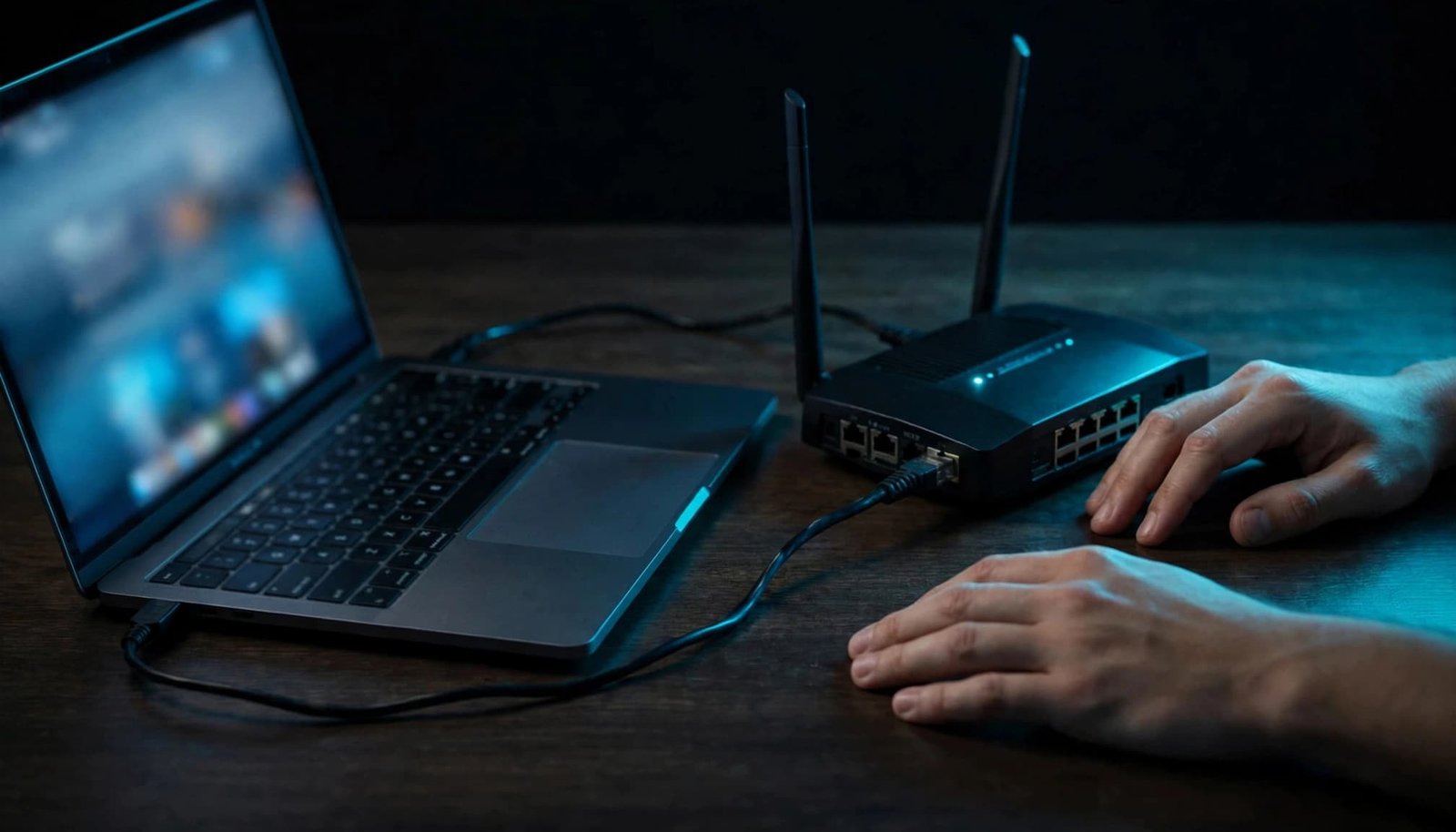
Connect a laptop to a Netgear LAN port with Ethernet if you can. A wired connection avoids problems when the router has no internet access or your phone keeps switching back to cellular data.
You can also use the router’s Wi-Fi network, but turn off mobile data and any VPN while making changes. Your device must be connected to the Netgear router, not an old gateway or a neighbor’s network.
Open the Router Administration Page
Open a browser and enter routerlogin.net. If that does not load, try routerlogin.com, 192.168.1.1, or 192.168.0.1.
NETGEAR’s router login instructions confirm that a local router address is often the better choice when the web address will not open. Sign in with the router administrator credentials you created during setup.
Find the WAN MAC Settings
On many Netgear Nighthawk models, open ADVANCED, then Setup, then Internet Setup to reach the internet setup section. Menu names vary by model and firmware.
Look for Router MAC Address options. These settings control the router’s WAN MAC address. NETGEAR documents three choices in its Nighthawk Internet connection settings:
- Use Default Address keeps the router’s factory address.
- Use Computer MAC Address copies the address from the currently connected computer’s network card.
- Use This MAC Address lets you enter the address from your old router or another previously approved device.
Choose Use Computer MAC Address only if that computer was the previously accepted device. Enter the old router’s registered address if your ISP previously approved that router. Otherwise, leave the default address and contact your provider.
Save or apply the network settings. If your model provides a Test option, use it to check whether the router can connect to internet service.
After saving or applying the change, power off both the router and modem. Restart the modem first, then wait until its Online light is stable. Power on the router and wait for it to obtain service.
If the Router Login Page Gives an Error
If the local router page won’t open, use this troubleshooting guide before changing router settings. A login error doesn’t always mean the router is defective. Most often, your phone or computer isn’t on the correct local network.
Confirm Your Local Connection
Check the Ethernet cable at both ends. If you’re using Wi-Fi, make sure you joined the network shown on the router label or the network name you created.
Turn off cellular data and disconnect any VPN temporarily on a phone. Otherwise, the browser may try to reach the internet through your carrier instead of opening the local router page.
A laptop connected by cable is the most reliable option when you need to configure MAC cloning. Its network card can reach the router even when the cable service is down.
Try the Router’s Local Address
If routerlogin.net fails, enter the router’s IP address, 192.168.1.1 or 192.168.0.1, directly in the browser address bar. Those addresses work only while connected to the router’s local network.
Don’t reset the router immediately. A factory reset removes your Wi-Fi name, password, and local settings. It can’t correct an ISP account record or activate an unregistered modem.
When Your ISP Needs to Update Its Records
If the cloned MAC address doesn’t get you online, call your provider’s activation or customer support team. Tell them you replaced a router and ask whether MAC authentication still references the previous WAN identity.
Have your account number, service address, router model, and the old and new WAN MAC addresses ready. Ask whether the provider can remove the old device record, manually provision the account or modem, and update its records.
Cable Provider Activation Problems
For a new cable modem, ask your cable ISP to confirm three details:
- The exact modem model is approved for your plan and service address.
- The CM MAC address was entered correctly.
- The old rented gateway has been removed from the account.
Check characters carefully before reading a MAC address over the phone. A zero can look like an O, and a one can look like an I. Customer support must correct a wrong modem record. Changing router settings won’t solve it.
Clone only a device MAC address from equipment you own and use on your own network. Never copy another subscriber’s device or an unfamiliar computer. MAC cloning can’t bypass ISP approval.
Fiber ONT and ISP Gateway Limits
Fiber providers may keep their ONT or gateway in place, even when they allow you to use your own router. Services such as Fidium Fiber may have different requirements, including router credentials, VLAN settings, or provider-managed equipment.
Tell support which equipment you have, including an Adtran ONT if applicable. Ask whether provider-specific credentials, VLAN settings, or gateway requirements apply before changing anything else. This keeps you from confusing an ISP requirement with a normal Wi-Fi setup issue.
Frequently Asked Questions
Can I use my phone for MAC cloning?
You may be able to open the router web interface from a phone browser. Still, a laptop connected by Ethernet is usually easier and more reliable. The browser interface, not the mobile app, is the practical place to find the MAC clone controls.
Where do I find the correct MAC address?
For a router swap, check the old router label or its administration page for the WAN or Internet MAC address. For a new modem activation, use the CM MAC on the modem label. It may be labeled CM, RF MAC, or HFC MAC.
Will MAC cloning improve my Wi-Fi speed?
No. MAC cloning only helps your router receive internet service when an ISP is holding onto an older device identity. If your wired service works but Wi-Fi is weak, look at router placement, wall materials, and home coverage needs instead.
Get the Right Device Registered First
Netgear MAC cloning is useful when a provider still recognizes your old router or computer. It is not a replacement for cable modem activation, approved equipment, or correct WAN cabling.
Start with the device your ISP actually needs to register. Once the modem or ONT connection is online, troubleshoot your broadband router and focus on reliable home Wi-Fi.