Your NETGEAR 5 GHz network may be working under a shared Wi-Fi name, disabled in the router settings, or unavailable to one device. Start by checking Smart Connect, then test a compatible phone or laptop near the router.
A missing network name doesn’t automatically mean your router needs replacing. Even a Gigabit speed plan can’t make an incompatible device detect 5 GHz. Work through the settings in order so you can identify the problem without disrupting devices that already connect.
This post may contain affiliate links. If you make a purchase through these links, I may earn a small commission at no extra cost to you.
Key Takeaways
- Smart Connect can combine 2.4 GHz and 5 GHz under one name, so a separate 5 GHz entry won’t appear.
- Test a known 5 GHz-capable device near the router before changing your whole network.
- If the problem started after a channel change, restore that setting first. Save a factory reset for last.
Why Your NETGEAR 5 GHz Network Looks Missing
Smart Connect May Use One Network Name
On supported Nighthawk routers, Smart Connect combines wireless bands under one network name, also called an SSID. Your phone might show only your usual home network, even while connected through 5 GHz.
NETGEAR’s Smart Connect instructions describe how this shared-name feature works. The router helps guide band selection, but your device also influences the connection.
Open your device’s Wi-Fi connection details. Some phones and computers display the current frequency or band. Seeing 5 GHz there confirms that a separate network name isn’t needed.
The Radio or Network Broadcast May Be Disabled
The 5 GHz radio and its network-name broadcast are different controls. Turning off the radio stops that band. Turning off SSID broadcast hides its name from the normal network list.
A router can also have a wireless schedule that turns service off at certain times. This deserves attention if the network disappears on a predictable schedule.
Keep these settings separate from Smart Connect. Changing how bands share a name doesn’t necessarily change whether a radio is enabled.
A missing “-5G” network name doesn’t prove the 5 GHz radio is off. Check the shared-name setting before treating it as a failure.
Open the Router’s Wireless Settings
Sign In Through Your Home Network
Connect to your NETGEAR router using its working Wi-Fi network or an Ethernet cable. Ethernet is useful because wireless changes can briefly disconnect you.
Enter routerlogin.net in your browser’s address bar. Sign in with the router administrator credentials. These are separate from your Wi-Fi password and NETGEAR account.
If the page won’t open, stay connected to your main network rather than an isolated guest network. Temporarily turn off a VPN or mobile data connection that interferes with local access. Our NETGEAR router login guide covers access problems.
Enable the Band and Make Its Name Visible
Menu labels vary by model and firmware. Look for Wireless, Wireless Setup, or a similar settings page.
- Find the 5 GHz section and enable its wireless radio if it is off.
- Enable SSID broadcast if that option appears.
- Record the current network names, passwords, and Smart Connect setting.
- Apply the change and wait for wireless service to return.
If Smart Connect remains enabled, you may still see only one network name. That’s expected.
For a temporary separate-band test, disable Smart Connect if your model supports it. Give the bands distinct names, such as HomeWiFi and HomeWiFi-5G, and use strong passwords on both to maintain secure WiFi.
Our guide to NETGEAR Smart Connect settings explains this choice. Orbi, Nighthawk mesh, and standalone Nighthawk routers don’t all offer identical controls, so don’t expect the same menu everywhere.
Test One Device Near the Router
Confirm That the Device Supports 5 GHz
A dual band router can offer both 2.4GHz and 5GHz. A 2.4 GHz-only device can’t detect or join 5 GHz. Many smart plugs, sensors, printers, and older cameras fall into this group.
Use a phone or laptop with confirmed 5 GHz support as your test device. If it sees the network while another device doesn’t, focus on the affected device’s capabilities and software.
Restart that device and install available operating-system or wireless-adapter updates. On a Windows computer, the Wi-Fi adapter’s supported standards and manufacturer specifications can establish band support.
If the network appears but the device won’t connect, forget its saved network and reconnect with the current password. That is a connection problem rather than a missing-network problem.
Compare Close Range With the Problem Room
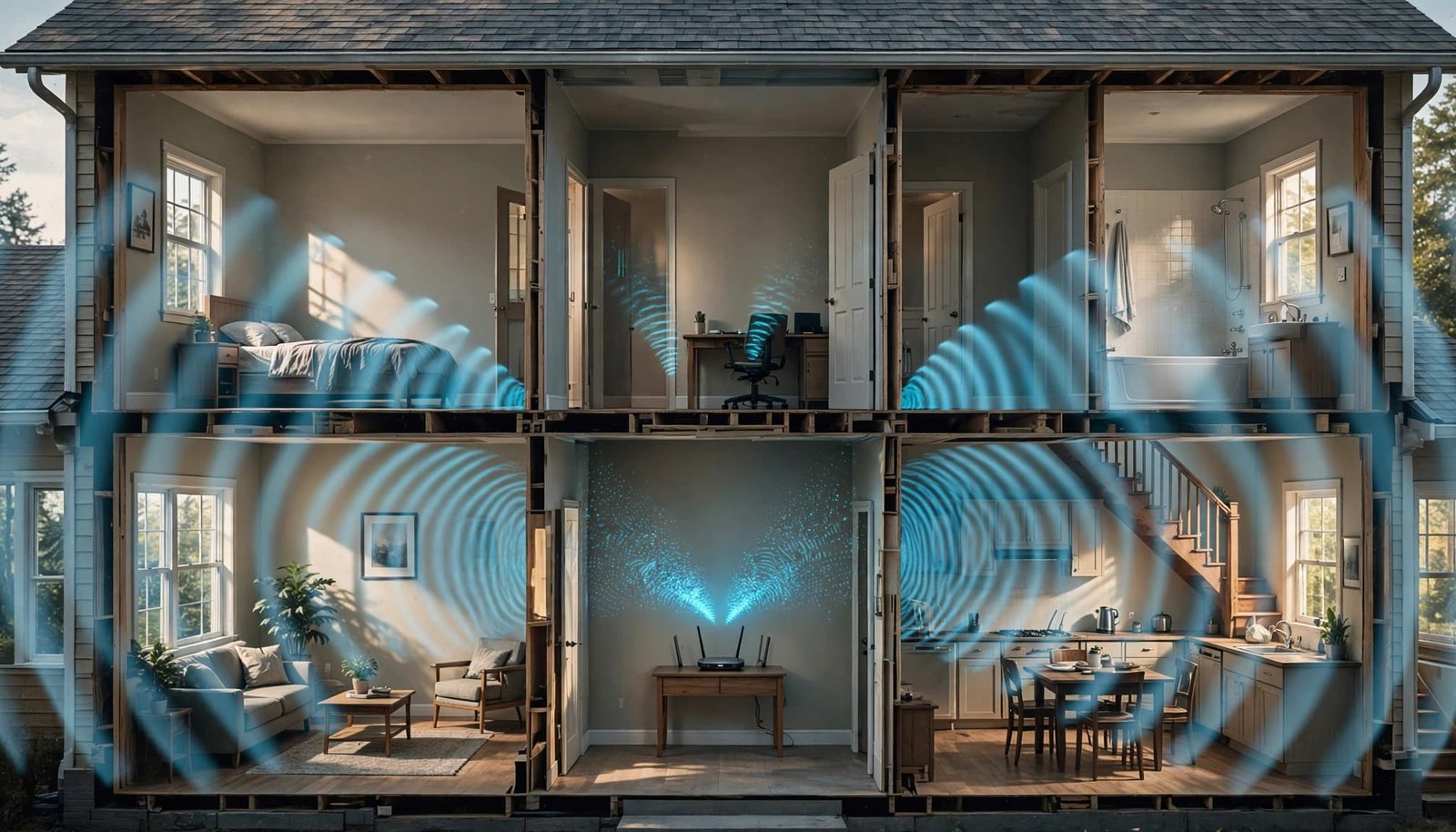
Stand in the same room as the router and refresh the network list. Then repeat the test where you normally use the device.
The 5 GHz band generally provides more speed nearby, while 2.4 GHz reaches farther through walls. A network visible beside the router but missing upstairs points toward coverage.
Move the router onto an open surface, away from metal cabinets, large aquariums, and the space behind a television. Keep the test device and activity the same when comparing locations.
Separating the bands on a dual band router can help diagnose which frequency a device uses, but most homes don’t need separate network names permanently.
Restore the Channel Before Changing More Settings
If your NETGEAR 5 GHz network disappeared immediately after a channel change, restore the previous channel first. Don’t change security, channel width, and Smart Connect at the same time.
A Wi-Fi channel is the part of the band your router uses. Smart Connect handles shared names and band selection. They solve different problems.
If you don’t know the previous setting, try an available non-DFS channel, such as channel 36, when offered for your region. This provides a useful compatibility test without assuming one channel is best for every home.
Apply the change, allow the router to resume broadcasting, and test your compatible device nearby. Our NETGEAR Wi-Fi channel guide covers channel selection in more detail.
If one device still fails while others connect, investigate that device before changing the entire network again. Older wireless adapters may not support every channel the router offers.
For an extender, test the main router’s network separately. If the router’s 5 GHz network appears but the extender’s doesn’t, focus on the extender’s uplink and broadcast settings.
Restart and Update Before a Factory Reset
Restart the router normally, then restart the affected phone, computer, or streaming device. A normal restart preserves your saved settings. A factory reset removes them.
If the problem continues, use the router’s built-in firmware update option or its official model-specific update method. Keep power connected throughout installation.
The browser interface is useful when the Nighthawk app doesn’t show a needed control. An app discovery error also doesn’t prove the wireless radio has failed. Our Nighthawk app troubleshooting guide covers that situation.
Consider a factory reset only after testing multiple compatible devices near the router, reviewing the radio and broadcast controls, and trying a compatible channel. Save your configuration and any required ISP connection details first.
If no compatible device can detect 5 GHz after those checks, the router may need manufacturer support or replacement. Avoid buying new equipment based on one older device’s network list.
Nighthawk M6: 5 GHz Wi-Fi Versus 5G Cellular
The terms look similar, but 5 GHz Wi-Fi and 5G WiFi describe different connections. 5 GHz Wi-Fi connects devices to the hotspot; 5G Internet connects it to a carrier.
NETGEAR’s Australian Nighthawk M6 MR6110 specifications list the Qualcomm Snapdragon X62 5G Modem-RF System. The M6 supports 5G Sub-6 service through a cellular network.
The 5G Modem-RF System is cellular modem hardware, not the local Wi-Fi band. The M6’s dual band Wi-Fi supports 2.4 GHz and 5 GHz, with WiFi 6 and WiFi 6 technology.
NETGEAR lists AX3600 capability for the local Wi-Fi. It advertises Wi-Fi speeds up to 3.6 Gbps, but AX3600 describes Wi-Fi capability, not internet download speed. An advertised 250 Mbps plan is a separate service-speed figure, and Gigabit speed Wi-Fi doesn’t guarantee gigabit internet.
NETGEAR advertises support for up to 32 devices. That figure isn’t a performance guarantee when many devices are active. The M6 is one example of the 4G / 5G Modem Routers category; 5G/4G LTE routers don’t all share its specifications.
With carrier coverage and a suitable plan, the M6 can provide fixed wireless internet at home. This is a broadband option that uses cellular service, while wired broadband and satellite internet use different access technologies. Satellite internet may be available as another home internet option, and fixed wireless internet depends on local coverage and plan availability.
Signal strength and network congestion can affect latency and video calls. Check both cellular reception and local Wi-Fi if latency increases or video calls lose quality.
If cellular service works but a device can’t find the M6’s Wi-Fi, check its local wireless band and secure WiFi settings. Use the hotspot’s own controls rather than assuming a desktop Nighthawk router’s menus apply.
Frequently Asked Questions
How Do I Change My Nighthawk Router to 2.4 GHz?
Keep the 2.4 GHz radio enabled. If your router allows separate names, disable Smart Connect and connect the device to the 2.4 GHz name.
You usually don’t need to disable 5 GHz throughout the house. For smart-home setup, putting your phone and the new device on the same 2.4 GHz network can help when the device’s setup requires it.
Is 5 GHz Better Than Regular Wi-Fi?
Both 2.4 GHz and 5 GHz are Wi-Fi. Choose 5 GHz for compatible computers, TVs, and streaming devices when its signal is strong.
Use 2.4 GHz for longer reach or devices that require it. A stable 2.4 GHz connection can work better than weak 5 GHz coverage.
Does NETGEAR Require a Monthly Fee?
A purchased NETGEAR home router doesn’t require a general monthly NETGEAR subscription for basic Wi-Fi. You still pay your internet provider.
NETGEAR Armor and premium parental-control features are optional paid services on supported models. A mobile hotspot such as the M6 also needs a compatible cellular data plan for internet access.
Fix the Settings Before Buying Equipment
A missing 5 GHz network often comes down to a shared name, a disabled setting, device compatibility, or range. Change one setting at a time so you can tell what helped.
Gigabit speed service alone won’t make an unsupported device detect 5 GHz or fix weak Wi-Fi coverage through several walls. If coverage remains the problem, compare placement, a wired access point, and mesh options at our Better WiFi Shop.
Keep the equipment you have when a careful settings adjustment restores a reliable connection.