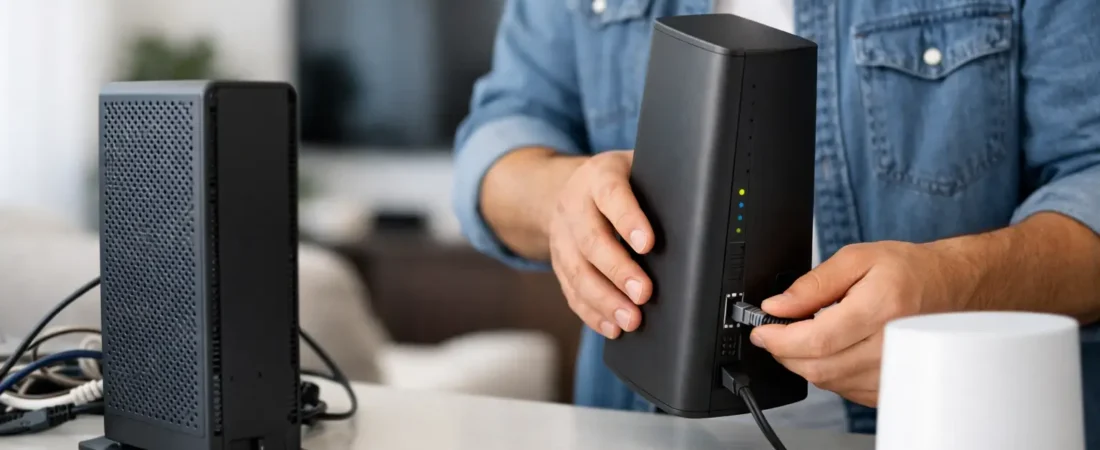
That monthly gateway rental charge usually becomes annoying right around the time your Wi-Fi starts acting up. If you are searching for how to replace Xfinity Gateway, you are probably trying to do one of three things: cut the rental fee, get better Wi-Fi, or both. The good news is that replacing Xfinity equipment is very doable. The catch is that the right setup depends on whether you need internet only, voice service, or a full modem-router combo.
Before you replace an Xfinity Gateway
Xfinity Gateway is a combo device. It usually handles both the modem connection to the cable line and the router side that creates your home Wi-Fi network. When people say they want to replace it, they do not always mean the same thing.
You can replace the entire gateway with your own cable modem and router, or with your own modem-router combo. You can also keep the Xfinity Gateway in place and replace only the Wi-Fi side by adding your own router. That second option is often the easiest path if you want better coverage but do not want to deal with modem compatibility.
The biggest question is what services you use. If you only have Xfinity internet, you have the most flexibility. If you also use Xfinity Voice for home phone service, your hardware options narrow down fast because not every retail modem supports voice. If you have Xfinity Home or certain managed services tied to the gateway, it can also complicate a full replacement.
How to replace Xfinity Gateway with your own equipment
The cleanest way to do this is to decide first which pieces you actually need. A modem connects to Xfinity’s cable network. A router handles Wi-Fi, device connections, and local network features. A gateway combines both in one box.
If you want the simplest replacement, buy a compatible modem-router combo. You will have fewer cables and one device to manage. The trade-off is less flexibility later. If the Wi-Fi becomes outdated, you replace the whole unit.
If you want better long-term value, buy a separate modem and router. This setup usually gives you more choice, better Wi-Fi performance, and easier upgrades. It is the better fit for larger homes, work-from-home setups, and households with lots of streaming devices.
Step 1: Check Xfinity compatibility
Before buying anything, make sure the modem is approved for your Xfinity speed tier. That matters more than marketing claims on the box. A modem can say gigabit-ready and still be a poor match if it uses older DOCSIS standards, has weak chipset performance, or is not approved by Xfinity for your plan.
In most cases, a DOCSIS 3.1 modem is the safest choice if you want room to grow. DOCSIS 3.0 can still work for lower speed tiers, but it makes less sense if you are replacing equipment now and want to keep it for a few years.
Step 2: Decide whether to keep or replace the router
If your current problem is bad Wi-Fi in the back bedroom or weak streaming performance upstairs, the modem may not be the real issue. In that case, you might keep the gateway for now and add your own router or mesh system. This is not a full replacement, but it is sometimes the smarter move.
If your goal is to stop paying rental fees, then replacing the full gateway makes more sense. A separate modem plus a quality router is usually the strongest overall setup for most households.
Step 3: Write down your current network info
Before unplugging anything, take a minute to make the change easier on yourself. Write down your current Wi-Fi network name and password. If you want your phones, TVs, and smart home devices to reconnect automatically, you can reuse the same network name and password on your new router.
Also look at how your current gateway is connected. Most homes have a coax cable going into the gateway, plus a power cable, and maybe an Ethernet cable going to a desktop, switch, or mesh node. A quick photo helps if you need to reconnect things later.
Step 4: Activate the new modem
Once your new modem is connected to the coax line and powered on, it needs to be activated on your Xfinity account. Usually that means the modem boots up, locks onto the signal, and then waits for account authorization.
Activation is usually straightforward, but this is where people hit the most frustration. Sometimes the modem is fine but the account still shows the old gateway as active. Sometimes the signal levels in the home are borderline, and the old rented unit handled that better than the new device. If the modem does not fully come online after a reasonable wait, it may be an activation issue rather than a hardware failure.
Step 5: Connect and configure your router
If you bought a separate router, connect it to the modem with Ethernet, then complete the router setup through its app or web interface. This is where you choose your Wi-Fi network name, password, and security settings.
For most households, using one network name for both 2.4 GHz and 5 GHz is the simplest choice. If your router allows band steering, leave it on unless you have a specific reason not to. It helps everyday devices move to the better band automatically.
Step 6: Return the rented gateway
This part matters. If you do not return the Xfinity Gateway properly, the rental fee may keep showing up. Keep the return receipt or confirmation and check your next billing statement. A successful equipment swap is not really finished until the billing matches what you expected.
Common mistakes when replacing Xfinity equipment
The most common mistake is buying a router when you actually need a modem. A router alone cannot replace an Xfinity Gateway if the gateway currently handles the cable connection. You need a modem somewhere in the setup.
Another common issue is choosing a modem based only on speed labels. Real compatibility with your ISP matters more than the biggest number on the package. A household on a moderate plan does not need the most expensive modem available, but it does need one that Xfinity supports reliably.
There is also the voice service problem. If you have Xfinity home phone service, do not assume any retail modem will work. Voice support is a special case, and it limits your choices. For some users, keeping the Xfinity Gateway or using a supported voice modem is the only practical route.
Finally, some people replace the hardware and then leave the old gateway account status unresolved. That can cause billing headaches or activation confusion later.
Should you replace the whole gateway or just part of it?
This depends on your goal.
If you mainly want to save money over time, replacing the whole gateway is usually worth it. Rental fees add up, and owning your own equipment can pay off surprisingly fast.
If you mainly want better Wi-Fi, replacing only the router side may give you the biggest improvement with the least hassle. A strong standalone router or mesh system often beats ISP combo equipment on coverage and device handling.
If you want both better performance and lower monthly costs, a separate modem plus router setup is usually the best balance. It costs more upfront, but it gives you more control and often better results in real homes.
When not to replace an Xfinity Gateway
There are cases where sticking with the rented gateway makes sense. If you are in a small apartment, on a basic speed tier, and your Wi-Fi works fine, ownership may not change much besides who handles support. If you do not want to troubleshoot equipment yourself, the rental can be worth the convenience.
It can also make sense to wait if you are about to move, switch providers, or upgrade service. Buying hardware right before a big change is not always the smartest timing.
And if you depend on Xfinity support for everything, remember that support is often simpler when you use their equipment. That does not mean their hardware is best. It just means fewer variables if something goes wrong.
A practical buying approach
For most Xfinity internet-only households, the safest path is a DOCSIS 3.1 modem paired with a solid Wi-Fi 6 router. If you live in a larger home or fight dead spots, a mesh system may be a better fit than a single router. If your home is smaller and your speed plan is modest, a simpler setup can still work very well.
That is the approach RouterForMyISP usually recommends because it balances compatibility, performance, and upgrade flexibility without pushing people into overbuying.
Replacing your Xfinity Gateway is less about one perfect device and more about choosing the setup that fits your home, your service, and your tolerance for setup work. If you match the hardware to how you actually use the internet, the payoff is usually pretty obvious by the first billing cycle and the first night when every room finally gets usable Wi-Fi.