
A factory reset can fix stubborn router problems, but it also removes the settings that make your network work the way you want. That includes your WiFi network name, password, guest network, device reservations, port forwarding rules, and custom DNS settings.
The safest approach is to save a current configuration file outside the router first, then restore it only after the router is stable again. The reset removes the live settings inside the device. Your saved file provides a fallback, so you won’t have to rebuild every setting from memory.
This post may contain affiliate links. If you make a purchase through these links, I may earn a small commission at no extra cost to you.
Key Takeaways
- A NETGEAR configuration backup is a
.cfgfile that saves router settings, not your photos, documents, or personal files. - Back up the router before a reset, firmware update, ISP change, or major network edit.
- Use a backup only with the same router model and compatible firmware.
- Try admin password recovery before resetting a router that otherwise works.
- A factory reset removes custom settings. A reboot only restarts the router and keeps them.
- Save screenshots or notes of important settings in case the backup file will not restore.
Back Up Your NETGEAR Router Before Resetting
A backup protects your setup. A factory reset doesn’t erase a backup file saved on your computer or private cloud storage. It does erase the live settings stored in the router.
Save the .cfg configuration file
Connect a computer to your NETGEAR router with an Ethernet cable if possible. Wi-Fi also works, but a wired connection is less likely to drop while you change settings.
Open a browser and enter routerlogin.net. If that doesn’t load, check the router label for its local address. Many models also use 192.168.1.1 or 192.168.0.1.
Sign in with the admin password, not your Wi-Fi password. On many models, the backup path is ADVANCED > Administration > Backup Settings. Select Back Up and save the .cfg file in a private location. NETGEAR’s router backup and restore instructions confirm that menu paths can vary across product lines.
The downloaded .cfg is a local configuration file containing your router settings. Confirm that the download completed and that the filename ends in .cfg. Check that it appears in the expected location, often Downloads or another folder selected during saving.
Give the file a clear name that identifies the correct model and date, such as Netgear-R7000-backup-Sept-2026.cfg. Make a second copy in private or encrypted storage. Don’t open or edit the file, and keep both copies away from shared folders or email inboxes.
Record the settings a backup may not fix
A saved file is helpful, but it shouldn’t be your only record. Take screenshots or write down the details that would be hardest to recreate:
- Your main and guest Wi-Fi names, passwords, and security settings.
- Port forwarding rules, device reservations, custom DNS, VPN settings, and parental controls.
- ISP login details, if your provider requires them.
- The router’s model number, hardware version, and current router firmware version.
Record these details so you can verify backup compatibility after the reset. Keep the router administrator password in a password manager or another secure place. It’s separate from the password your phone uses to join Wi-Fi.
A backup can bring back a configuration problem too. Keep one recent backup and one older known-good copy when possible.
Try Other Options Before a Full Reset
A reset is useful when the router is unstable, inaccessible, or being given away. It is not the first step for every internet problem.
Rebooting your router and resetting are different
A reboot turns the router off and back on while preserving its current configuration. It can clear temporary connection issues without changing your Wi-Fi name, passwords, or router rules.
A factory reset returns the device to its default settings and erases the current configuration. You’ll need to sign in again, set up the connection, and restore or rebuild your network.
If the internet is down but your router dashboard still opens, first check the modem, ONT, Ethernet cable, and ISP outage status. These checks can identify a network connection problem that a reset cannot fix.
Recover an admin password first
A forgotten admin password is not the same as a forgotten Wi-Fi password. Your Wi-Fi password connects devices. The administrator password opens the router settings page.
Check your password manager and browser-saved passwords before doing anything else. Some NETGEAR routers support password recovery if you enabled it earlier and set security questions. NETGEAR explains its admin password recovery process, but recovery is not available unless it was configured beforehand.
Connect to your NETGEAR router, turn off cellular data and any VPN, then enter its address in the browser address bar. If routerlogin.net sends you to a search page, it was probably entered into a search box instead of the address bar.
How to Factory Reset NETGEAR Router Hardware Safely
Once you have the backup file and notes, the physical reset takes only a few minutes. Keep the device powered on during the process.
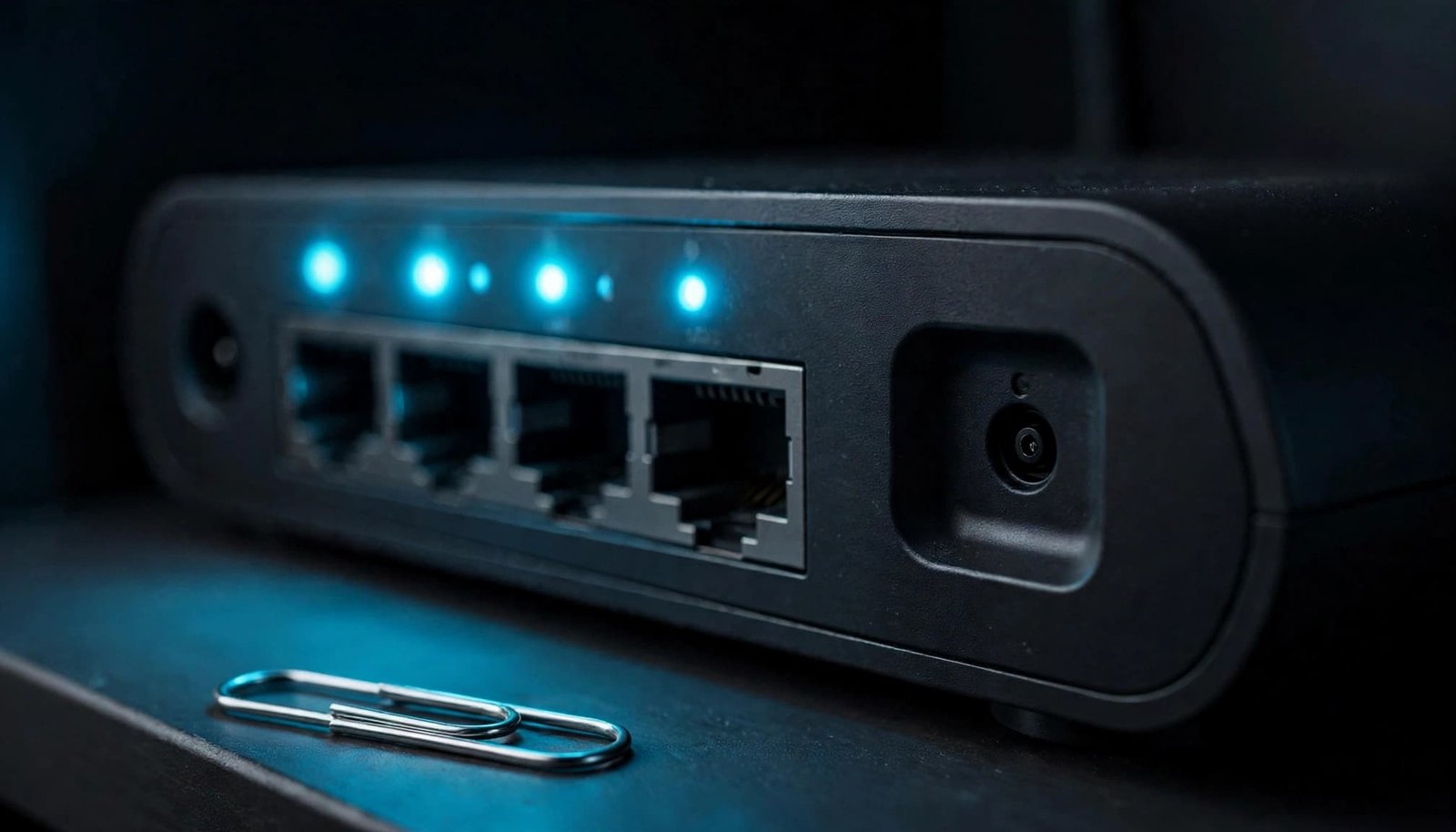
Use the recessed reset button
Look on the back or bottom of the router for a small recessed button marked Reset or Restore Factory Settings. You’ll need a straightened paper clip or similar small tool.
Some models also provide a factory-reset option in the web dashboard, often under Administration or Backup Settings. Menu names and availability vary by model and router firmware, so follow the exact model manual instead of assuming a universal menu path. Both methods erase custom settings and return the device to factory default settings. They normally do not roll back the installed firmware. Avoid outdated 30-30-30 reset advice, which isn’t appropriate for most modern models.
- Leave the device plugged in and powered on.
- Insert the paper clip into the reset opening and press the reset button.
- Hold it for about seven seconds, then release it.
- Wait while the power light changes and the device restarts completely.
- Don’t unplug the device during the reset or restart.
Wait for the restart to finish before reconnecting or opening the router dashboard.
NETGEAR’s factory reset guide uses about seven seconds as the current general instruction. Your model manual takes priority because some models use different hold times.
Sign in with the correct default details
After the reset, connect to the router using the default Wi-Fi information shown on its label or through an Ethernet cable. Then open the router’s local dashboard.
Use the correct default login credentials for your model. The router label, model manual, or first-time setup flow determines the right information. Some older routers use admin and password, while newer models may have a unique label password or require setup credentials.
Don’t confuse a NETGEAR account with the router admin login. They’re separate accounts with different purposes.
Restore Your Backup Carefully
A reset gets the router back to a clean starting point. Restoring the backup should bring back your previous settings, but it can also restore an earlier configuration problem.
Upload the saved file
Connect to the freshly reset router. An Ethernet cable is the safer choice during the upload and restart.
Sign in to the web dashboard, then return to ADVANCED > Administration > Backup Settings. Choose Browse, select the saved .cfg file, and choose Restore. This uploads your saved configuration instead of performing another reset.
Use a backup from the same NETGEAR router model and a compatible router firmware version. Do not upload a backup from a different NETGEAR router, an ISP gateway, or a range extender. Similar menus don’t mean the files are interchangeable.
Wait for the router to finish restarting. Don’t refresh the browser, cut power, or press reset again during the restore.
Test the network after the restart
A backup can bring back a setting that caused the original problem. Test basic internet access before re-enabling advanced features or changing other settings.
Your former WiFi network name and password may return. Devices might reconnect automatically, but some will need to join again.
Check the items that matter in your home or small office:
- Confirm that the network connection works on a wired device and a Wi-Fi device.
- Test streaming, work VPN access, printers, cameras, game consoles, and smart home hubs.
- Review guest Wi-Fi, port forwarding, reserved IP addresses, custom DNS, and parental controls.
- Review security settings, including administrator credentials and remote management. Change any old or default admin password, then confirm remote management is turned off unless you have a real need for it.
If you are reconnecting a router after replacing provider equipment, use this guide to activate your own router with an ISP. The cable from the modem or gateway must go into the router’s Internet or WAN port, not a regular LAN port.
When the Backup or Reset Does Not Work
A failed restore does not always mean the router is broken. Connection issues can prevent local access to the dashboard, so start with simple checks before trying another reset.
The router login page will not open
First, confirm your phone or computer is connected to the NETGEAR router’s network. A device on cellular data, a neighbor’s Wi-Fi network, or a VPN connection cannot reach the router’s local dashboard.
Try the address printed on the router label. You can also try a different browser or clear stored browser data. If Wi-Fi access is unreliable, connect a computer directly to a LAN port with Ethernet.
The .cfg file will not restore
Check the exact model number on the bottom of the router and compare it with the backup filename before trying the upload again. A backup from a different model is not a safe match.
If the file is correct but the restore fails, stop repeatedly uploading the same file. Set up a clean basic network first. Then manually add back the settings you need most, including any custom configuration, one at a time. This is the better choice when the old configuration may have caused the original problem.
A clean setup can also help when you have moved into a larger home or still have weak rooms after the router works again. Our mesh WiFi setup guide explains how to add coverage without creating avoidable network conflicts.
Resetting a NETGEAR WiFi Range Extender
A NETGEAR WiFi range extender has its own configuration and reset button. Resetting the main router doesn’t automatically reset or restore the extender, and resetting the extender doesn’t restore the router.
With the extender powered on, locate its recessed Reset or Factory Reset control. Press and hold the reset button with a paper clip for about seven seconds, then wait for the extender to restart. This erases its saved configuration and returns it to factory default settings. Check your exact extender manual because button timing can differ by model.
Afterward, set it up again through the supported setup process. If you restore the router with the same Wi-Fi network name, confirm the extender reconnects before returning it to its usual location.
Frequently Asked Questions
Will a factory reset delete my backup file?
No. A factory reset deletes the settings stored inside the router. A .cfg backup saved to your computer, encrypted drive, or private cloud storage stays there unless you delete it.
Can I restore a NETGEAR backup to a new router?
Usually, no. Restore a configuration file only to the same router model with compatible firmware. A new model should be set up as a new device, even if it is another NETGEAR router.
How long should I hold the reset button?
NETGEAR’s general guidance is about seven seconds. Some routers and extenders use different timing, so the manual for your exact model is the better source.
What if I only forgot the admin password?
Try password recovery first if you enabled it before getting locked out. Without recovery details or a saved administrator credential, a full reset may be the remaining option.
Final Thoughts
A factory reset is less stressful when you treat the backup as part of the job, not an afterthought. Save a verified .cfg file, keep separate notes for important network settings, and review the router’s factory default settings and security credentials after the reset.
The goal isn’t to reset your router often. It’s to have a clear recovery plan, including a final review of the default settings, when a reset is the right fix.