A frozen video call, high ping while gaming, or rubberbanding doesn’t tell you whether your router or internet provider is responsible. Troubleshooting NETGEAR router packet loss starts with Wi-Fi and Ethernet tests to identify the failing connection. Then check beyond your router to narrow down latency issues.
Buying a faster internet plan won’t repair a weak wireless link or damaged cable. Start with repeatable tests before changing settings or replacing equipment.
This post may contain affiliate links. If you make a purchase through these links, I may earn a small commission at no extra cost to you.
Key Takeaways
- Test the same computer over Wi-Fi and Ethernet to separate wireless problems from a wider connection issue.
- Compare packet loss to your router with loss to internet destinations. An unanswered ping at one intermediate hop doesn’t prove an ISP fault.
- Check cables, modem signals, and gateway configuration before replacing hardware. Change one setting at a time, then repeat the same test.
How to Test NETGEAR Router Packet Loss With Ping
Packet loss means dropped packets fail to reach their destination. High latency means traffic arrives late, and ping spikes are sudden increases in response time. These latency issues can interrupt gaming or calls, even when a speed test looks good.
Pause downloads, cloud backups, and VPN software for your first test. This can help diagnose issues such as Nighthawk router packet loss. Then repeat the test during the activity that causes trouble.
Test the Connection to Your Router
On Windows, open Command Prompt and run ipconfig. Find the active connection’s Default Gateway address.
Run ping -n 300 followed by that address. For a gateway listed as 192.168.1.1, the full command is ping -n 300 192.168.1.1.
Let it finish and record the loss percentage and response times. Several minutes of testing can capture problems that happen every minute.
Repeat on Ethernet with Wi-Fi disabled. Loss to the gateway puts the local connection under closer review, but the router’s response behavior also matters. Confirm the pattern with another device before blaming hardware.
Test Internet Destinations Separately
In another Command Prompt window, run ping -n 300 1.1.1.1. Repeat with ping -n 300 8.8.8.8.
Compare these results with the gateway test. A stable gateway connection with repeated internet loss calls for checking the router’s WAN connection, modem, and provider service.
For a route view, run pathping 1.1.1.1. Microsoft’s pathping documentation explains its latency and loss reporting. A PingPlotter diagnosis can also help track intermittent patterns.
Intermediate routers may limit ping replies while forwarding traffic normally. Don’t diagnose an ISP fault from one hop’s loss percentage alone.
Compare Wi-Fi, Ethernet, and Orbi Connections
Use the same computer, destinations, and test duration. Changing devices between tests introduces another variable and makes comparisons less useful.
Establish a Direct Ethernet Baseline
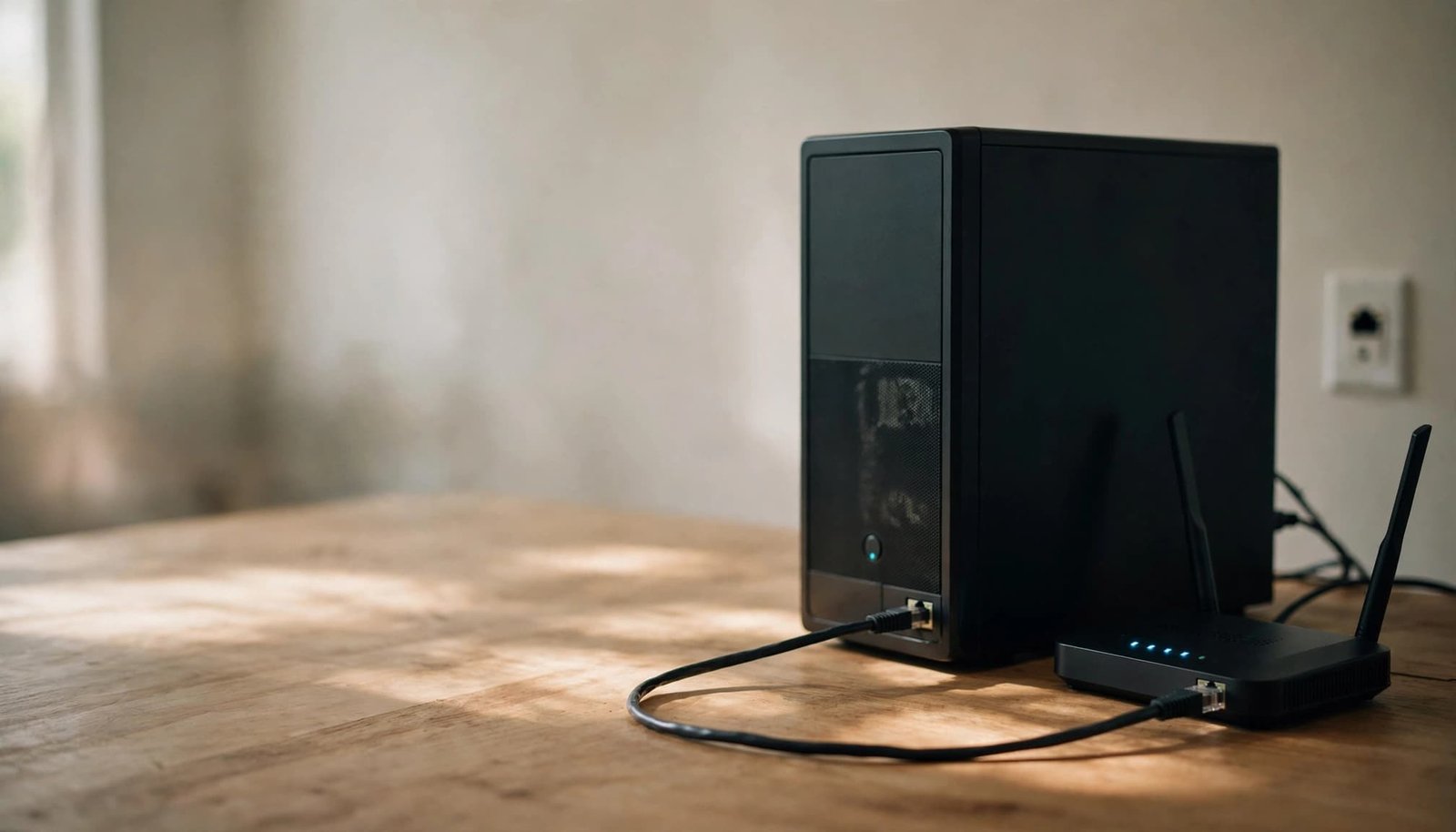
Connect the computer directly to a router LAN port. Bypass docks, switches, and wall jacks during this first comparison.
Reseat both cable ends and inspect the connectors. Try another known-good cable and LAN port separately, recording each result.
A properly installed Cat5e cable supports Gigabit Ethernet. Switching to a Cat6 Ethernet cable isn’t a guaranteed packet-loss fix. Cable condition, termination, and the complete connection path matter.
Check whether another wired device shows the same problem. If only one computer struggles, inspect its network adapter and software. You can also compare wired and Wi-Fi speed results, but throughput alone doesn’t establish connection reliability.
Compare Wi-Fi and Satellite Locations
With Ethernet disconnected, repeat near the router and in the room where calls or games fail.
Good nearby results but poor distant results point to coverage issues or wireless interference. Review placement before buying hardware. NETGEAR Smart Connect band selection can help explain which wireless band your device uses.
To check for Orbi packet loss, test near the main router and the affected satellite. Confirm the satellite’s backhaul status in the management interface.
To investigate Ethernet backhaul packet loss, temporarily test the satellite with a short, known-good cable near the router. This isolates the link, but doesn’t prove the satellite has failed. In router mode, keep switches and satellites downstream of its LAN ports. Avoid network loops, and check your model’s supported wiring layout.
Check the Modem, WAN Connection, and ISP Line
If wired and wireless devices both lose service, changing Wi-Fi channels won’t address the shared connection. Inspect the incoming service and the Ethernet cable feeding the router’s Internet/WAN port.
Review Cable Modem Signal Levels
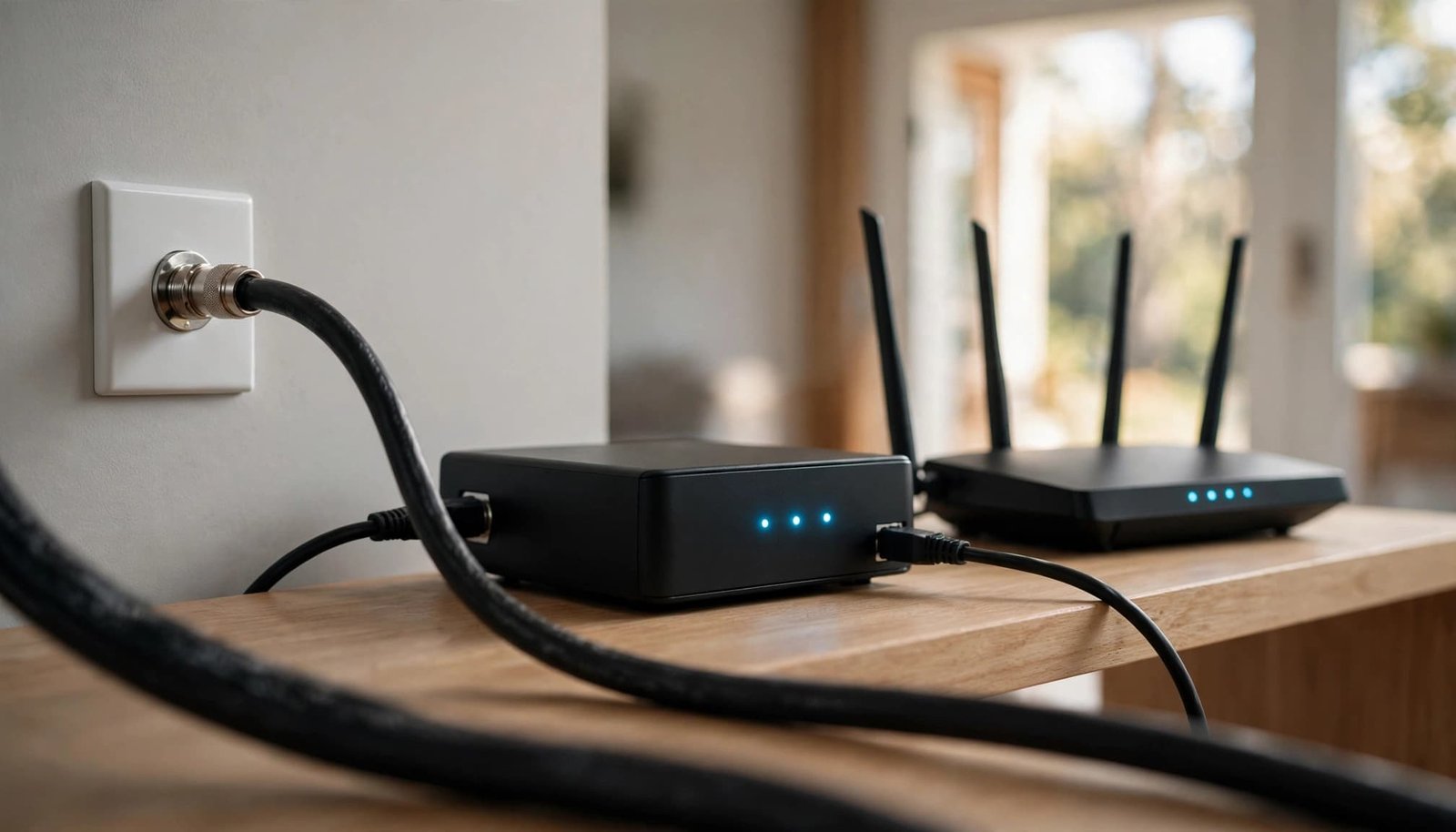
For cable internet, open the modem’s status page using its documented address to review cable modem power levels. Many standalone cable modems use 192.168.100.1.
NETGEAR’s modem power-level guidelines list good downstream power as -7 to +7 dBmV and good upstream power as 38 to 48 dBmV.
Readings outside those ranges are a reason to ask your ISP to investigate ISP signal quality. They don’t establish the cause of packet loss by themselves.
Inspect accessible coax connectors, damaged cable, and unnecessary coaxial splitters. Don’t alter provider equipment or add signal accessories without guidance. These cable-modem readings don’t apply to fiber service, where the ONT box connection provides an Ethernet handoff instead.
Match Logs With the Outage
Check the router’s WAN address. A displayed address of 0.0.0.0 means it hasn’t obtained an upstream address, even if devices can still join Wi-Fi.
For CAX30 packet loss, check its modem/router status page and use NETGEAR router logs to compare disconnect entries with the outage time. Repeated entries identify a pattern, not a confirmed failed component.
For cable service, inspect the modem’s separate event log. Repeated T3 or T4 timeouts matching outages are useful evidence for your ISP. Watch whether correctables and uncorrectables change during trouble, rather than relying on an old accumulated total.
Record these details before restarting, since some logs and counters may reset.
Review Double NAT, Firmware, and Traffic Settings
Router settings deserve attention after you establish a wired baseline. Save screenshots of your current configuration so you can reverse changes.
Check Whether Two Devices Are Routing
Double NAT issues can occur when an ISP gateway and your NETGEAR router both handle routing and address translation. This can complicate gaming connections and port forwarding, but it isn’t automatic proof of packet loss.
NETGEAR’s bridge-mode installation guidance recommends putting a supported ISP gateway in modem bridge mode and using the NETGEAR device in router mode.
Another arrangement is keeping the gateway as the router and using a supported NETGEAR device in access-point mode. Provider requirements matter, especially with phone or TV service.
Turning off gateway Wi-Fi alone doesn’t disable its routing. Confirm the supported setup with your ISP before changing modes.
Update Carefully and Compare Loaded Latency
Check for a firmware update for your exact model and hardware version. On Orbi, check every satellite as well as the router. Follow the steps to update NETGEAR firmware safely, and don’t interrupt power during installation.
Use a bufferbloat test to compare latency while the connection is idle and during uploads or downloads. A rise under load can indicate queueing, often called bufferbloat.
If your model offers QoS settings or DumaOS Congestion Control, follow its documentation and compare results before and after adjustments. Investigate a DumaOS bandwidth drop as a symptom, not a diagnosis. These controls aren’t guaranteed fixes for packet loss. For XR1000 latency concerns, follow that model’s documentation.
Keep a factory reset for later, preferably with support guidance. Record ISP credentials and required settings first.
Compare the Router With the Provider Connection
When internet loss continues over Ethernet, a provider-side comparison can help separate the router from the incoming service.
Only connect a computer directly to a modem or ONT if your ISP supports that test. Keep the computer’s firewall enabled. Some services require authentication, VLAN settings, or a modem restart when the connected device changes.
Follow provider instructions rather than guessing at connection settings. If direct testing isn’t supported, ask the ISP to check its equipment and line remotely.
Repeat the same destination tests and note the time. Similar loss with the router bypassed warrants an ISP investigation. Clean direct results with repeated loss through the router call for reviewing the WAN cable, router configuration, and model-specific support.
Restore your normal connection afterward. If restarting is needed, bring the modem or supported provider gateway online first, wait for normal service indicators, and then start the router. Follow the provider’s instructions for a fiber ONT.
My Experience With the Orbi 870
I’m Steve Neff, founder of Better WiFi Shop, and I personally own and use the NETGEAR Orbi 870.
My interest in home networking started when I learned that paying for faster internet doesn’t always solve Wi-Fi problems. That led me to research routers, mesh systems, coverage, and home networking equipment, then create Better WiFi Shop to help everyday consumers understand their options.
My ownership experience is separate from manufacturer specifications. It isn’t proof that an Orbi upgrade will fix your connection.
You can compare Orbi systems at Better WiFi Shop, but identify the weak connection first. Mesh equipment addresses home coverage and distribution, not an ISP line fault.
Frequently Asked Questions
Why Does Packet Loss Happen Every Minute?
A repeating interval is useful evidence, but it doesn’t identify one cause. Device software, background transfers, wireless behavior, and upstream connection trouble all need separate checks.
Keep gateway and internet tests running together, and note exact times. Compare those timestamps with router and modem logs.
If only one computer shows the pattern, inspect that device before changing the whole network. If multiple wired and wireless devices fail together, investigate the shared router and provider connection.
Should I Replace My NETGEAR Router?
Replacement makes more sense after you establish repeatable loss through the router, verify cables, review settings, and compare the provider connection.
A factory reset isn’t a substitute for comparing Wi-Fi, Ethernet, and the provider connection. If Ethernet remains stable while Wi-Fi fails in one room, check placement or coverage first. If loss continues with the router bypassed, investigate provider service before buying another router.
Find the Fault Before Buying Hardware
The most useful evidence is a repeatable difference between connections. Compare gateway and internet results, then Wi-Fi and Ethernet, using the same device.
For recurring network disconnects, give your ISP or NETGEAR support timestamps, affected devices, firmware version, modem readings, and test results. That gives them a clearer starting point than a general complaint about lag.
A frozen call doesn’t tell you which equipment needs replacing. A consistent test pattern helps you avoid that guess.