
Some websites load normally, but your work VPN or an upload keeps stalling. NETGEAR MTU settings are one possible cause, but changing them isn’t a first-line fix and won’t necessarily improve network performance.
For most cable connections, 1500 bytes is the usual reference value; standard PPPoE commonly uses 1492. Start by confirming your connection type, then test before changing the router.
This post may contain affiliate links. If you make a purchase through these links, I may earn a small commission at no extra cost to you.
Key Takeaways
- Keep the current MTU size unless testing identifies a problem or your ISP’s PPPoE connectivity requirements call for a change.
- A standard IPv4 ping payload needs 28 added bytes to calculate the full packet size.
- On many NETGEAR routers, change MTU under ADVANCED > Setup > WAN Setup.
- Test the affected website or app after each change, and restore the original setting if nothing improves.
Choose NETGEAR MTU Settings for Your Connection
The right starting point depends on how your router connects to the provider. Cable, fiber, and DSL describe the service, but don’t always identify the router’s WAN connection type or WAN setup.
Cable Internet: Usually 1500 Bytes
A NETGEAR wireless router connected to a cable modem normally uses automatic IP settings, often called DHCP. For a standard Ethernet connection without extra tunnel overhead, 1500 bytes is the usual MTU.
NETGEAR’s MTU reference values identify 1500 as typical for connections without PPPoE or VPN.
Leave the existing value alone if your service works normally. Lowering it won’t increase your subscribed bandwidth or improve wireless coverage. Jumbo frames are a separate LAN consideration, not a reason to change the ordinary internet WAN MTU.
PPPoE: Commonly 1492 Bytes
Standard PPPoE adds eight bytes of overhead to a normal Ethernet connection. That leaves room for a 1492-byte IP packet.
Use your ISP’s instructions rather than assuming every DSL or fiber account needs this value. Some connections support different arrangements.
Confirm PPPoE connectivity with your provider before selecting it under Internet Setup. The provider’s login differs from your Wi-Fi password. Our NETGEAR PPPoE setup guide covers the credentials, WAN connection, and provider requirements.
Check the WAN Connection Before Adjusting MTU
MTU troubleshooting makes sense when the internet works but certain traffic fails. It rarely belongs at the beginning of a completely offline setup.
Check for a Missing WAN Address
If the router shows a WAN address of 0.0.0.0, check the physical connection and provider settings first.
The modem, ONT, or ISP gateway should connect to the NETGEAR Internet or WAN port. Confirm DHCP or PPPoE connectivity, required credentials, and any provider-supplied VLAN settings.
For cable service, confirm that the modem is activated and online. Restart the modem first, wait for its normal connection lights, then restart the router. Follow our NETGEAR router setup guide if the basic connection is still uncertain.
Separate Wi-Fi Problems From Internet Problems
Connect one computer by Ethernet and repeat the failing task. Temporarily disconnect its VPN when checking the ordinary internet path. A ping test can offer a clue, but packet loss can have causes other than MTU.
If Ethernet works but Wi-Fi struggles in another room, check placement, walls, and interference. A wireless router’s MTU affects packet handling, not signal strength.
Record the router model, firmware version, connection type, and current MTU size before making changes. Screenshots make it easier to restore the original setup.
Why an Incorrect MTU Can Stall Websites
MTU stands for Maximum Transmission Unit. It’s the largest IP packet a network interface can carry without fragmentation.
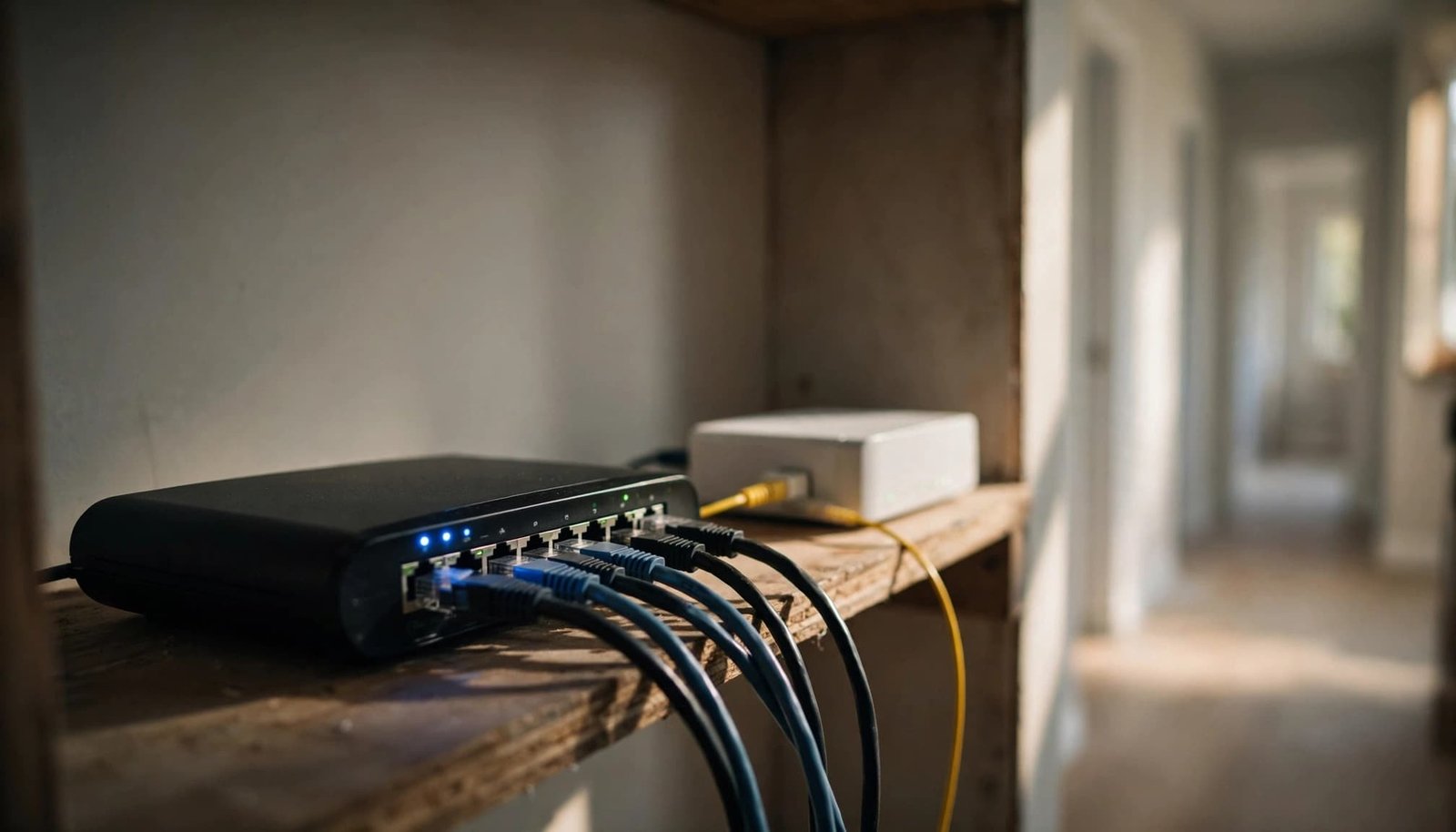
As data packets travel from your home network, they may encounter a network segment with a smaller limit than another network segment along the route.
With IPv4, an oversized packet may be split into fragments when packet fragmentation is permitted.
These fragmented packets carry extra IP header information and must be reassembled. Losing one can cause packet loss and prevent the original packet from being reconstructed.
When the Don’t Fragment flag is set, an oversized packet must be dropped instead. The network should return feedback that helps the sender use smaller packets.
Path MTU Discovery describes this process. If the feedback is blocked, small requests may work while larger transfers stall.
That helps explain why you can open a website but have trouble uploading a file. Lowering MTU doesn’t automatically improve network efficiency. This symptom doesn’t prove MTU is the cause, but it gives you a reason to test.
Find the Packet Limit With an IPv4 Ping Test
Use an Ethernet-connected computer when possible. Close downloads and pause VPN software unless you’re deliberately testing the VPN path, since encryption overhead can change the result.

Test From Windows Command Prompt
Open Command Prompt. The following command tests a 1472-byte data payload, which plus the 28-byte IPv4 header size produces a standard 1500-byte packet:
ping -4 -n 3 -f -l 1472 1.1.1.1
For a standard PPPoE connection, start with 1464 instead of 1472.
- Run the ping test and look for successful replies or a message saying fragmentation is needed.
- If the response says packet fragmentation is needed, reduce the payload size by 10 bytes and test again.
- Once replies succeed, increase one byte at a time to find the largest supported payload for better network efficiency.
That result can help identify a candidate optimal MTU size for the tested route, not a universal setting.
The -4 flag selects IPv4, and -f prevents fragmentation. The -l flag sets the payload size for data packets, meaning the data portion rather than the full packet. NETGEAR’s ping-test instructions use the same basic method. This ping test offers a Path MTU Discovery clue for the tested network segment, but doesn’t prove every route behaves identically.
Test From a Linux Terminal
On Linux systems using the common iputils version of ping, run:
ping -4 -c 3 -M do -s 1472 1.1.1.1
Here, -M do prevents fragmentation and -s sets the payload. Adjust it using the same method as Windows.
A timeout alone doesn’t prove the packet is too large, since packet loss or blocked replies can cause missing responses. Try another responding destination before drawing a conclusion.
Add 28 Bytes to the Successful Payload
The payload size entered in the ping command is data, not the complete IP packet.
For a standard IPv4 ICMP echo packet, add 20 bytes for the IP header and eight for the ICMP header.
The table shows how that payload size translates to a complete packet:
| Successful ping payload | Header allowance | Calculated packet size |
|---|---|---|
| 1472 bytes | 28 bytes | 1500 bytes |
| 1464 bytes | 28 bytes | 1492 bytes |
Enter the calculated packet size as the router’s MTU size, not the payload value.
A successful ping test confirms that packet size for the tested route at that time. It doesn’t establish one correct MTU for every website or VPN.
Your existing WAN MTU also limits the test, so a change won’t necessarily improve network efficiency. A router already set to 1492 won’t demonstrate that larger packets can pass through it.
Jumbo frames are a separate, device-dependent LAN setting; they don’t change this WAN calculation.
Change MTU on Your NETGEAR Router
Only make this change after recording the original value. Use the ISP’s requirement or a supported troubleshooting result, not a number copied from an unrelated forum.
Open the Browser Settings
Connect to your NETGEAR network and open routerlogin.net in a browser. If that doesn’t work, use the router’s local gateway address.
Sign in with your router administrator credentials. These are separate from your PPPoE login and Wi-Fi password.
On many Nighthawk models, the WAN setup page is ADVANCED > Setup > WAN Setup. NETGEAR’s Nighthawk MTU change instructions document this path.
Use the browser interface for advanced WAN settings. The Nighthawk app doesn’t expose every option.
Apply One Change at a Time
Find the MTU size field, enter the supported value, and select Apply. Wait for the router settings to save before testing.
Don’t change DNS, VLAN tagging, NAT filtering, or PPPoE credentials at the same time. That makes it harder to identify which change affected the connection.
Menu names and available fields vary by model and firmware. Check your model’s manual if the MTU field is missing.
If NETGEAR runs in Access Point Mode, the upstream router handles the WAN connection. Any WAN MTU adjustment belongs there.
Handle VPN and Firmware Issues Carefully
A VPN changes the packet path and adds encryption overhead. Its usable packet size can differ from your regular internet connection.
Test the VPN Separately
Compare the affected application with the VPN disconnected and connected to test VPN connections separately. A successful non-VPN ping doesn’t confirm the tunnel’s packet limit, and packet loss can also cause a failed test. Network latency may occur too, but it doesn’t prove an MTU problem.
There isn’t one correct MTU for every VPN. VPN connections can differ by model, provider, and network segment. Don’t set the entire household connection to 1400 just because another guide recommends it.
For a work VPN, contact your IT team before changing tunnel settings. Ask about tunnel MTU or maximum segment size adjustments. The maximum segment size limits TCP data size, not WAN MTU.
Check Model-Specific Firmware Guidance
If the MTU field rejects a value or doesn’t retain it, confirm the permitted range in your model’s documentation.
Record the firmware version and check for an official update. Keep power connected throughout installation.
Avoid a factory reset as an early step. It removes saved Wi-Fi and internet settings, including provider details you may need to reconnect.
Retest Before Buying New Equipment
Repeat the original task that was failing after applying the change. Check an upload, the affected website, and your VPN if relevant. Test another household device too.
If the change doesn’t help, restore the original MTU size. A ping test or speed test alone doesn’t confirm that an application timeout is fixed.
I’m Steve Neff, founder of Better WiFi Shop, and I own and use the NETGEAR Orbi 870. My interest in home networking began when I learned that paying for faster internet doesn’t always solve Wi-Fi problems.
That led me to research routers, mesh systems, and coverage, then create Better WiFi Shop. My Orbi ownership isn’t evidence that an upgrade will fix an MTU problem. Diagnose the connection before spending more.
Frequently Asked Questions
Should I Change MTU on the Cable Modem?
With a standalone cable modem and separate NETGEAR router, the router normally contains the home WAN MTU setting.
A modem/router combo may expose different controls, and ISP-managed gateways can limit access. Check the device manual rather than assuming every modem has an editable MTU field.
Does This Ping Test Check IPv6?
These commands deliberately test IPv4. The 28-byte calculation applies to standard IPv4 ICMP echo packets, not IPv6.
If a problem affects IPv6 traffic, review the provider’s IPv6 requirements separately. Our NETGEAR IPv6 setup guide covers WAN configuration and address checks.
Keep the Default Unless Testing Supports a Change
Use 1500 for ordinary Ethernet and 1492 for standard PPPoE as reference values, not automatic fixes. Your ISP’s requirements and existing working configuration come first.
When a ping test points to an MTU problem, don’t treat one failed result or packet loss as a definitive diagnosis. Calculate the full packet size, change one setting, then repeat the ping test and retest the original affected task separately. Keep a clear rollback path, since an MTU adjustment doesn’t promise higher network throughput and shouldn’t leave your household offline.