A Wi-Fi 7 label alone doesn’t confirm whether your phone, laptop, or other client device is using multiple wireless links. Wi-Fi 7 MLO depends on compatible equipment, current software, and the right security settings.
On NETGEAR systems, you also need to separate client connections from Orbi’s router-to-satellite backhaul. Check those two connections before changing settings or paying for an upgrade.
This post may contain affiliate links. If you make a purchase through these links, I may earn a small commission at no extra cost to you.
Key Takeaways
- A Wi-Fi 7 label alone doesn’t confirm that a device is using MLO. Both the router and client must support compatible links, software, and security settings.
- Orbi MLO backhaul connects the main router to satellites; it doesn’t make an older phone or laptop an MLO client.
- MLO doesn’t always require 6 GHz, and support, controls, and link combinations vary by NETGEAR model and client.
- Check the exact model documentation, update firmware and client drivers, and test one change at a time before considering an upgrade.
What Wi-Fi 7 MLO Does
Multi-Link Operation (MLO) lets compatible equipment, called an MLD (multi-link device), manage more than one supported wireless link within a connection. Depending on the implementation, it may coordinate links or switch between them.
Managing simultaneous links may help with channel access during network congestion and improve throughput or consistency. But Wi-Fi 7 doesn’t mean every device uses 2.4 GHz, 5 GHz, and 6 GHz for simultaneous data transmission.
Client Connections Versus Orbi Backhaul
Client Multi-Link Operation is the connection between your router and a compatible phone, laptop, or other device.
Mesh backhaul is the connection between the main Orbi router and its satellites. An Orbi system can use MLO for backhaul while an older laptop connects through one band.
That older laptop may benefit from better satellite connectivity. It still doesn’t become an MLO client.
STR, NSTR, and Single-Radio Modes
STR Mode means simultaneous transmit and receive. Compatible hardware in STR Mode can transmit on one link while receiving on another.
NSTR Mode limits those simultaneous operations across affected link pairs. With NSTR Mode, devices coordinate activity on those links rather than transmitting and receiving freely at once. NSTR Mode behavior can vary by device, so check its specifications.
Single-radio modes, including MLSR and EMLSR, manage multiple links without continuously operating separate radios together. These designs involve power and performance tradeoffs, so don’t assume a battery-powered phone behaves like a router with several active radios.
The Wi-Fi Alliance’s Wi-Fi CERTIFIED 7 overview describes the certified feature set. Certification doesn’t prove that every feature or implementation defined in IEEE 802.11be is supported.
Which NETGEAR Models Should You Check?
For a Wi-Fi 7 router, start with the exact model number on the equipment label. “Nighthawk” and “Orbi” are product families, not complete compatibility specifications. MLO support depends on the exact model, firmware, and router implementation.
These examples show why the type of MLO support matters.
| NETGEAR product | Confirmed information | What you should verify |
|---|---|---|
| Orbi 770 Series | Enhanced Backhaul combines 5 GHz and 6 GHz links. | Client MLO support and current firmware requirements. |
| Orbi 970 Series | Enhanced Dedicated Backhaul combines dedicated 5 GHz and 6 GHz links. | Client capabilities and available wireless controls. |
| Nighthawk RAXE300 | This is a Wi-Fi 6E router, not Wi-Fi 7. | It doesn’t provide Wi-Fi 7 client MLO. |
| Nighthawk Wi-Fi 7 models | Features depend on the exact model. | Supported links, client modes, security, and firmware. |
NETGEAR’s Enhanced Backhaul explanation confirms the Orbi 770’s router-to-satellite connection. Its Orbi 970 backhaul description describes that system’s dedicated arrangement.
Those descriptions don’t establish identical client behavior across both systems. Don’t treat a backhaul claim as proof of a particular phone-to-router mode.
For your own router, read the current manual and firmware release notes. Look for an explicit MLO description rather than relying on its advertised speed class.
If you’re deciding whether to replace older equipment, compare Wi-Fi 6 and Wi-Fi 7 against your actual devices and coverage needs.
Check Client Hardware, Software, and Security
Router support is only half of an MLO connection. The client device must support compatible links and operating modes, and operate as a multi-link device (MLD).
Confirm the Client’s Wireless Capabilities
Check the phone’s specifications or laptop’s wireless adapter model for Wi-Fi 7 support and documented MLO link capabilities. Update the drivers and operating system before judging compatibility. A laptop sold under one product name may have different adapters across configurations.
Look for device documentation that names MLO support and shows which links the client can use together. A Wi-Fi 7 logo alone doesn’t identify its supported link combinations.
The 6 GHz band isn’t a universal requirement for MLO. The standard also supports dual-band products. The supported combination of frequency bands varies by router and client, while the Orbi backhaul examples above use 5 GHz and 6 GHz.
Match the Security Settings
NETGEAR describes MLO as using WPA3. Follow your model’s instructions for the required security mode, since it varies by model. Don’t assume WPA2/WPA3 mixed mode will provide identical behavior.
For a password-protected 6 GHz home network, use WPA3-Personal. Don’t weaken the primary network’s security to accommodate one older smart plug or printer.
A separate compatible network may help older equipment connect, if your router supports it. Remember that guest-network isolation can prevent printers, casting devices, and smart-home equipment from communicating locally.
Record your network name and password before applying changes. Security changes can disconnect devices that were working normally.
NETGEAR MLO Setup Checks
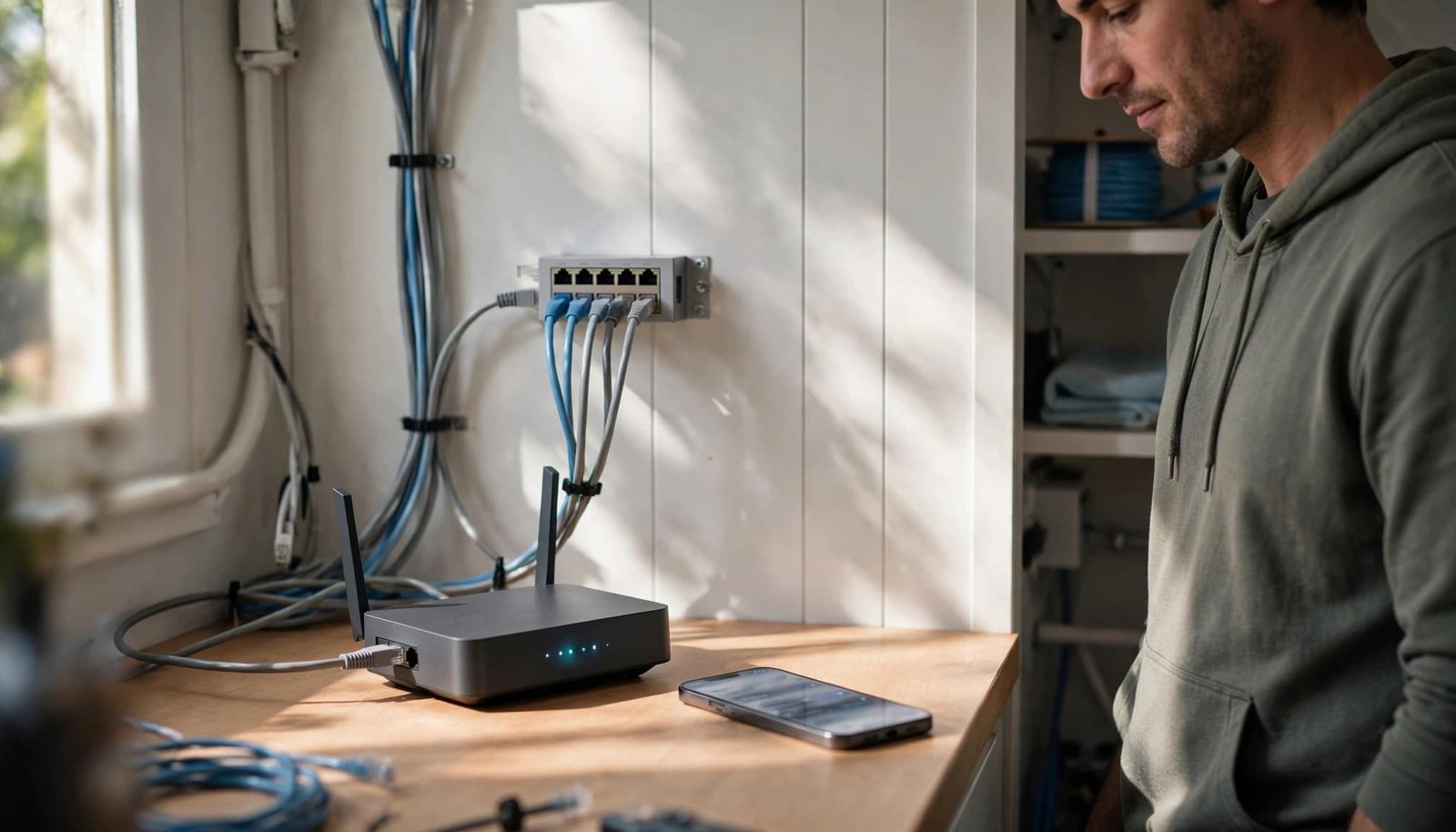
Get ordinary internet access working before changing advanced wireless settings. If Ethernet access already fails, MLO isn’t the first problem to solve.
Use this order to avoid changing several things at once:
- Record the exact router model, hardware revision, and installed firmware. For Orbi, record the satellite models and firmware too.
- Back up the configuration where supported. Separately save important reservations, port-forwarding rules, and ISP connection details.
- Install available firmware intended for that exact model and hardware revision. Use Ethernet when possible, keep power stable, and don’t interrupt installation.
- Update the client’s operating system and wireless drivers. Reconnect it after updates, then review its wireless capabilities.
- Follow the model’s manual for MLO, security, and network-name settings. Verify WPA3 if that model requires it. Apply one change at a time and test essential devices afterward.
Use the browser interface if the app doesn’t show a documented control. Sign in with the router administrator credentials, which are separate from your Wi-Fi password.
There’s no universal NETGEAR MLO menu path. Controls can differ when a device is configured as an Access Point, so check the manual for that exact model and firmware. A missing toggle doesn’t prove that MLO is unavailable; some features operate automatically. Equally, enabling Smart Connect doesn’t prove that the client has negotiated multiple links.
Don’t rename bands or create a separate “MLO network” based on instructions for another brand. Use your model’s documented requirements.
Our router setup and security guide covers the basic installation checks that should come first.
Troubleshoot Missing MLO or Unstable Connections
Begin close to the main router with one confirmed compatible client. This removes distance and satellite placement as possible causes during your initial check.
When the Device Shows Only One Band
A device listing one band doesn’t always show the full negotiated connection. Some operating systems and router dashboards display limited information.
Check client diagnostics and router details for an explicit MLO status, link count, or associated links. If those details aren’t available, don’t infer MLO from a speed test alone.
Network administrators can use Wireshark to inspect compatible wireless captures for Multi-Link elements and EHT capability information. Adapter support and capture-channel selection affect what Wireshark can show.
A capability advertised in a management frame doesn’t prove that traffic used multiple links during your test.
For most homeowners, documented client diagnostics are more practical than buying capture hardware.
When Connections Drop After Changes
Return to the last working configuration before trying unrelated settings. Confirm that the client supports the selected WPA3 mode, then check firmware and driver updates.
On Orbi, compare the connection near the main router with the connection near a satellite. If only the satellite connection struggles, investigate backhaul and placement separately.
A weak 6 GHz signal can reduce the value of a second link. Move a satellite closer rather than placing it inside the existing dead zone.
Use our mesh Wi-Fi placement guide for coverage checks. Keep a factory reset as a last step because it erases your configuration.
Set Realistic Speed and Latency Expectations
MLO can help a busy connection during network congestion, but its effect on latency varies. There’s no guaranteed percentage improvement for your home.
NETGEAR’s Wi-Fi 7 feature explanation describes MLO alongside other improvements. Wider channels and higher-order data encoding are separate features. A faster test doesn’t identify which feature helped.
Your internet plan still sets the service limit. A 500 Mbps plan won’t become multi-gig service because you enable MLO.
Throughput and latency also depend on your modem or fiber gateway, Ethernet ports, cables, and client hardware. A 1 Gig wired connection can limit data transmission during a local transfer, even when wireless supports more.
Compare throughput on the same device in the same location under similar conditions. Check wired internet performance first, then wireless performance near the router.
For larger local transfers, a wired computer or storage device can provide a useful test endpoint. For gaming and calls, look for fewer interruptions and more consistent latency, not only a higher download number.
My Experience With the Orbi 870
I’m Steve Neff, founder of Better WiFi Shop, and I personally own and use the NETGEAR Orbi 870.
My interest in home networking started when I learned that paying for faster internet doesn’t always solve Wi-Fi problems. That led me to research routers, mesh systems, coverage, and home networking equipment.
I eventually created Better WiFi Shop to help everyday consumers understand their options. The store is another place to compare Orbi systems when you’re considering a mesh upgrade.
My ownership experience is separate from manufacturer specifications. I haven’t provided measured MLO results, so I won’t attach a speed improvement or latency claim to my Orbi 870.
My advice is to check your devices and home layout first. Better equipment should address a clear need, not only offer a larger advertised number.
Frequently Asked Questions
Does a Wi-Fi 7 device automatically use MLO?
No. The router and client both need compatible MLO support, and the client must operate as a multi-link device. A Wi-Fi 7 label alone doesn’t show which links a device can use together.
Does MLO require a 6 GHz connection?
No. Wi-Fi 7 also supports dual-band products, and the available link combinations vary by router and client. Check the specifications for your exact devices.
Does Orbi MLO backhaul mean my laptop uses MLO?
No. Orbi backhaul refers to the connection between the main router and its satellites. Your laptop needs its own compatible client MLO support to use multiple links.
How can I check whether my device is using MLO?
Look for an explicit MLO status, link count, or associated links in the client diagnostics or router interface. A speed test or a display showing one band isn’t enough to confirm or rule out MLO.
Should I upgrade my router just to get MLO?
Not necessarily. Consider an upgrade when it addresses a specific need, such as congestion, coverage, a connection limit, or reliability. First check your current devices, model documentation, and home layout.
Confirm the Connection Before Spending More
Successful MLO depends on the complete connection: router capabilities, client hardware, software, and security.
Check whether MLO applies to your device or only to Orbi’s backhaul. Then follow the documentation for your exact model and test under consistent conditions.
If your existing devices work well, MLO alone isn’t a reason to replace them. Consider a Wi-Fi 7 upgrade only when it addresses an identifiable need, such as congestion, coverage, a connection limit, or connection reliability.