A dropped WiFi connection can feel random, especially when it interrupts a meeting, stream, or game. The first check is whether a device can still see the WiFi network name, or whether only internet access has failed. The problem is often simple, but it may come from the router, modem, cable line, extender, or one device.
Searches for Netgear WiFi disconnecting usually lead to one question: is the WiFi failing, or is the internet service going offline? A Gigabit internet plan doesn’t guarantee stable wireless coverage, so finding that answer first saves time and avoids unnecessary resets.
This post may contain affiliate links. If you make a purchase through these links, I may earn a small commission at no extra cost to you.
Key Takeaways
- Test a wired device first to determine whether the problem is weak WiFi or a broader modem, ISP, or cable connection issue.
- Improve wireless reliability by moving the router to a central, open location and checking for interference, weak coverage, or extender placement problems.
- Use a clear WiFi network name, keep the setup simple, and avoid double NAT when using an ISP gateway with a Netgear router.
- Power cycle the modem before the router, install current firmware, and reset the router only after checking cables, placement, and settings.
- If wired and wireless devices both disconnect, inspect the coax connection, modem event log, and power levels before contacting the ISP.
Start By Separating WiFi From Internet Trouble
Before changing router settings, check what’s actually disconnecting. A phone dropping WiFi differs from the whole home losing internet access.
Run a Simple Wired Test
Connect a laptop or desktop to a LAN port on the Netgear router with Ethernet. Use the connection normally while WiFi devices are dropping.
Even with Gigabit internet, a wired device staying online points away from an ISP problem. Focus on wireless coverage, interference, router settings, or the affected device.
If the wired device also disconnects, the issue may be the modem, coax cable, internet provider, or Ethernet link between your modem and router. Pause VPN software, cloud backups, and large downloads during this test.
Testing wired speed before WiFi is also useful in this Netgear router setup guide. It gives you a clear starting point instead of guessing.
Watch Which Devices Fail
A pattern usually points to the cause.
- If every wireless device disconnects at once, check the router, modem, and ISP connection.
- If only one phone or laptop drops, forget the affected WiFi network name and reconnect.
- If devices fail only in one room, a weak WiFi signal or interference is more likely.
- If the problem begins after adding an extender, smart device, or second router, check your network names and setup mode.
NETGEAR’s wireless disconnect troubleshooting guide is a good model-specific starting point. Check the exact model and hardware version on the router label before following device-specific steps.
Common Causes of Netgear WiFi Disconnecting
Most connection drops on Netgear routers come down to signal strength, interference, network names, or a setup with more than one device managing the network.
Router Placement and Wireless Interference
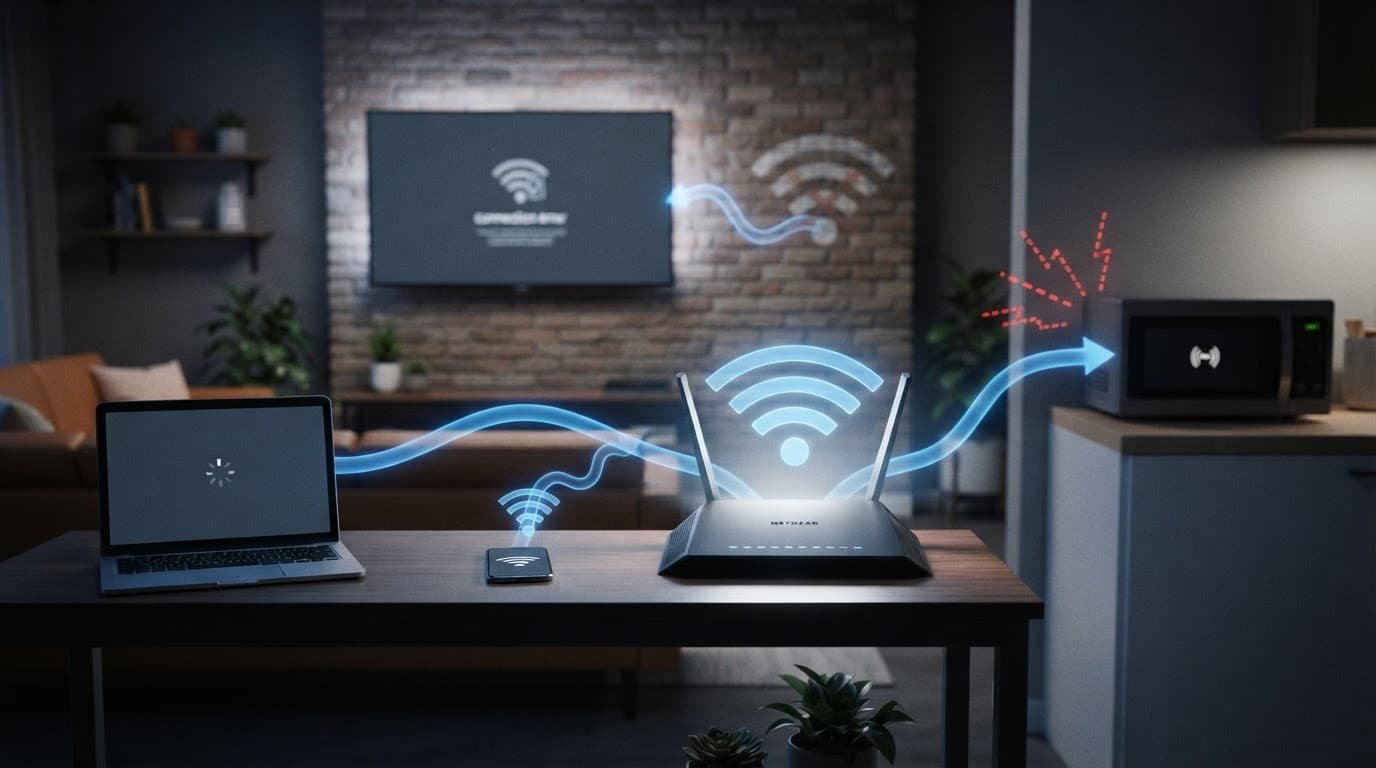
A router can have fast internet service and still provide unreliable WiFi. Even Gigabit internet can feel unreliable when a weak WiFi signal reaches rooms far from the router.
Place the main router in an open, central area. Keep it off the floor and away from microwave ovens, cordless phone bases, Bluetooth-heavy areas, and large metal objects.
A router hidden in a basement corner may work near the modem but struggle in bedrooms or a detached office. Moving it can make a bigger difference than buying a faster plan.
If the issue only affects rooms far from the router, a mesh system may be the right answer. One router is often enough for a small or mid-sized home with an open layout. Larger homes, thick walls, and multiple floors often need more than one WiFi point. These mesh WiFi setup and troubleshooting tips can help you place nodes where they still get a strong connection.
An extender cannot repair a weak WiFi signal from the main router. It needs a solid connection before it can improve coverage in another room.
SSID, Bands, and Extenders
Your WiFi network name, also called an SSID, should be unique. An SSID such as “NETGEAR,” “NETGEAR_EXT,” or another default name can make it harder to tell whether a device is connected to your network or a nearby one.
A common name does not bypass your password security. Rename it to a clear WiFi network name, then reconnect important devices.
Many Netgear routers use one name for both 2.4GHz and 5GHz bands. This is normal. The router can move devices between bands based on signal strength and compatibility.
Older smart home devices sometimes work better when 2.4GHz has its own name. Don’t split the bands unless you have a device that needs it. A single WiFi name is simpler for most homes.
For a Nighthawk Mesh WiFi Range Extender, One WiFi Name lets it broadcast the same SSID. Devices can move between the router and extender without choosing a separate network. NETGEAR’s One WiFi Name instructions use Settings > Wireless, then select Yes; run Smart Setup afterward to apply the One WiFi Name change.
Restart, Update, and Simplify the Setup
A restart is not a cure for every problem. It is still the right first move after you identify a whole-home outage.
Power Cycle the Modem and Router in Order
Unplug both the modem and Netgear router. Wait about one minute.
Plug the modem back in first. Wait until it fully reconnects to the cable or fiber service. Then power on the router and give it a few minutes to restore WiFi.
This modem-first order is a power cycling sequence. Starting the router before the modem is ready can leave it without a working internet address. NETGEAR also recommends this sequence in its network offline troubleshooting steps.
Check Firmware and Router Mode
Install the latest firmware offered for your exact router model. Firmware updates can fix stability issues, improve device compatibility, and resolve known WiFi problems.
Use the Nighthawk app or router web page to check for updates. Don’t unplug the router while an update is running.
Also check whether you have both an ISP gateway and a Netgear router handling routing. Two active routers can create double NAT. Basic browsing may work, but gaming, VPN access, security cameras, and smart devices can become unreliable.
If the ISP gateway remains your main router, put the Netgear unit in Access Point Mode. If the gateway is in bridge mode, keep the Netgear in normal router mode. Use one setup or the other, not both.
Factory reset the router only after you’ve checked placement, cables, updates, and router mode. A reset removes your WiFi network name, password, and custom settings.
Check the Modem, Coax Cable, and ISP Signal
When WiFi and Ethernet devices both disconnect, the Netgear router may not be the main problem. Cable modem errors, loose coax fittings, and weak provider signals can cause intermittent disconnects lasting seconds or several minutes.
Inspect Cables and Read the Event Log
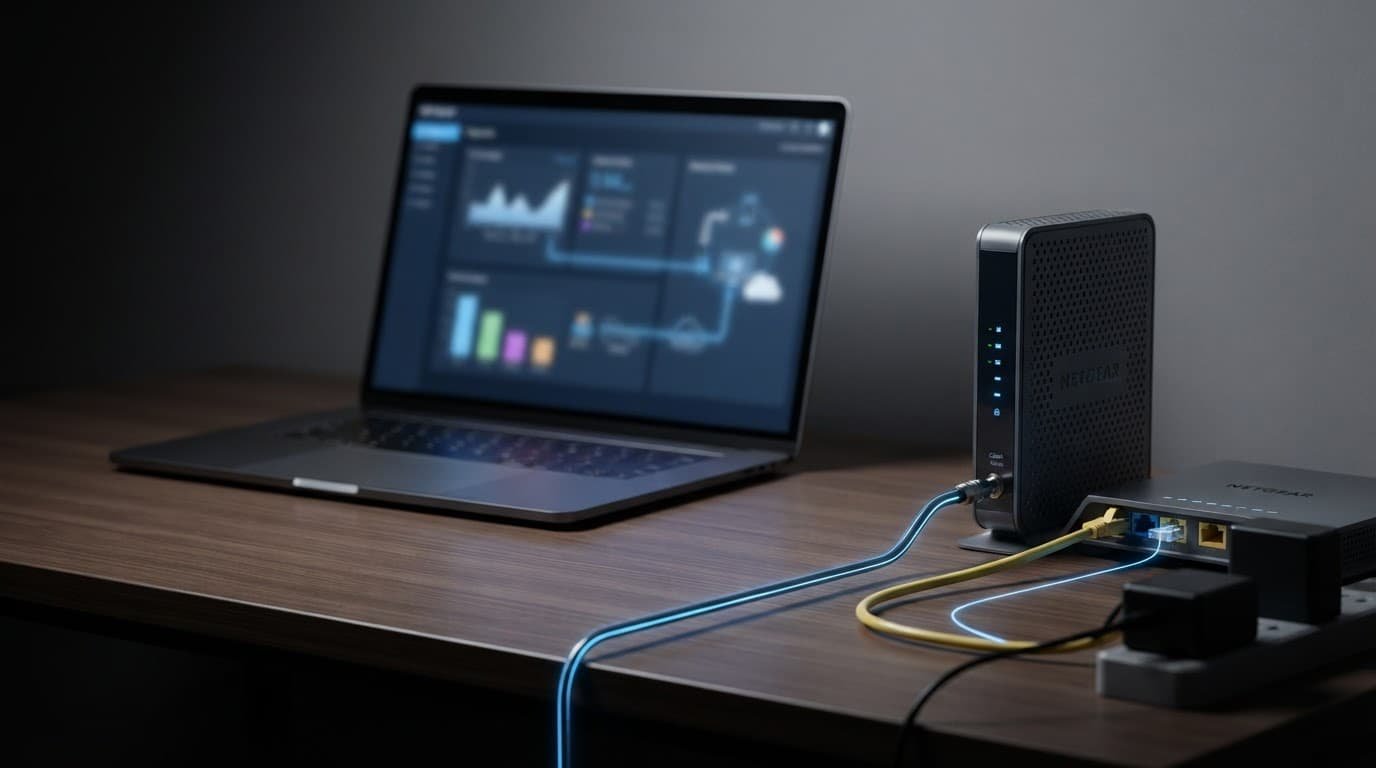
Start with the physical connection. Tighten the coax cable by hand at the wall outlet and modem. Check for bent center pins, loose fittings, damaged insulation, moisture, or sharp cable bends.
Remove unneeded coax splitters, amplifiers, and adapters during testing. Testing without splitters helps isolate attenuation or connection loss. A direct run from the wall outlet to the modem is best. Use quality RG6 coax cable if a replacement is needed.
If your cable telephony modem supports it, check the event log. NETGEAR documents the path as Advanced > Administration > EMTA Event Log on supported models in its cable modem event log guide.
A few old entries are not always a problem. Repeated critical events that match the time of your outages are useful evidence for your ISP. Take screenshots before rebooting the modem.
Recurring modem counters such as correctables may also help establish a line problem. You may see “un-correctabls” as an interface or search label, though modem interfaces may use a different spelling.
Check Power Levels Before Calling the ISP
Cable modem power levels help show whether the incoming signal is within a healthy range. NETGEAR lists good downstream power between -7 and +7 dBmV. Good upstream power is between 38 and 48 dBmV in its cable modem power level guidelines.
Levels outside those ranges don’t always prove a bad line. They are a reason to ask the ISP to inspect the incoming signal, including signal quality, up to the modem.
Even Gigabit internet still depends on a clean incoming signal and stable modem synchronization.
Tell support that wired and wireless devices drop, then mention any recurring event log errors, power readings, and coax checks you completed. That gives them more to work with than “my WiFi keeps cutting out.”
Fix a Nighthawk A8000 Adapter That Will Not Reconnect
If only one Windows computer disconnects, the router may be working normally. This points to device-specific connectivity issues rather than a whole-home outage. The Nighthawk A8000 WiFi adapter, its USB ports, driver, or Windows power settings may be the issue.
Start by removing the adapter and reconnecting it directly to one of the computer’s USB ports. Try other USB ports, comparing rear USB ports with a front-panel hub when possible, and avoid an unpowered USB hub. NETGEAR notes that a computer can take up to 15 seconds to recognize the A8000 after connection.
Record the installed driver version before making changes. Install the latest compatible driver version and adapter software, then update Windows. After restarting, verify the new driver version, then review NETGEAR’s A8000 connection problem guide for basic checks before deeper troubleshooting.
Open Device Manager, expand Network adapters, select the A8000, and open Properties. Under Power Management, temporarily clear “Allow the computer to turn off this device to save power.” Note whether the adapter works in only some USB ports. Restart the computer, retest the USB ports, and connect to the intended WiFi network name.
You can also test USB selective suspend through Windows Power Options, under Advanced settings > USB settings. Set it to Disabled only as a temporary test, then turn it back on if it makes no difference. Microsoft’s USB selective suspend guidance recommends leaving the feature enabled when possible.
Frequently Asked Questions
Why does my Netgear WiFi keep disconnecting?
The cause may be weak wireless coverage, interference, router settings, an extender, or a problem with the modem or ISP. Test an Ethernet-connected device to see whether the whole internet connection is dropping or only WiFi.
How can I tell whether my Netgear router or ISP is the problem?
Connect a computer directly to the router with Ethernet while the WiFi is disconnecting. If the wired connection stays online, focus on wireless settings and coverage; if it also drops, check the modem, coax cable, and ISP signal.
Should I restart the modem or Netgear router first?
Unplug both devices, wait about one minute, and power on the modem first. After it reconnects fully to the service, turn on the Netgear router and wait a few minutes for WiFi to return.
Can an extender cause Netgear WiFi to disconnect?
An extender can create confusion or unreliable roaming when its network name or setup mode is incorrect. Make sure it has a strong connection to the main router and check whether One WiFi Name or separate network names work better for your devices.
What should I do if only one device disconnects?
The router may be working normally when only one phone, computer, or adapter loses connection. Forget and reconnect to the WiFi network, update the device or adapter driver, and check power-saving settings such as USB selective suspend.
Final Thoughts
Most WiFi dropouts become easier to fix once you separate a weak wireless signal from an actual internet outage. Test Ethernet first, then check router placement, the affected device’s WiFi network name, extender setup, software updates, and power settings.
If wired devices also fail, focus on the modem, incoming line, status counters, and ISP signal. Reliable coverage matters more than a speed number beside the router.