That moment when your new router is sitting in the box, your ISP gateway is blinking, and the app keeps asking for account details you do not have memorized – that is usually when people start searching how to activate own router. The good news is that in most homes, activation is not hard. The annoying part is that the exact process depends on your internet provider and whether you have cable internet, fiber, or DSL.
If you want the short version, activating your own router usually means one of two things. Either you are replacing only the Wi-Fi router and keeping your ISP modem or ONT in place, or you are replacing a rented cable modem/router combo with your own compatible equipment. Those are very different setups, and knowing which one you have will save you time right away.
Before you activate your own router
Start by identifying what equipment your ISP actually requires. If you have Xfinity, Spectrum, Breezeline, Cox, or another cable provider, you may need both a modem and a router. In that case, activation often happens at the modem level first, and the router comes online after that.
If you have Verizon Fios or many AT&T Fiber setups, the ISP typically uses an ONT or fiber gateway. In those homes, you may be able to use your own router, but you are not always replacing every piece of ISP equipment. Sometimes you are simply connecting your router to the ISP device and switching Wi-Fi duties to your own hardware.
This is where people get tripped up. They buy a great router, plug it in, and expect the ISP to recognize it automatically. That works sometimes, but not always. Cable providers care about modem compatibility and modem activation. Fiber providers usually care more about authentication requirements and how their gateway is configured.
What you need before starting
A smooth setup starts with a few basics. Have your ISP account number handy, your service address, and the model number of your new router or modem/router setup. If you are activating a cable modem, you will also need the MAC address printed on the label.
You should also confirm whether your device is approved for your provider and speed tier. This matters most with cable internet. A router can be excellent and still fail the setup if the modem side is not compatible with your ISP. If you are only adding a standalone router behind an ISP modem or ONT, compatibility is less of a headache.
It also helps to decide whether you want to keep your current network name and password. If you reuse the same Wi-Fi name and password, many phones, laptops, cameras, and streaming devices will reconnect automatically. That can save a lot of cleanup later.
How to activate own router in the most common setup
For most households, the easiest path is using your own router with your ISP modem or ONT already active. In that setup, activation is less about ISP approval and more about basic installation.
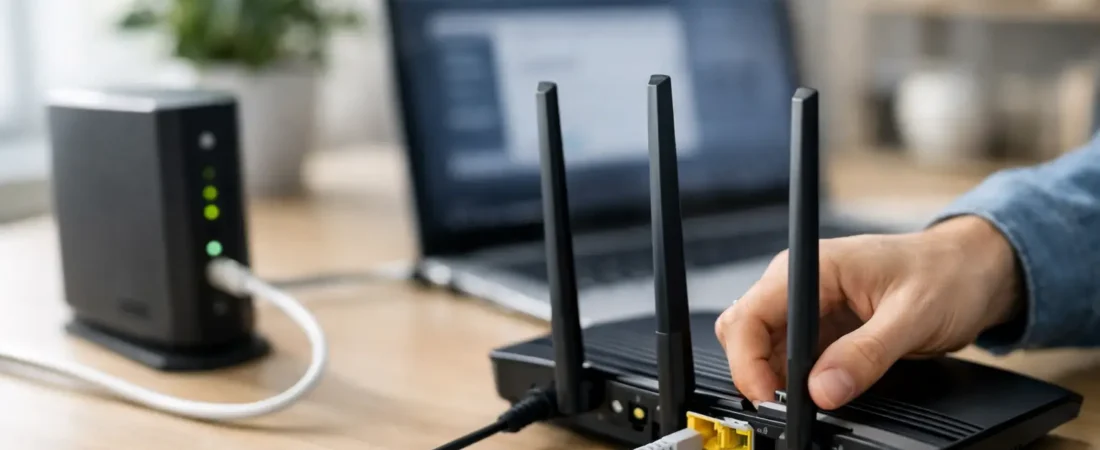
First, unplug your old router if you have one. Connect an Ethernet cable from the modem or ONT to the WAN or Internet port on your new router. Then power on the modem or ONT first, wait until it is fully online, and power on the router second. That order matters because some ISP devices assign internet access to the first device they see.
Next, open the router app or web setup page. Create your Wi-Fi name, set a strong password, and let the router complete its initial configuration. If the internet light does not turn on, restart both devices again in the same order.
If that still does not work, the ISP device may be holding onto the old router or gateway connection. A full reboot usually fixes it, but sometimes you need to release the old device in the ISP app or call support to refresh the connection.
Activating a cable modem and router combo
If you are replacing rented cable equipment with your own modem/router combo or your own modem plus router, there is an extra step. The modem has to be activated on your ISP account.
Connect the coax cable to the modem and tighten it securely. Connect power and wait for the modem lights to stabilize. Then connect your router if it is a separate device. Some providers redirect you to an activation page automatically when you open a browser. Others want you to use their app or call customer service.
For cable activation, you will usually enter or read off the modem MAC address and sometimes the serial number. Once the ISP registers that modem, the connection should come alive within a few minutes, though in some cases it takes longer. After that, you finish router setup through the router app or web interface.
If your provider says the modem cannot be activated, there are usually three likely reasons. The model is not approved, the MAC address was entered incorrectly, or there is still old rented equipment attached to the account. Those are fixable problems, but they can make the process feel more complicated than it really is.
ISP-specific differences that matter
Cable providers like Xfinity and Spectrum
Cable ISPs are usually the most straightforward if your modem is approved. Activation is tied to the modem, not just the router. If you are using only your own router with an ISP modem, setup is quick. If you are replacing the modem too, expect to use the provider app, activation portal, or a phone rep.
Xfinity often pushes app-based activation. Spectrum may also let you self-install through its app or browser flow. Either way, the key is having the modem details ready before you unplug the old device.
Verizon Fios
Fios is different because fiber service usually comes through an ONT. In many homes, you can connect your own router to the Ethernet handoff from the ONT and use it normally. But if your setup includes TV service, whole-home features, or MoCA-dependent equipment, replacing the ISP router can get more complicated.
That does not mean you cannot use your own router. It means you may need a slightly different setup, such as keeping ISP hardware for specific services while letting your own router handle primary Wi-Fi.
AT&T Fiber
AT&T Fiber often requires its gateway in the chain. So when people ask how to activate own router, the practical answer is sometimes that you are not fully replacing the AT&T box. Instead, you put your own router behind it and, if needed, use passthrough or bridge-like settings depending on the model.
This setup can still improve Wi-Fi and home network control. It just will not always eliminate ISP hardware from the picture.
Common problems after activation
The most common issue is simple – the router is working, but there is no internet. Usually that means the modem or ONT needs a restart, the wrong port was used, or the ISP still has not registered the modem properly.
Another common problem is double NAT. This happens when both the ISP gateway and your router are doing routing. For basic web browsing, you might not notice. For gaming, VPN use, remote work tools, or port forwarding, it can cause headaches. If your ISP gateway must stay in place, check whether it has bridge mode, passthrough mode, or an option to disable its Wi-Fi and routing features.
Speed complaints are also common right after setup. Sometimes the issue is not activation at all. Older Ethernet cables, poor router placement, outdated firmware, or using a router that cannot handle your speed tier can all make the new setup feel underwhelming.
Is it better to use your own router?
For a lot of households, yes. A good router can improve Wi-Fi coverage, give you stronger control over parental settings and device management, and help you stop paying monthly rental fees. That is especially appealing if you stream on multiple TVs, work from home, or have a house full of phones, tablets, and smart devices.
But there are trade-offs. ISP gear is easier for support reps to troubleshoot, and some fiber or TV bundles work more cleanly with provider equipment. If your current plan is basic and your home is small, the performance jump from swapping hardware may be modest. The value is strongest when your rented equipment is old, your Wi-Fi is weak, or you want more control than the ISP gives you.
When to call your ISP
Call if your modem will not register, your service drops after activation, or your provider uses a setup that depends on account-side provisioning. It is also worth calling if you are switching from ISP hardware to customer-owned equipment and your account still shows the old device.
When you call, be direct. Tell them whether you are replacing the modem, replacing only the router, or adding your own router behind their gateway. That one sentence can cut the support time in half because it tells the rep what kind of activation you actually need.
For most people, activating your own router is less about technical skill and more about matching the right hardware to the right ISP process. Once that part is clear, the setup usually goes fast, and the payoff is better Wi-Fi, fewer rental fees, and a home network that feels like yours instead of the provider’s.