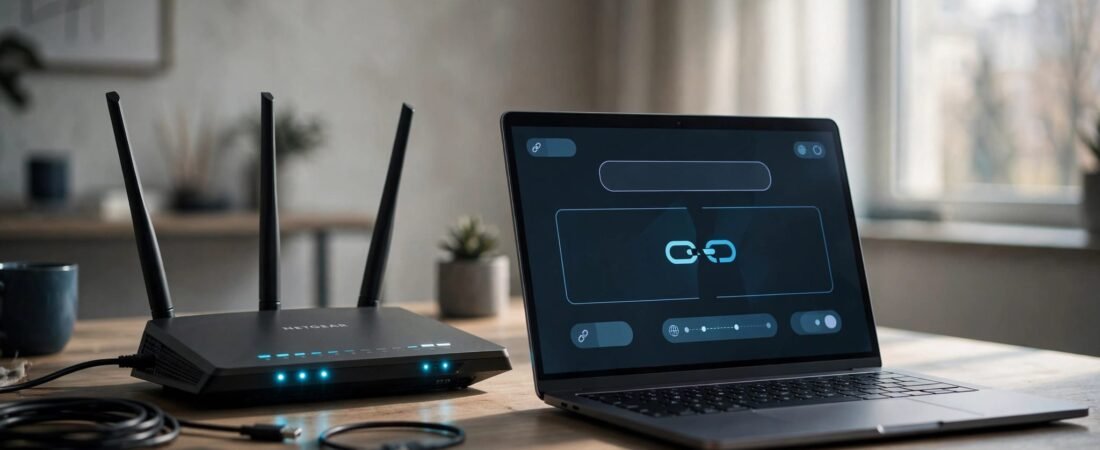
A device on a NETGEAR router’s Wi-Fi with a 169.254 IP usually failed to receive an address from its DHCP server. It can join Wi-Fi without receiving the settings needed for internet access.
Start with the connection and DHCP settings before buying equipment or resetting your router. The goal is to find where the address request fails.
This post may contain affiliate links. If you make a purchase through these links, I may earn a small commission at no extra cost to you.
Key Takeaways
- A 169.254 address usually points to a missing DHCP lease.
- Compare one affected device with working devices before changing router settings.
- A manual address can help with diagnosis, but it doesn’t repair DHCP.
What a 169.254 Address Means
Windows uses Automatic Private IP Addressing, or APIPA, when a DHCP-enabled adapter cannot obtain a lease. The APIPA address block is 169.254.0.0/16. These link-local addresses aren’t routed to the internet.
Normal private addresses fall within 192.168.0.0 to 192.168.255.255, 172.16.0.0 to 172.31.255.255, or 10.0.0.0 to 10.255.255.255. Your device doesn’t necessarily need a 192.168 address. It needs settings that match your network.
Fix the DHCP Connection First
Check Windows and Request Another Lease
Follow these steps on the affected computer:
- Open Command Prompt and run
ipconfig /all. Find the active Wi-Fi adapter, not an unused Ethernet or VPN adapter. - Look for
DHCP Enabled: Yesand anAutoconfiguration IPv4 Addressbeginning with 169.254. - Disconnect and reconnect Wi-Fi. Confirm you’re joining your main network.
- Run
ipconfig /release, thenipconfig /renew. These commands briefly disconnect networking while requesting another lease.
A successful renewal can return the same address. It doesn’t have to assign a different one.
On a Mac, open the connection’s Details, select TCP/IP, then choose Renew DHCP Lease.
Separate Device Problems From Router Problems
If another device receives a normal address, focus on the affected computer’s adapter, security software, or saved network settings.
If several devices fail, use a working device to open routerlogin.net. The username is usually admin; use your administrator password.
In Router Mode, review LAN Setup and enable Use Router as DHCP Server. Make sure the address pool has space and Access Control isn’t blocking the device. In Access Point Mode, the upstream gateway normally handles DHCP.
DHCP uses UDP 67 on the server and UDP 68 on clients. Correct blocking firewall rules rather than disabling protection.
Troubleshoot Switches, Printers, and Static Addresses
Test the Switch Connection
Connect the computer directly to a router LAN port with a known-good Ethernet cable. If DHCP works there, investigate the switch cable, uplink, or managed-switch VLAN settings.
Devices connected through a switch without a router link form an isolated subnet without DHCP or routing. Windows Internet Connection Sharing can provide both, with clients normally receiving 192.168.137.x addresses.
Some NETGEAR Smart and Easy Smart switches try DHCP for about one minute, then disable it if the attempt fails. Supported NETGEAR switches use 192.168.0.239 as a fallback management address, or default IP address, not to assign to clients. Use NETGEAR Discovery Tool on the same local network to locate supported switches.
Reconnect a Printer Before Reserving Its Address
Set the printer’s IPv4 configuration to Automatic or DHCP. Reconnect it to your Wi-Fi network and restart it after the router is ready.
Once it receives a working address, our NETGEAR DHCP reservation guide explains how to keep that address consistent. A reservation won’t fix a DHCP server that isn’t answering.
Use a Static Address Only for Diagnosis
Only use this example if your gateway is 192.168.1.1 with mask 255.255.255.0, and 192.168.1.100 is unused and excluded from automatic assignments.
To set 192.168.1.100 as a static IP address, run this command in an administrator Command Prompt: netsh interface ipv4 set address name="Wi-Fi" static 192.168.1.100 255.255.255.0 192.168.1.1.
Run ping 192.168.1.1 to test whether the default gateway responds. Review Windows settings with ipconfig /all. On Linux, use ip addr for addresses and ip route for the gateway.
Return to automatic addressing after repairing DHCP. If you recently changed subnets, our NETGEAR LAN IP guide covers restoring access.
Why 169.254.169.254 Is Different
AWS, Azure, and Google Cloud use 169.254.169.254 for instance metadata. Available details vary by provider, including instance IDs, IP addresses, region, and availability zone. AWS also exposes security-group information and temporary IAM role credentials.
This cloud endpoint doesn’t explain your home computer’s DHCP failure.
Server-side request forgery (SSRF) can expose metadata through vulnerable applications. The 2019 Capital One breach involved a misconfigured web application firewall that allowed access to AWS metadata and IAM role credentials.
AWS IMDSv2 protection requires session tokens. EC2 administrators can disable IMDSv1 and require IMDSv2.
Frequently Asked Questions
Should I Change NETGEAR’s Internet Static IP Settings?
No. Internet, or Settings on Pro Gaming routers, includes Use Static IP Addresses for ISP-provided WAN settings. Those settings won’t repair a computer’s missing LAN lease. Keep automatic ISP addressing unless your service requires otherwise.
Should I Factory Reset the Router?
Save that for last. A reset removes custom settings. First isolate the affected device, test cables and router ports, and review the DHCP configuration.
Restore DHCP Before Replacing Equipment
A 169.254 address gives you a useful starting point: the device hasn’t obtained normal network settings. Renew its lease, compare another device, and test the path back to the DHCP server.
Fix that connection before spending money on faster internet or another router.