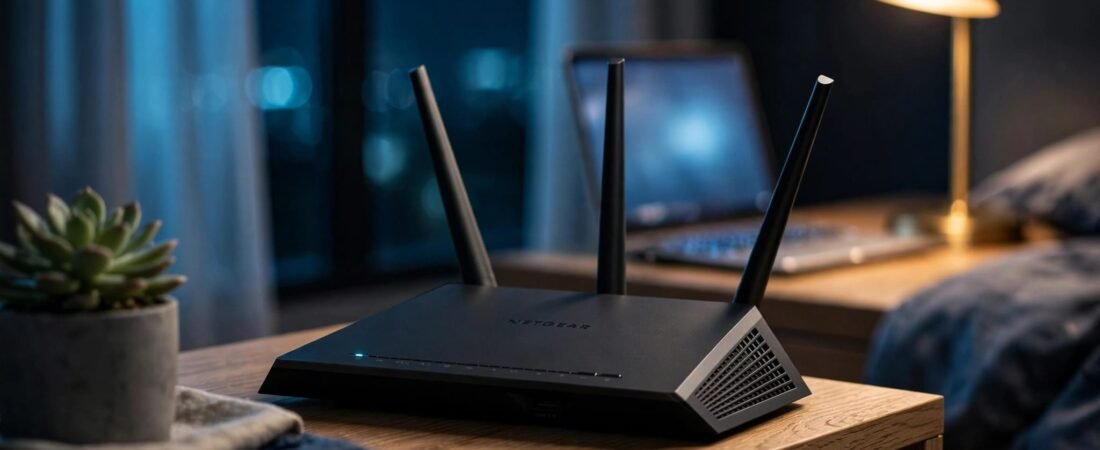
You can turn off NETGEAR router lights on supported NETGEAR router models through the router’s browser settings. Choose Turn off all LEDs except Power LED to stop most nighttime light without disabling your internet connection.
Some routers also have a physical LED switch. Others offer fewer controls, and Orbi systems handle status lights differently. Start with the browser setting, then use the options that match your equipment.
This post may contain affiliate links. If you make a purchase through these links, I may earn a small commission at no extra cost to you.
Key Takeaways
- LED controls change the indicators, not your Wi-Fi coverage, internet speed, or connected devices.
- Supported NETGEAR routers offer separate options for stopping traffic blinking and turning off most LEDs.
- The Power LED can remain lit, even after you select the darkest available setting.
- Identify the exact model before applying light meanings or instructions intended for another NETGEAR product.
Turn Off NETGEAR Router Lights in the Browser
The browser interface is the most direct option for supported Nighthawk routers. You don’t need to disable Wi-Fi or unplug the router.
Follow these steps while connected to your home network:
- Connect your phone or computer to the NETGEAR router using Wi-Fi or Ethernet.
- Enter
routerlogin.netin your browser’s address bar. - Sign in with your router administrator credentials. These are separate from your Wi-Fi password.
- Open ADVANCED, select Advanced Setup, then choose LED Control Settings.
- Select Turn off all LEDs except Power LED, then click Apply.
NETGEAR’s status LED control instructions describe three choices: normal traffic blinking, no traffic blinking, and all LEDs off except Power.

Choose the no-blinking option if flashing is the main problem. The indicators stay solid rather than going dark.
After applying the setting, open a website on a connected device. Your connection should continue working normally. You can return to the same menu to restore the indicators when troubleshooting.
Find the Controls Available on Your Model
Identify the Router and Firmware
Read the model number and hardware revision on the router’s label. Names such as Nighthawk describe a product family, not one set of controls.
The router dashboard displays the installed firmware version, usually on its home page or under router information.
These details help you tell whether a setting is missing or the instructions are for another device. A cable modem-router combo, standalone Nighthawk, and Orbi satellite can have different menus and indicators.
Look for a Dedicated LED Switch
Check the router’s label and rear panel for an LED On/Off button or switch. The Nighthawk X4 R7500, for example, has a rear-panel LED On/Off switch.
If there’s no physical control, look for LED settings in the router’s web interface or the Nighthawk app. Available controls and menu steps vary by model and firmware. If you can’t find the setting, check the model-specific NETGEAR support documentation.
Use only a control labeled for LEDs. A Wi-Fi button can disable wireless service, while Reset can erase your configuration.
If the browser keeps opening the Nighthawk app, enter the router’s local IP address instead. Find it under Router or Default Gateway in your device’s network details.
Our Nighthawk app troubleshooting guide covers local access problems and the differences between account, administrator, and Wi-Fi passwords.
Keep the Room Dark Without Disabling Wi-Fi
Understand What the Setting Leaves On
The standard NETGEAR software option leaves the Power LED illuminated. It also doesn’t control lights on a separate modem, Ethernet switch, or ISP gateway.
If one light remains, identify its device before changing more settings. Turning off router indicators won’t darken equipment connected beside it.
The documented LED menu also doesn’t provide a universal bedtime schedule. Don’t confuse a wireless schedule with an LED schedule. Disabling wireless service can disconnect cameras, smart-home devices, and overnight downloads.
Use Placement Carefully
Keep the router on an open shelf with space around its vents. Don’t put it inside a drawer or cover it with fabric to hide the lights.
If the remaining Power LED is distracting, changing the router’s orientation can help without enclosing it. Keep antennas in an appropriate position and avoid moving the router somewhere that weakens coverage.
A small removable light-dimming sticker is another option for an exposed indicator. Keep it away from vents, ports, buttons, and warning labels.
What NETGEAR Router Lights Mean Before You Hide Them
LED controls can hide useful clues. Note the router’s normal pattern before disabling them, especially if your connection already drops.
These are common meanings, not a universal chart for every NETGEAR model. Color labels and meanings vary by model. An orange light may also be called an amber light; solid orange and blinking orange patterns can mean different things. Check your exact model’s documentation.
| Indicator | Common Meaning |
|---|---|
| Power, solid green or solid white | The router is ready. |
| Power, solid amber | The router is starting. |
| Power, blinking amber | Firmware is updating, Reset was pressed, or startup needs attention. |
| Power, blinking white | Corrupted firmware on some Nighthawk models; other products use white blinking during startup. |
| Internet, solid green or white | The internet connection is ready. |
| Internet, solid amber | The router detects the modem connection but doesn’t yet show internet-ready status. |
| Internet, off | Normally, no Ethernet cable connection is detected between router and modem. |
| Internet, blinking | Usually data traffic. |
| Wi-Fi or band LED, solid | The corresponding wireless radio is operating. |
| Wi-Fi or band LED, blinking | Wireless data is moving. |
| Numbered LAN LED, solid or blinking | Solid indicates a connected device; blinking indicates traffic. |
| USB or WPS indicator | Local USB activity or wireless pairing, depending on the indicator. |
An amber LAN light can indicate a 10 Mbps or 100 Mbps Ethernet link on models that use color for speed. It doesn’t automatically mean an outage.
Once LED controls are enabled, an unlit Internet or Wi-Fi indicator can’t reliably tell you whether that connection is active.
A dark Wi-Fi light alone doesn’t mean Wi-Fi is disabled when LED controls are off.
Restore the indicators before using our NETGEAR status light reference to investigate an outage.
Orbi Lights Work Differently
Router and Satellite Colors
Don’t expect an Orbi system to provide the same LED menu as a standalone NETGEAR router.
On many Orbi satellites, solid blue indicates a good connection to the main router. Amber indicates a fair connection. Magenta indicates a failed or unavailable mesh connection.
Magenta on the main router generally points to an internet connection problem. The same color on a satellite calls for checking its connection back to the router.
Many Orbi status lights turn off automatically after showing connection status. A dark ring can therefore be normal operation.
My Experience With the Orbi 870
I’m Steve Neff, founder of Better WiFi Shop, and I personally own and use the NETGEAR Orbi 870.
My interest in home networking started when I learned that paying for faster internet doesn’t always solve Wi-Fi problems. That led me to research routers, mesh systems, and coverage, then create Better WiFi Shop to help everyday consumers understand their options.
That experience is separate from manufacturer specifications. Owning an Orbi 870 doesn’t mean its controls match older Orbi systems or other NETGEAR routers.
Fix Warning Lights Before Turning Them Off
If a warning appears with lost service, restore normal LED behavior before troubleshooting. Start with the connection path rather than a factory reset.

- Secure the Ethernet cable between the modem and the router’s Internet or WAN port. Try another cable if the Internet light stays off or amber.
- If no firmware update is running, power cycle both devices. Wait about 60 seconds. Start the modem first, wait until it’s fully online, then start the router.
- Test a computer directly through the modem when possible. Some modems need a restart after you change the connected device. Restart modem, then test again. If service still fails, contact the ISP about an outage or registration problem.
- For persistent warnings after service returns, check firmware through the router browser interface or supported Nighthawk app. Never unplug the router during an update.
- For a red light on Power, clear blocked vents. Certain NETGEAR modem-router models use red to indicate overheating. Red isn’t a universal internet-error code.
- Keep factory reset last. NETGEAR’s standard procedure uses about seven seconds, rather than the generic 10 to 30 seconds often suggested. Hold the recessed Reset button until the LEDs respond.
A reset erases Wi-Fi names, passwords, administrator settings, and other custom configuration. Set up the router again through the browser or supported app.
For persistent Power warnings, NETGEAR provides amber and blinking LED troubleshooting. Our router reboot troubleshooting guide also covers power, heat, and startup failures.
Frequently Asked Questions
Can I Turn Off the LEDs in the Nighthawk App?
LED controls in the Nighthawk app vary by model and firmware, so don’t assume the app includes every advanced setting. If the setting isn’t available, check NETGEAR support documentation for your exact model or use the browser method above.
Why Is There No Internet When the Lights Look Normal?
If there is still no internet despite normal-looking lights, test another device and an Ethernet connection. If only one device fails, investigate that device before resetting the whole network.
What If the Power Light Keeps Blinking After Reset?
Allow startup to finish. Persistent blinking, especially after an interrupted update, can indicate a firmware problem. Repeated resets won’t necessarily repair it. Use recovery instructions for the exact model or contact NETGEAR support.
Do NETGEAR Extender Lights Mean the Same Thing?
No. Extenders commonly show separate router-link and device-link indicators. Their colors describe those connections, so a router’s Internet-light chart doesn’t apply directly.
Leave the Connection On, Reduce the Light
Use the dedicated LED setting or switch to reduce nighttime distraction. Keep wireless schedules, power controls, and Reset separate from that change.
The right setting gives you a darker room while keeping your network available. If service later fails, restore the indicators so you can read the connection status again.