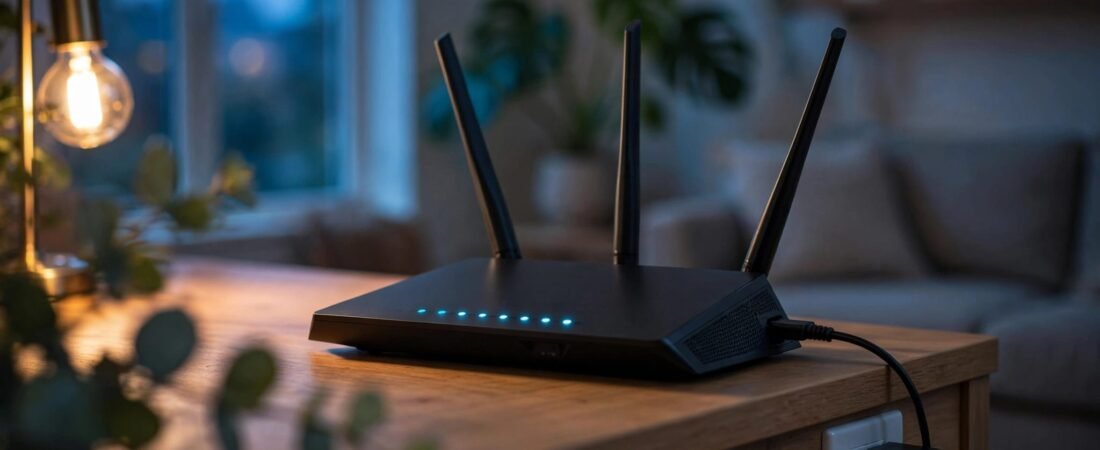
If your NETGEAR router keeps rebooting, check its power adapter, wall outlet, and ventilation before changing firmware. A weak power supply or blocked airflow can cause repeated restarts, even when your internet service is working.
The goal is to isolate one cause at a time without erasing your settings or buying equipment unnecessarily. Follow the checks below in order, then test longer than the router’s usual restart interval.
This post may contain affiliate links. If you make a purchase through these links, I may earn a small commission at no extra cost to you.
Key Takeaways
- Test a wall outlet and correctly matched power adapter before resetting anything.
- Improve ventilation, then disconnect network cables to separate hardware problems from network-related triggers.
- Use TFTP firmware recovery only after basic checks, with files made for your exact model and hardware revision.
Confirm Your NETGEAR Router Keeps Rebooting
Separate Restarts From Connection Drops
Watch the power LED during an outage. A true reboot repeats the startup sequence and usually disconnects wired and wireless devices.
If the dashboard remains accessible, check uptime. The dashboard may be at 192.168.1.1, but the address varies by model. A counter that returns to zero supports a restart diagnosis.
When uptime continues normally, follow our guide to NETGEAR Wi-Fi disconnections instead. Losing internet access doesn’t automatically mean the router restarted.
Save Evidence Before Troubleshooting
Record the model, hardware revision, installed firmware, and restart times. Note whether failures follow gaming, streaming, an update, or an outage.
Many routers clear their activity logs during a reboot. Save available entries beforehand using our NETGEAR router logs guide. Keep a short video of the LEDs for a warranty claim.
Change one thing per test. Several simultaneous changes make the result harder to interpret.
Check the Outlet and Power Adapter
Bypass the power strip
Connect the router directly to a working wall outlet. If needed, try another known-working wall outlet. Avoid switch-controlled outlets during testing. Reseat the power adapter connections without forcing the plug.
If restarts began after a surge or outage, suspect the power strip as well as the router.
For a controlled restart, switch the router off, wait 30 seconds, then turn it on and watch the power LED. Never interrupt an active firmware installation.
If the router stays stable beyond its normal failure interval on wall power, replace the suspect power strip before changing settings.
Match More Than the Connector
Use the original power adapter or a suitable replacement with the same output voltage and polarity, the correct connector, and at least the original amperage rating. Never substitute a higher-voltage adapter.
A failing adapter can power the lights but lose stable voltage under load. Unplug equipment with damaged wiring, a burning smell, or a deformed casing. Don’t open the adapter.
An R6700v3 community report described roughly 18 stable hours using a 12V laboratory power supply after adapter trouble. That supports testing a matched adapter, not using a bench supply at home.
A separate M1 owner reported repeated reboots with a 2A mains charger and fewer restarts with a Qualcomm Quick Charge 2.0-compatible charger. The Nighthawk M1 uses USB charging, so this isn’t a universal charger recommendation for other models.
If a known-good, correctly matched adapter stops the restarts under normal use, the original supply is the likely cause.
Rule Out Overheating

Move the router to an open location with good ventilation. Keep its vents clear and separate it from cable boxes, game consoles, amplifiers, and other warm equipment.
Avoid closed cabinets, direct sunlight, and stacking devices. Use the orientation intended for the router so its vents remain unobstructed.
Feel the outside carefully. A warm case alone doesn’t prove overheating, and there’s no universal surface-temperature cutoff for every NETGEAR model. Don’t open the housing to investigate.
Let the router cool while powered off, provided no firmware installation is underway. Restart it in the improved location and check that ventilation remains clear.
Stable operation under the same workload supports a placement or heat-related cause. If it still reboots while cool and well ventilated, continue troubleshooting rather than assuming heat is responsible.
Disconnect Cables and Reduce Processing Load
Power the router off, disconnect every Ethernet cable, including WAN and LAN connections, then boot it on power alone.
Internet access won’t work during this test. Watch whether the startup sequence repeats anyway. Continued restarts narrow the problem toward power, firmware, or internal hardware.
If it remains stable, reconnect the modem’s WAN cable first. Add LAN devices individually, reconnecting each Ethernet cable one at a time. Allow observation time between changes. Use a known-good replacement cable if one connection triggers the problem.
A faulty switch, damaged cable, or network loop can cause instability. Don’t connect two ordinary switch ports together or create a network loop with duplicate paths between unmanaged switches. If instability returns, check for looped paths between devices.
Next, temporarily disable Quality of Service (QoS) and Traffic Meter, where available. These features add processing work. Test under the activity that previously triggered a restart, then restore each feature separately if stability returns.
Fix Restarts After a Firmware Update
Use Model-Specific Firmware
Record the firmware version before changing it. An R6700V2 community thread reported restarts every 2.5 to 3 hours after V1.2.0.76_1.0.1. The owner reported stability after returning to V1.2.0.74_1.0.1.
That historical R6700V2 version report isn’t a recommendation to downgrade firmware today. Older releases can lack security fixes.
On NETGEAR’s support website, select your exact product, open Downloads, then choose “View previous versions” when available. Release notes include manual installation instructions.
Only downgrade when NETGEAR supports it for your model and firmware state. R6700V2 and R6700V3 firmware files aren’t interchangeable. R7000, RAX-series, and X10 R9000 routers also require their own files. Check the hardware revision before downloading an R6700V2 file.
Connect by Ethernet. In many Nighthawk dashboards, go to ADVANCED, Administration, then Firmware Update or Router Update. Some place Administration under Settings. Our NETGEAR firmware update guide covers preparation and backups.
Keep power steady and leave the update process open until completion.
Reset Only After Simpler Checks
A factory reset erases your Wi-Fi name, passwords, port rules, reservations, parental controls, and other custom settings. It normally doesn’t undo a firmware update.
Save a configuration backup and separate notes first.
Keep the router powered on. Use a paperclip to hold the recessed Reset button for about 7 to 10 seconds, until the LEDs respond. NETGEAR’s standard factory-reset procedure specifies seven seconds.
Build a minimal fresh setup after the factory reset. Don’t immediately restore the old backup, which could bring back a configuration problem.
Test for a full day when practical. A brief successful connection doesn’t confirm that the intermittent restart problem is fixed.
Recover a Router Stuck in a Boot Loop

A persistent blinking or amber power LED after an interrupted firmware update can indicate damaged firmware. LED meanings vary by model, so amber during startup alone doesn’t confirm corruption.
Use TFTP firmware recovery only for supported routers stuck in a boot loop that won’t boot or open the dashboard. NETGEAR’s Windows Command Prompt recovery instructions describe the procedure.
- Download and extract the exact model’s firmware. Connect one Windows computer directly to a LAN port, disable its Wi-Fi, and disconnect other Ethernet devices.
- For the documented 192.168.1.1 recovery setup, assign the computer a static IP of 192.168.1.10, subnet mask 255.255.255.0, and gateway 192.168.1.1. Enable Windows’ TFTP Client feature. These static IP values and timing aren’t universal across NETGEAR products.
- Open an administrator Command Prompt in the firmware folder. The command format is
tftp -i 192.168.1.1 PUT firmware.chk. Replacefirmware.chkwith the actual extracted filename, which may use.img. - For TFTP firmware recovery, power the router off for 10 seconds, turn it on, and send the command at the model-specific flashing power LED cue.
After a successful upload, allow 4 to 10 minutes for the firmware write and startup to finish. Don’t remove power during this process.
Return the computer from its static IP configuration to automatic settings afterward. Success means the router exits the boot loop, opens its dashboard, and stays stable beyond its previous failure interval.
Handle Power-Outage Resets and Hardware Failure
Some NETGEAR owners report factory-default settings after an outage. A normal reboot should retain your configuration. Repeatedly losing settings deserves investigation even if internet access returns.
Save a configuration backup while the router works. A UPS can keep the router and modem running through brief interruptions, though it can’t guarantee service when upstream ISP equipment loses power.
If the router still restarts with correct power, good ventilation, no Ethernet cables, and a clean configuration, hardware failure becomes more likely. Repeated resets won’t repair a failing power circuit.
Use your restart diary and video when requesting warranty service. If replacement is necessary, compare compatibility, coverage, support status, and cost before buying. Our Better WiFi Shop store is another place to compare home networking options.
Frequently Asked Questions
What Happens When I Reboot My Nighthawk Router?
Connected devices temporarily lose access while it restarts. Your Wi-Fi name, password, and saved settings normally remain unchanged. A factory reset erases those settings.
Why Does It Still Reboot After a Factory Reset?
A reset doesn’t replace a weak adapter, improve ventilation, repair hardware, or normally change the installed firmware. Return to the power-only test before resetting again.
Will Faster Internet Stop Router Restarts?
No. A faster plan doesn’t repair unstable power, overheating, or damaged firmware. Resolve the restart problem before paying for additional speed.
Get Stable Operation Before Buying Anything
When your NETGEAR router keeps rebooting, start with stable power and clear ventilation. Cable isolation and a minimal configuration help narrow the remaining causes.
Use rollback or recovery only with the correct model-specific files and uninterrupted power. Keep your restart records so you can tell whether a change worked or whether replacement is the practical next step.