
A slow upload can turn a clear video call into a choppy one, even when downloads seem fine. If your NETGEAR router upload speed looks low, test the connection before changing settings or buying equipment.
Your internet plan, modem, router, Wi-Fi signal, and connected devices can all affect the result. The fastest way to find the problem is to compare a few controlled tests.
This post may contain affiliate links. If you make a purchase through these links, I may earn a small commission at no extra cost to you.
Test Upload Speed First
An upload test measures how quickly data leaves your home. Video calls, cloud backups, sending large files, and livestreaming all use upload bandwidth. Your plan may have much less upload capacity than its advertised download speed, so check both speeds before judging a result.

Start With a Wired Baseline
Pause cloud sync, game downloads, VPNs, and other heavy activity. Connect a computer to a LAN port on the NETGEAR router with a cable. Run a speed test and record the upload result. Repeat it at a similar time using the same computer and test server.
If a direct connection to your provider’s modem or gateway is available, compare that result too. Follow the connection instructions rather than changing cables during an update or interrupting service for someone else. Our guide to comparing wired and Wi-Fi speed tests explains why the order matters.
Compare Results Before Changing Settings
Test WiFi near the router, then in the room where uploads fail. Try a second device if possible. NETGEAR also recommends testing multiple devices and using Ethernet when a connection is slow.
| What you see | Where to look next |
|---|---|
| Direct gateway and router tests are both slow | Your plan, provider connection, or gateway |
| Direct test is good, but wired through the router is slow | Router settings, cables, or ports |
| Wired tests are good, but wireless uploads are slow | Wireless network signal, interference, or the wireless device |
One low result isn’t enough to diagnose the connection. Look for a repeatable difference.
Check the Incoming Connection and Cables
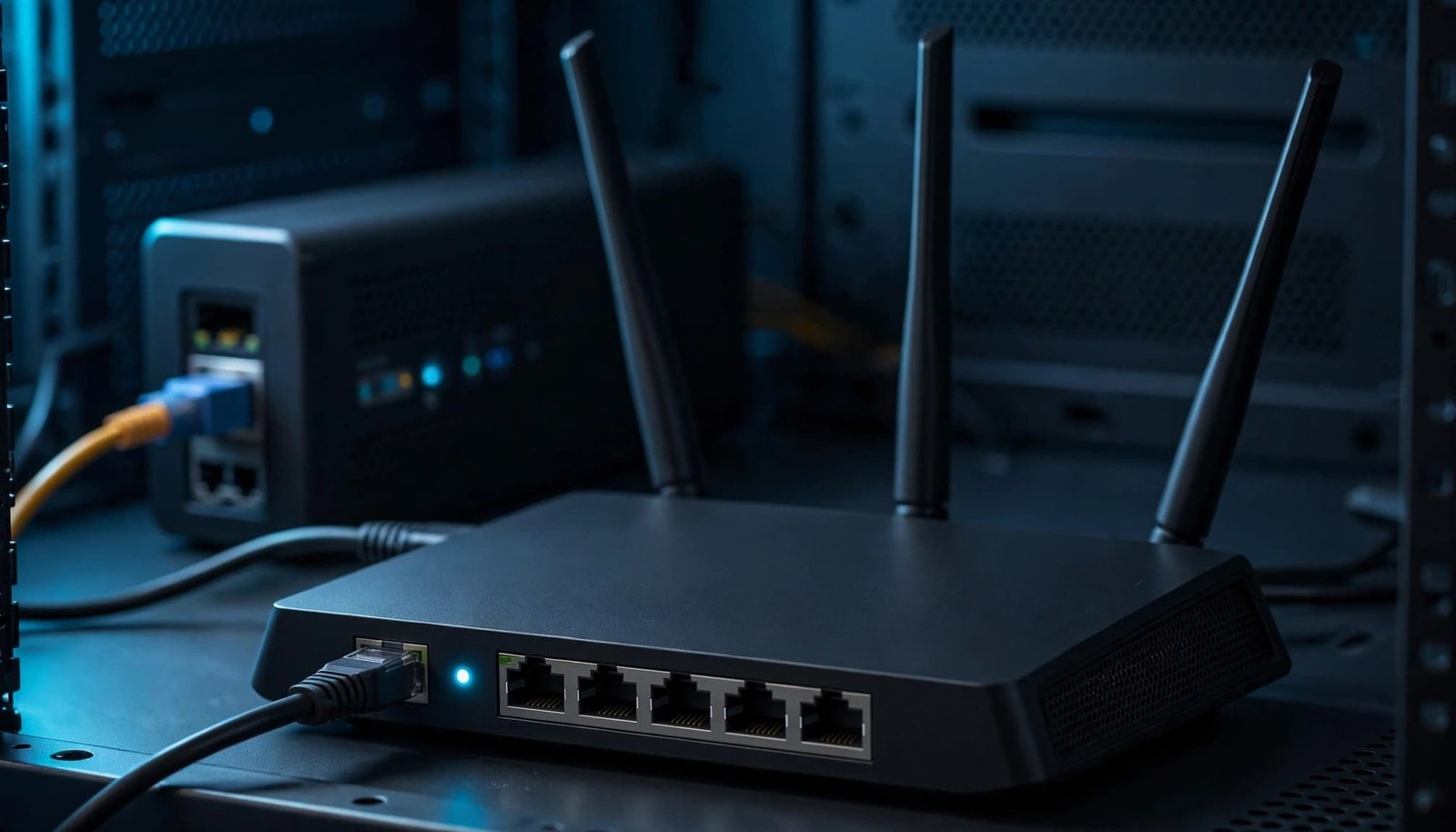
The modem or fiber terminal connects your home to your provider. Your NETGEAR router distributes that connection to devices through Ethernet and Wi-Fi. If the incoming internet upload is slow, the router can’t create more upload capacity.
Restart in the Right Order
Restarting is worth trying when slow uploads appear suddenly. Turn off the router and gateway. Turn the gateway back on first and wait for its normal connection lights. Then start the router and retest.
If your provider uses a fiber ONT, follow its instructions before unplugging it. A restart may clear a temporary problem, but a repeatable slowdown still needs a closer look.
Inspect the Wired Path
Check the cable between the gateway and the router’s WAN port. Reseat both ends, then try a known-good Ethernet cable if you have one. Inspect the cable to your test computer as well.
A damaged cable, wall jack, or dock can lower the connection rate. If a computer that should have a Gigabit connection shows a 100 Mbps link, check that path before changing Wi-Fi channels. For a multi-gig plan, confirm the gateway port, router ports, and test device support the speed you’re measuring. Incoming service limits and equipment limits can differ.
Update Firmware Before Tuning Traffic
Firmware is the software inside your router. NETGEAR lists outdated firmware among possible speed limits, so check for an available update after recording your baseline.
Connect to your home network and sign in using the NETGEAR app or the router’s browser interface. Look for a firmware or router update option. Menu names vary by model and software version. Use an official update method, follow any security prompts, keep power stable, and don’t unplug the router while it installs.
Retest afterward using the same wired computer. If uploads remain slow, compare your saved results rather than assuming the update changed performance. Avoid a factory reset at this stage. It can erase Wi-Fi names, passwords, and other settings without revealing where the original problem started.
Fix Wi-Fi Upload Problems Separately
If Ethernet uploads are healthy but a phone or laptop is slow, focus on WiFi. Don’t judge performance by a test taken across the house: that result includes the device’s wireless connection.
Improve Placement and Retest
Move a traditional router into an open area if it’s hidden in a cabinet or behind a TV. Test near the equipment again, then return to the problem room. Walls, distance, and nearby networks can all affect wireless performance.
If only one room is slow, improving Wi-Fi coverage at home is more useful than adjusting upload priority. Ethernet is also a practical choice for a stationary work computer or desktop.
Check the Band and Channel
Many NETGEAR models support WiFi on 2.4 GHz and 5 GHz frequencies, and placement can affect wireless internet results. A single-band router offers one WiFi band, while Dual-band routers let devices choose between the two; nearby network congestion can weaken the signal. Tri-band routers and Mesh WiFi systems add another option, but extra bands can’t improve a slow wired upload.
If channel selection is available, compare the automatic setting with an alternative only when nearby signals seem crowded. Change one setting, save it, and repeat the same test. That way, you’ll know whether it helped.
Review QoS Without Expecting More Bandwidth
Quality of Service, or QoS, decides which traffic gets attention when a connection is busy. It may help a call stay steady while other devices upload a backup. QoS manages competing traffic, but it can’t increase the upload capacity supplied by your ISP.
Find the Controls Your Model Supports
NETGEAR models don’t all use the same QoS system. Some offer upstream priority rules, some have Dynamic QoS, and Nighthawk Pro models provide different device and traffic controls. NETGEAR’s explanation of upstream and downstream QoS is a useful starting point.
Sign in to your router and check the settings for your exact model. The NETGEAR web-interface QoS instructions can help if your menus match. Don’t follow a setting path meant for another model.
Use Measured Speeds and Test Again
If your system asks for upload or download bandwidth, enter reliable results from a wired test, not the largest number printed on your plan. Check existing limits and priority rules too. An old rule or incorrect bandwidth figure may affect performance.
Prioritize a device only when congestion affects something time-sensitive, such as a work call, streaming, or gaming. Giving all devices top priority defeats the purpose. Change one setting at a time, then repeat your upload test and try the activity that was failing.
If an idle upload test looks fine but calls break up during a cloud backup, test while the backup is running. QoS matters most when devices are competing for bandwidth.
Check for Busy Uploads Before Replacing Hardware
A household can use up its upload capacity without anyone noticing. Cloud photo sync, security camera uploads, large email attachments, and work backups may run while you test. Pause them briefly and compare the result.
Also watch what happens to calls or games over WiFi during a large transfer. If upload speed stays reasonable but delay increases sharply, congestion may be the problem. Traffic priority can help on supported models, though results depend on your equipment and connection.
If uploads remain slow with other activity paused, compare results over a wired connection. Check for a VPN on the test computer, then try again at another time of day. A phone-only test can’t show whether the limitation comes from the device, your home equipment, or your ISP.
Know When to Call Your ISP or Upgrade
Contact the Provider for a Slow Incoming Connection
If a direct modem or gateway test repeatedly falls below your plan’s expected upload performance, contact your provider. Share the test times, wired results, and plan details. Ask them to confirm the service and equipment are working before you buy anything.
Check your plan’s upload tier, too. Paying for a faster download tier doesn’t always provide the upload capacity your household needs.
Replace Equipment for the Problem It Can Solve
If the incoming connection is strong but wired performance consistently drops through the router, inspect its ports, settings, firmware, and cables. Consider replacement only after those checks. If distant rooms still struggle, improve placement or add wired access points.
I own a NETGEAR Orbi 870, but I wouldn’t choose a mesh WiFi system to fix a slow wired upload. Mesh is a coverage decision, with nodes or satellites helping address dead zones where devices receive a weak signal. My interest in home networking began when I learned that paying for faster internet doesn’t always solve wireless problems. That led me to create Better WiFi Shop to help homeowners compare their options.
Before spending money, choose a replacement router for your internet plan based on compatible ports, range, and installation requirements. An older model may warrant an upgrade if it no longer meets those needs, but age alone isn’t a diagnosis.
Key Takeaways
- Test upload speed over Ethernet first to establish a reliable baseline.
- Compare the incoming connection, cabled results, and performance in the problem room.
- Check cables and firmware, then change one traffic or wireless setting at a time.
- Use QoS to manage competing traffic, not to increase your ISP’s upload allowance.
- Replace hardware only when your results point to a router limit or coverage problem.
FAQ
Why Is My Download Fast but My Upload Slow?
Your internet plan may provide different download and upload speeds. A busy backup can also use much of your available upload bandwidth. Compare your plan details with repeated wired tests while other transfers are paused.
Can a Dual-Band or Tri-Band Router Improve Upload Speed?
It can improve WiFi performance if congestion or poor band selection is limiting a device. It won’t increase the upload capacity entering your home. Test Ethernet first to identify which limit you’re trying to fix.
Can Mesh WiFi Help in a Large Home?
Mesh nodes can improve coverage where a traditional router has a weak signal, including distant rooms or areas behind thick walls. They won’t fix a slow modem connection or raise your plan’s upload tier. Compare wired and room-by-room tests before choosing mesh.
How Often Should I Replace My Router?
There’s no fixed schedule that fits every home. Consider replacement when the router lacks the ports, coverage, supported features, or updates your setup needs. A working router shouldn’t be replaced because of one poor test.
Conclusion
A slow upload is easier to fix once you know where it slows down. Start with a wired baseline, then compare it with Wi-Fi results. Match the fix to the weak link instead of assuming a faster plan or new equipment will solve it.
If your internet connection is slow, take your results to the ISP. If the trouble starts inside your home, focus on the cable, settings, or coverage that needs attention.