When your Wi-Fi works but you can’t open the settings page, the problem is usually your local connection, not your internet plan. A Netgear router login lets you change Wi-Fi settings, update firmware, check connected devices, and fix common setup problems.
Start with the browser method. It works on most NETGEAR routers and gives you access to settings the mobile app may not show.
This post may contain affiliate links. If you make a purchase through these links, I may earn a small commission at no extra cost to you.
Key Takeaways
- Connect to your own NETGEAR Wi-Fi network or use an Ethernet cable before trying to log in.
- Enter
routerlogin.netor192.168.1.1directly in your browser’s address bar. - The usual default admin username is
admin, but the password depends on your model and setup history. - Your Wi-Fi password and router admin password are different.
- Try password recovery before a factory reset. A reset removes your saved network settings.
- After regaining access, change old passwords, review security settings, and check for firmware updates.
Netgear Router Login: Start With the Right Connection
The login page only works from inside your home’s wireless network. A phone using cellular data, a VPN, or another Wi-Fi network cannot reliably reach your router’s local dashboard.
Connect to Your NETGEAR Network First
Join the main NETGEAR Wi-Fi network shown on the router label, or connect a computer to a LAN port with an Ethernet cable. Ethernet is useful when Wi-Fi is unstable or when you are changing major settings.
Avoid guest Wi-Fi, extenders, and nearby networks. They may provide internet access but still block access to the router’s settings.
Turn Off Mobile Data and VPNs
Phones sometimes switch back to cellular data when a router has no working internet connection. Turn mobile data off temporarily, then reconnect to the NETGEAR Wi-Fi network.
Also disconnect any VPN before trying to log in. A VPN can route browser traffic away from your local network, which makes the router’s local login address or hostname appear broken even when the router is working normally.
Open the NETGEAR Login Page in a Browser
Use Chrome, Edge, Firefox, or Safari as your web browser. Type the address into the browser’s address bar, not into Google or another search engine. Your device must already be connected to the correct local network.
Try routerlogin.net First
While connected to your router, enter the address shown above. NETGEAR also supports routerlogin.com on many models. The official NETGEAR login instructions list both browser addresses and the standard local IP option.
If the page opens, enter the router administrator username and password. This opens the router’s administrator login page, not a screen for your Wi-Fi password.
Use 192.168.1.1 if the Name Does Not Work
If the web address doesn’t load, enter 192.168.1.1 in the address bar. NETGEAR identifies this as the standard default gateway IP for many routers in its router login setup guidance.
Your router’s label or manual takes priority. Home networks can use different local addresses, especially if the router was set up behind an ISP gateway. That IP address works only when you’re connected to the router’s local network.
| What you see | What it usually means | Best next step |
|---|---|---|
| Login page opens | You reached the router | Enter the admin credentials |
| Browser search results appear | The address was searched, not opened | Type it in the address bar |
| Page will not load | Wrong network or address | Check Wi-Fi, VPN, then try the local gateway |
| Password is rejected | Credentials changed or incorrect | Use recovery options before resetting |
The fastest fix is often simple: reconnect to your own Wi-Fi, then try the local gateway instead of a bookmarked login page.
Use the Nighthawk app or Log In to Orbi
The Nighthawk app can be convenient for compatible NETGEAR routers. It supports basic setup, Wi-Fi changes, device checks, and some updates. Compatible models may also display Netgear Armor status or security features, but not every router includes the service. A browser is still the better choice for advanced settings.
Know Which Password the App Needs
The app may ask for your NETGEAR account, router administrator password, or Wi-Fi password. These are separate credentials.
On older untouched routers, the admin user name is usually admin, and the password may be password. That is not guaranteed. Many newer routers ask you to create one during setup. Check your router label and use the credential you created.
Orbi Uses Its Own Login Path
For an Orbi mesh system, try orbilogin.com from a device connected to the Orbi network. NETGEAR’s Orbi login and setup page also explains the browser and app options.
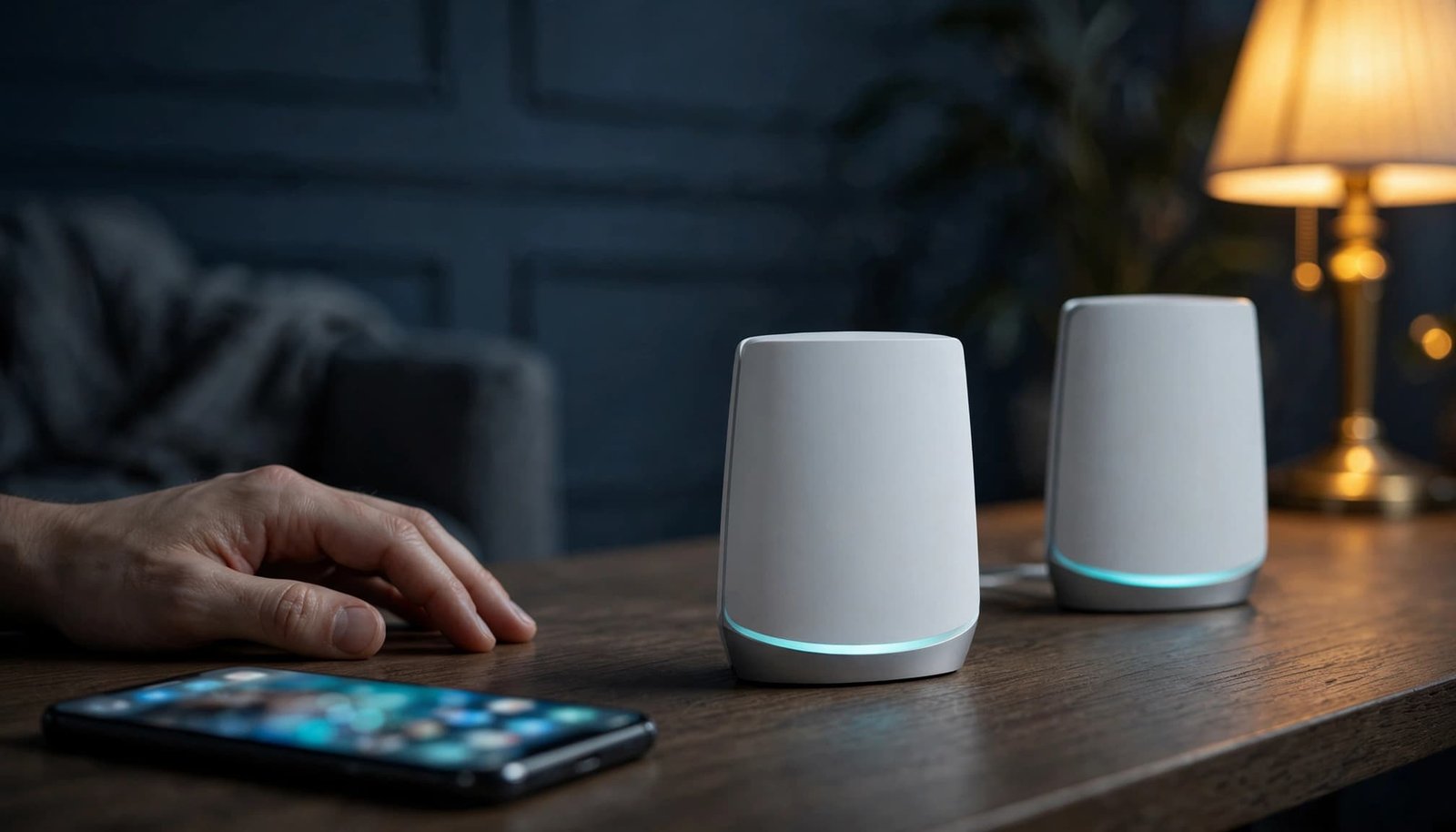
Only the primary Orbi router connects to your modem or ISP gateway. Mesh satellites extend coverage but don’t replace the main router’s admin page. If you’re adding satellites or fixing weak rooms, use this mesh WiFi setup for better home coverage as a practical next step.
When the Login Page Will Not Load
Do not erase the router’s settings because one browser page fails. Work through the basics in order.
Check the Address, Browser, and Physical Connection
First, confirm that your device is connected to the NETGEAR network. Then enter the NETGEAR hostname or the router’s gateway address directly into the browser address bar.
If that fails, try another browser. Clear the browser’s cache and cookies, then close and reopen it. A stale browser session can cause a blank page or repeated login loop.
NETGEAR’s router access troubleshooting steps also recommend using the router’s IP address when the browser name fails. If the login loop continues, clear the cache and cookies again before retrying.
Restart Only What Needs Restarting
If the local page still will not open, restart the router. Unplug its power cable briefly, reconnect it, and wait for it to finish starting.
A wired computer is the next good test. Connect it to a LAN port on the router, then try the local login page again. This removes weak Wi-Fi or a phone connection issue from the equation.
A router can have a working Wi-Fi signal even when its internet connection is down. You should still be able to reach its local settings page.
Find Your Router’s Default Gateway IP Address
The default gateway is the local address your device uses to reach the router. It helps when routerlogin.net won’t load or your router uses a custom address.
Find It on Windows
Connect the Windows computer to the NETGEAR router. Open Command Prompt, type ipconfig, and find “Default Gateway” under the active Wi-Fi or Ethernet connection.
Enter that reported address in your browser. Don’t guess between 192.168.1.1, 192.168.0.1, or a hostname-based login address. These can vary by router model and network setup.
If you see more than one adapter, use the one marked as connected.
Find It on a Mac, iPhone, or Android Device
On a Mac, open System Settings, select Wi-Fi, choose Details beside your connected network, then look under TCP/IP for “Router.” On many phones, the Wi-Fi network details screen lists a router or gateway address.
Use the address shown by your connected device. This method matters when an ISP gateway and a NETGEAR router are both connected.
If you are replacing provider equipment, follow these steps for how to replace an ISP router without creating unnecessary double NAT problems.
Recover a Forgotten NETGEAR Admin Password
A forgotten admin password is different from forgetting your Wi-Fi password. This administrator credential protects network names, port forwarding, firmware, parental controls, and security options.
Try Password Recovery Before Resetting
Try the router administrator password you created during setup. Check your password manager, browser-saved passwords, or written setup notes.
NETGEAR has an admin password reset process for supported routers. Password recovery only works if you enabled it before being locked out.
For compatible Orbi systems, recovery may require the router’s serial number and the security questions you configured earlier.
Factory Reset Is the Last Option
If recovery wasn’t enabled and you can’t find the administrator credential, a factory reset may be the only option. It removes the saved Wi-Fi name, Wi-Fi password, guest settings, device reservations, parental controls, and other custom settings.
Follow your model’s manual for the correct reset process. Button timing can differ by product. Afterward, the factory reset requires you to set up the router again from scratch.
Secure the Router After You Regain Access
Getting back into the dashboard is only half the job. Take a few minutes to prevent the same problem later.
Change Old Credentials and Save Recovery Details
Use a long, unique admin password that you don’t use for email, banking, or Wi-Fi. Keep the default username if your model uses admin, but replace any old default admin password immediately.
If your router offers password recovery, turn it on and store the security-question answers safely. Keep remote management disabled unless you have a clear reason to use it.
The router dashboard is the central place for network management, connected devices, access controls, security features, and updates. Review options such as parental controls and Netgear Armor, if your model or subscription supports them.
Review Wi-Fi Security and Firmware
Use WPA3 when your router and devices support it. WPA2/WPA3 mixed mode may be more practical when older printers, cameras, or smart-home devices need to connect.
Check the dashboard or the NETGEAR Download Center for an available firmware update. A firmware update may improve security or stability, but it isn’t guaranteed to solve every login problem. Save a configuration backup before major changes if your model provides that option.
My Experience With the Orbi 870
I am Steve Neff, founder of Better WiFi Shop, and I own and use the NETGEAR Orbi 870. It’s an Orbi mesh system that I use to evaluate coverage and administration in a real home. My interest in home networking started after learning that paying for faster internet does not always solve weak Wi-Fi in the rooms where people actually work, stream, and play.
That led me to research routers, mesh Wi-Fi, coverage, and ISP equipment more closely. I created Better WiFi Shop to help homeowners compare their options without getting buried in technical terms. You can compare current NETGEAR Orbi systems at Better WiFi Shop if whole-home coverage is your main concern.
Orbi is a good fit when a single router cannot reach the areas you use most. It does not remove the need to keep the admin login, recovery settings, and firmware current.
FAQ
What are the default credentials for a NETGEAR router?
The usual default username is admin. Older untouched models may use password for the administrator password. Check the router label or manual because newer setups may require credentials created during setup.
Can I log in without the Nighthawk app?
Yes. Connect to your NETGEAR router, then enter routerlogin.net or 192.168.1.1 in a browser. The browser dashboard is an alternative to the app and often includes more advanced settings.
How can I recover a forgotten NETGEAR password?
Use NETGEAR’s supported password recovery options before resetting the router. A reset erases custom settings, so keep it as a last resort.
Why does routerlogin.net keep sending me to a search page?
You are likely entering it in a search box instead of the browser address bar. Type the full address at the top of Chrome, Safari, Edge, or Firefox.
Should I install a firmware update if login problems keep happening?
Check for a model-specific update after you restore access. If the problem continues, test another browser and a wired connection before considering a reset.
Regain Access, Then Keep It Simple
Most Netgear router login problems come down to the wrong network, an incorrect address, or confusion between Wi-Fi and admin passwords. Start locally, use the router’s local address or gateway address, and try recovery before erasing your settings.
A strong admin password, saved recovery details, current firmware, and remote management left off will keep your home network easier to manage.