Fiber internet can be fast and reliable, but equipment setup often creates confusion. If you need to connect Netgear router to ONT equipment after a fiber installation, identify each box and its connection first.
The optical network terminal (ONT) converts your provider’s fiber signal to Ethernet. It’s not the same as an ISP modem or gateway. Your NETGEAR router manages Wi-Fi, local devices, and your home network. Connect the ONT’s Ethernet handoff to the router’s WAN input. Don’t touch or disconnect the fiber cable itself.
This post may contain affiliate links. If you make a purchase through these links, I may earn a small commission at no extra cost to you.
Key Takeaways
- The ONT converts your provider’s fiber signal into Ethernet; connect its active Ethernet, Data, or GE port to your NETGEAR router’s WAN/Internet port.
- Leave the fiber cable, optical connector, and ONT power adapter alone. Only move the removable Ethernet cable during the router swap.
- Confirm that your ISP allows a direct router connection and check whether it requires DHCP, PPPoE, VLAN tagging, static IP settings, or MAC registration.
- Restart the ONT before the router when needed, then allow several minutes for the WAN connection and ISP authentication to complete.
- If the ISP requires its gateway, use bridge mode, IP Passthrough, or access point mode to reduce double NAT problems.
Know What Your Fiber ONT Does
An optical network terminal (ONT) is the fiber equivalent of a cable modem. It converts the fiber signal entering your home into an Ethernet connection your router can use.
Most fiber customers do not remove or replace the ONT. It is provider-installed fiber equipment, rather than a customer-replaceable modem. The ONT may be mounted on a wall, placed in a utility room, or located near your existing gateway.
An ISP gateway is separate equipment that may handle the ONT handoff while combining routing, Wi-Fi, phone, TV, and other services.
The ONT and Router Have Different Jobs
The ONT connects your home to the provider’s fiber network. A standalone NETGEAR router creates your local Wi-Fi network and connects your phones, computers, streaming devices, and smart home gear.
Look for an active Ethernet port on the ONT. It may be labeled Ethernet, LAN, Data, or GE, and it carries the connection for your router.
Never handle, bend, or disconnect the fiber cable or its connector. Use the labeled Ethernet, Data, or GE port instead.
Do not connect the ONT cable to one of the regular LAN ports on your router. It belongs in the router’s WAN port.
Confirm Your Provider Allows a Direct Router Connection
Many fiber providers allow a personal router to connect directly to the ONT. Verizon Fios and Frontier FiOS may permit this Ethernet handoff, but requirements vary by address and service type.
Before disconnecting anything, ask your provider:
- Does my service permit customer-owned routing equipment?
- Does the service use DHCP, PPPoE credentials, VLAN tagging, static IP settings, MAC registration, or another login method?
- Must the ISP gateway remain connected, or can it use bridge mode or IP Passthrough?
- Will removing the gateway affect TV service, home phone service, or provider support?
A standalone router cannot replace an ONT. It also cannot remove a rental fee if your provider requires its gateway or ONT to remain installed.
Prepare for the Router Swap
A little preparation can save an hour of guessing later. Keep the old provider gateway connected while you record its WAN settings and confirm the service type. Check whether the connection uses DHCP, PPPoE, VLAN tagging, static IP information, or MAC registration.
After recording these details, identify the replacement router as the setup device. Write down your current WiFi network name and network key if you want the new router to use them. This step is optional, and a new name and password may be better for security. Reusing them lets many phones, TVs, and smart devices reconnect without setup again.
Check Your Router’s WAN Port
Plans below 1 Gbps usually need only a Gigabit WAN port. For 1 Gbps service, a 2.5GbE port gives extra room. Choose one for a 2 Gbps plan.
The ONT, router, Ethernet cable, and any wired device all matter. A 2.5GbE port won’t make a computer faster if the ONT or computer only supports 1Gbps Ethernet.
Use a short, known-good Cat5e or Cat6 cable for the first connection. Cat5e is often enough for 1Gbps service and can support 2.5GbE on many home runs. A damaged cable, loose connector, or poor wall jack can still limit the link.
Release DHCP Only When Needed
Most ONTs assign a public IP address through DHCP. When you replace the ISP gateway, its existing DHCP lease or DHCP reservation may delay the handoff to the new router.
You usually don’t need to copy the old gateway’s hardware identity. Check the ISP requirements before changing advanced settings. If your router doesn’t get online, release the DHCP lease in the old gateway if that option is available. Then restart the ONT and router.
A direct ONT connection is usually a physical setup problem or a DHCP handoff delay, not a reason to change advanced router settings right away.
Take a photo of the provider gateway’s WAN, VLAN, PPPoE, static IP, or registration settings. Do this before disconnecting it. That information can matter if your service isn’t using basic DHCP.
How to Connect Netgear Router to ONT Equipment
Before disconnecting the old ISP gateway, confirm that your provider permits a direct router connection to the ONT. Move only the removable Ethernet cable. Leave the fiber cable, optical connector, and ONT power adapter alone.
Make the Physical Connection
Follow this order:
- Turn off the old ISP gateway and the NETGEAR router.
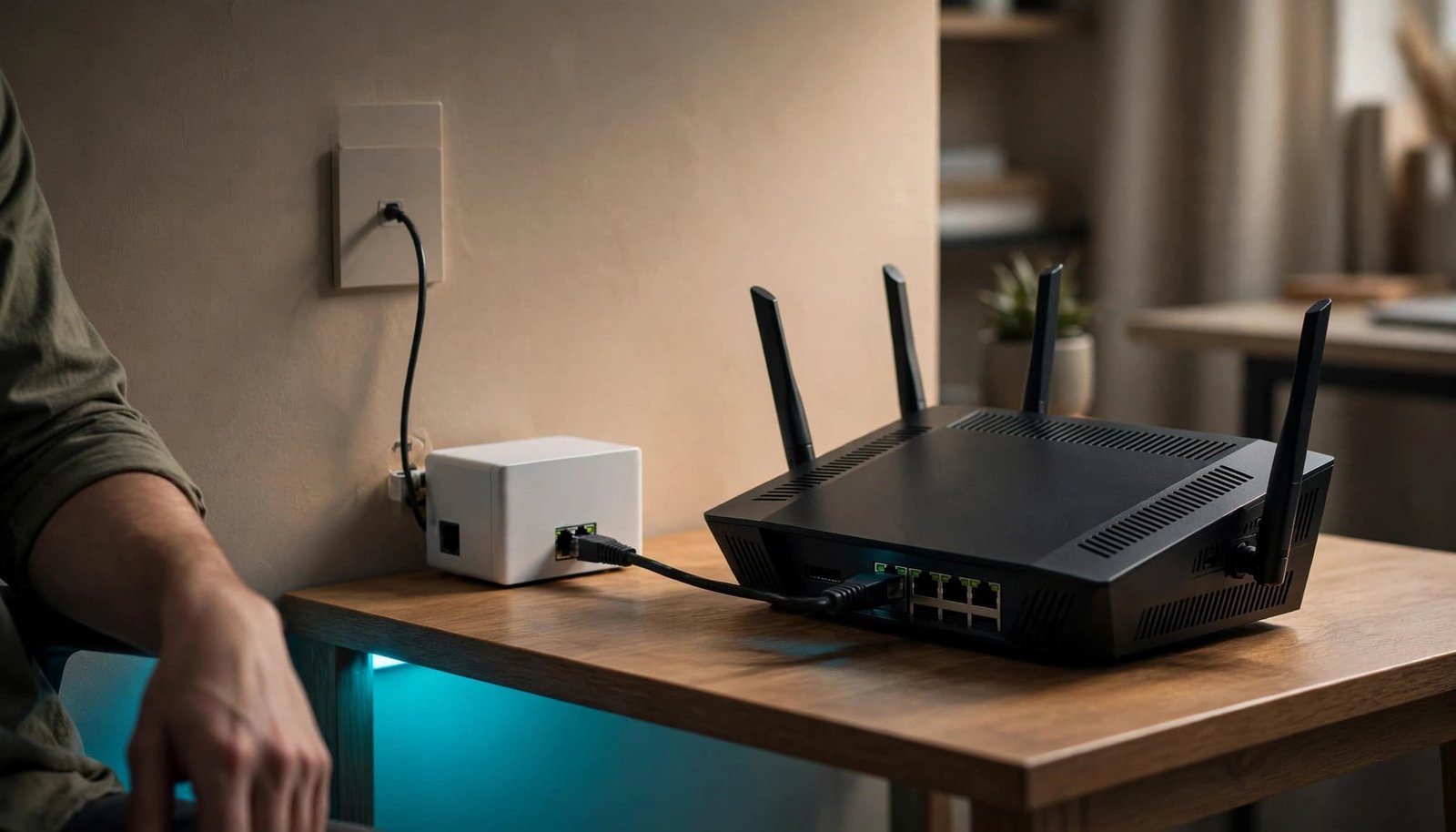
- Connect one end of an Ethernet cable to the ONT’s active data port. This Ethernet port supplies the incoming Ethernet line for the router.
- Connect the other end to the router’s Internet port, often labeled WAN.
- If the ONT was powered down, turn it on first and wait for its normal optical and service lights.
- Turn on the router and allow several minutes for DHCP or other ISP authentication.
The ONT can remain powered during an Ethernet cable swap. Restart it fully if your provider requests it or troubleshooting steps call for one.
NETGEAR’s web-interface installation instructions use the same basic connection method: the router’s WAN port connects to a modem or Ethernet source. With fiber, the ONT supplies that source.
Watch the Status Lights
Your router’s Internet light should settle into its normal connected state. The exact color depends on the Netgear model.
A solid or normal-status Internet light means the router has likely received a public IP address. An amber, red, or unlit Internet light can signal a failed WAN handoff, authentication issue, or incorrect cabling. It doesn’t necessarily indicate a Wi-Fi problem.
Don’t judge the setup by Wi-Fi alone. Your phone may connect to the new Wi-Fi network even when the router has no internet access yet.
Set Up Your Netgear Router With the App or Browser
Once the cable is connected, choose the Nighthawk app or the router web interface to complete setup on your NETGEAR router. Both paths can configure a fiber connection, but your provider’s required settings still apply.
Use the Nighthawk app for a Guided Setup
The app is often the easier choice for first-time setup. Connect your mobile device to the router’s default WiFi network shown on its label. Open the app, select the correct setup device when prompted, and follow the instructions.
NETGEAR explains that the Nighthawk app can guide the installation process for compatible routers and help manage their network information and settings.
During setup, create a new network name and a strong password. You can also reuse your old name and password so existing devices reconnect.
Use routerlogin.net for More Settings
A browser login is useful for entering PPPoE credentials, applying VLAN tagging, or entering static IP settings. It also lets you review internet settings and check WAN status.
Connect a computer to the router with Ethernet, or join its default wireless network. Open a browser and enter the router’s login address. If the page doesn’t load, use the router’s gateway IP address listed in its documentation. After the router has a stable local connection and, where possible, internet access, check for a firmware update.
NETGEAR’s router login setup guide includes setup instructions for reaching the admin page and managing your network.
When prompted by the setup wizard, choose DHCP or “Get dynamically from ISP” only if your provider confirms ordinary DHCP. Otherwise, enter the ISP’s PPPoE username and password, VLAN ID, static IP, subnet, gateway, DNS values, or other required settings.
When You Must Keep the ISP Gateway
Some fiber providers require their gateway to remain connected for authentication, voice service, TV service, or account support. The ONT remains the fiber handoff, while the ISP gateway handles separate authentication and routing tasks. You can still use your Netgear router behind the gateway when direct ONT access isn’t available.
The better setup is often bridge mode or IP Passthrough. These ISP-specific options reduce the gateway’s routing role while your Netgear router manages Wi-Fi and most home network features.
Avoid Double NAT Problems
If both the ISP gateway and Netgear router are routing traffic, you may have double NAT. This creates two layers of address translation. Web browsing and streaming may still work, but gaming, inbound connections, VPNs, remote access, and smart-home devices can have trouble.
Ask the provider whether bridge mode or IP Passthrough is available. Then connect an Ethernet cable from the gateway’s LAN port to the Netgear router’s Internet port. This cable feeds the router’s WAN port, with the gateway remaining upstream.
If neither option is available, use access point mode on the Netgear router. You’ll still get better Wi-Fi coverage, but the ISP gateway remains responsible for routing and firewall functions.
A direct fiber setup may help you avoid an optional gateway rental charge. Before disconnecting or returning equipment, verify TV and voice support, check your bill, and review the provider’s equipment-return rules. The ONT usually stays in the home regardless.
Fix a Netgear Router That Will Not Connect
Start with basic checks on your NETGEAR router before changing settings, resetting it, or calling support.
A red or amber Internet LED with local Wi-Fi usually means the router is broadcasting but has no upstream internet. Confirm the removable Ethernet cable runs from the ONT’s active data port to the router’s Internet port. Don’t unplug or handle the fiber cable. If the ONT has no normal optical or service lights, contact the ISP before changing router settings.
If an old gateway remains connected, both devices may route traffic and create double NAT. Disconnect the old gateway for testing, or use bridge mode if the ISP requires it.
Power-Cycle in the Right Order
Turn off the router and old gateway, if one is still connected. Restart the ONT first and wait until its normal status lights return. Then start the router and wait several minutes for it to request service.
This power cycle can clear an old lease or delayed DHCP response. It won’t replace required PPPoE credentials, VLAN tagging, a static IP, or ISP registration settings.
If the ISP permits a direct test, connect a laptop to the ONT for a short check. If it also fails with the required ISP settings, the problem likely involves the ONT or provider service, not the router.
Check the WAN Settings Before MAC Cloning
Open the router web interface and check the Internet or WAN status. A public IP address confirms that upstream service assigned an address. A blank status can indicate incorrect cabling, delayed DHCP, or failed authentication.
Confirm the removable cable is seated in the WAN port and test another cable if needed. Check whether the provider requires PPPoE credentials, VLAN tagging, or a static IP. If the WAN status remains blank after several minutes, contact the ISP.
MAC cloning is a last step, not the first step. Some providers register the previous device’s MAC address, but registration or cloning should only be attempted when the ISP specifically requires it.
A “router not found” message in the app usually means your phone is using cellular data, connected to old Wi-Fi, or the router has not finished starting. Join the router’s temporary Wi-Fi network, turn off cellular data temporarily, and try again. If the app still cannot find the setup device, clear cache and reopen it.
Before contacting the ISP, record troubleshooting information, including the LED color, cable placement, WAN mode, authentication status, and whether a public address was assigned.
Match Your Wi-Fi Setup to Your Home
Getting online is only the first part, because a successful Ethernet handoff doesn’t guarantee strong wireless coverage. Router placement and a coverage plan decide how the connection feels throughout your home.
Place a single router in a central, open location, away from cabinets and closets. Avoid metal shelving and the back of a television stand. A traditional router often works well in a small or mid-sized home with an open layout.
Consider Mesh for Larger Homes
Mesh WiFi systems make more sense for multiple floors, thick walls, distant rooms, or known dead zones. They improve coverage after the connection works, but can’t repair a failed ONT handoff or missing ISP authentication.
I started learning more about home networking after seeing that faster internet plans didn’t always fix weak Wi-Fi. That work eventually led to Better WiFi Shop, where I help everyday buyers compare router and mesh options without turning the process into a spec-sheet exercise.
I own and use the NETGEAR Orbi 870. My experience is personal, while product capabilities should always be checked against current manufacturer specifications. If you’re comparing mesh options for a larger home, visit Better WiFi Shop and the RouterForMyISP home networking guides for practical buying help.
Frequently Asked Questions
Can I connect a NETGEAR router directly to an ONT?
Yes, many fiber providers allow a customer-owned router to connect directly to the ONT through Ethernet. Confirm the provider’s requirements first, because some services require a gateway for authentication, phone, or TV service.
Which port connects the ONT to my NETGEAR router?
Connect the ONT’s active Ethernet, Data, or GE port to the router’s Internet or WAN port. Do not connect the ONT cable to one of the router’s regular LAN ports.
Do I need to disconnect the fiber cable from the ONT?
No. Leave the fiber cable and optical connector in place, and do not bend or handle them. Only move the removable Ethernet cable between the old gateway and the NETGEAR router.
What settings does my NETGEAR router need for fiber internet?
The required settings depend on your provider and may include DHCP, PPPoE credentials, VLAN tagging, static IP details, or MAC registration. Ask the ISP which WAN method and values apply to your service before changing advanced router settings.
What should I do if the router has Wi-Fi but no internet?
Confirm that the Ethernet cable runs from the ONT’s active data port to the router’s WAN port, then restart the ONT and router in that order. If the WAN status remains blank, check the ISP settings and contact the provider if the ONT lights are abnormal or authentication fails.
A Direct ONT Connection Gives You More Control
When your provider permits customer-owned routing, you can connect Netgear router to ONT equipment with one Ethernet cable and the correct WAN settings. Leave the ONT and fiber cable in place, then connect its removable Ethernet cable to your router’s WAN/Internet input.
Restart the ONT before the router when needed. Apply the ISP’s required DHCP, PPPoE, VLAN, static IP, or gateway arrangement. A direct ONT connection gives you better control over your home Wi-Fi, but some providers still require a gateway for voice or TV service.