A home WiFi router can seem fine until streaming starts buffering, video calls freeze, or one bedroom loses Wi-Fi every night. A Netgear router replacement may be worth reassessing after four or five years, but there’s no universal schedule.
Timing depends on your NETGEAR model, its support status, your home’s Wi-Fi generation, ISP speed tier, and actual symptoms. Check the model’s current firmware, security-support, and end-of-support status before assuming age requires replacement.
Connection drops, weak coverage, missing security updates, and slower-than-expected Wi-Fi are stronger reasons to upgrade. First check your service, modem or ONT, wiring, router placement, and interference before buying hardware.
This post may contain affiliate links. If you make a purchase through these links, I may earn a small commission at no extra cost to you.
Key Takeaways
- Reassess most Netgear routers after four or five years, but replace one based on support status, security updates, capacity, coverage, and actual performance—not age alone.
- Test the connection directly through Ethernet before buying new hardware to determine whether the issue comes from the provider, modem or ONT, wiring, router, or Wi-Fi coverage.
- A single router may suit a small, open home, while a mesh Wi-Fi system is often better for multiple floors, thick walls, and persistent dead zones.
- Wi-Fi 6, Wi-Fi 7, multi-gig ports, and higher capacity are worthwhile when compatible devices, internet speeds, or household demand justify the upgrade.
- Compare firmware support, security features, equipment rental costs, and ongoing services such as NETGEAR Armor before choosing a replacement.
When a Netgear Router Replacement Makes Sense
For a Netgear router replacement, NETGEAR suggests reassessing most home routers every four to five years. That’s a broad guideline, not a guaranteed expiration date. Check your model’s support page and NETGEAR’s router replacement checklist for available firmware updates, security updates, and current hardware capabilities.
A supported wireless router can remain adequate without the newest features. It doesn’t need to fail completely before coverage, capacity, or security make it the weak point in your network.
Signs Your Current Router Is Falling Behind
Replace your Netgear router sooner when repeated network drops continue after basic testing and troubleshooting. A single outage, poor placement, or provider issue usually calls for troubleshooting instead. Random reboots, devices that will not stay connected, and settings that will not save can point to aging hardware or firmware problems.
Look for these practical signs:
- Your model is no longer supported; lacking WPA3 encryption is a security and compatibility consideration, not an automatic replacement requirement.
- Wi-Fi is slow or unreliable in rooms where it used to work well.
- New smart home devices, phones, and laptops struggle to connect.
- Wired performance is good, but Wi-Fi performance remains inconsistent.
- The router cannot handle the speed tier or device load your household needs.
A Netgear Nighthawk may remain suitable if its model is still supported and meets your household’s needs.
A five-year-old router may still work for light browsing. A busy home may need a high-performance router. This is especially true when bandwidth demands include 4K streaming, gaming, video calls, and many connected devices.
Wi-Fi Standards Matter, But They Are Not Everything
An older Wi-Fi 5 router can still serve a small home with light use. Wi-Fi 6 is a sensible upgrade for many households. WiFi 7 is most useful with compatible clients, multi-gig service, or demanding multi-device environments.
Don’t replace a working router just because a newer standard exists. Make the change when coverage, capacity, ports, or security no longer fit how you use the internet.
Test the Connection Before Buying New Hardware
A new router won’t fix a weak signal coming into the house. Test the connection by Ethernet first, then through the router.
Compare Direct Ethernet and Router Ethernet
Connect the same computer directly to the modem or fiber ONT with a short, known-good Ethernet cable. Run a speed test. Reconnect that computer and cable to the router’s LAN port, using the same computer port where possible, then repeat the test.
If the direct test is poor, the internet connection may be limited by the service plan, line, or provider equipment. A cable modem, ONT, gateway, and router can have different roles. Contact your internet service provider if the direct result remains poor.
If the direct test is good but the router test is poor, network performance is suffering in the router path. Check the router’s WAN port, settings, firmware updates, cable, and local network.
A good wired result with weak room-to-room wireless speed usually points to coverage, placement, or interference. It doesn’t necessarily mean the service plan is weak.
For a 1 Gbps plan, a wired speed near 940 Mbps is a normal real-world result when comparing advertised broadband speeds. Ethernet overhead keeps results below the full 1 Gbps link rate.
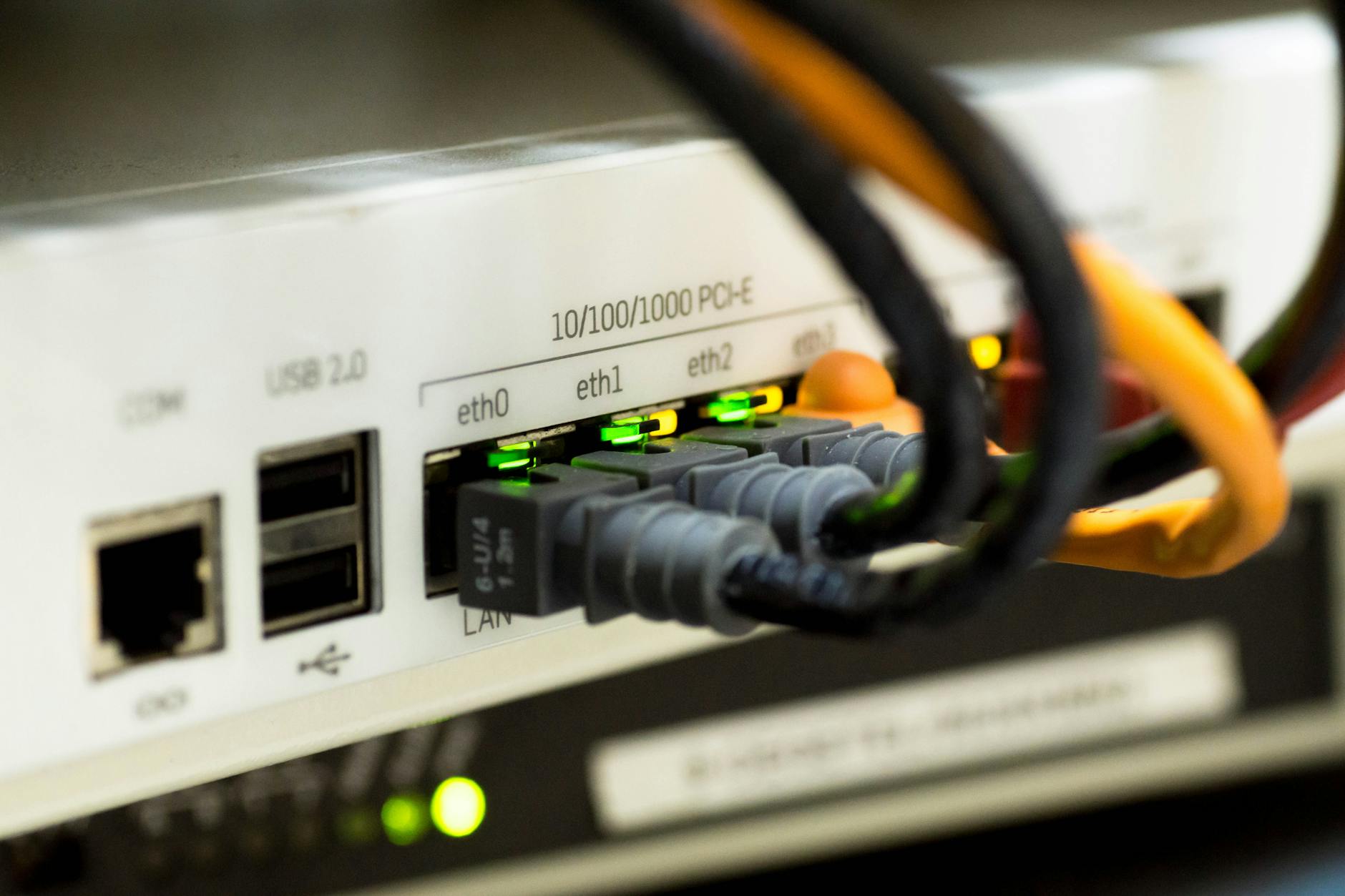
Photo by Pixabay
Check the Whole Wired Path
A multi-gig router port only helps when every part of the path supports it. Check the modem or ONT, router WAN port, LAN port, switch, dock, and computer.
Do not replace in-wall cables before testing. A good Cat5e cable is usually enough for normal Gigabit home runs and may support 2.5GbE over suitable distances. Start with a short Cat5e or Cat6 cable you know works. A damaged Ethernet cable or connector can cause a link to negotiate at a lower speed.
Choose a Single Router or Mesh Wi-Fi System
A traditional router works well in a small or mid-sized home with an open layout and fewer connected clients. Place it in a central, open location, not inside a cabinet or behind a television. A dual-band router may be enough; compare current Netgear Nighthawk models and ASUS routers for specifications, pricing, and support.
A mesh WiFi system makes more sense for multiple floors, thick walls, basement offices, or persistent dead zones in distant rooms. A satellite extends coverage, but it needs a strong connection to the main router. A tri-band router offers wireless backhaul flexibility for busy homes, but band count alone doesn’t guarantee better throughput. Choose a high-performance router, including WiFi 7 models, when compatible devices, multi-gig service, or substantial capacity needs justify it.
Use Ethernet Backhaul When You Can
A wired mesh backhaul is often the best fix for difficult homes. It removes the wireless hop between the main router and satellite, improving consistency for upstairs rooms, detached offices, and media rooms.
Keep fixed devices wired when possible. A desktop, game console, work dock, or NAS usually gets steadier performance through Ethernet than Wi-Fi.
My Experience With the Orbi 870
I am Steve Neff, founder of Better WiFi Shop, and I personally own and use the NETGEAR Orbi 870. My interest in home networking started when I learned that paying for faster internet does not always solve Wi-Fi problems.
The Orbi 870 belongs to the Orbi mesh system family and uses three bands. NETGEAR lists WPA3, automatic updates, VPN support, a 10G WAN port, and 2.5G LAN ports on its Orbi 870 product page. These features don’t guarantee coverage in every layout. Compare Orbi options at Better WiFi Shop if your home needs mesh coverage instead of one router.
Check Security, Setup, and Ongoing Costs
Look beyond speed when comparing hardware. Check the exact model’s documentation and client-device compatibility for WPA3 encryption, guest controls, access controls, automatic updates, and ongoing firmware and security support. A current Netgear Nighthawk option may offer different features and support by model and firmware version.
NETGEAR Armor is an optional service, not a permanent feature included with every router.
Powered by Bitdefender, NETGEAR Armor adds security features for the network and connected devices. During installation, check whether NETGEAR Armor includes a trial and review the service’s subscription terms.
Keep Your Network Name If It Helps
Using the same Wi-Fi name and password on new hardware can simplify migration. Many phones, TVs, and smart devices will reconnect without new credentials.
Still, test important devices after installation. Older smart home products sometimes need to be reconnected manually.
Compare Ownership With ISP Rental Fees
Buying hardware can reduce monthly rental fees, but charges vary by provider, plan, and region. Check your bill before comparing the long-term cost. Use this 2026 equipment fee comparison as a general reference.
Price the service separately from the hardware, and review NETGEAR Armor plans before treating it as part of the base cost.
For cable service, a cable modem often must appear on the internet service provider’s approved list. A personally owned router generally doesn’t need approval, but replacing a rented gateway may involve compatibility checks and service activation. Use these router setup guides before replacing rented equipment.
Frequently Asked Questions
How often should I replace my Netgear router?
NETGEAR suggests reassessing most home routers every four to five years. However, a supported router can remain useful longer if it provides reliable coverage, sufficient capacity, and current security updates.
What are the signs that my Netgear router needs replacing?
Repeated connection drops, random reboots, weak coverage, missing security updates, and poor Wi-Fi performance are common warning signs. Confirm that the issue is not caused by your internet service, wiring, placement, or interference before replacing the router.
Should I test my internet connection before buying a new router?
Yes. Compare a speed test taken directly through Ethernet from the modem or fiber ONT with one taken through the router. If the direct result is poor, contact your internet service provider; if it is good but the router result is poor, inspect the router and local network.
Should I choose a single router or a mesh Wi-Fi system?
A traditional router is often enough for a small or mid-sized home with an open layout. Mesh is usually a better choice for multiple floors, thick walls, distant rooms, or persistent dead zones, especially when Ethernet backhaul is available.
Is Wi-Fi 7 a good reason to replace my router?
Wi-Fi 7 is most useful with compatible devices, multi-gig internet service, or demanding multi-device environments. Do not replace a working router solely because a newer Wi-Fi standard exists; upgrade when your current coverage, capacity, ports, or security no longer meet your needs.
Replace the Router for a Clear Reason
The best Netgear router replacement starts with troubleshooting your service, wiring, placement, and configuration. Upgrade when the model is unsupported, lacks needed capacity or coverage, or no longer fits your home’s devices and plan. Check the model’s support page and current firmware status before deciding.
Test wired speeds first, then choose a single router for simple coverage or mesh when dead zones need more reach. A high-performance router is worth the cost only when your home needs its extra capacity. Base the decision on network performance, not the calendar or price. Better Wi-Fi starts with the right problem, not the most expensive router.