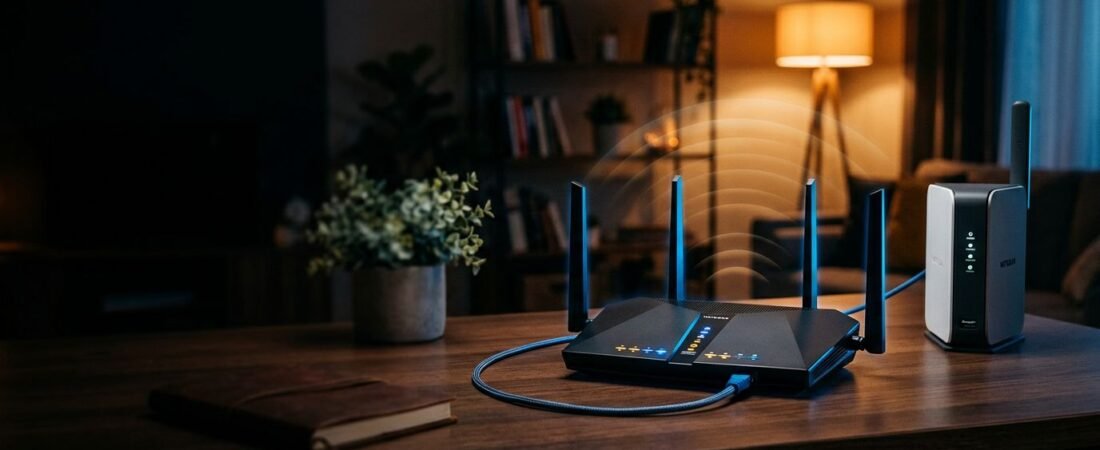
Fixed wireless internet can be a solid home internet option, but the provider’s gateway often leaves you with weak Wi-Fi or limited settings. For households using this wireless internet service, adding a Netgear wireless router can improve coverage and provide better wired connections. A Netgear router fixed wireless setup also gives you more control over your home network.
Unlike satellite internet, the provider gateway is the handoff device, so connecting the right device in the right mode is important. Your Netgear router should improve your Wi-Fi, not create another layer of network problems. Even a WiFi 7 router still needs the correct gateway mode.
This post may contain affiliate links. If you make a purchase through these links, I may earn a small commission at no extra cost to you.
Key Takeaways
- Connect the provider gateway to the Netgear router’s WAN or Internet port, and confirm whether the gateway supports bridge mode or IP passthrough.
- Use Router Mode with bridge mode or IP passthrough when possible; otherwise, use Access Point Mode to avoid routing conflicts and double NAT.
- Choose a Nighthawk router for a simple Wi-Fi upgrade or an Orbi mesh system for larger homes, multiple floors, or areas with weak coverage.
- Test the connection over Ethernet before blaming Wi-Fi, since tower congestion, signal quality, and the provider’s service plan can limit fixed wireless speeds.
- Keep routing duties, DHCP reservations, port forwarding, and DNS settings on one device, and check for firmware updates regularly.
Start With the Fixed Wireless Equipment You Already Have
Fixed wireless internet sends your connection from a wireless tower to an outdoor receiver, indoor gateway, or 4G/5G home internet box. It does not use a cable line, phone line, or fiber connection into your home.
That makes it different from traditional satellite internet. This service sends data much farther, between your dish and a satellite in orbit. This type of wireless internet service usually has lower latency because the signal travels to a local tower instead.
Before changing equipment, use the FCC National Broadband Map to check whether internet service providers offer a broadband internet connection at your address. Availability can change street by street, especially in rural areas.
Identify the Provider Gateway
Most fixed wireless providers install or send one of these setups:
- An external antenna or receiver with an Ethernet cable running indoors.
- A provider-supplied 4G LTE modem with an Ethernet handoff.
- A cellular gateway that connects through cellular phone networks, uses a SIM card, and provides Wi-Fi.
- A 5G home internet gateway that combines the cellular modem and router.
The provider device is usually still required. A standard Netgear Wi-Fi router cannot replace a carrier gateway unless the provider allows customer-owned cellular equipment and supports the device on its network.
Look for an Ethernet port labeled LAN on the provider box. That is usually where your Netgear router connects.
Check Whether Your Gateway Is Already a Router
A gateway with its own Wi-Fi name, password, and connected-device list is already routing your traffic. It gives devices IP addresses and creates its own private network.
You can still use your Netgear router with it. You simply need to decide which device should handle the main router duties.
A provider gateway may advertise WiFi 7, but that doesn’t necessarily mean it can be replaced or placed into bridge mode.
Fixed wireless providers often lock down their gateway settings. That doesn’t stop you from improving Wi-Fi, but it may limit IP passthrough and supported hardware.
Netgear Router Fixed Wireless Setup Options
The right hardware depends on your provider, home size, and internet plan. Don’t buy a DOCSIS cable modem for fixed wireless service. DOCSIS models use coax cable, not Ethernet handoffs or cellular gateways, while a 4G LTE modem uses cellular service.
Use a Nighthawk Router for a Simple Upgrade
A standalone NETGEAR wireless router is a practical choice when your provider already supplies a working gateway or outdoor receiver.
Connect the provider equipment to the Nighthawk router’s Internet or WAN port. The WAN port is the router’s connection to the internet. Its LAN ports connect wired home devices such as a desktop, game console, switch, or work dock.
This setup works well for a small or mid-sized home with an open layout. A Wi-Fi 6 router is usually enough for common fixed wireless plans under 1 Gbps. WiFi 7 may be worth the added cost for compatible local devices and heavy in-home traffic.
The Nighthawk M6 Pro is a portable mobile hotspot, not a universal replacement for a provider gateway. Verify provider compatibility before using it as your primary connection.
Choose Orbi Mesh for Dead Zones and Larger Homes
A single router cannot always reach a second floor, basement office, detached workspace, or room behind thick walls. WiFi dead zones often call for a mesh WiFi system, and an Orbi mesh system is often the better answer.
The main Orbi router connects to the fixed wireless gateway. Satellites extend whole-home WiFi coverage, reducing weak signals and helping compatible WiFi 7 clients use a stronger local backhaul.
NETGEAR’s Orbi 5G WiFi 6 Mesh System, the NBK752, combines a cellular gateway with a mesh system. It’s a Wi-Fi 6 model, not WiFi 7. Its main router has a Gigabit WAN port and two Gigabit LAN ports. Its tri-band routers use Wi-Fi 6, with a separate band for communication between mesh satellites.
That model only makes sense if your provider allows compatible customer-owned cellular hardware. Don’t move a SIM card from a provider gateway without checking the provider’s terms and device rules first. NETGEAR’s SIM plan guidance is a useful reminder that supported bands and approved plans are separate issues.
Connect the Hardware the Right Way
The physical connection is simple. Most problems begin with the network mode.
Router Mode Works With Bridge Mode or IP Passthrough
If your provider gateway supports bridge mode or IP passthrough, enable it before using the Netgear router in normal Router Mode.
Bridge mode disables the gateway’s routing function. IP passthrough sends the incoming connection to one device, usually your Netgear router. Both options let the Netgear unit manage Wi-Fi, DHCP, port forwarding, parental controls, and firewall settings.
Then connect:
- Connect the provider gateway’s LAN port to the Netgear router’s WAN or Internet port.
- Connect a computer or switch to a Netgear LAN port if needed.
- Connect your phone or laptop to the new Netgear Wi-Fi network.
NETGEAR provides gateway bridge-mode setup instructions that follow this same basic connection pattern.
Restart the provider gateway first. Wait until it has internet access. Then power on the Netgear router.
Use Access Point Mode When You Cannot Bridge the Gateway
Some fixed wireless providers don’t offer bridge mode or IP passthrough. In that case, set the Netgear router to Access Point Mode.
The provider gateway remains responsible for routing. It assigns IP addresses through DHCP, manages port forwarding, and provides the firewall. Your Netgear device supplies stronger Wi-Fi coverage and additional Ethernet ports.
DHCP automatically gives each phone, TV, laptop, or camera a local network address. Keeping DHCP active on only one device helps prevent conflicts.
Access Point Mode also works well when you mainly want better Wi-Fi without changing provider settings. Follow the Ethernet port directions in your specific Nighthawk or Orbi setup screen, since menu labels can vary by model.
Avoid Double NAT and Understand CGNAT
Connecting a Netgear router to a fixed wireless gateway can work even when both devices are routing. Basic browsing, streaming, and video calls may seem normal. The trouble often appears later.
Double NAT Can Affect Gaming and Remote Access
NAT stands for Network Address Translation. It lets many devices in your home share one internet connection.
Double NAT happens when the provider gateway performs NAT and the Netgear router performs NAT again. Your devices end up behind two separate private networks.
That can cause problems with:
- Game consoles that need an open or moderate NAT type.
- Security cameras accessed from outside the home.
- Remote desktop connections and some work VPNs.
- Port forwarding for a server, NAS, or smart-home hub.
Bridge mode or IP passthrough removes one layer. If your provider cannot offer either option, Access Point Mode is usually the cleaner choice.
Don’t confuse this with wireless bridge mode. Wireless bridge mode connects an Ethernet-only device to an existing Wi-Fi network. It is not the same as bridge mode on an ISP gateway.
CGNAT Is a Provider-Side Limitation
CGNAT, or carrier-grade NAT, is different. Your fixed wireless provider may place several customers behind one shared public IPv4 address.
In that situation, even a perfect Netgear router setup cannot make normal port forwarding work from outside the home. The incoming traffic never reaches your network.
Ask your provider whether it uses CGNAT. If it does, ask about a public IPv4 address, static IP address, IPv6, or a business plan with remote-access support. A VPN with a reverse tunnel can also help, depending on what you need to access.
Configure Your Netgear Home Network
Once the router is connected, use the Nighthawk or Orbi app, or open its router login page in a browser.
Create a new Wi-Fi name and a strong password. Use WPA3 security if your devices support it. A WiFi 7 router still needs WPA3 or WPA2/WPA3 mixed mode when older printers, smart plugs, or cameras are present.
Change the router administrator password too. Your Wi-Fi password and router admin password should not match.
Reserve Addresses for Important Devices
A static IP address helps when a device needs the same local address every time. This can be useful for a printer, NAS, security camera, or desktop computer.
The safest method is a DHCP reservation. The router still assigns the address automatically, but it always gives the same address to that device.
Open the Netgear router settings in a browser, then look under LAN Setup, Address Reservation, or a similar menu name. Select the device from the list, save the reservation, and restart the device if needed.
Avoid manually assigning a static address on the device itself. It can conflict with another device later.
Keep Router Duties in One Place
If your Netgear router is in Router Mode, make network changes there. That includes DHCP reservations, Wi-Fi settings, port forwarding, and DNS settings.
If it is in Access Point Mode, make those changes on the provider gateway instead. Splitting settings between two boxes makes troubleshooting harder than it needs to be.
Improve Fixed Wireless Speed and Coverage
A better router can improve local Wi-Fi for fixed wireless internet. It can’t increase the provider’s radio capacity or create more bandwidth.
Actual download speeds can change based on tower distance, signal quality, network congestion, the service plan, and the provider’s backhaul capacity. Evening slowdowns often point to a busy tower, not a weak home router.
Test Ethernet Before Blaming Wi-Fi
Connect a laptop or desktop directly to the provider gateway or 4G LTE modem with Ethernet. Run a speed test. Then connect that same device to the Netgear router by Ethernet and test again.
If both wired results are similar, the router isn’t holding back your service. A WiFi 7 router can improve local device-to-device capacity for compatible devices. Test Wi-Fi in the rooms where you work, stream, or play games.
NETGEAR’s speed troubleshooting guidance also points out that 2.4 GHz Wi-Fi reaches farther but often delivers less speed than 5 GHz.

Photo by Pascal 📷
Place the Router Where Wi-Fi Can Reach
Put the Netgear router in an open, central location. Keep it off the floor and away from metal cabinets, dense masonry, large aquariums, and closed entertainment centers.
Most dual-band routers use 2.4 GHz and 5 GHz Wi-Fi. A tri-band model adds another band, which can help busy households and mesh systems. WiFi 7 can’t raise tower-limited service performance or change what the provider delivers.
For a Nighthawk M6 Pro used at home, enable In-Home Performance Mode if your device menu offers it. This plugged-in setting may improve the device’s Wi-Fi reach, but it won’t fix poor cellular signal at the window or outside antenna. WiFi 7 equipment still needs good placement and can’t overcome walls or poor cellular signal.
Frequently Asked Questions
Can I use a Netgear router with fixed wireless internet?
Yes, you can usually connect a Netgear router to the provider’s gateway through an Ethernet LAN port. The gateway is typically still required unless your provider supports compatible customer-owned cellular equipment.
Should my Netgear router use Router Mode or Access Point Mode?
Use Router Mode when the provider gateway supports bridge mode or IP passthrough. If the gateway cannot be bridged, Access Point Mode usually provides better Wi-Fi without creating another routing layer.
How do I avoid double NAT with a fixed wireless gateway?
Enable bridge mode or IP passthrough on the provider gateway, then connect it to the Netgear router’s WAN port. If those features are unavailable, use Access Point Mode instead of having both devices route traffic.
Will a WiFi 7 Netgear router make fixed wireless internet faster?
A WiFi 7 router can improve local wireless performance and capacity for compatible devices, but it cannot increase the provider’s tower capacity or available bandwidth. Ethernet testing can help determine whether slow speeds come from the internet service or your home Wi-Fi.
Can port forwarding work with fixed wireless internet?
Port forwarding may fail if the provider uses CGNAT, even when the Netgear router is configured correctly. Ask the provider about a public IPv4 address, static IP, IPv6, or a plan that supports remote access.
Keep the Setup Reliable Over Time
Check for router firmware updates a few times each year. Firmware updates can improve security, fix bugs, and help newer devices connect properly.
Don’t replace a working router solely because WiFi 7 exists. Upgrade when you have real coverage gaps, dropped connections, too few Ethernet ports, or a plan that outgrows the router’s WAN speed. WiFi 7 is worth considering when compatible clients, coverage needs, or your internet plan can benefit from it.
For a fixed wireless plan below 1 Gbps, Gigabit Ethernet is enough for many homes. If you have a faster service tier, a 2.5GbE WAN port gives you more room, but the gateway, router, switch, and wired device all need 2.5GbE support.
A Netgear router fixed wireless setup works best when one device handles routing and the Netgear hardware handles the job it was bought for: dependable Wi-Fi where you actually use it.