
A monthly equipment charge can look small until you multiply it by three years. Many internet service providers let customers replace rented equipment, but the right setup still depends on your plan and home.
The savings are real for many cable internet customers, but only when the internet equipment you buy works with your provider, plan, and home. A low upfront price is not a win if the modem cannot activate or the new router leaves dead zones.
Start with the charge on your bill, then compare it against equipment you can actually use.
This post may contain affiliate links. If you make a purchase through these links, I may earn a small commission at no extra cost to you.
Key Takeaways
- Start with the exact equipment charge on your internet bill, then calculate savings using the monthly fee, ownership cost, and number of months you expect to use the equipment.
- Check provider compatibility before buying a Netgear modem, especially for your address, speed tier, cable service, and any home phone bundle.
- A standalone router may be the better choice when your provider includes a modem, while a separate modem and router offer more flexibility for upgrades and coverage.
- Include tax, shipping, activation costs, support needs, replacement costs, and plan conditions in your savings estimate.
- Activate and test your owned equipment before returning the provider’s gateway, then keep the return receipt until the rental fee disappears from your bill.
Read Your Internet Bill Before Buying Equipment
ISP here means your internet service provider, not the airport code. Internet service providers use different billing labels, so start with the recurring charge shown on your monthly internet bill.
Look for terms such as “gateway,” “modem rental,” “Wi-Fi service,” “advanced Wi-Fi,” or “equipment.” Some bills charge one fee for a modem-and-router device called a gateway router. Others include a basic modem but charge extra for Wi-Fi hardware.
Separate Rental Fees From Other Charges
Do not count every add-on as a router rental fee. Data options, technical support plans, home phone service, and promotional discounts are separate parts of the bill.
Write down these details before comparing Netgear equipment:
- The monthly equipment charge and the exact name used on the bill.
- Your provider, internet plan, and advertised download speed.
- Whether you use a home phone line through your cable provider.
- Any included modem or gateway, plus any bundle discount.
- Whether the plan includes unlimited data or has a data cap, either of which can affect your real monthly savings.
A provider can include a modem at no extra cost while charging for its Wi-Fi router. In that case, buying a standalone router may make more sense than replacing everything.
How to Calculate ISP Rental Savings With Netgear Equipment
The basic math is simple. It works whether you need a modem, a router, or both.
Net savings after a set number of months = monthly equipment fee x months, minus your total ownership cost.
Your ownership cost should include the device price, sales tax, shipping, activation-related costs, and a reasonable replacement allowance. If you already own a good router, only include the cost of the compatible modem.
Find Your Break-Even Month
Use this calculation:
Break-even months = total equipment cost / monthly rental fee
For example, assume your ISP charges $15 per month for a gateway. You buy a compatible modem and router setup for $250, then spend another $15 on tax or shipping.
Your total cost is $265. Divide $265 by $15, and you reach break-even during month 18. This example is illustrative, so replace these figures with the numbers from your own bill.
Over three years, you would avoid $540 in rental charges. Subtract the $265 purchase cost, and your savings would be $275.
Run a Second Scenario for Router-Only Fees
Now assume your provider includes a modem but charges $7 per month for Wi-Fi hardware. A $150 standalone router would take about 22 months to recover its cost.
That may still be a good move if your current Wi-Fi is weak. It isn’t a reason to buy a modem you don’t need.
Your result depends on the exact fee you can remove, not the highest possible equipment price.
Check Provider Compatibility Before You Order
A modem and router do different jobs. The modem connects your home to the provider’s network. The router creates your home Wi-Fi and wired network.
Before shopping, use our Netgear router compatibility checklist to match the equipment type to your service.
Cable Internet Needs an Approved Modem
Xfinity, Spectrum, and Cox cable customers can often use their own approved cable modem. Still, each of these internet service providers has an equipment list that controls activation.
Check Spectrum’s customer-owned equipment guidance before buying, especially if your plan includes a basic modem. Xfinity customers should use the approved equipment lookup for their address and speed tier. Cox also keeps a current certified cable modem list.
A modem can work with cable service but still be wrong for your high speed internet plan. This happens with older DOCSIS models, multi-gig speed tiers, and provider network upgrades.
Fiber, Fixed Wireless, and Voice Plans Work Differently
A Netgear cable modem is not for fiber internet service. Fiber homes use an optical network terminal, often called an ONT, then connect to a router through Ethernet.
AT&T Fiber, Frontier Fiber, and Google Fiber customers usually need a router, not a DOCSIS modem. Fixed wireless home internet also uses a provider gateway. Buying a DOCSIS modem won’t remove that device from the setup.
Home phone service needs extra care. The Netgear CM3000 is a data-only cable modem. Netgear states that it is not compatible with fiber service or cable voice bundles on its CM3000 product page. Keep provider voice equipment or confirm an approved voice-capable replacement before returning anything.
Choose the Netgear Setup That Fits Your Home
The least expensive setup is not always the lowest-cost option over time. Buy for your current plan, home size, and network coverage needs.
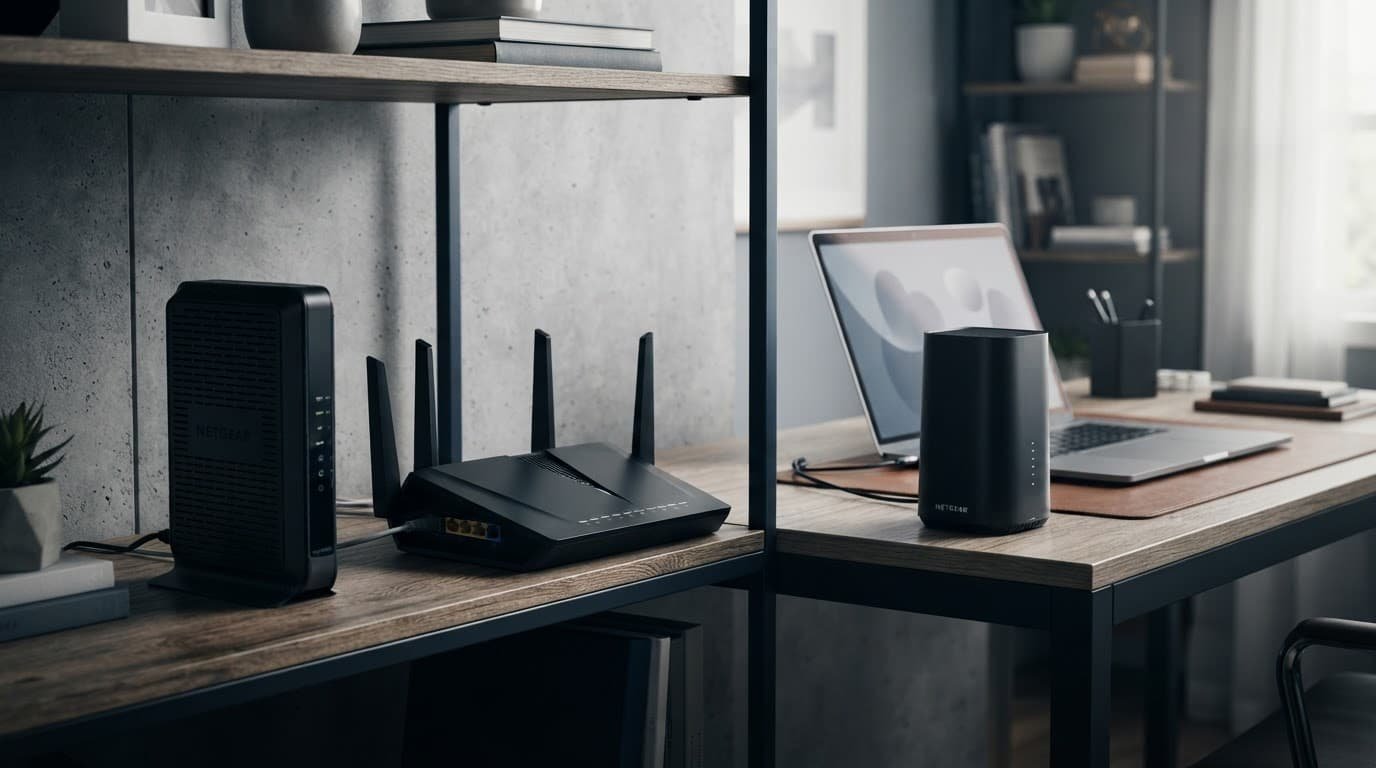
Separate Modem and Router for More Flexibility
A separate cable modem and router is a practical choice for many cable customers. If Wi-Fi performance or coverage becomes a problem, you can replace the wireless router or add a mesh setup without replacing the modem.
For a price comparison, Netgear’s current official pricing lists the CM1000 at $199.99, the CM2500 at $249.99, and the CM3000 at $299.99. Those prices can change, so use them as starting estimates, not guaranteed checkout prices.
A separate setup also gives you more choices for home coverage. A Wi-Fi 6 router is often enough for apartments, condos, and smaller homes. Wi fi extenders can help with a small dead zone, but they aren’t always a substitute for a well-placed router. Larger homes with thick walls, multiple floors, or a detached office may need mesh wi fi instead.
When a Modem-Router Combo Makes Sense
A gateway router puts the modem and router in one enclosure. It can cost less upfront and keeps setup simple. This is a reasonable fit for a small or mid-sized home with a standard cable plan.
The trade-off is flexibility. If the router side becomes outdated or coverage gets worse, you may need to replace the whole unit. A separate modem and router costs more at first, but it gives you more room for an equipment upgrade one part at a time.
For gigabit and multi-gig plans, also check Ethernet ports. A 2.5 Gbps port helps only when the modem, router, switch, and wired device support that speed.
Count the Costs That Can Change the Math
Rental savings are not always as simple as “buy equipment and lower the bill.” Plan terms can change the result.
Included Equipment Is Not a Rental Fee
Some internet service providers include a gateway at no extra cost. Others include a modem but charge for Wi-Fi. Xfinity offers rented gateways and notes benefits such as device support and access to its Wi-Fi hotspot network through its gateway rental information.
An offer described as free equipment rental may still have conditions, a promotional expiration, or a plan requirement. Verify the bill impact before buying replacement equipment.
If your plan includes equipment at no cost, buying a replacement may improve your home network, but it may not lower the monthly bill. Don’t assume the fee applies because another customer pays it.
Also, don’t mix an unlimited data charge into your router math. A provider may require its gateway for a certain data option, or price that option separately. Check whether returning the equipment changes the option or its data cap. Treat neither charge as a router cost.
Support, Updates, and Privacy Matter Too
Rented hardware is usually easier when something breaks. Providers can run diagnostics, offer technical support, and replace their own gateways. With owned Netgear equipment, you handle firmware updates, Wi-Fi passwords, placement, and basic diagnostics.
That added responsibility can be worth it. You have more control over your router settings and privacy, and can choose when to upgrade. Still, keep a small replacement allowance in your calculation if you plan to use the equipment for several years.
A paid-off router is not automatically a good value if it cannot cover the rooms where you work, stream, or make video calls.
Switch From a Rented Gateway Without Losing Service
Do not return the provider’s gateway router until your own setup is online and tested. A careful switch avoids a frustrating weekend without internet.
Activate the Modem First
Use this order when you replace a cable gateway:
- Confirm the exact modem model is approved for your address, service type, and speed tier.
- Save your current Wi-Fi name and password if you want existing devices to reconnect more easily.
- Connect the new modem to the coax line and complete your provider’s activation process.
- Connect the Netgear router to the modem’s Internet or WAN port.
- Test a wired Ethernet connection before judging Wi-Fi performance.
If activation fails, contact customer service with the modem’s CM MAC address. The provider may need to remove the old gateway and register the new modem.
Test the Connection Before Returning Equipment
Run a speed test through Ethernet with VPN software, cloud backups, game downloads, and streaming paused. Then test Wi-Fi in the rooms that matter most to check network coverage.
Strong wired speeds with weak Wi-Fi usually point to router placement, walls, interference, or poor coverage. Slow wired speeds may point to the plan, cable signal, modem, or Ethernet connection.
Return only the rented equipment listed on your account. Get a receipt and keep it until the next bill confirms the rental charge is gone.
Lower the Base Internet Cost Before Chasing Fees
Equipment savings help, but they can’t fix an overpriced internet plan. Review your speed needs before upgrading hardware or keeping a tier you no longer use. Compare total monthly expenses with potential equipment savings.
New York residents may have another option through the affordable broadband act. Qualifying households may be eligible for plans at up to $15 per month for at least 25 Mbps and up to $20 per month for at least 200 Mbps. The state’s Affordable Broadband Act consumer resources explain eligibility and availability under the affordable broadband act.
If you qualify, a low cost internet plan may save more than removing an equipment fee. Qualifying households should confirm eligibility and provider availability first. Then decide whether owned equipment still makes sense for that plan.
Frequently Asked Questions
How do I calculate my ISP rental savings?
Multiply the monthly equipment fee by the number of months you plan to use your equipment. Subtract the device price, tax, shipping, activation costs, and a reasonable replacement allowance to estimate your net savings.
How long does it take for Netgear equipment to pay for itself?
Divide your total ownership cost by the monthly equipment fee to find the break-even month. For example, equipment costing $265 against a $15 monthly fee would break even during month 18.
Can I use a Netgear modem with any internet provider?
No. Cable providers such as Xfinity, Spectrum, and Cox require approved modems that match your address, plan, and speed tier. Netgear cable modems do not replace fiber ONTs or most fixed wireless gateways.
Should I buy a modem, a router, or both?
Buy only the equipment needed to remove a charge from your bill. If your provider includes a modem but charges for Wi-Fi, a standalone router may be enough; cable customers paying for a complete gateway may need both a compatible modem and router.
When should I return my rented gateway?
Wait until your owned equipment is activated and tested through both Ethernet and Wi-Fi. Return only the equipment listed on your account, and keep the receipt until a later bill confirms that the rental charge is gone.
Make the Savings Fit Your Real Setup
The best ISP rental savings come from removing a fee your equipment can replace. Check compatibility first, calculate your break-even month, and include setup, support, and future replacement costs.
A Netgear modem can be a smart purchase for eligible cable customers, while a standalone router may be better when your provider already includes the modem. Buy only the equipment your service requires, then keep the receipt until your next bill confirms the savings.