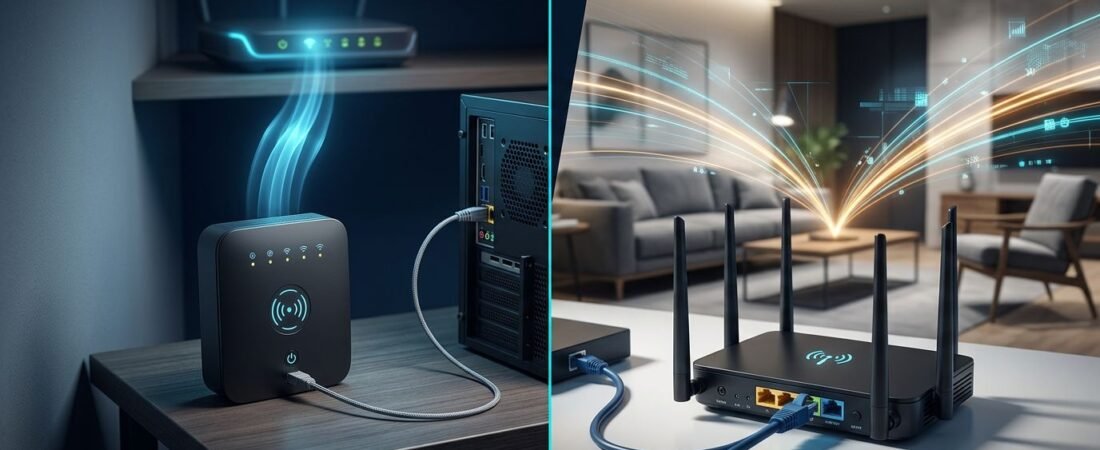
Bridge mode isn’t automatically the better way to extend Wi-Fi. Netgear bridge mode serves a different purpose: it gives an Ethernet-only device a wireless path to your main router.
Access point mode is usually better when you want stronger Wi-Fi coverage elsewhere in your home. Choose based on whether you can run Ethernet and what you need the second router to do.
This post may contain affiliate links. If you make a purchase through these links, I may earn a small commission at no extra cost to you.
Wireless bridge vs. wired access point
Think of a wireless bridge router as a wireless Ethernet cable. It connects to your existing Wi-Fi through the main router, then passes that connection to Ethernet-only equipment through its LAN ports.
Access point mode works the other way around. It uses an Ethernet connection from the primary router or ISP gateway, then creates a wireless network in the new area.
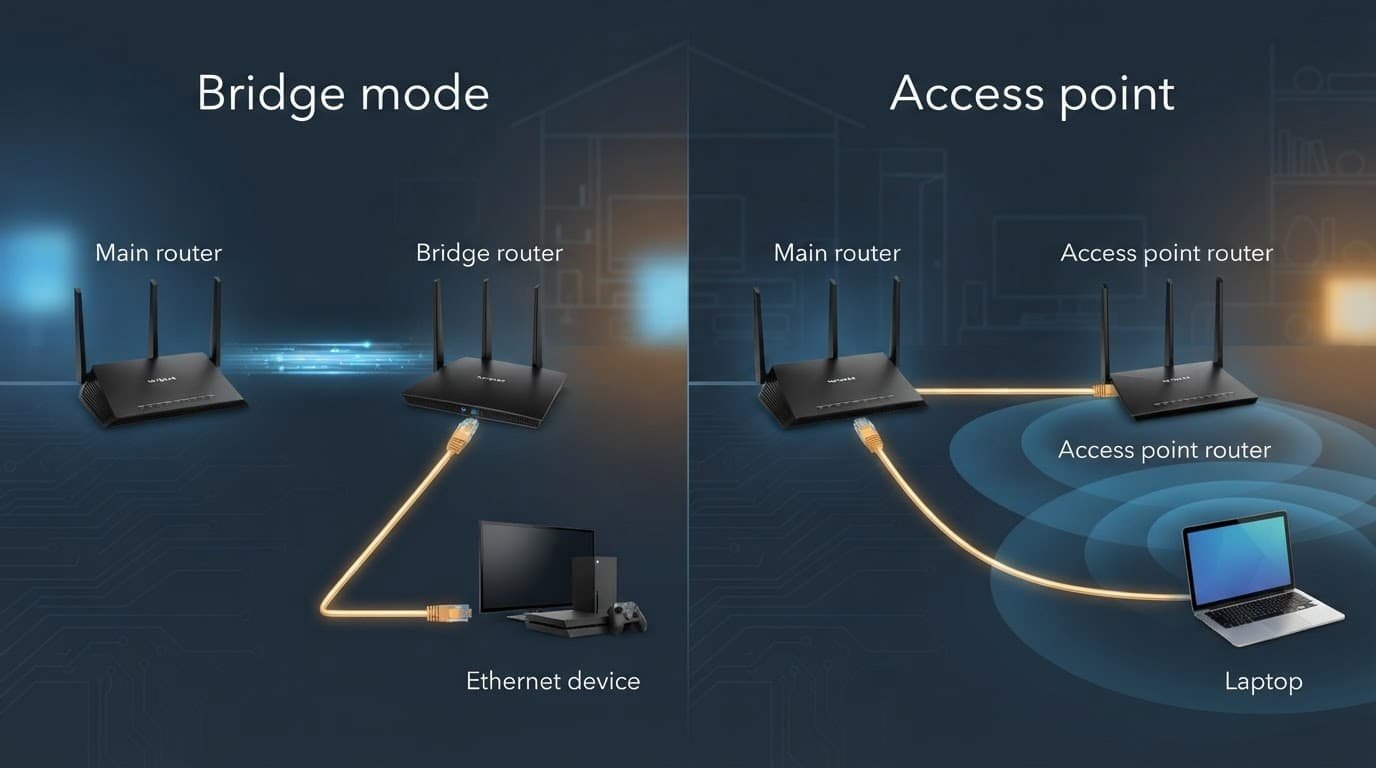
Fixed Ethernet devices get a wireless link
Wireless bridging is useful for wired devices such as a desktop PC, game console, TV receiver, work dock, or network switch. The secondary router connects to the existing network over Wi-Fi.
This can save you from running a cable across a room or through walls. It doesn’t create a broad Wi-Fi zone for wireless clients such as phones, tablets, and laptops.
On many models, its Wi-Fi radio is dedicated to the link with the primary unit. That’s why ordinary devices may no longer be able to join that router.
Wired backhaul extends Wi-Fi coverage
Use this mode when your office, basement, upstairs bedroom, or detached room has Ethernet available. The wired setup provides a stable backhaul, then creates Wi-Fi in nearby rooms.
A wired setup usually gives better results than repeating a weak wireless signal.
First, separate the two meanings of bridge mode
Your ISP gateway may also have a provider-level setting with the same name. That setting differs from the wireless-device setup on a NETGEAR router.
Bridge mode on an ISP gateway
When you enable this setting on a cable or fiber gateway, the device stops handling most router duties. Your NETGEAR or Orbi router then becomes the main router for your home network.
In this setup, leave the NETGEAR router in router mode. Connect its Internet or WAN port to the ISP gateway, then let it handle DHCP, Wi-Fi, and connected devices. Follow NETGEAR’s gateway installation guidance after changing the provider equipment.
If the ISP gateway is already using this setting, your NETGEAR or Orbi router should usually stay in router mode.
When the gateway cannot use this setting
Some providers restrict this ISP gateway setting, especially on equipment tied to phone service, TV service, or managed Wi-Fi plans. In that case, leave the gateway handling routing and set the NETGEAR router to access point mode (AP mode).
Turn off the gateway’s Wi-Fi if possible. This avoids two separate Wi-Fi systems competing in the same rooms.
Some gateways also offer IP Passthrough, DMZ, or Exposed Host settings. These can help when you need routing features on your NETGEAR unit, but they’re secondary options, not replacements for the provider-level setting.
Choose wireless bridge mode for a fixed Ethernet device
Wireless bridging makes sense when a device stays in one place and Ethernet is the best connection option. It suits wired devices such as a gaming PC, office dock, or media cabinet.
The wireless bridge router still needs a strong connection to the main router. Putting it in a complete dead zone won’t solve the problem. Place it where Wi-Fi is still reliable, then run a short Ethernet cable to the device.
Wireless Ethernet bridge vs. WDS
For a simple home setup, the router connects one or more wired devices to the main Wi-Fi network. That is the use case most people need.
WDS, short for wireless distribution system, links wireless network points rather than simply serving one wired device. It can extend coverage, but both ends must support the feature and use compatible settings. Older routers may need matching channels, WiFi security mode, and firmware support.
For one console or desktop, use the simple setup, and choose WDS only when both routers support it.
When bridge mode is the wrong fit
Skip this setup if your goal is better network coverage for phones or laptops. Choose access point mode when you have Ethernet available. Use a mesh system when you need multiple Wi-Fi points but can’t run Ethernet.
A single router can still work in a small or open home. Thick walls, multiple floors, brick, metal ductwork, and long layouts often need more than one Wi-Fi point.
Set up a wireless bridge carefully
The menus can look a little different by model, and wireless bridging may use different labels. NETGEAR’s bridge setup instructions are worth keeping open while you work.
- Connect a computer to the secondary wireless bridge router with Ethernet. Open
routerlogin.netand sign in before moving it to its final location. - Go to ADVANCED > Advanced Setup > Wireless Bridge. Select the option to enable bridging, then choose bridge mode.
- Choose the operating mode that fits your goal. Select the wireless Ethernet bridge option for wired clients. WDS is appropriate only when both routers support it.
- Enter the main router’s SSID, WiFi security mode, and wireless password exactly. The SSID is case-sensitive, and one wrong character can stop the bridge from connecting.
- Apply the settings and wait for the router to restart. Move it to a location with good signal, connect the Ethernet device, and test the connection.
Some NETGEAR models don’t show nearby networks during setup. You may need to enter the SSID by hand instead of selecting it from a scan list. Supported Nighthawk AC1750 firmware may show slightly different menus.
Don’t use WDS, or wireless distribution system, unless both routers support the feature. Also, don’t use a guest network as the bridge source. Guest networks often isolate connected devices from your home network.
Configure access point mode for better Wi-Fi coverage
Access point mode works when an Ethernet connection can link the primary router or gateway to the second router. Your ISP gateway or main router remains in charge of routing, while the NETGEAR unit handles Wi-Fi in the new area.
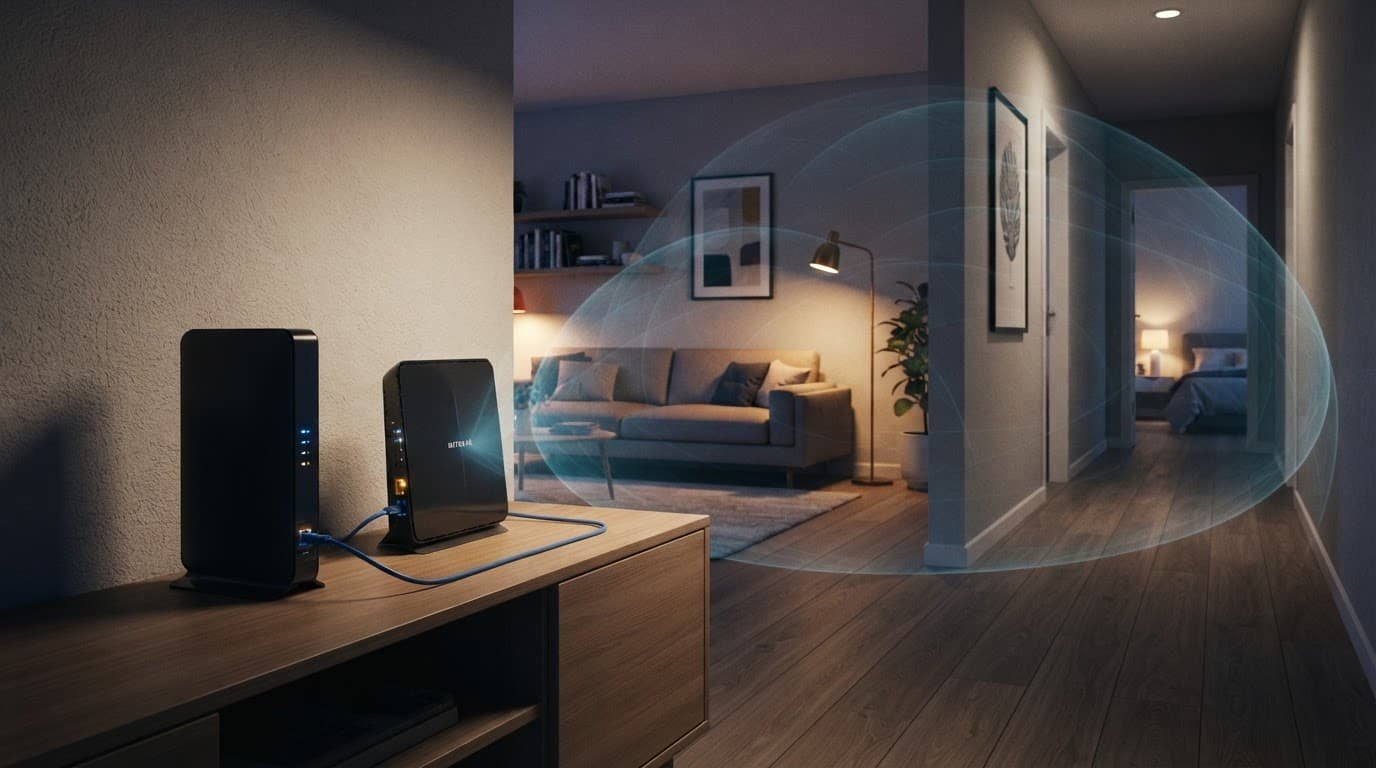
Change a Nighthawk router to AP mode
Start with the secondary router near the main router. Connect a computer, sign in, and look for ADVANCED > Advanced Setup > Wireless AP.
Select AP Mode, then allow the main router to assign an IP address automatically. NETGEAR’s AP configuration steps show the menu path and IP address options.
After it reboots, connect a LAN port on the main router or gateway with a cable. Plug the other end into the uplink Ethernet port listed in your model’s setup guide. Many Nighthawk models use the internet port for this connection.
The same AP setting applies to the Nighthawk AC1750, but menu names can differ by firmware.
Set a clear SSID and strong wireless password. If the NETGEAR router is now your main Wi-Fi system, turn off the ISP gateway’s Wi-Fi radios.
Configure an Orbi router for the same wired setup
For an Orbi router, sign in to its interface and open Router / AP under ADVANCED. Select the same wired setting, then apply the change.
NETGEAR’s Orbi AP configuration instructions cover the current menu path.
The Orbi router in this setting can still provide mesh coverage through its satellites. The ISP gateway handles routing, while the system handles the Wi-Fi network. Some router-level features may no longer be available because the gateway is doing that work.
Avoid double NAT and other common setup errors
A working connection can still cause problems when the ISP gateway and a NETGEAR or Orbi router both stay in router mode. Browsing and streaming may work, but online gaming, remote access, port forwarding, and some work connections can fail.
Use one of these two setups:
- Put the ISP gateway in bridge mode and leave the NETGEAR router in router mode.
- Keep the gateway in its normal routing state and switch NETGEAR to AP mode.
NETGEAR’s routing comparison explains why the first setup keeps full router features on the NETGEAR device.
Don’t expect a weak wireless link to improve itself
A bridge router needs a usable signal from the main router. Wireless bridging can’t repair a weak source signal, so place it halfway between that device and the wired device. Avoid the farthest edge of coverage if possible.
For an access point, place it out in the open. Avoid cabinets, utility closets, floors, large metal objects, and crowded TV stands. Router placement still matters after the Ethernet cable is connected.
Find the new router address after AP mode
After switching to AP mode, routerlogin.net may not open the same management page. The main router now assigns the access point’s IP address.
Open the connected-device list on the gateway or your network’s administration page. Find the NETGEAR device, note its assigned IP address, and enter that address in a browser. Reserving the address can make future logins easier.
Match the plan, ports, and home layout
Test your internet by Ethernet before blaming Wi-Fi. Good wired speeds with poor room-by-room Wi-Fi usually point to placement, wall materials, or coverage limits.
For a desktop, console, work dock, or network-attached storage, wired Ethernet remains the most dependable choice. A wireless bridge can help when running a long cable isn’t practical.
A 2.5 Gbps Ethernet port helps with a 1 Gig or 2 Gig plan only when every device in the path supports that speed. One multi-gig port doesn’t make every device faster. Most TVs, streaming boxes, and older laptops still use Gigabit Ethernet or Wi-Fi.
Wired Wi-Fi or mesh system?
Choose the wired option when your home already has Ethernet runs. It’s a strong choice for a basement office, upstairs room, or detached workspace.
Choose mesh when Ethernet isn’t available and your home has broad gaps in network coverage. An Orbi router can anchor a mesh system, with satellites working together as one wireless network. I’m Steve Neff, founder of Better WiFi Shop, and I use the NETGEAR Orbi 870 in my own home; my Orbi notes at Better WiFi Shop cover what to compare before you buy. Place those satellites where they still receive a solid connection, not inside the worst dead zone.
Frequently Asked Questions
What is Netgear bridge mode used for?
Netgear bridge mode connects a fixed Ethernet-only device to your main network over Wi-Fi. It works well for a desktop, game console, TV receiver, or work dock, but it usually does not provide broad Wi-Fi coverage for phones and laptops.
Should I use bridge mode or access point mode?
Use bridge mode when you need a wireless link for a wired device and cannot run Ethernet. Choose access point mode when you have Ethernet available and want to extend Wi-Fi coverage in another area.
Is Netgear bridge mode the same as bridge mode on an ISP gateway?
No. Bridge mode on an ISP gateway passes routing duties to your NETGEAR or Orbi router, while wireless bridge mode connects wired devices to your existing Wi-Fi. These are separate settings with different purposes.
How do I avoid double NAT with a NETGEAR router?
Put the ISP gateway in bridge mode and leave the NETGEAR router in router mode, or keep the gateway routing and switch the NETGEAR router to AP mode. Avoid leaving both devices in router mode, especially if you need gaming, port forwarding, or remote access to work reliably.
Why is my wireless bridge connection slow or unstable?
The bridge router needs a strong signal from the main router, so it should not sit in a dead zone or at the farthest edge of coverage. Move it closer to the primary router, then connect the Ethernet device with a short cable.
Choose the Setup That Fixes Your Actual Problem
Choose Netgear bridge mode when a fixed Ethernet-only device needs to join your network without a long cable. Choose the wired Wi-Fi option when you need stronger coverage and can run a cable. The same decision applies when the secondary device is an Orbi router.
The fastest internet plan cannot overcome poor placement or weak coverage through thick walls. A stable wired path and the right router mode will do more for everyday streaming, gaming, and work than extra settings you don’t need.