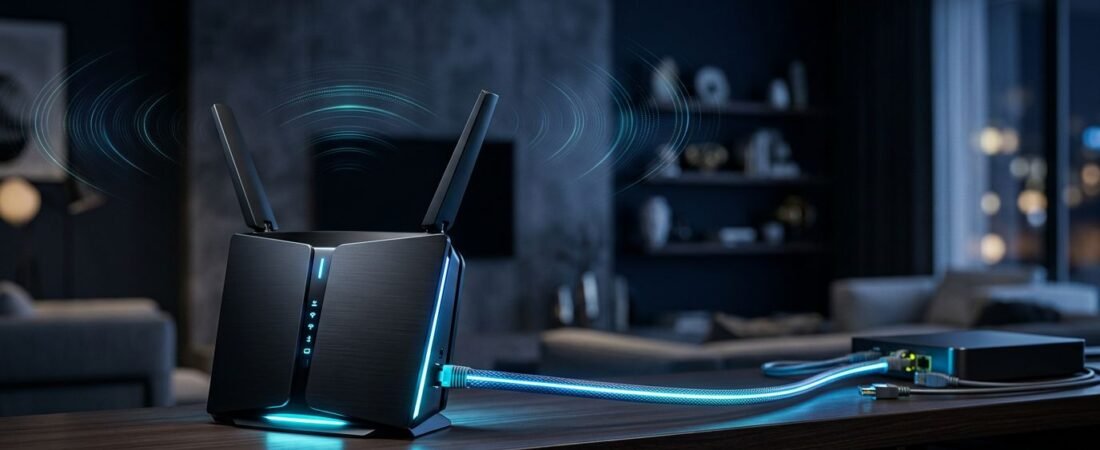
Fast service can still feel average when the router is the weak point. If you searched “Netgear router Quantum Fiber,” choose a personal wireless router based on your plan tier, coverage, and wired devices.
For most 1 Gig homes, the Netgear Nighthawk RAXE300 is the practical choice for a gigabit plan. The RS700S better suits multi-gig service, newer devices, or buyers who want WiFi 7.
Start with your plan speed, home layout, and the devices that stay connected by Ethernet. If convenience matters more than control, compare a personal router with provider-managed Instant WiFi.
This post may contain affiliate links. If you make a purchase through these links, I may earn a small commission at no extra cost to you.
Key Takeaways
- The Netgear Nighthawk RAXE300 is the practical choice for most Quantum Fiber 1 Gig homes.
- Choose the Nighthawk RS700S for multi-gig service, 10GbE wired devices, or a premium WiFi 7 setup.
- Quantum Fiber requires provider fiber equipment, such as a Smart NID or Calix ONT; connect your Netgear router to its active Ethernet handoff.
- Use an Orbi mesh system or Quantum 360 WiFi when thick walls, multiple floors, or distant rooms create coverage problems.
- Test wired speeds before changing equipment, and avoid guessing at VLAN, PPPoE, or bridge mode settings.
Best Netgear router Quantum Fiber Picks by Plan Speed
Quantum Fiber customers need a router, not a cable modem. The fiber service ends at provider equipment, usually a Smart NID or Calix ONT. The C5500XK SmartNID guide explains that this equipment combines the fiber terminal and modem functions.
A traditional cable gateway modem isn’t a substitute for the provider’s fiber equipment. The NETGEAR CM3000 is a gateway modem, not a replacement for that equipment. Keep the provider equipment connected, then add your own router to create the home Wi-Fi network.
Use this quick comparison before buying. Confirm router compatibility with the provider’s Ethernet handoff and your plan tier before buying.
Provider-managed Instant WiFi can be a good alternative if you prioritize one-app administration and provider assistance.
| Your Home and Plan | Best NETGEAR Option | Why It Fits |
|---|---|---|
| 1 Gig plan, small or mid-sized home | Nighthawk RAXE300 | A practical fit for streaming, gaming, and work devices |
| 1 Gig plan, newer WiFi 7 devices | Nighthawk RS300 | Supports newer devices that need added capacity without premium pricing |
| Multi-gig service | Nighthawk RS700S | 10GbE ports help preserve wired performance on the plan |
| Large home with weak rooms | Orbi 970 mesh, including RBE973S | Multiple nodes extend coverage where one router cannot reach well |
The RAXE300 is the best starting point for many homes on a gigabit plan. Newer compatible WiFi 7 devices may favor the RS300, and WiFi 7 offers a practical future-proofing path.
If your home has several floors, brick walls, or a detached office, coverage can matter more than advertised speed. In those cases, the Orbi 970 mesh may fit better than a faster single router.
Match Router Ports to Your Real Connection
Advertised bandwidth speeds aren’t the same as the result every device will get. Plan speed, port capacity, Wi-Fi signal, and client support all matter.
The RAXE300 is enough for many 1 Gig homes
The Netgear Nighthawk RAXE300 is a tri-band Wi-Fi 6E router with up to 7.8 Gbps of advertised wireless capacity. It includes one 2.5GbE multi-gig port and five Gigabit Ethernet ports.
That 2.5GbE port gives your 1 Gig service useful headroom. It also leaves room for a faster plan later. The 6 GHz band can help newer phones, laptops, and tablets avoid congestion from older devices.
It’s still a single router. It works best in an apartment, condo, ranch-style home, or open floor plan where it can sit near the center.
The RS700S is the premium multi-gig choice
The Netgear Nighthawk RS700S is the better standalone pick if you pay for a multi-gig plan. It’s a WiFi 7 router with a 10GbE Internet port, a 10GbE LAN port, and four Gigabit LAN ports. NETGEAR lists the full port layout on its RS700S product page.
It costs more because it’s built for faster fiber handoffs, heavy traffic, and high-speed wired transfers. A desktop PC, gaming system, work dock, or NAS can use the 10GbE LAN port for a higher data transfer rate on the local network.
A 2.5GbE or 10GbE router port doesn’t make every device faster. The computer, switch, dock, and cable path also need matching multi-gig hardware.
Compatible WiFi 7 clients are needed to benefit from that newer wireless standard. Most smart TVs, streaming sticks, older laptops, and game consoles still use Gigabit Ethernet or older Wi-Fi. Don’t pay for a premium router only because the numbers look bigger.
How to Connect a Netgear Router to Quantum Fiber
For a Netgear router Quantum Fiber setup, start with the active Ethernet handoff for your fiber internet connection. Don’t disconnect or factory-reset the provider’s equipment unless the provider tells you to.

Connect the hardware in the right order
The Netgear unit is your third-party wireless router. A cable gateway modem can’t replace the provider’s fiber equipment.
- Find the active Ethernet port on the provider’s Smart NID or a Calix ONT.
- Connect the Ethernet line from that port to the Internet or multi-gig Internet port on the router.
- Power on the provider equipment first, then wait for it to finish starting.
- Turn on the Netgear router and complete setup in the Nighthawk app or router web page.
Use a Cat5e or Cat6 Ethernet cable for the Ethernet line. Cat6 is the safer choice for multi-gig plans and longer cable runs.
During setup, the app asks you to choose a network name and create a WiFi password. It may label that wireless credential as a security key. You can reuse the previous WiFi password if you want, but devices may need reconnecting after the changeover.
The provider allows customers to use third-party Wi-Fi equipment. Review its bring-your-own Wi-Fi instructions before changing provider settings.
If your account uses provider-managed Instant WiFi, the new router will manage your home’s wireless network instead. After the handoff, it creates your home local network.
Don’t guess at bridge mode or VLAN settings
Start with the router’s automatic network settings. Before changing VLAN or PPPoE values, verify the WAN connection settings.
Only enter PPPoE, VLAN tagging, bridge mode, or other advanced network settings if the provider supplies them for your address and equipment.
Old forum instructions may not match your current equipment. A setting that worked with an older gateway can stop a new connection from working.
If the Netgear router connects but gaming, remote access, or port forwarding does not work, double NAT may be the problem. Ask the provider whether its fiber equipment needs a provider-side setting, or use Netgear Access Point Mode if you want it to keep routing duties.
For more practical installation help, see our router setup guides.
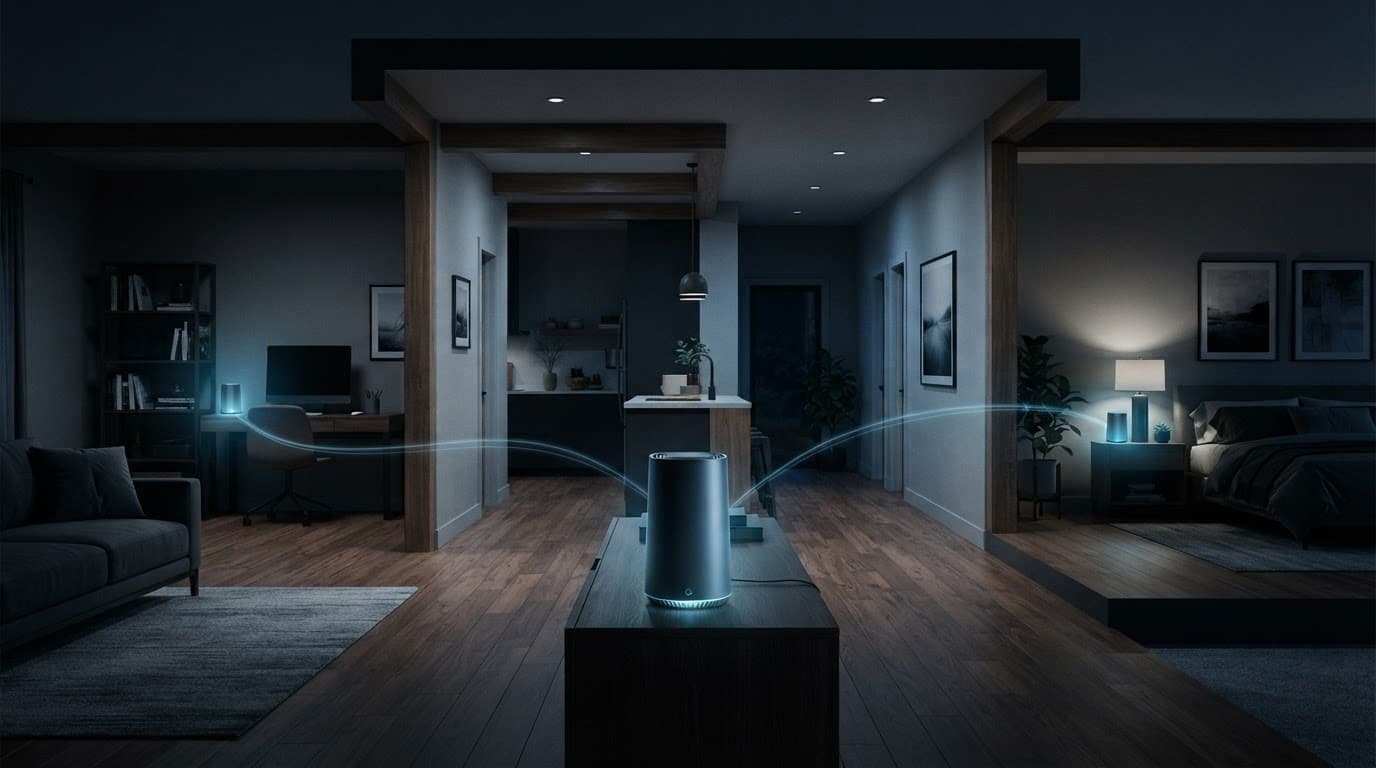
Quantum 360 WiFi Pods or a Netgear Mesh System?
A stronger standalone router can’t push a clean signal through every thick wall or floor. A mesh router is preferable when rooms stay consistently weak, but it improves coverage rather than automatically increasing speed.
Choose Quantum 360 WiFi for provider-managed simplicity
Quantum Fiber 360 WiFi offers provider-managed Instant WiFi, one app, and support from the provider. Instant WiFi handles pod pairing and administration in the app, while a wired pod uses Ethernet backhaul to connect to provider equipment. Managed nodes can share one WiFi password across the home.
Some newer provider pods use WiFi 7. Confirm the exact pod model and WiFi 7 client compatibility before ordering, since hardware names and availability can vary by market. Place a wired pod near a weak area when Ethernet is available.
The C6500XK SmartNID guide notes that this model has no built-in Wi-Fi. The Smart NID must be paired with provider-managed pods or your own router, and it also can’t use WPS for wireless connections.
Choose Orbi when coverage is the main problem
The Orbi 970 system, including the RBE973S, adds WiFi 7 for larger homes needing premium coverage and multi-gig wired connections. The router unit has a 10GbE WAN port, a 10GbE LAN port, and multiple 2.5GbE LAN ports.
It fits larger households with multi-gig service, remote workers, gamers, and hard-to-reach rooms. Its premium hardware is more than many homes need.
Use one main Wi-Fi system, with one mesh router as the primary network. Running provider-managed pods alongside another router’s mesh network can create extra networks and setup confusion. Adding a second router can also create separate credentials, including another WiFi password, and possible double NAT problems.
Fix Slow Speeds and Connection Problems First
Test the connection before replacing hardware, since wired-versus-Wi-Fi results provide the first troubleshooting options. A weak Wi-Fi signal can look like an ISP speed issue. Poor wired results can point to provider equipment or the service connection.
Compare wired and Wi-Fi results
Connect a recent laptop or desktop directly to the Netgear router with Ethernet. Run a speed test there, then test Wi-Fi in the rooms where you work, stream, or play games.
Fast wired speed and weak room-by-room Wi-Fi usually mean a placement or coverage problem. Slow wired speed points to the provider connection, router setup, or cable path.
The provider’s slow-speed checklist starts with equipment connections and fiber unit status. That is the right place to begin before changing router settings.
If provider-managed Instant WiFi behaves differently from your personal router, run the same test from the same device and location.
Help devices join the correct network
If a mobile device, TV, or laptop won’t connect, forget the old network name on that device. Then select the current network name and enter the current WiFi password. Some setup screens call that wireless credential a security key.
Restart the device before resetting the whole network, and recheck the WiFi password first. Check for router firmware updates after setup, especially if newer WiFi 7 devices drop off the 6 GHz band. Review the router’s network settings after firmware or connection changes.
Don’t depend on WPS as the fix. The fiber unit doesn’t support it, and manual network setup is usually more reliable.

Photo by Jaycee300s
Improve router placement before buying more equipment
Keep the router in an open, elevated spot. Avoid closed cabinets, the floor, metal shelving, and the space directly behind a television.
The fiber unit may be in a utility room or closet, but the router doesn’t need to stay there. A longer Ethernet cable can let you place the router where Wi-Fi has a better chance of reaching the whole home. If wired results remain slow, give technical support the test results and equipment details.
Frequently Asked Questions
Do I need a modem for Quantum Fiber?
No, Quantum Fiber uses provider equipment such as a Smart NID or Calix ONT instead of a traditional cable modem. Keep that equipment connected and attach your Netgear router to its active Ethernet port.
Which Netgear router is best for Quantum Fiber 1 Gig service?
The Nighthawk RAXE300 is a practical fit for most 1 Gig homes because it includes a 2.5GbE port and WiFi 6E. The RS300 is another option if you have newer WiFi 7 devices and want added wireless capacity.
Can I use a Netgear router with Quantum Fiber?
Yes, Quantum Fiber allows customers to use third-party Wi-Fi equipment. Connect the router’s Internet or multi-gig Internet port to the provider equipment, then complete setup in the Nighthawk app or router web page.
Should I choose the RS700S or an Orbi mesh system?
Choose the RS700S when multi-gig speed and high-speed wired connections are the priority. Choose Orbi when multiple floors, thick walls, or distant rooms make coverage more important than the speed of one standalone router.
What should I do if my Netgear router is slow with Quantum Fiber?
Test a wired connection directly to the router before replacing hardware or changing advanced settings. Fast Ethernet results with weak Wi-Fi usually indicate a coverage or placement issue, while slow wired results may point to the provider connection, router setup, or cable path.
Choose the Router That Fits Your Fiber Plan
For most 1 Gig homes, the RAXE300 is the best router choice for your plan. Choose the RS700S for multi-gig service or several demanding wired devices.
Keep the provider equipment in place, test Ethernet before blaming WiFi, and use mesh for difficult layouts. For Quantum Fiber, match the setup to your plan and home, or choose provider-managed Instant WiFi instead. After setup, record your WiFi password securely so every device can reconnect.