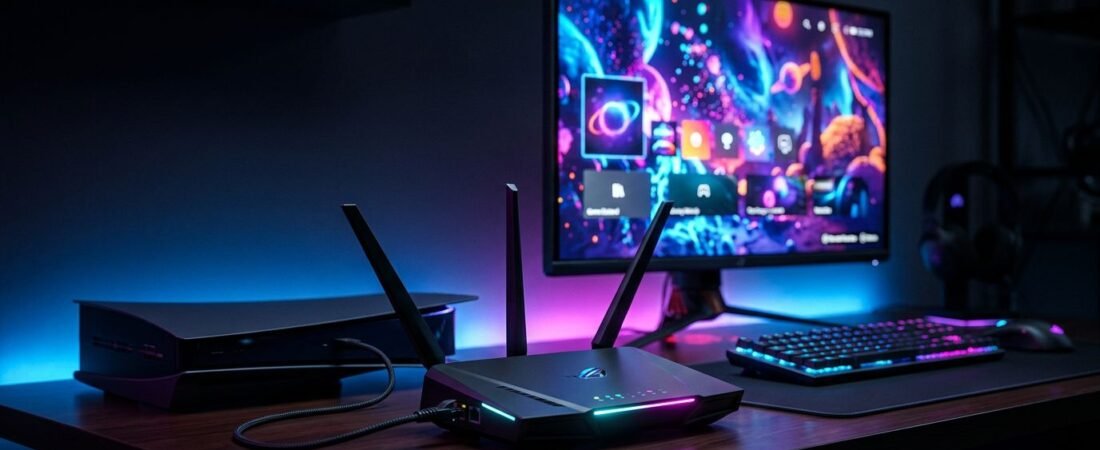
Online games can lag even when your internet plan looks fast on paper. A 4K stream may buffer when the router is poorly placed, overloaded, or connected to the wrong port.
A good Netgear router setup starts with the basics: connect the modem or gateway correctly, choose a sensible location, and use wired links for devices that need steady performance. You don’t need advanced networking skills to get those parts right.
Follow the setup process from physical connections through performance tuning, then adjust the network around how your household uses it.
This post may contain affiliate links. If you make a purchase through these links, I may earn a small commission at no extra cost to you.
Start With the Right Internet Connection
A wireless router creates the home network, but it doesn’t replace the equipment that brings internet into the house.
Connect the modem, ONT, or gateway correctly
Cable customers need an activated modem connected to the Netgear router’s Internet or WAN port. Fiber customers normally connect the router to an optical network terminal, called an ONT, or to an ISP gateway with Ethernet.
Don’t connect the modem or ONT to one of the router’s regular LAN ports. Use the port labeled Internet or WAN.
Power off the modem or ONT and the router before connecting the network cable. Turn the modem or ONT back on first. Wait until it has finished connecting to your provider, then power on the router.
NETGEAR’s router installation guide follows the same basic order. This restart sequence also helps when a cable modem is still holding the connection from an older router.
Put the router where Wi-Fi can reach it
Place the router in an open, central area. Keep it off the floor and away from enclosed cabinets, metal shelves, large speakers, and thick exterior walls.
A router hidden beside the modem in a basement corner may work, but it won’t provide strong coverage upstairs. Move it closer to where people use Wi-Fi most.
Use a Cat5e or Cat6 Ethernet cable for a desktop PC, PlayStation, Xbox, streaming box, or work dock that stays in one place. Wired Ethernet is still the most dependable option for fixed gaming and 4K streaming devices.
Netgear router setup: use the app or browser
The Nighthawk app is the easier choice for most first-time users. You can also complete setup from a browser if you prefer a computer or the app can’t find the router.
Set up the router with the Nighthawk app
After the router powers on, look for its WiFi network and network key on the label. The label is usually on the bottom or back of the unit.
Connect your phone to that temporary network. Then open the NETGEAR Nighthawk app and follow the setup process. Some newer models also have a QR code that speeds up this step.
During setup, create a network name that your household can recognize. Choose a strong Wi-Fi password and write it down somewhere safe. Don’t reuse the old password if it has been shared with neighbors, visitors, or old devices you no longer trust.
The app can also show connected devices and basic network settings after installation. That makes it useful for checking whether a console, TV, or laptop joined the correct network.
Use browser setup without the app
Connect a computer to the router through Wi-Fi or Ethernet, then open the web interface at routerlogin.net. If that page does not open, try the local IP address listed for your model, often 192.168.1.1 or 192.168.0.1.
NETGEAR’s router login instructions explain the available browser access options. The correct address can vary by model.
Many older routers use admin as the default username and password as the default password. Don’t assume these older credentials apply to every Nighthawk or Orbi model. Check your router label, quick-start guide, or model manual if the login page rejects them.
Change the router admin password during setup. It protects access to admin settings and controls configuration beyond Wi-Fi access.
Tune the Network for Gaming and 4K Streaming
Fast Wi-Fi is useful, but low-latency gaming depends more on a stable connection than a high internet speed test result. A good result doesn’t guarantee low ping.
Wire the devices that matter most
Connect the primary gaming PC or console with an Ethernet cable whenever possible. A wired connection avoids many problems caused by distance, busy Wi-Fi channels, and walls.
Do the same for a stationary 4K TV or streaming box if an Ethernet jack is nearby. This frees wireless capacity for phones, tablets, and laptops.
Photo by Maurício Mascaro
Pause game downloads, cloud backups, and large file transfers before a competitive match. Those activities can raise latency even when the router itself is working normally, and if lag still shows up during matches, our NETGEAR router packet loss guide shows how to find which connection is actually failing.
Some Nighthawk models include Quality of Service, or QoS, controls. If your model has QoS, use it to give a gaming device or video traffic higher priority. It can reduce competition on a busy WiFi network, but it cannot add speed that your internet plan does not provide.
Choose the Wi-Fi band that fits the device
Use 5 GHz for most nearby gaming laptops, streaming devices, and modern phones. It usually offers better speed than 2.4 GHz, though its range is shorter.
Use 2.4 GHz for smart home devices, older gear, and rooms farther away. It travels through walls better, but it is often more crowded.
If your router and device support 6 GHz, use it for newer devices in the same room or nearby rooms. A WiFi 7 router may support this band, but compatible devices are still required. It can offer cleaner wireless capacity, but it won’t improve older phones, TVs, or consoles that lack 6 GHz support.
A newer Wi-Fi standard cannot fix a weak signal caused by a router placed behind a TV, inside a cabinet, or at the far end of the house.
Secure the Router Before Sharing the Network
A secure network protects more than your gaming account. It also keeps strangers off the connection your household depends on.
Change passwords and create guest Wi-Fi
Use the router’s admin settings to set a long Wi-Fi password that isn’t tied to your address, birthday, or family name. Enable WPA3 encryption if your router and devices support it. If older devices can’t connect, WPA2/WPA3 mixed mode may be the practical choice.
Create a separate guest network for visitors. In the Nighthawk app, enable Guest WiFi, select the available band, and set separate guest credentials. This keeps visitors from needing the main network password.
If children use the connection, parental controls can help set device schedules or content restrictions.
NETGEAR’s router security guidance also recommends stronger passwords, WPA3 where supported, and guest access for visitors.
On supported models, Netgear Armor may add another layer of protection, though availability and subscription requirements vary.
Check for firmware updates after installation
Open the app or router web interface and check for new updates. These updates can fix stability problems, security issues, and device compatibility bugs. If your model supports automatic updates, consider enabling them.
Start updates when nobody needs the connection for a game, work call, or movie. Do not unplug the router while it’s updating.
Fix Common Netgear Setup Problems
Most setup errors come down to the wrong connection, a missed restart, or a phone connected to the wrong Wi-Fi network.
When routerlogin.net will not open
First, confirm that your mobile device is connected to the Netgear router’s WiFi network. A device using mobile data or another wireless network can’t reach the local router login page.
Turn off mobile data temporarily if your phone keeps switching away from the router. Then try the browser again. If the page still fails, clear the browser cache and retry. If routerlogin.net still fails, use the local IP address listed in the manual.
You can also connect a computer directly to a LAN port on the router with an Ethernet cable. This removes Wi-Fi from the troubleshooting process and provides direct access to the web interface, where you can verify the model-specific default username and admin settings.
When setup says “internet not connected”
Check that the connection runs from the modem, ONT, or ISP gateway to the router’s Internet port. Then restart the equipment in the correct order: modem or ONT first, router second.
Cable modems sometimes need a full restart after you replace the connected router. If you use a fiber or DSL provider, the connection may require PPPoE, static IP, or VLAN settings supplied by the ISP. Check the model manual or ISP documentation for troubleshooting information about these settings.
A provider gateway can cause another problem called double NAT when it is still routing traffic behind the router. Gaming, port forwarding, VPN access, and some smart devices may not work correctly.
Use bridge mode on the provider gateway when you want the router to handle routing. If bridge mode is unavailable, put the router in Access Point Mode and let the provider gateway handle routing.
Factory reset the router only after checking the connections, restart order, ISP settings, and login details. A reset removes your saved Wi-Fi name, password, and settings.
Match the Router to Your Plan and Home
The right setup depends on your plan speed, home layout, and the devices you use every day.
Avoid a wired port bottleneck
Gigabit Ethernet is enough for internet plans below 1 Gbps. For 1 Gig or 2 Gig service, a 2.5GbE WAN port gives you more room, especially when the modem or ONT has a matching port.
A 2.5GbE port doesn’t make every device faster. Your router’s LAN port, PC, switch, dock, or network-attached storage also needs matching 2.5GbE support to exceed Gigabit speeds.
If you’re choosing hardware for a future upgrade, our Netgear Nighthawk review compares the practical differences between router types and performance levels.
Know when one router is not enough
A single Netgear router can work well in a small or mid-sized home with an open layout. Mesh WiFi systems, such as an Orbi mesh system, can suit larger homes, multiple floors, thick walls, dead zones, or a detached office.
Don’t buy mesh only because it’s newer; strong wired backhaul and careful placement beat an extra Wi-Fi hop for gaming. Tri-Band Connectivity helps when several devices are active.
If streaming is part of your plan to replace cable, include internet upgrades and home Wi-Fi equipment in the budget. Our streaming versus cable cost guide helps put those ongoing costs in perspective.
Frequently Asked Questions
Should I use Ethernet for gaming and 4K streaming?
Yes, connect a gaming PC, console, streaming box, or stationary 4K TV with Ethernet whenever possible. A wired connection usually provides lower latency and more consistent performance than Wi-Fi.
Which Wi-Fi band is best for a gaming device?
Use 5 GHz for nearby modern gaming devices because it usually offers better speed than 2.4 GHz. Choose 2.4 GHz for older devices or rooms farther from the router, and use 6 GHz only with compatible devices nearby.
What should I do if routerlogin.net will not open?
Confirm that your phone or computer is connected to the Netgear router’s Wi-Fi network, then temporarily turn off mobile data if needed. If the page still does not open, try the local router IP address or connect a computer directly with Ethernet.
Why does my Netgear router say the internet is not connected?
Check that the modem, ONT, or ISP gateway connects to the router’s Internet or WAN port, then restart the equipment with the modem or ONT first. If the problem continues, check whether your ISP requires PPPoE, static IP, VLAN settings, or bridge mode.
Does a newer Netgear router guarantee better Wi-Fi?
No, performance also depends on router placement, compatible devices, walls, interference, and your internet plan. Place the router in an open central area and use wired connections for devices that need the most stable performance.
A Better Home Network Starts With the Basics
A reliable home network starts with the fundamentals. Connect the router to the correct port, place it where Wi-Fi reaches your rooms, and wire devices that need steady performance.
Keep the router’s firmware current, use a separate guest network, and fix double NAT if your provider gateway still routes traffic. These steps help gaming and 4K streaming stay stable.