Buying a faster router will not fix a modem mismatch on DSL internet. It can replace weak Wi-Fi, improve coverage, and give you more control over your home network.
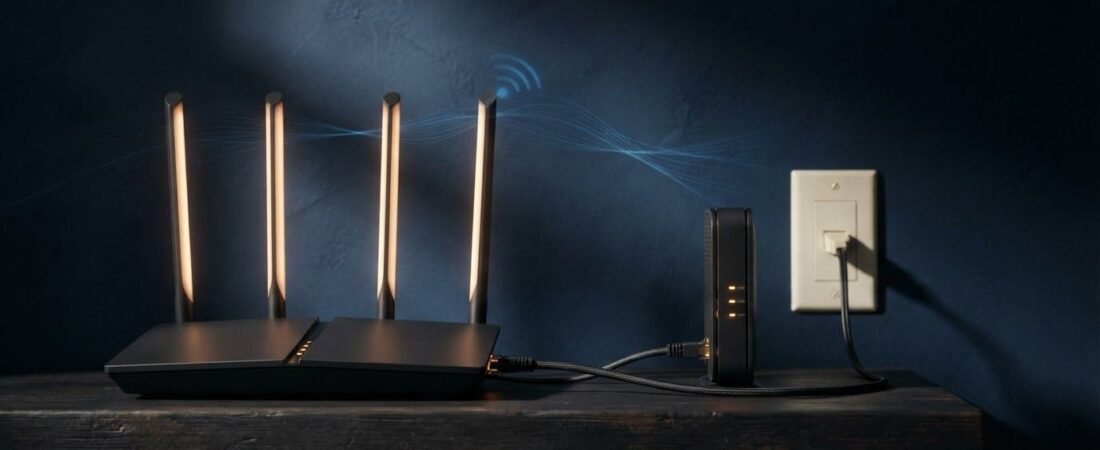
A Kinetic DSL Netgear router setup works when the modem and router have separate jobs. Kinetic is your internet service provider, and the Kinetic Gateway handles the DSL signal for your Kinetic internet service. Your Netgear wireless router manages Wi-Fi, wired devices, and network settings.
That difference prevents the most common bad purchase, a cable modem router that has no DSL port. Start by checking what connects to the wall before you buy hardware or change settings.
This post may contain affiliate links. If you make a purchase through these links, I may earn a small commission at no extra cost to you.
Key Takeaways
- A standard Netgear router can work with Kinetic DSL, but it must connect by Ethernet to a Kinetic Gateway or compatible DSL modem.
- Do not buy a Netgear DOCSIS cable modem-router combo for DSL service; it requires a coaxial cable connection.
- Use bridge mode when the Netgear router should manage routing and Wi-Fi, or Access Point mode when the Kinetic Gateway should remain the main router.
- Choose router features based on your home and future plans, but remember that Wi-Fi 6, mesh, and Wi-Fi 7 cannot increase the actual speed of a DSL line.
- Test the connection over Ethernet before troubleshooting Wi-Fi, and keep rented Kinetic equipment until the replacement setup works reliably.
Kinetic DSL Netgear Router Compatibility: The Basic Rule
Yes, you can use a third-party Netgear router with Windstream Kinetic DSL. It must connect by Ethernet to a working Kinetic Gateway or compatible DSL modem. That device establishes the internet connection before the router receives it. A standard Netgear router does not replace the DSL modem portion by itself.
Windstream’s wireless-router connection instructions also show why the physical connection matters. DSL service, fiber service, and cable service use different equipment before the router.
A DSL Gateway Stays in the Connection
DSL arrives through a phone-style wall jack. The Kinetic Gateway contains the DSL modem, which translates that signal into Ethernet. The gateway also manages devices and settings on the home network.
A Netgear Nighthawk router uses an Ethernet Internet or WAN port. It cannot connect directly to the DSL phone line. The most reliable setup for many homes is to keep the gateway in place, then let the Netgear router manage your Wi-Fi network.
You can also use a customer-owned DSL modem if Kinetic confirms it works with your address and speed tier. DSL hardware is more complicated than a standalone router. Line type, local equipment, and account settings all matter.
Fiber Customers Need Different Hardware
Some Kinetic customers have fiber internet instead of DSL. In that setup, fiber terminates at an optical network terminal, usually called an ONT. The ONT provides an Ethernet connection for your router.
A Netgear router can connect to the ONT through its WAN port. You do not need a DSL modem or a cable modem for fiber service. Check the cable coming into your existing Kinetic equipment before ordering anything.
Don’t Buy the Wrong Kind of Netgear Cable Modem
The word “modem” causes most compatibility mistakes. A modem and router may look similar on a store shelf, but they accept different service connections.
Use this quick check before you purchase a replacement.
| Connection at Your Wall | Equipment You Need | Equipment That Will Not Replace It |
|---|---|---|
| Phone-style DSL jack | Kinetic Gateway or compatible DSL modem, plus router | cable modem |
| Ethernet cable from an ONT | Standalone router or mesh system | DSL modem or cable modem |
| Coaxial cable | DOCSIS modem or combo | DSL modem or cable modem provisioned for another service |
Standalone Netgear Routers Are the Safe Choice
For Kinetic DSL, a standalone Netgear Wi-Fi router is usually the right purchase. It works behind the Kinetic gateway and lets you upgrade your local Wi-Fi network without changing the DSL connection.
Look for Gigabit Ethernet WAN and LAN ports, modern Wi-Fi bands, and Wi-Fi 6 when replacing older Wi-Fi 5 equipment. WPA3 encryption is a useful network security requirement. These features improve local wireless performance and protection, not the DSL line’s actual service speed.
The right Kinetic DSL Netgear router setup is not about buying the most expensive model. It is about keeping the DSL connection stable while improving the Wi-Fi inside your home.
Cable Modem Router Combos Do Not Work With DSL
Don’t buy a Netgear CAX30S or another DOCSIS modem-router combo for Kinetic DSL. Netgear describes the CAX30S as a DOCSIS 3.1 cable modem with a wireless router built in. DOCSIS 3.1 hardware expects coaxial cable service, not a Kinetic DSL phone line.
The same warning applies to many older Netgear Nighthawk modem-router combinations. Good reviews don’t make DOCSIS hardware compatible with DSL service.
Set Up a Kinetic DSL Netgear Router in Bridge Mode
Bridge mode lets the Kinetic Gateway keep its DSL modem job while the Netgear router takes over routing and the Wi-Fi network. This avoids having two routers trying to manage the same network.
Bridge mode is a good choice if you want to use Netgear features such as parental controls, port forwarding, Quality of Service, guest Wi-Fi, or advanced device controls.
Gather Your Settings Before Changing Anything
Connect a computer to the Kinetic Gateway first. Take photos of the current cable connections and write down the Wi-Fi name and password.
For supported Kinetic gateway models, Windstream’s gateway settings guide lists 192.168.254.254 as the local login address. The administrator password is usually printed on the gateway label.
Treat bridge mode as a careful self-installation path, and ask Kinetic to confirm whether your line uses PPPoE authentication before changing modes. If it does, request the correct account username and password. Don’t guess or reset the gateway before you have those details.
Configure the Gateway and Netgear Router
The exact bridge-mode menu differs by gateway model, but the basic setup follows the same order:
- Confirm the gateway model and bridge-mode setting with Kinetic, then change the Kinetic Gateway to bridge mode.
- Use Ethernet cables to connect the gateway’s Ethernet port to the Netgear router’s Internet or WAN port.
- Open the Netgear setup page or Nighthawk app and select PPPoE if Kinetic gave you PPPoE credentials.
- Enter the username and password exactly as provided, then save the setting.
- Restart the gateway first. Wait until its DSL connection is ready, then restart the Netgear router.
Windstream’s documentation includes both PPPoE and RFC 1483 via DHCP connection options. Choose DHCP only if Kinetic confirms that is how your service is set up.
After the router connects, test one laptop or desktop by Ethernet before testing Wi-Fi. This verifies the internet connection and separates a DSL issue from a wireless coverage issue.
Use Access Point Mode When You Want Less Risk
Bridge mode is not your only option. Netgear Access Point mode is easier if you want the Kinetic Gateway to keep managing the DSL connection and router functions.
Let the Kinetic Gateway Handle Internet Login
In Access Point mode, the Kinetic Gateway remains the main router. The Netgear unit provides Ethernet ports and a better-positioned Wi-Fi network.
Turn on Access Point mode in the Netgear administration settings, then follow the on-screen cable instructions for your model. PPPoE credentials stay on the gateway because it remains in charge of the internet connection. Access Point mode still lets the Netgear device manage and broadcast your preferred Wi-Fi bands.
If a Netgear router receives a private 192.168.x.x Internet address in normal router mode, it is usually behind the gateway. Bridge mode or Access Point mode prevents the usual double-router problem.
Avoid running both devices in normal router mode unless you know how to manage double NAT. It can cause problems with gaming, remote access, and some work VPN connections.
Choose Netgear Hardware for Your Plan and Home
Your plan speed matters, but home layout matters too. A 100 Mbps DSL plan can feel poor in a large house if the router is stuck in a cabinet at one end of the home.
Wi-Fi 6 Is Enough for Most DSL Homes
Most dual-band routers are sufficient for ordinary DSL households, provided they support the Wi-Fi bands your devices use. They can handle several streaming devices, video calls, smart home gear, and everyday browsing without paying extra for premium features your line cannot use.
Gigabit Ethernet ports are enough for normal DSL service. A 2.5GbE port will not make a DSL plan faster. It only adds room if you later move to a faster fiber plan and have matching equipment.
Place the router in an open, central location for a more consistent Wi-Fi network. Keep it off the floor and away from metal shelving, enclosed cabinets, and thick walls when possible.
Wi-Fi 7 and Mesh Make Sense in Select Homes
Wi-Fi 7 is worth considering when you expect a fiber upgrade, have newer devices, or want to keep the router longer. Tri-band routers can help busy homes with compatible devices.
The Netgear Nighthawk RS300 is a tri-band Wi-Fi 7 router with 2.4 GHz, 5 GHz, and 6 GHz Wi-Fi bands. It is a router-only product, so DSL customers still need a Kinetic Gateway or compatible DSL modem ahead of it.
For a small or mid-sized home with an open layout, one router can work well. Choose a Netgear Orbi mesh system instead when you have several dead zones, multiple floors, thick walls, or a detached office.
Mesh networking improves coverage, but it cannot increase DSL line speed. Test wired speed first before spending money on extra satellites.
Test the Connection Before Returning Kinetic Equipment
Test the internet connection and the new Wi-Fi separately. Connect a computer directly to the gateway or Netgear router with Ethernet. Pause VPN software and large downloads, then run a speed test to check download speeds and upload speeds.
If wired speed is slow at the gateway, the Netgear router isn’t the cause. If wired speed is normal but Wi-Fi is weak in back rooms, focus on router placement, interference, or mesh coverage.
Understand Support and Rental Savings
Kinetic can help confirm whether your DSL line is working during self-installation. For a customer-owned modem or router, support may stop once the service connection is verified. Keep the gateway available until the new setup has worked reliably for several days.
Before buying hardware to avoid rental fees, check your bill. Some plans include gateway equipment, while others charge separately for Wi-Fi equipment. Compare the real monthly fee with the price of the router and any compatible DSL modem you need.
Return rented equipment only after your new setup is stable. Get a receipt and keep it until the return appears on your next bill.
Frequently Asked Questions
Can a Netgear router replace the Kinetic Gateway on DSL?
Usually, no. A standard Netgear router does not include the DSL modem needed to translate the phone-line signal, so it must connect to a working Kinetic Gateway or compatible DSL modem.
Which Netgear equipment works with Kinetic DSL?
A standalone Netgear wireless router with an Ethernet WAN port is generally the safest choice. Avoid DOCSIS cable modem-router combinations because they are designed for coaxial cable service, not DSL.
Should I use bridge mode or Access Point mode?
Use bridge mode when you want the Netgear router to handle routing, Wi-Fi, and features such as port forwarding or parental controls. Use Access Point mode when you want the Kinetic Gateway to keep managing the internet connection and network settings.
How do I connect a Netgear router to a Kinetic Gateway?
Connect an Ethernet cable from the gateway to the Netgear router’s Internet or WAN port. If Kinetic uses PPPoE, enter the credentials provided by Kinetic; otherwise, use DHCP only when Kinetic confirms that setting.
Will a better Netgear router make my DSL plan faster?
No. A newer router can improve Wi-Fi coverage, local wireless performance, and network management, but it cannot increase the speed delivered by the DSL line. Test wired speeds first to determine whether the problem is the service or the Wi-Fi network.
The Right Setup Starts With the DSL Connection
A Kinetic DSL Netgear router setup works best when the gateway handles DSL and the Netgear unit manages your home network. Don’t replace the gateway with a cable modem/router combo.
Choose bridge mode when you want the Netgear unit to run the network. Choose Access Point mode for a simpler setup with fewer settings to manage.
The best upgrade matches your actual plan, home size, and coverage problem.