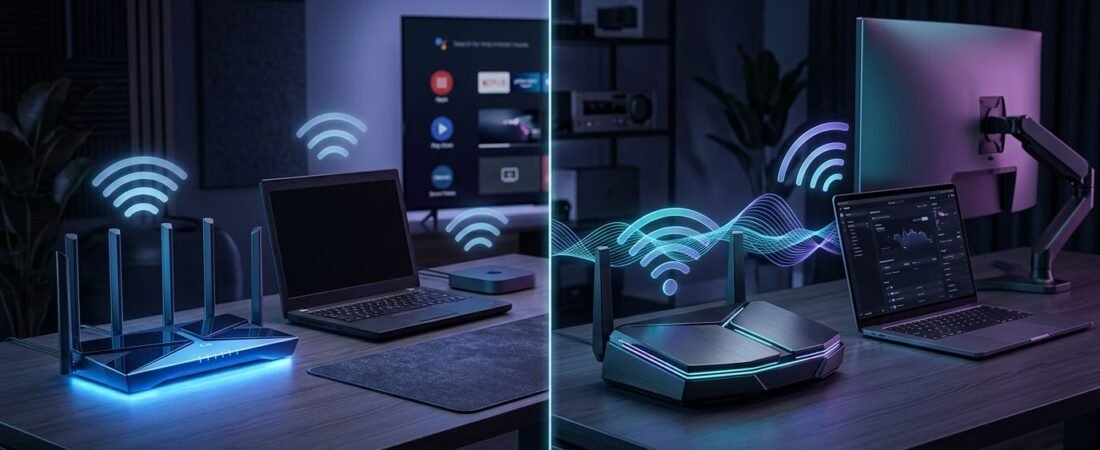
A newer router can improve a busy wireless network, but it can’t turn an older laptop into a Wi-Fi 7-capable device. When choosing between Wi-Fi 7 and Wi-Fi 6E, remember that your existing devices matter more than the largest speed number on the box.
Your phone, streaming box, smart plugs, and work laptop each have their own wireless limits. The router still affects wireless connectivity, coverage, capacity, and wired connections.
Start with compatibility, then match the router to your internet plan and home layout.
This post may contain affiliate links. If you make a purchase through these links, I may earn a small commission at no extra cost to you.
Older Devices Will Still Connect, With Limits
Compatibility is usually the easy part. Both Wi-Fi 6E routers and Wi-Fi 7 routers offer backward compatibility, supporting older devices on the bands those devices already use.
Older Wi-Fi Devices Stay on 2.4 GHz or 5 GHz
A Wi-Fi 5 laptop, older phone, Roku, smart TV, or smart plug can connect to a newer Netgear router. It will use 2.4 GHz or 5 GHz, depending on what the device supports.
The 6 GHz band is different. Only Wi-Fi 6E and Wi-Fi 7 client devices can use it. Netgear’s 6 GHz setup guidance confirms that a client device must support the 6 GHz band and use WPA3 security.
That means an older device won’t gain 6 GHz access after you install a Wi-Fi 7 router. It also won’t gain Wi-Fi 7 features such as advanced multi-band features. It keeps working at its own standard and speed.
Newer phones and laptops moving to 6 GHz can still help indirectly. They leave more room on 5 GHz for older gear. MU-MIMO can help the router schedule multiple connected devices, letting them share capacity without changing their standards. That can matter in a crowded home with several people streaming, gaming, or working at once.
Smart Home Setup Can Be the Bigger Issue
Smart home devices are often the oldest devices on the network. Many cameras, plugs, thermostats, and printers only use 2.4 GHz.
Don’t change your security settings or turn off 6 GHz only to connect one older plug. First, place the phone near the router and follow the device maker’s setup steps. If setup still fails, use a temporary separate 2.4 GHz network name if your Netgear router offers that option.
After the device joins the network, you can return to your normal settings. Keeping one main network name with band steering enabled is still the simplest setup for most homes.
Netgear Wi-Fi 7 vs Wi-Fi 6E: What Older Devices Notice
Wi-Fi 6E added access to cleaner 6 GHz frequencies. Wi-Fi 7 adds wider channels and smarter traffic management, but compatible devices need support for those features. These improvements can use wireless spectrum more efficiently when newer clients share the network.
| Feature | Wi-Fi 6E | Wi-Fi 7 | What older devices get |
|---|---|---|---|
| 6 GHz band | Yes | Available on tri-band models | No 6 GHz access |
| channel width | Up to 160 MHz | Up to 320 MHz in 6 GHz | No wider-channel support |
| MLO | No | Yes, with compatible clients | Connects normally without multi-link access |
| Modulation | 1024-QAM | Up to 4K-QAM | Uses its own standard |
| MU-MIMO | Supported on compatible equipment | Supported on compatible equipment | Better simultaneous handling, legacy limits remain |
The key point is simple: a Wi-Fi 7 router can improve the whole network, but it doesn’t upgrade the radio inside an older device. Cleaner spectrum, wider channels, and newer modulation help compatible clients, while MU-MIMO can improve simultaneous traffic handling without changing legacy limits.
Wider Channels Help Newer Devices Most
Wi-Fi 7 can use 320 MHz channels in the 6 GHz band. That’s twice the 160 MHz maximum available with Wi-Fi 6E. The extra capacity can increase data throughput for bandwidth-intensive tasks, including large local transfers, cloud backups, and high-bitrate video.
Wi-Fi 7 also supports 4096-QAM, often called 4K-QAM. In strong, clean signal conditions, it can carry about 20% more data than Wi-Fi 6’s 1024-QAM. That can produce higher data rates. Cisco’s Wi-Fi 7 technical guide explains how wide channels, 4K-QAM, and traffic coordination work together.
Those gains won’t show up on an older Wi-Fi 5 phone across two walls.
MLO and Preamble Puncturing Improve Busy Networks
Multi-Link Operation (MLO) lets compatible Wi-Fi 7 equipment use more than one wireless link. During network congestion, MLO can move traffic across available links instead of waiting on one busy band. That can lower latency for gaming, video calls, and real-time work.
Preamble puncturing is useful in crowded apartments or neighborhoods. If signal interference affects part of a wide channel, Wi-Fi 7 can preserve the clear portion instead of abandoning the whole channel. That can reduce latency for busy connections.
The full benefits of both features require Wi-Fi 7 support on the client device. Older devices connect normally, but they don’t gain the newer router capabilities.
Why a 1 Gig Plan Usually Doesn’t Need Wi-Fi 7
A 1 Gbps plan provides plenty of internet speed for most homes. Actual wireless performance still depends on the device, router, and distance from it.
Find the Real Bottleneck First
Test a wired computer directly from the modem or gateway before replacing the router. If the wired test is low, a new Wi-Fi 7 router won’t fix an ISP issue, poor cable connection, or outdated modem.
Then test Wi-Fi near the router and in the rooms you use most. If speed falls sharply only in the back bedroom or upstairs office, you likely have a coverage problem.
A faster router can’t push a strong signal through thick walls, metal ductwork, or a closed cabinet.
For a small or mid-sized home with a 1 Gig plan, a good Wi-Fi 6E router may already be the right answer. It gives newer devices a less crowded band without paying for features your current devices can’t use.
Check Ethernet Ports Before Paying for More Speed
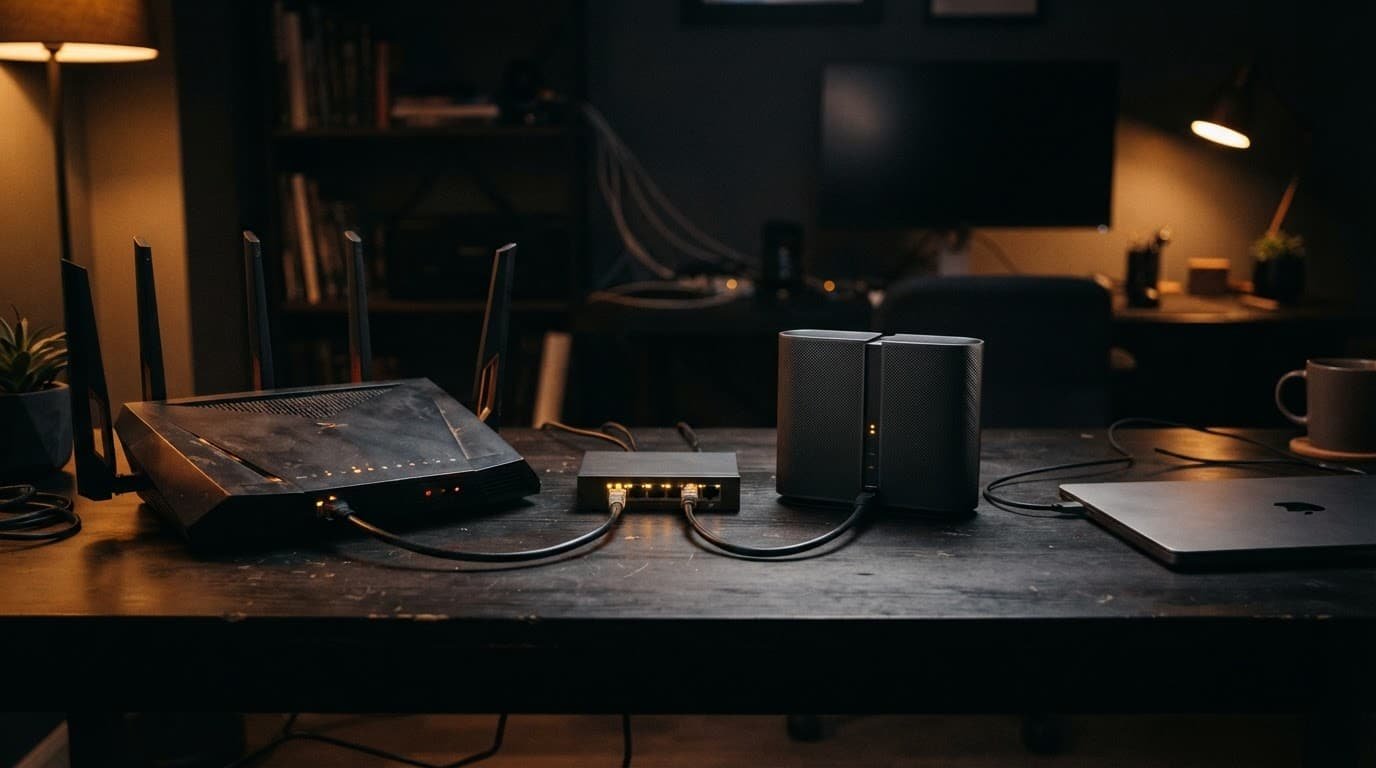
A 2.5GbE port provides headroom beyond gigabit speeds, but only when the modem, switch, dock, and endpoint support it. It doesn’t make every device faster. Each computer, switch, dock, or console in that path needs 2.5GbE support.
The Netgear Nighthawk RS300 specifications list a 2.5 Gbps internet port and two 2.5 Gbps LAN ports. That is useful for a multi-gig modem, wired workstation, or network-attached storage.
Cable customers should also remember that a router doesn’t replace a cable modem. If you rent equipment, review how to replace an Xfinity Gateway before ordering new hardware.
Choose the Netgear Setup That Fits Your Home
The best choice isn’t always the newest one. Match the router to your devices, plan speed, coverage needs, and household traffic.
Keep Wi-Fi 6E When It Already Solves the Problem
A Wi-Fi 6E router remains practical for homes with newer phones or laptops, a 1 Gig plan, and no major dead zones. It can move compatible devices to the 6 GHz band while older devices remain on 2.4 GHz or 5 GHz. MU-MIMO helps handle simultaneous traffic, but it doesn’t add that band to older devices.
The Netgear Nighthawk RAXE300 is an example of a Wi-Fi 6E router with a 2.5 Gig internet port. It makes sense when you want access to that newer band and multi-gig headroom without paying more for features your household won’t use yet.
Choose Wi-Fi 7 for New Devices, Multi-Gig, or a Long-Term Upgrade
A tri-band model such as the RS300 fits homes with newer Wi-Fi 7 devices. It also suits faster service or greater capacity for a busy household. That offers some future proofing, but no router guarantees indefinite performance.
MLO can help supported devices manage network congestion and reduce latency, but its benefits require compatible clients.
Don’t assume every Wi-Fi 7 router includes 6 GHz. Some are dual-band models, so check the specifications for all three bands when that spectrum matters.
For a large, multi-story home, mesh systems may matter more than the Wi-Fi generation. Netgear says its Orbi Wi-Fi 7 systems support older devices in mixed-generation homes. Use mesh systems when one router can’t cover the rooms where you actually work, stream, and game. Additional access points can extend coverage, while a wired connection between them can improve consistency.
Check These Things Before You Upgrade
A few quick checks can prevent an expensive router from becoming an expensive disappointment.
- Check your internet plan and test wired speed before blaming Wi-Fi. A 500 Mbps plan won’t become multi-gig because the router has a 2.5GbE port.
- Count newer devices: one newer Wi-Fi 6E phone or Wi-Fi 7 laptop may not justify a premium router. Several newer devices can make the upgrade more useful, especially if the router supports MU-MIMO during busy periods.
- Look at your home layout. A central, open router location helps more than placing a powerful router in a utility closet.
- Check the full wired path. Your modem, router, switch, dock, and computer all need matching multi-gig ports for speeds above 1 Gbps.
- Decide whether the real problem is coverage. For dead zones on multiple floors, mesh systems with wired backhaul may improve coverage more than a higher wireless label.
Frequently Asked Questions
Can older devices connect to a Wi-Fi 7 router?
Yes. Older phones, laptops, smart TVs, and smart plugs can connect over 2.4 GHz or 5 GHz, but they won’t gain Wi-Fi 7 features or access to 6 GHz.
Will Wi-Fi 7 make my older laptop faster?
No. A router can’t upgrade the wireless standard inside a client device. Older equipment keeps its own speed and capabilities, although a newer router may handle busy network traffic more efficiently.
Is Wi-Fi 6E enough for a 1 Gig internet plan?
For many homes, yes. Wi-Fi 6E can provide 6 GHz access for compatible devices and enough capacity for a 1 Gig plan without paying for Wi-Fi 7 features your current devices may not support.
When should I choose Wi-Fi 7 instead?
Choose Wi-Fi 7 when you have compatible newer devices, multi-gig internet or wired equipment, or a busy household that would benefit from additional capacity. Check that the model includes 6 GHz if you want to use that band, since some Wi-Fi 7 routers are dual-band.
The Practical Upgrade Decision
For older devices, Wi-Fi 7 vs Wi-Fi 6E isn’t a race for headline speed. Both can keep legacy gear connected, while only newer clients can use 6 GHz or newer wireless features.
Choose Wi-Fi 6E when your plan is 1 Gig or less and your current devices are mostly older. Choose Wi-Fi 7 when you need multi-gig ports, expect newer devices soon, or want a router that will stay useful longer.
A router that reaches the rooms you use is worth more than a speed rating your devices can’t access.