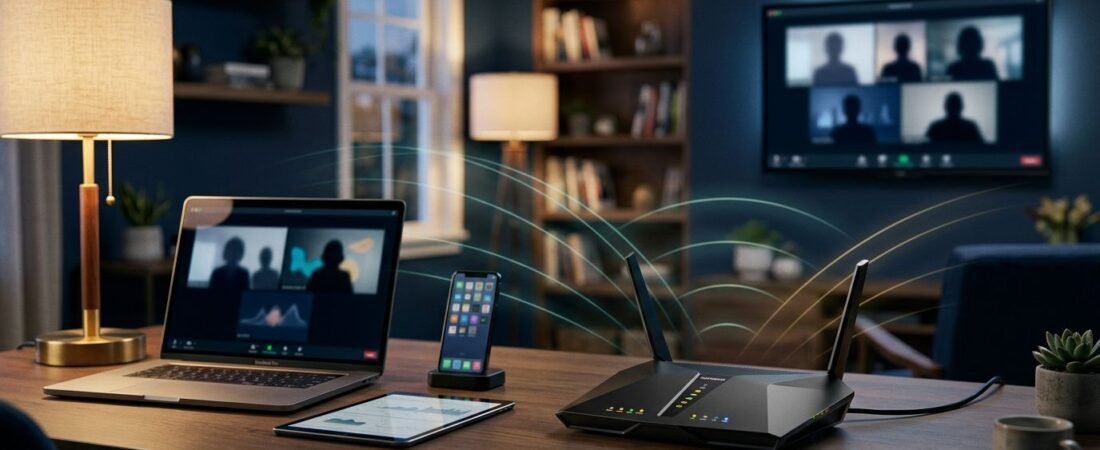
One frozen Zoom screen can turn a normal workday into a frustrating one. When several people in the house are on calls at once, weak coverage and limited upload speed show up fast.
A solid Netgear WiFi setup is not only about buying a faster router. It starts with your internet plan, home layout, router placement, and which devices need a wired connection.
Use the steps below to build a more dependable home network for Zoom, Microsoft Teams, Google Meet, and everyday streaming.
This post may contain affiliate links. If you make a purchase through these links, I may earn a small commission at no extra cost to you.
Start With the Real Bottleneck
A new router cannot fix every video call problem. Before changing settings or buying equipment, find out whether the trouble comes from your internet connection, WiFi coverage, or one overloaded device.
Test Your Wired Speed and Upload Speed
Connect a laptop or desktop directly to your Netgear router with Ethernet. Run a speed test while the home network is relatively quiet.
The wired result is your baseline. If it is much lower than the speed you pay for, WiFi is probably not the main issue. Check for an ISP outage, a loose cable, an aging modem, or a plan that does not have enough upload capacity.
Upload speed matters more than many households expect. Zoom lists 1.0 Mbps download and 600 Kbps upload for standard group video. Its current video-call requirements rise to 2.6 Mbps down and 1.8 Mbps up for 720p group calls.
Three calls can add up quickly, especially when someone is sharing a screen or uploading work files in the background.
Separate Internet Problems From WiFi Problems
If the wired speed is good but calls freeze in a back bedroom, you likely have a coverage problem. If every device slows down at the same time, your connection or router may be overloaded.
Check where the problem happens:
- Calls fail only in one room, which points to weak signal or interference.
- Calls drop across the house, which can point to the modem, ISP, or router.
- A work laptop struggles while other devices work, which may be a device, VPN, or software issue.
Run the same test close to the router, then again in the rooms where people work. That simple comparison helps you avoid replacing the wrong hardware.
Build a Netgear WiFi Setup for Multiple Video Calls
A good Netgear WiFi setup gives call devices a clear path to the router. You do not need a premium system for every house, but one router cannot cover every layout equally well.
Put the Main Router in the Right Place
Place the router in an open, central area when possible. A shelf or table is better than a floor, basement corner, metal cabinet, or closed media console.
Walls, ductwork, brick, and appliances reduce wireless range. A router hidden behind a television may look tidy, but it can make your office connection worse.
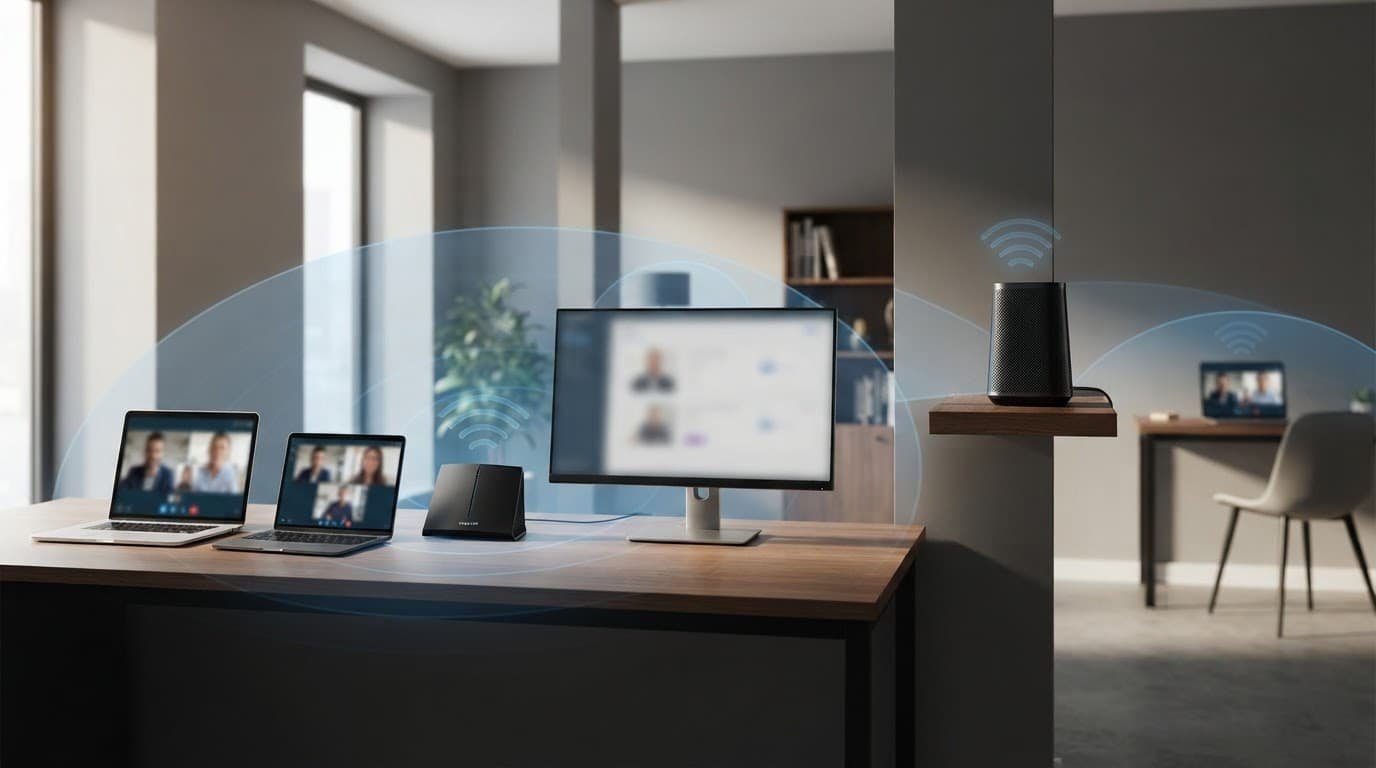
Start with the router near the center of the home, then test the rooms where calls happen. Moving it even a few feet can make a real difference.
Choose a Single Router or Mesh System
A single Nighthawk router can work well in a small or mid-sized home with a fairly open layout. WiFi 6 is still enough for many homes with moderate internet plans, streaming devices, phones, and a few daily work calls.
Mesh WiFi makes more sense when you have multiple floors, thick walls, dead zones, or a detached office. An Orbi system places additional satellites around the home so devices are not trying to hold onto one weak signal from far away.
For the best results, connect mesh satellites by Ethernet when your home has network wiring. Wired backhaul gives the satellite a more stable link to the main router.
A mesh system fixes coverage problems. It does not add upload speed to a plan that is already too limited for several video calls.
If you are still deciding between router types, read our Netgear Nighthawk review before paying for more capacity than your home needs.
Connect Your Equipment the Right Way
The physical connection matters. A strong WiFi router still depends on a clean connection to the modem, ONT, or ISP gateway.
Use the Right Internet Handoff
Cable internet needs a compatible modem. Fiber service usually uses an optical network terminal, also called an ONT, with Ethernet running to your router.
If your provider requires its own gateway, ask whether bridge mode or IP passthrough is available. This lets the Netgear router manage your home network without two routers competing to do the same job.
NETGEAR’s router installation guide walks through connecting the modem, router, and Nighthawk app. Keep the old provider equipment connected until the new setup is working.
For gigabit and faster plans, check the Ethernet ports on both sides. A 2.5GbE port is useful for 1 Gig or 2 Gig service, but only when the modem, router, switch, and connected device support that speed.
Finish the Basic Netgear WiFi Setup
Use a new WiFi name and a strong password. For most homes, one network name is simpler than separate names for 2.4 GHz and 5 GHz. Band steering can move compatible devices to the better connection automatically.
Update router firmware before relying on it for work calls. Firmware updates can fix stability issues and security problems. If you use a mesh system, check the router and every satellite.
A properly finished Netgear WiFi setup should also include WPA3 security when supported, a changed admin password, and a quick review of connected devices. Old phones, unused smart plugs, and unknown devices can add unnecessary traffic.
Give Work Devices a Better Connection
Not every device needs Ethernet. The devices that stay in one place usually benefit from it most.
Wire What Does Not Move
Connect a desktop PC, work dock, game console, or network-attached storage device to the router or mesh satellite with Ethernet. This reduces WiFi congestion for phones, tablets, and laptops that need to stay wireless.
A wired desktop is often the easiest way to make one important video call more reliable. It also gives you a clearer test when you need to separate ISP trouble from WiFi trouble.

Do not expect a 2.5GbE port to make every device faster. Most laptops, smart TVs, and streaming boxes still use standard Gigabit Ethernet or WiFi.
Turn On QoS When Your Model Supports It
Quality of Service, often called QoS, can give voice and video traffic more priority when the network is busy. It is useful when someone starts a large download, streams 4K video, or backs up files during a meeting.
Check your exact Netgear model before changing QoS settings. The menus vary by router and firmware version. Start with the automatic option if available, then test normal work calls for a few days.
Microsoft recommends up to 2.5 Mbps down and 4 Mbps up for Teams video meetings. Its network preparation guidance also shows why upload headroom matters for homes with several active users.
Avoid changing channels, QoS, DNS, and mesh placement all at once. You will not know which change helped, or which one created a new problem.
Fix Video Call Problems Before Replacing Hardware
A weak signal often looks like a router failure. It may only need better placement, a wired connection, or one mesh satellite in the right location.

Photo by Diva Plavalaguna
Look for a Pattern
Does the call problem happen at the same time every day? If it begins after school, evening streaming may be using the connection. If it happens only upstairs, coverage is the more likely issue.
Restart the modem and router only after checking cables and service status. A restart may help temporarily, but repeated drops need a closer look.
Also check the work computer. A company VPN, browser extension, old WiFi driver, or crowded USB dock can affect meeting quality even when the rest of the network is fine.
Make One Change at a Time
Move the router into the open. Connect one work device by Ethernet. Pause large cloud backups during calls. Then test again.
If the home has a large layout, add a mesh satellite where signal falls off. Put it between the main router and the weak room, not at the very edge of the dead zone.
For homeowners comparing network costs, our router rental savings guide can help you decide whether owned equipment makes sense over time.
Final Thoughts
Multiple video calls do not require the most expensive router available. They require enough upload speed, good coverage, and a stable path for the devices people depend on for work.
A well-planned Netgear WiFi setup starts with wired testing, practical router placement, and mesh coverage only where it is needed. Get those basics right, and your home network will feel far more dependable when everyone is online at once.