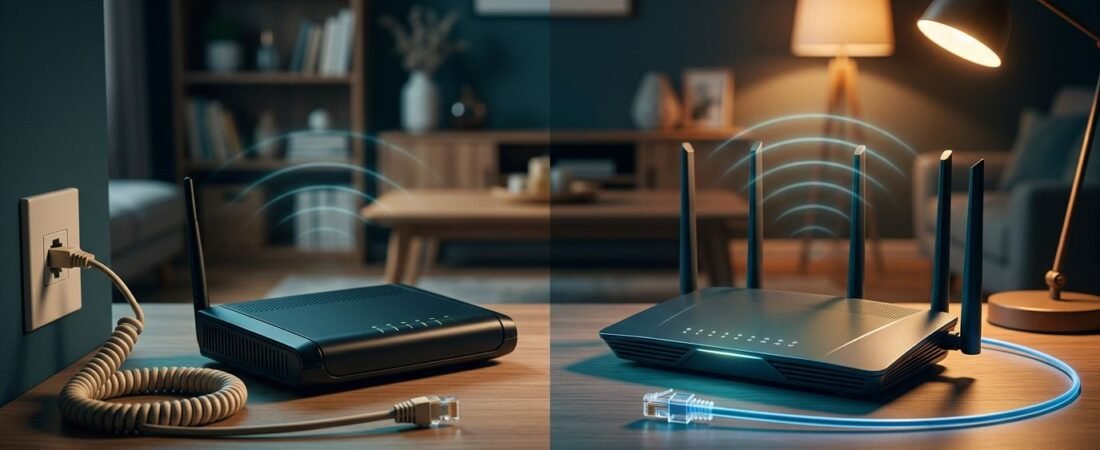
A Netgear wireless router can improve coverage, but it can’t replace every provider device. The right CenturyLink compatible routers depend on whether your internet arrives through a DSL phone line or fiber.
That one detail changes everything. DSL delivers your internet service over a phone line. Fiber internet uses a fiber connection, and each broadband connection calls for different equipment.
Use this setup guide to identify your connection. Then choose hardware for your high-speed broadband plan, home size, and comfort level.
This post may contain affiliate links. If you make a purchase through these links, I may earn a small commission at no extra cost to you.
Key Takeaways
- Identify whether your service uses single-line DSL, bonded VDSL2, or fiber before choosing a Netgear router.
- DSL requires a compatible ADSL2+ or VDSL2 modem, while fiber usually needs a standalone router with an Ethernet WAN port.
- Netgear modem-router combinations such as the D7000 and D7800 are not suitable replacements for bonded VDSL2 equipment.
- For a stronger Wi-Fi network, keep the provider modem or ONT in place and connect a newer Netgear router through Ethernet, bridge mode, or access point mode.
- Check PPPoE, VLAN, WAN, and equipment-rental requirements before disconnecting the existing CenturyLink or Quantum Fiber gateway.
CenturyLink Compatible Routers: Identify DSL or Fiber First
Look behind your current wireless gateway before buying anything. A thin phone-style cable in a DSL port indicates DSL, while Ethernet from an ONT, SmartNID, or fiber gateway indicates a fiber broadband connection. The fiber gateway may be provider equipment, while the ONT is the actual handoff in many installations.
Your bill can also help identify the internet service. Legacy CenturyLink service is often DSL, while Quantum Fiber customers generally receive a fiber handoff. Your CenturyLink modem may show the standard, but ask support whether you need an ADSL2+ modem or a VDSL2 modem, including bonded VDSL2. An ADSL2+ modem and a VDSL2 modem are not interchangeable, even when both use a phone line.
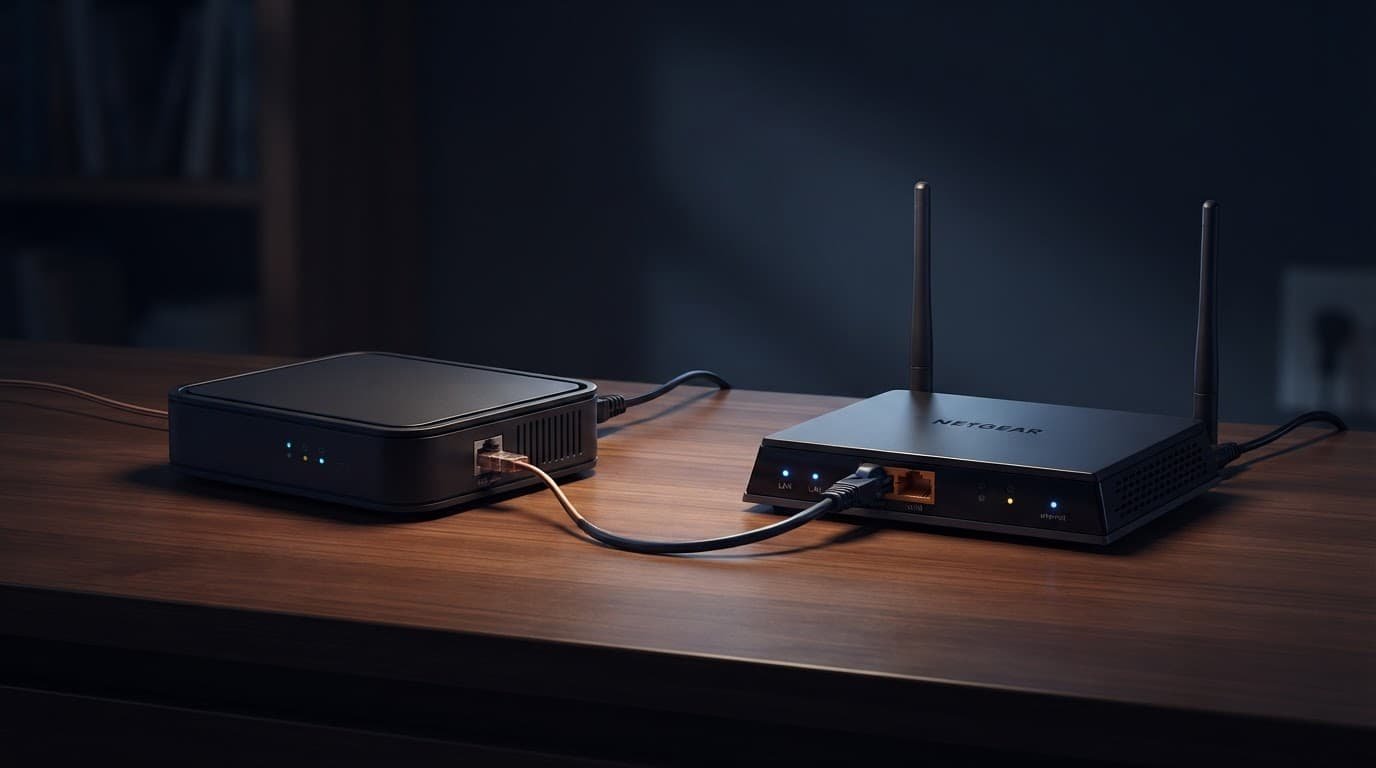
Choosing compatible hardware gets much easier once you identify the connection. A standard wireless router has no DSL modem inside it. It cannot replace a DSL modem or connect directly to a phone jack, even with excellent Wi-Fi 6 or Wi-Fi 7 hardware.
CenturyLink’s WAN settings guide shows the connection types that may appear in a gateway, including PPPoE, IPoE, and transparent bridging. These settings matter more than the router’s advertised wireless speed, even when you choose a Wi-Fi 6 gateway. They also help determine how the router receives the broadband connection.
A router can fix weak Wi-Fi coverage, but it cannot make a DSL line connect without the correct modem.
Match the Netgear Hardware to Your Service
This quick comparison separates the modem job from the router job.
| Service Type | Equipment That Connects to the ISP | Netgear’s Role | Practical Setup |
|---|---|---|---|
| Single-line ADSL2+ or VDSL2 | DSL modem, such as an ADSL2+ modem or VDSL2 modem | Netgear modem router combo or separate Wi-Fi router | Confirm the CenturyLink modem matches the line standard |
| Bonded VDSL2 | Compatible two-line DSL equipment | Standalone router after the line equipment | Keep compatible provider equipment in place |
| Fiber with an ONT | ONT or fiber gateway with Ethernet | Standalone Ethernet-WAN router | Connect the ONT to the router’s WAN port |
| Provider gateway stays installed | CenturyLink or Quantum Fiber wireless gateway | Router or access point | Use bridge mode or access point mode when available |
The simple rule is this: DSL needs modem compatibility, while fiber needs Ethernet WAN compatibility.
Netgear Options for CenturyLink DSL
Older Netgear DSL hardware can work on the right type of single-line service. The Nighthawk D7000 is a DSL modem-router combination with an ADSL2+ modem. It supports VDSL, VDSL2, ADSL, and ADSL2+, but it is a VDSL2 modem for single-line service, not bonded service.
The D7800 is another older modem-router combination with VDSL2 modem hardware and ADSL2+ modem support. Its official D7800 datasheet confirms the built-in line hardware, but don’t assume it works with bonded service because it supports VDSL2.
There is an important tradeoff here. Netgear lists the D7000v2 as End of Service, with no future firmware updates planned. A used CenturyLink modem can be inexpensive, but older VDSL2 modem hardware is not the best long-term choice for a home that needs current security updates and support.
Many DSL customers should keep a compatible CenturyLink modem, either an ADSL2+ modem or VDSL2 modem. Connect a newer Netgear Wi-Fi router through Ethernet. This keeps the DSL modem separate from home Wi-Fi, so you can upgrade the router later without replacing the line equipment.
Bonded VDSL2 Needs Different Equipment
Bonded VDSL2 combines two DSL lines. It is common in areas where CenturyLink needed more speed than one copper pair could provide.
Don’t buy the D7000 for bonded VDSL2. Netgear documents that limitation clearly. A regular Netgear router can still work well after compatible bonded line equipment, but it cannot replace the line equipment itself.
A Zyxel C3000Z, Actiontec C3000A, or similar CenturyLink gateway may be the better device to keep for the DSL connection. An Actiontec C3000A can remain the VDSL2 modem while a Netgear router handles Wi-Fi.
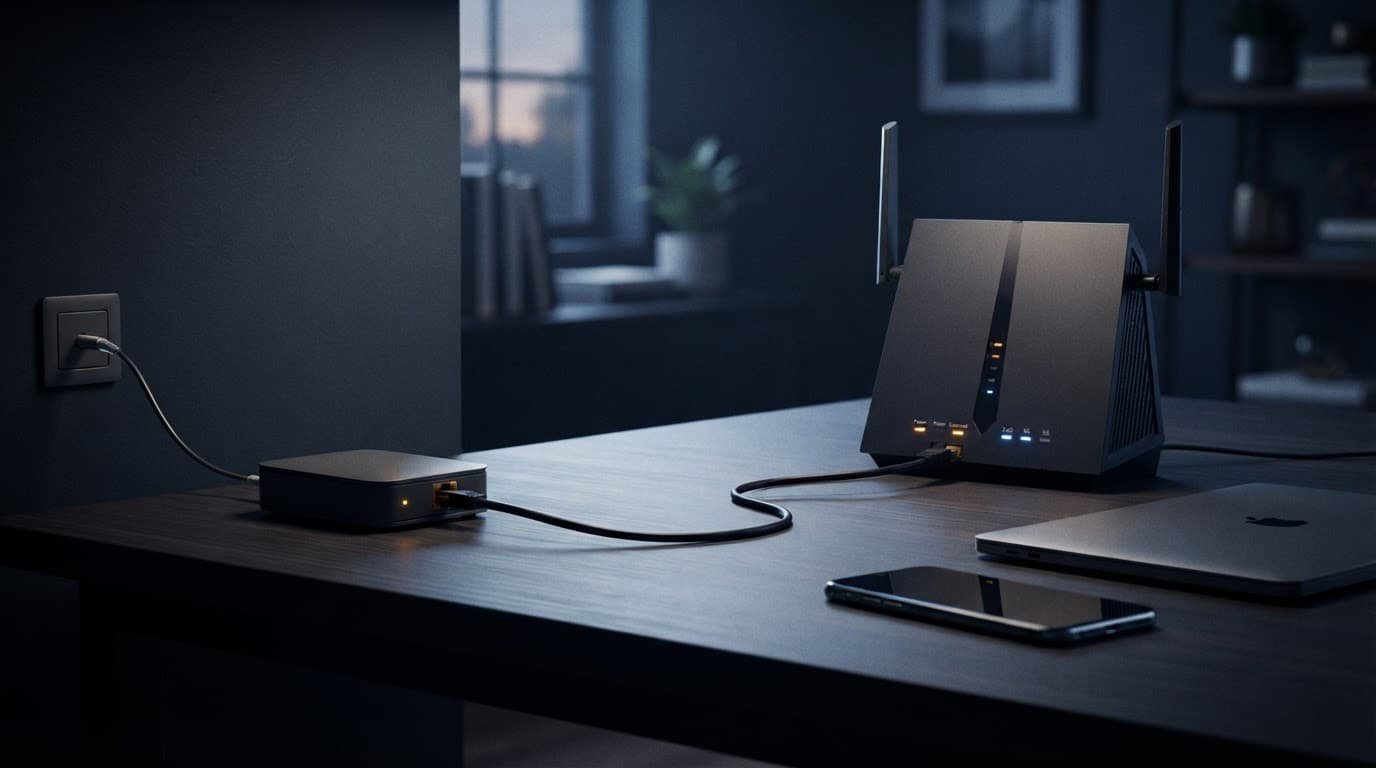
If you want stronger Wi-Fi, put that gateway into bridge mode if supported, then let the Netgear router manage your home network.
Netgear Routers for CenturyLink Fiber
Fiber internet is simpler in one way. The ONT handles the modem job, so you don’t need the earlier type of modem-router combination. You need a standalone Netgear router with a usable Ethernet WAN port.
For a typical 300 Mbps, 500 Mbps, or 1 Gig fiber plan, a Wi-Fi 6 gateway, Wi-Fi 7 model, or dual-band gigabit router can be practical. The current Netgear Nighthawk Nighthawk RS100 is one example. It has a 2.5 Gig Internet port and coverage rated for up to 2,000 square feet.
A multi-gig port only helps when the ONT, plan, Ethernet cable, and connected device support faster speeds. It won’t make a 500 Mbps plan faster, and it won’t repair a weak signal through thick walls.

Photo by Pascal 📷
CenturyLink compatible routers for fiber need the right WAN settings and enough coverage. You don’t need a specialized Wi-Fi 6 gateway such as the GreenWave C4000LG just because you have fast internet. The GreenWave C4000LG is provider hardware, while that Netgear Nighthawk is useful when its speed and coverage fit your home. A single router works well in many small and mid-sized homes; choose mesh Wi-Fi for multiple floors, thick walls, or distant dead zones.
Set Up a Netgear Router Without Guessing
Don’t start by unplugging your old CenturyLink modem or fiber gateway. First, log in to the existing equipment’s web interface and write down the settings that make the connection work.
For many legacy CenturyLink setups, record the PPPoE username, password, and VLAN ID 201 from the CenturyLink modem. A VDSL2 modem or ADSL2+ modem may use PPPoE; some Quantum Fiber installations use DHCP/IPoE behind a provider device. These settings, including VLAN tagging, depend on the provider setup, not the Netgear model. Bonded VDSL2 needs separate handling, so confirm the details with support.
Use this order for a cleaner setup:
- Take photos of the current WAN page, including the connection type and VLAN settings. Record the exact line-equipment type, such as a VDSL2 modem or ADSL2+ modem.
- Connect a laptop to the Netgear router with Ethernet for the first setup.
- Connect the Netgear router’s WAN port to the DSL modem for bridged DSL, or connect the ONT to the WAN port for fiber. With a bridged VDSL2 modem, use its Ethernet handoff.
- Enter PPPoE details only if required, then add VLAN tagging only if the provider setup requires it.
- Test a wired connection first, then set your Wi-Fi name, password, and security options.
Don’t try to upload a full network configuration backup from a Zyxel, GreenWave C4000LG, or Actiontec gateway into a Netgear router. Those files are usually model-specific. Copy the useful details manually instead: PPPoE credentials, VLAN information, DNS values, and custom IP reservations.
For placement, keep the router in an open and central spot. Avoid cabinets, floor-level shelves, large metal objects, and the far corner of a basement. Router placement often matters more to your home network than moving from Wi-Fi 6 to Wi-Fi 7.
For more everyday setup help, browse the RouterForMyISP setup guide.
Used Modems, Support, and Rental Savings
A used Zyxel C3000Z can be tempting, especially when priced far below a new CenturyLink modem. Treat second-hand equipment carefully, and ask the seller whether it was factory-reset, fully paid off, and removed from the previous account. An Actiontec C3000A may appear in listings too, so choose one with returns and test it right away.
Used equipment is less appealing when you have bonded DSL or recurring line problems. A provider-supported VDSL2 modem often makes troubleshooting easier when the copper line or service is unreliable.
CenturyLink can usually test the line, ONT, or outage status even when you own a CenturyLink modem. Support may stop at the provider’s wireless gateway when the problem involves third-party network configuration, and tech support may not troubleshoot an unsupported VDSL2 modem. Keep your old gateway available until the new router has worked for several days.
Rental savings also need a quick reality check. A standalone Netgear router does not remove the monthly rental fee if provider equipment must remain connected. A compatible modem router combo may replace both devices. Check your bill, identify the exact equipment charge, and multiply it by 12 before deciding what you can save.
If your equipment fee is $15 per month, that is $180 in potential annual savings. Divide the total hardware cost for a modem replacement and router by that annual amount to estimate payback. Include a VDSL2 modem if your setup needs one, and don’t assume every setup will save money.
Frequently Asked Questions
Can I use any Netgear router with CenturyLink DSL?
No. A standard Netgear router does not contain a DSL modem, so it cannot connect directly to a phone jack. You need a compatible ADSL2+ or VDSL2 modem, or a Netgear DSL modem-router that matches your line type.
Can a Netgear router replace a bonded VDSL2 modem?
Usually not. Bonded VDSL2 requires equipment that supports two DSL lines, while models such as the D7000 are designed for single-line service. Keep a compatible CenturyLink gateway or bonded DSL modem in place and connect the Netgear router after it.
Which Netgear router works with CenturyLink fiber?
Most standalone Netgear routers with an Ethernet WAN port can work with fiber when connected to the ONT or fiber gateway. You may also need the correct DHCP/IPoE, PPPoE, or VLAN settings for your provider installation.
Should I use bridge mode with my CenturyLink gateway?
Bridge mode can let the Netgear router manage your home network while the provider device handles the DSL or fiber handoff. If bridge mode is unavailable, access point mode can reduce network conflicts, although the provider gateway may continue handling routing.
Will a newer Netgear router eliminate my equipment rental fee?
Not always. A standalone router does not remove the charge when a provider modem, ONT, or gateway must remain installed. Check the bill and confirm whether compatible line equipment can be replaced before calculating your annual savings.
Choose the Setup That Fits Your Connection
The best CenturyLink setup isn’t always the newest Netgear router. A dual-band gigabit model may suit a smaller setup, but DSL customers still need the right modem technology, especially on bonded DSL plans. Fiber customers need an Ethernet-WAN router and correct account settings.
Buy for your real plan, home network layout, and equipment already installed. A Wi-Fi 6 gateway or Netgear Nighthawk may fit fiber setups; a hardware upgrade can improve coverage and usability. Compatible hardware keeps the connection stable, while better Wi-Fi improves usability without replacing correct DSL equipment.