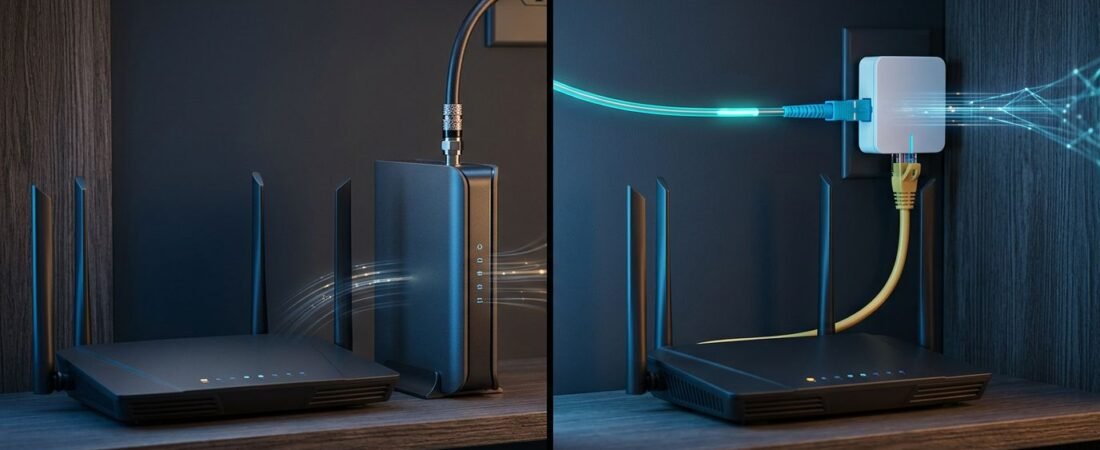
Your Wi-Fi can be slow even when your Optimum connection is working properly. The issue is often a rented gateway with weak coverage or limited settings.
If you’re searching for a setup that works with Optimum Internet, the short answer is yes. A Netgear router can work with the service, but cable and fiber connections require different equipment. Start by identifying the type of internet connection entering your home.
Once you know that, choosing and connecting the right equipment is much easier.
This post may contain affiliate links. If you make a purchase through these links, I may earn a small commission at no extra cost to you.
Key Takeaways
- Netgear routers work with Optimum, but cable and fiber plans require different upstream equipment.
- Optimum cable customers need an approved DOCSIS 3.1 modem or can keep the provider gateway. Optimum Fiber customers need the fiber terminal or gateway and an Ethernet-ready router.
- Bridge Mode gives the Netgear router full control, while Access Point Mode is the better choice when the Optimum gateway cannot be bridged.
- Check Optimum’s current certified modem list before buying cable hardware, and activate your own modem with Optimum after installation.
- For slow Wi-Fi, test the connection over Ethernet first, then check router placement, firmware, and mesh satellite positioning.
Netgear Router Optimum Compatibility Starts With Your Service Type
Most Netgear routers work with Optimum Internet because they connect through Ethernet. The key question is what sits between the router and the internet line.
A wireless router creates your home network. It handles Wi-Fi, connected devices, parental controls, and network settings. A modem brings cable internet into the home. An Optimum Gateway combines both jobs in one device.
Optimum Cable Internet Needs a Modem
If your Optimum service uses a coax cable that screws into a modem or gateway, you have cable internet. A standalone Netgear router cannot connect directly to that coaxial connection.
You have two workable options. Keep the gateway and connect a separate router or mesh system to it. Or, replace the gateway with your own approved DOCSIS 3.1 modem and separate router.
Optimum states that customers can use their own DOCSIS-certified modem for its internet plans. Check the current Optimum certified modem list before buying anything. The provider also says customers must call 877.694.9474 to activate their own modem.
DOCSIS 3.1 is the safe starting point for new cable hardware. Older DOCSIS 2.0 hardware isn’t accepted, and older DOCSIS 3.0 models may limit your upgrade options.
Optimum Fiber Internet Does Not Use a Cable Modem
Optimum Fiber Internet uses fiber equipment, not a DOCSIS modem. Do not buy a modem for cable service for a fiber plan, even if it supports fast speeds.
Your Optimum fiber terminal or gateway provides an Ethernet connection. A router or mesh system can connect to that Ethernet port through its WAN or Internet port.
For a 1 Gig plan, choose equipment that supports Gigabit speeds and has Gigabit Ethernet ports. For multi-gig service, look for a router with a 2.5 Gig WAN port and wired devices that can also support those speeds.
A DOCSIS 3.1 modem is for cable internet only. It cannot replace Optimum fiber equipment.
Choose the Right Netgear Equipment for Your Home
The right setup depends on your Optimum Internet service type, plan speed, home size, and how much control you want over the network.
| Your Situation | Equipment That Fits | Equipment to Avoid |
|---|---|---|
| Want to keep the Optimum Gateway? | A Netgear Nighthawk wireless router | A second modem |
| Want to own hardware for cable service? | An approved DOCSIS 3.1 modem plus a separate router | Any modem not on Optimum’s list |
| Use Optimum Fiber? | A Netgear router or Orbi system with Ethernet WAN | A DOCSIS modem |
| Need better coverage in a large home? | Netgear Orbi and other mesh Wi-Fi systems | One basic router in a large home |
A separate modem and wireless router usually give you more flexibility, including more LAN ports for wired devices. You can replace the router later for better Wi-Fi without changing the modem. Separate devices also make troubleshooting easier because each one has a specific job.
A modem-router combo is simpler and uses one outlet. Netgear’s CAX30 is a DOCSIS 3.1 Wi-Fi 6 combo designed for cable plans up to 2 Gbps. The higher-end CAX80 is also a DOCSIS 3.1 modem-router combo with strong wireless performance. Check Optimum approval before ordering either one.
For a separate modem, the Netgear CM3000 is a current multi-gig DOCSIS 3.1 model with a 2.5 Gig Ethernet port. The CM2500 is another multi-gig option. These modem-only devices still need a router.
A new router may be worth it if you have frequent dropouts, slow Wi-Fi in parts of the house, limited Ethernet ports, or an older Wi-Fi 5 model. Wi-Fi 6 is a practical upgrade for busy homes with phones, TVs, cameras, laptops, and smart home devices. Multi-band WiFi can help distribute those connections more efficiently. Compare options in these home internet router buying guides before choosing based on price alone.
Set Up a Netgear Router With an Optimum Gateway
Keeping the provider gateway is usually the easiest path because it avoids modem activation. The Netgear unit can improve coverage, serve as the home’s wireless router, and provide access to router settings.
Start with a direct setup, then decide whether bridging the gateway makes sense.
- Confirm that the provider gateway has an active internet connection before adding the Netgear router. Use a wired laptop if possible.
- Connect an Ethernet cable from a LAN port on the provider gateway to the yellow Internet or WAN port on the Netgear router.
- Turn on the gateway first, then power on the Netgear router. Wait until both devices finish starting.
- Use the Netgear Nighthawk app or the router’s browser setup page to create a network name, set a strong Wi-Fi password, and install available firmware updates.
- Test a wired device first. Then test Wi-Fi near the router before judging coverage in other rooms.
Use bridge mode for Full Router Control
In bridge mode, the provider gateway acts as a modem-only connection. The Netgear router becomes the only device handling Wi-Fi, DHCP, port forwarding, and most network settings.
This is usually the better setup if you want to use Netgear parental controls, gaming features, custom DNS settings, or remote access. Some gateways have provider-managed settings, so you may need to contact Optimum support to ask whether bridging is available for your equipment.
After bridging is active, connect the gateway’s active Ethernet port to the Netgear router’s WAN port. Leave the Netgear router in normal Router Mode.
Two active routers can create double NAT. It may not hurt basic browsing, but it can cause problems with gaming, port forwarding, VPN access, and some security cameras.
Use Access Point Mode When Bridge Mode Is Not Available
If Optimum cannot bridge the gateway, set the Netgear router to Access Point Mode instead. The gateway remains the router and handles DHCP, port forwarding, and other controls. The Netgear unit provides stronger Wi-Fi coverage and extra wired connections.
In the Netgear settings, look for Access Point Mode under Advanced Setup. Follow the on-screen Ethernet port instructions for your model, then make other main changes on the gateway.
Netgear Orbi mesh Wi-Fi systems work the same way. Use Router Mode behind a bridged gateway so Orbi handles routing. Choose Access Point Mode when the gateway remains active, so it handles routing while Orbi provides Wi-Fi.
Replacing the Gateway With Your Own Netgear Cable Modem
This option only applies to Optimum cable customers. It can reduce equipment rental costs and gives you complete control over your router choice.
First, verify the exact model of a compatible modem on Optimum’s approved list. Certification can change by market and service tier. A modem that works for one cable provider isn’t automatically ready for Optimum activation.
Then follow this order:
- Disconnect the rental gateway only after your new unit is ready.
- Connect the coaxial cable from the wall to the new Netgear unit. Power it on and wait for the connection lights to stabilize.
- Call Optimum support to activate the unit. Have the model number, serial number, and MAC ID, sometimes labeled a MAC address, ready.
- Connect the unit’s Ethernet port to the WAN port on your Netgear router. Complete the router setup after the modem is online.
If activation fails, contact tech support before changing your equipment.
Netgear’s own cable modem-router setup instructions also recommend providing the ISP with the model number, serial number, and MAC address during activation.
The older Netgear Nighthawk CM1200 is a modem-only product. It needs a separate wireless router. A combo unit, such as the CAX30 or CAX80, handles both the modem and router jobs.
If you have Optimum phone service, confirm voice support before replacing the gateway. Many retail units don’t support provider-bundled voice service. An independent Optimum modem list can help you compare older Netgear models, but Optimum’s official list remains the final authority for DOCSIS-certified hardware.
Fix Slow Speeds and Wi-Fi Problems After Setup
After installation, test your Optimum Internet connection with a computer connected by Ethernet. If the Internet speed is close to your plan, the connection is likely fine. The issue may be your wireless router’s coverage, device limits, or placement.
Place the main router or Orbi unit in an open, central area. Keep it away from enclosed cabinets, thick walls, large metal objects, and the floor. Put Orbi satellites between the main router and weak rooms, not at the far edge of the weak area. Review Multi-band WiFi settings when congestion affects WiFi reception.
Restart in the right order when the connection drops. Power on the modem or gateway first, wait for it to reconnect, then restart the Netgear router. Check for Netgear firmware updates after service changes. If placement, rebooting, and firmware updates do not resolve persistent activation or service problems, contact tech support.
Provider gateway settings can also be limited. A community discussion from Optimum customers shows why many people prefer a separate router for more control. Treat forum reports as personal experience, not as Optimum’s official approval information.
Frequently Asked Questions
Can I use a Netgear router with Optimum?
Yes, most Netgear routers work with Optimum through an Ethernet WAN connection. Cable customers still need an approved modem or an Optimum gateway, while fiber customers use the provider’s fiber equipment.
Do I need a Netgear modem for Optimum cable internet?
No, you can connect a Netgear router to the Optimum Gateway and use the gateway for the modem connection. If you want to replace the gateway, choose a DOCSIS 3.1 modem from Optimum’s current approved list and activate it with Optimum.
Can I use a Netgear router with Optimum Fiber?
Yes, connect the router’s WAN or Internet port to the Ethernet port on the Optimum fiber terminal or gateway. A DOCSIS cable modem is not compatible with an Optimum Fiber plan.
Should I use Bridge Mode or Access Point Mode?
Use Bridge Mode when you want the Netgear router to handle routing, DHCP, port forwarding, and other network settings. Use Access Point Mode when the Optimum gateway must remain the main router and you only want better Wi-Fi coverage.
Why is my Netgear Wi-Fi slow after connecting it to Optimum?
Test a wired device first to determine whether the Optimum connection is delivering the expected speed. If wired speeds are normal, improve router placement, update the firmware, and position Orbi satellites between the main router and weak coverage areas.
Final Thoughts
Optimum Internet works with a Netgear router when it connects to the right upstream equipment. Cable customers need approved DOCSIS hardware or the provider gateway. Fiber users need provider equipment and an Ethernet-ready router.
The most reliable setup is simple: use a bridged setup for full Netgear control, or let the provider gateway manage the connection. The right connection type matters more than the router model name.