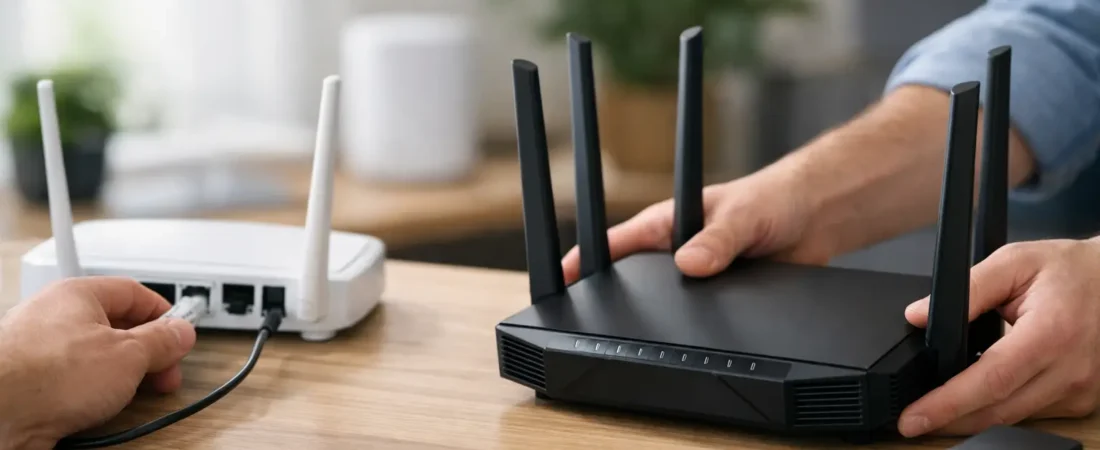
Your monthly bill says one thing, but your Wi-Fi says another. If you’re paying rental fees for an ISP gateway that barely reaches the back bedroom or slows down when everyone starts streaming, learning how to replace ISP router equipment can save money and improve performance at the same time.
The catch is that not every provider setup works the same way. With cable internet, replacing the router is usually straightforward. With fiber, DSL, or bundled phone service, the answer depends on what your ISP requires and whether the box they gave you is doing more than one job.
Before you replace ISP router equipment
Start by figuring out what your ISP device actually is. Many households call it a router, but in practice it might be a modem-router combo, a fiber gateway, or an ONT plus router setup. That matters because you may be able to replace only the router portion, not the entire unit.
If you have Xfinity, Spectrum, Cox, or another cable provider, you may be using a gateway that combines modem and router functions in one box. In that case, you have two common options. You can replace everything with your own compatible cable modem and separate router, or you can keep the ISP gateway and switch it into bridge mode so your own router handles Wi-Fi and routing.
If you have Verizon Fios, AT&T Fiber, or another fiber service, the ISP often uses separate network equipment upstream. That usually means you can replace the router more easily than the modem side, because there may not be a traditional modem in your home at all. Still, some fiber providers tie TV features, phone service, or authentication to their gateway, so full replacement is not always clean.
This is the first big rule: do not buy hardware until you confirm what your provider allows. A better router is only better if it actually works with your internet service.
What you need to check first
The practical way to approach this is to answer three questions.
First, does your ISP allow customer-owned equipment? Cable providers usually do, but they often maintain an approved modem list. Router choice is broader, but if you’re replacing a combo unit with your own modem and router, the modem has to be compatible with your speed tier and provider.
Second, do you have internet only, or do you also have TV and home phone? Bundled services can complicate replacement. Some ISP gateways support voice lines or set-top box features that a retail router cannot replace. In that case, the smarter move may be to keep part of the ISP equipment and improve your network with your own router or mesh system.
Third, what problem are you trying to fix? If your issue is weak Wi-Fi coverage, a new router or mesh setup can help a lot. If your issue is slow speeds caused by an old cable modem, replacing only the router may not solve much. Matching the fix to the actual problem keeps you from buying the wrong gear.
How to replace ISP router hardware without breaking your setup
For most households, there are really two replacement paths.
Option 1: Replace only the router
This is usually the safest path. You keep the ISP modem, gateway, or ONT connection in place, and you connect your own router to it. If the ISP device includes routing and Wi-Fi, you may need to enable bridge mode so it stops acting like a router and lets your new router take over.
This approach works well for people who want better Wi-Fi, more stable streaming, stronger coverage for work-from-home devices, or more control over their network settings. It also reduces the chance of activation problems because the ISP still recognizes its own internet-facing equipment.
The trade-off is that you may still pay a rental fee if the provider requires you to keep its gateway for certain services.
Option 2: Replace the entire ISP box
This makes the most sense with cable internet when you have internet-only service and your provider supports customer-owned modems. You buy a compatible modem and pair it with your own router. That can eliminate rental fees completely and gives you more freedom to choose better hardware.
The trade-off is responsibility. You’ll need to confirm compatibility, activate the modem with your ISP, and troubleshoot your own setup if something goes wrong. For many households, that’s still worth it, especially if the rental fee adds up year after year.
The basic setup process
Once you know which path you’re taking, the actual replacement is not complicated.
If you’re replacing only the router, connect an Ethernet cable from the ISP modem or gateway to the WAN or Internet port on your new router. Power everything on, then use the router app or web setup page to create your Wi-Fi network name and password. If needed, log into the ISP gateway and turn on bridge mode so you don’t end up with double NAT, which can cause issues with gaming, VPNs, and some smart home devices.
If you’re replacing the entire cable gateway, disconnect the ISP unit and connect the coax cable to your new modem. Then connect the modem to your router with Ethernet. Power on the modem first, wait for it to come online, and then activate it using your ISP’s process, which may happen in an app, a browser, or through customer support. After the modem is active, set up the router.
Use the same Wi-Fi name and password as your old network if you want phones, TVs, cameras, and smart plugs to reconnect automatically. That’s a simple trick that saves a lot of time.
Common issues people run into
The most common mistake is assuming every ISP device can be fully replaced. That is not always true, especially with fiber and bundled services. If your home phone plugs into the ISP gateway, or your TV system depends on provider-specific hardware, removing the box completely may create more headaches than savings.
Another common issue is double NAT. This happens when both the ISP gateway and your new router are trying to route traffic. Your internet may still work, but some apps and devices behave poorly. Bridge mode usually fixes this.
Speed mismatches are also common. A household with a gigabit plan can end up disappointed if they buy an older modem or a low-end router that cannot keep up. The label on the box matters less than real-world fit. If you have a larger home, lots of streaming, or several work devices, a stronger router or mesh system is often the better investment than chasing theoretical peak speed.
Placement matters too. People replace the router, leave it in the same bad corner of the house, and expect miracles. Better hardware helps, but location still affects coverage.
Should you use a router or a mesh system?
If your home is modest in size and your current problem is mainly that the ISP router is weak or outdated, a good standalone router may be enough. It is often the better value for apartments, smaller houses, and households that want solid performance without overcomplicating things.
If you have multiple floors, dead zones, or a lot of devices spread across the house, mesh is usually the better fit. It costs more, but it solves the problem many ISP gateways never handle well: consistent coverage beyond the room where the box sits.
This is where shoppers often get stuck. They think replacing the ISP router means buying the most expensive router available. Usually, the smarter move is buying the right category of hardware for your layout and provider.
When keeping part of the ISP setup makes sense
There is no prize for removing every piece of provider equipment. Sometimes the best setup is to keep the ISP modem or fiber handoff, disable its Wi-Fi functions, and let your own router do the work that actually affects your daily experience.
That hybrid setup is especially practical if your provider’s equipment handles phone service, requires a gateway for authentication, or makes support easier when there’s an outage. You still gain better Wi-Fi and more control without turning a simple upgrade into a weekend project.
For many households, that is the sweet spot: fewer rental frustrations, better coverage, and less compatibility risk.
Is replacing your ISP router worth it?
Usually, yes, if your current equipment is costing you money or holding back your home network. The value is strongest when you have poor Wi-Fi, too many dead spots, or ongoing rental fees. It is less compelling if your ISP equipment already performs well, your home is small, and you do not mind the monthly charge.
If you’re not sure how to replace ISP router hardware in your home, make the decision in this order: confirm ISP compatibility, decide whether you’re replacing only the router or the full gateway, and choose hardware based on your home’s coverage needs, not marketing claims. That keeps the process simple and helps you spend money where it actually shows up – on better internet where you live, work, and stream.